Documents and data
Export spreadsheets to CSV for integrations: separators, dates, and fields that must not break
A practical guide to preparing an editable sheet, converting it into a CSV consumable by external systems, and retaining control over versions, testing, and delivery.
The problem: a sheet that works for humans can fail for machines
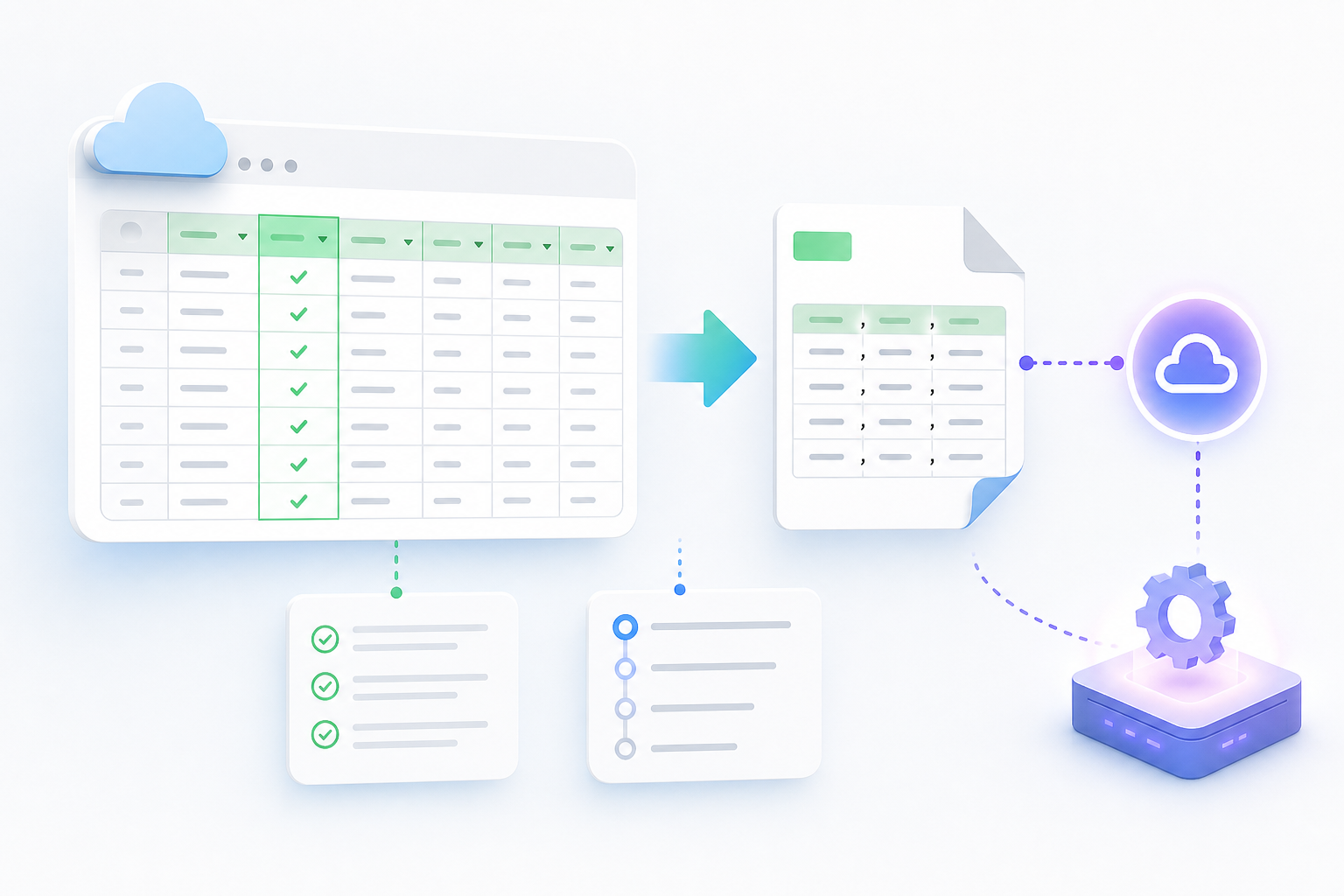
Exporting a spreadsheet to CSV for integrations seems like a simple task until the receiving system rejects the file or, worse, accepts it with misinterpreted data. CSV was documented as an interchange format between spreadsheet programs and is registered as text/csv, but it does not automatically turn a human-readable table into a data contract. A sheet may look tidy and still contain empty rows, changing headers, ambiguous dates, or altered identifiers.
The difference is that a person tolerates visual context, formats, and exceptions, while an import, automation, or API expects consistent rules. According to RFC 4180, if there is a header, it must correspond to the fields and contain the same number of fields as the rest of the records. Order also matters: the W3C tabular model considers the order of columns and rows significant, so it is not advisable to reorganize a sheet just before delivery without warning.
- Treat the CSV as an operational contract, not as a simple download.
- Do not change headers, column order, or critical formats without communicating it.
- Validate that every row has the same number of fields before importing.

What to check before exporting: structure, required fields, and duplicates
Before generating the CSV, review the editable sheet as if it were the master source. The first check is the header: stable, unique names, no unnecessary helper columns, and alignment with what the external system expects. If a column was named email in a previous import, changing it to e_mail can break a process even if the content is identical. Semantic consistency is just as important as visual consistency.
The second review concerns row quality. The W3C model allows columns to be described with annotations such as name, datatype, null, required, and separator; in particular, required indicates that a column must not contain empty values. It also defines primary keys to uniquely identify a row and records an error when more than one row shares that key. In practice, it is best to decide which field identifies each record and look for duplicates before exporting.
- Confirm which columns are required and do not allow empty cells in them.
- Remove or separate completely empty rows before creating the CSV.
- Define a control key, such as customer_id or sku, and check for duplicates.
- Convert or document calculated fields before delivering the file.

Sensitive fields: identifiers, dates, decimals, and codes
The most costly errors usually appear in fields that a spreadsheet tries to interpret. Identifiers, postal codes, SKUs, order numbers, or accounts may include leading zeros or characters that must not be converted into numbers. If the external system expects text, it is best to treat those fields as text in the editable sheet and verify the resulting CSV by opening it as plain text or through a controlled import, not only with an automatic spreadsheet view.
Dates, times, decimals, currencies, and percentages require an explicit rule. W3C allows decimalChar and groupChar to be documented; by default, the decimal character is a period and the group separator is null. For dates and times, it recommends using documented formats for interoperability. If a sheet mixes 01/02/2026 with 2026-02-01 or combines decimal commas and decimal points, the problem is not cosmetic: the receiver may read values differently from what was intended.
- Mark identifiers that cannot be reinterpreted as text.
- Avoid thousands separators if the receiving system does not expect them.
- Use a single date and time format throughout the column.
- Do not mix currencies or symbols within a numeric column intended for import.
Separator, quotes, line breaks, and encoding
CSV is not just “comma-separated values” in an operational sense. RFC 4180 describes fields separated by commas, lines with the same number of fields, spaces that are part of the field, and no comma after the last field. In addition, fields containing line breaks, double quotes, or commas must be enclosed in double quotes, and an internal quote is escaped by doubling it. These details prevent a description with a comma from splitting a row into false columns.
The W3C CSV on the Web specification treats the delimiter, encoding, quote character, quote escaping, line terminators, and blank rows as documentable properties of the CSV dialect. Its default value for encoding is utf-8 and for the delimiter it is the comma. ONLYOFFICE also recommends Unicode UTF-8 and comma when creating CSV files to avoid loading or display problems in a CRM. If the receiver requires a semicolon, document it.
- Document the delimiter, encoding, quote character, and line terminators.
- Use UTF-8 unless the receiving system requests another encoding.
- Test fields with commas, quotes, and line breaks before delivery.
- Do not add a comma at the end of each record.
Recommended flow in Apification: editable file, transformation, and history
A robust flow starts by keeping the editable sheet inside Apification Cloud, in an organized and versioned space designed for sharing files, services, and digital projects. There, the team can work on the source and avoid multiple scattered copies. With sheet editing through ONLYOFFICE inside Cloud storage, it is possible to review content, adjust headers, and prepare the table without taking the file out of its collaboration context.
Once the structure is approved, generate the CSV version with Apification’s file transformation assistant, which allows documents, images, video, audio, and data to be converted and processed through a guided flow. The operational advantage is not only the conversion, but also the separation between the editable source and the consumable output. If something breaks, Cloud item history lets you review versions, download previous versions, and safely restore content.
- Keep an editable sheet as the master source.
- Generate the CSV as a derivative, not as the only valid file.
- Use history to compare, download, or restore if an export introduces errors.
- Assign appropriate permissions before sharing the editable file or the CSV.
How to test the CSV before using it in an integration
Do not test with the full file for the first time if the receiver allows a sample. Create a reduced sample that includes normal cases and difficult cases: an identifier with a leading zero, a description with a comma, a cell with quotes, a date, a decimal, and a row with all required fields. The sample must keep the same headers and the same order as the final file; otherwise, the test does not validate the real contract.
After importing the sample, compare it against the original sheet. Count columns, accepted rows, and rejected records. Check that sensitive values have not changed: codes, dates, times, decimals, and text fields with line breaks. If the system returns errors, correct the editable source and generate a new CSV instead of manually editing the derivative. This prevents the approved CSV from becoming impossible to reproduce.
- First test a representative sample, not just the first five rows.
- Check the column count and correspondence with headers.
- Compare imported values against the original sheet.
- Record which CSV dialect worked so it can be repeated in future deliveries.
Delivery and collaboration: editable file, CSV, or both
The decision to deliver the editable sheet, the CSV, or both depends on who will perform the next step. If a business user needs to review data, comment on changes, or correct content, the editable file is more useful. If an external system is going to import, automate, or consume data, the CSV must be the controlled output. Delivering both is appropriate when transparency is needed: the sheet explains the origin and the CSV represents the exact format sent to the integration.
Apification allows items to be shared through links, users, or groups and offers original or transformed downloads. This helps separate responsibilities: the review team can access the editable file, while the integrator receives the generated CSV. When access restrictions exist, Apification also provides permissions, OTP, external authentication, restrictions, and publication windows. The practical rule is simple: share only what each role needs and keep the history.
- Deliver the editable file to whoever needs to review or correct data.
- Deliver the CSV to whoever needs to import or automate.
- Deliver both if traceability between source and output is needed.
- Avoid sending copies through different channels without identifying which one is current.
Common errors and decision criteria
A common failure is exporting formulas when the system expects values. LibreOffice documents that it can export formulas as formulas if the corresponding option is selected, and that this option must not be selected to export calculated results. Another frequent problem is trusting the appearance of the sheet without checking the exported data. Appearance does not always equal correct data.
As a decision criterion, keep the file editable while there is human review, structural change, or discussion about business rules. Generate CSV when the headers, required fields, formats, and dialect are finalized. Deliver both when someone needs to audit the relationship between source and output. Do not overwrite the only valid file: keep the source, produce derivatives, and use versions. This habit reduces the cost of recovery when a column changes, a separator is confused, or a date is interpreted the wrong way around.
- Do not manually edit the final CSV if the source sheet is still changing.
- Do not change column names without updating the integration.
- Do not mix regional formats within the same column.
- Do not overwrite the only approved copy; keep history and versions.
Frequently asked questions
When is it best to keep only the editable sheet and not generate the CSV yet?
While there is human review, structural change, uncertainty about required columns, or data corrections. The CSV should be generated when the source is already stable.
Which separator should I use when exporting a CSV for integrations?
RFC 4180 describes CSV with commas and W3C uses the comma as the default delimiter. ONLYOFFICE recommends comma with UTF-8. If the receiving system requires another separator, document it and test it.
Why do leading zeros break in identifiers?
Because some tools reinterpret codes as numbers. To prevent this, treat identifiers, SKUs, and codes as text and verify the result in the test import.
Should I deliver the CSV, the editable sheet, or both?
Deliver the editable file for review, the CSV for import or automation, and both if traceability between the source and the consumed file is needed.
How does Apification help in this flow?
Apification lets you keep the sheet in Cloud, edit it with ONLYOFFICE, generate derivatives through guided transformation, share files, and use history to download or restore versions.
Sources and further reading
Documentation consulted while preparing this article.
- RFC 4180 - Common Format and MIME Type for CSV Files — IETF Datatracker
- Model for Tabular Data and Metadata on the Web — W3C
- Importing and Exporting CSV Text Files with Formulas — LibreOffice Help
- Creating CSV files — ONLYOFFICE Help Center
- Managing versions and revisions — ONLYOFFICE Help Center
- Spreadsheet — Apification Documentation
- Documents, sheets and presentations — Apification
- File transformer — Apification Documentation
- Save a workbook to text format (.txt or .csv) — Microsoft Support
Explore Apification
Related articles

Documents and data
How to Create Bookmarks in a PDF: Headings, Exporting, and Checks
Plan a clear hierarchy, export the document, and check that every bookmark leads to the right section in the final PDF.
Documents and data
How to Normalize Phone Numbers in a Spreadsheet Before Importing Contacts
Prepare a phone list for import without losing leading zeros, prefixes, or extensions: keep the original, resolve ambiguities, and validate the CSV.

Documents and data
Document Metadata: What to Check Before Sharing a File
A practical guide to reviewing a document, preparing a copy to share, and keeping the editable original separate.