Documents and data
Document Metadata: What to Check Before Sharing a File
A practical guide to reviewing a document, preparing a copy to share, and keeping the editable original separate.

What metadata is and why to review it
Metadata is information that accompanies a file, describes it, and is not visible at a glance. This definition, provided by INCIBE, explains why it is worth reviewing metadata before sending a document: what you see when you open a page does not necessarily represent all the information delivered with the file. Visible content and data that describe or accompany the document are different aspects of the review.
The practical goal is not to delete information blindly, but to decide which version each recipient needs. A team may need to keep an editable file to continue working while also sharing a copy intended for reading or publication. Before taking action, define the audience, the intended use, and what information must remain. If you cannot determine this, pause the send and consult the person responsible for the document.
- Define who will receive the file and how they will use it.
- Separate the goal of sharing from the goal of keeping an editable original.

What to review before preparing a copy
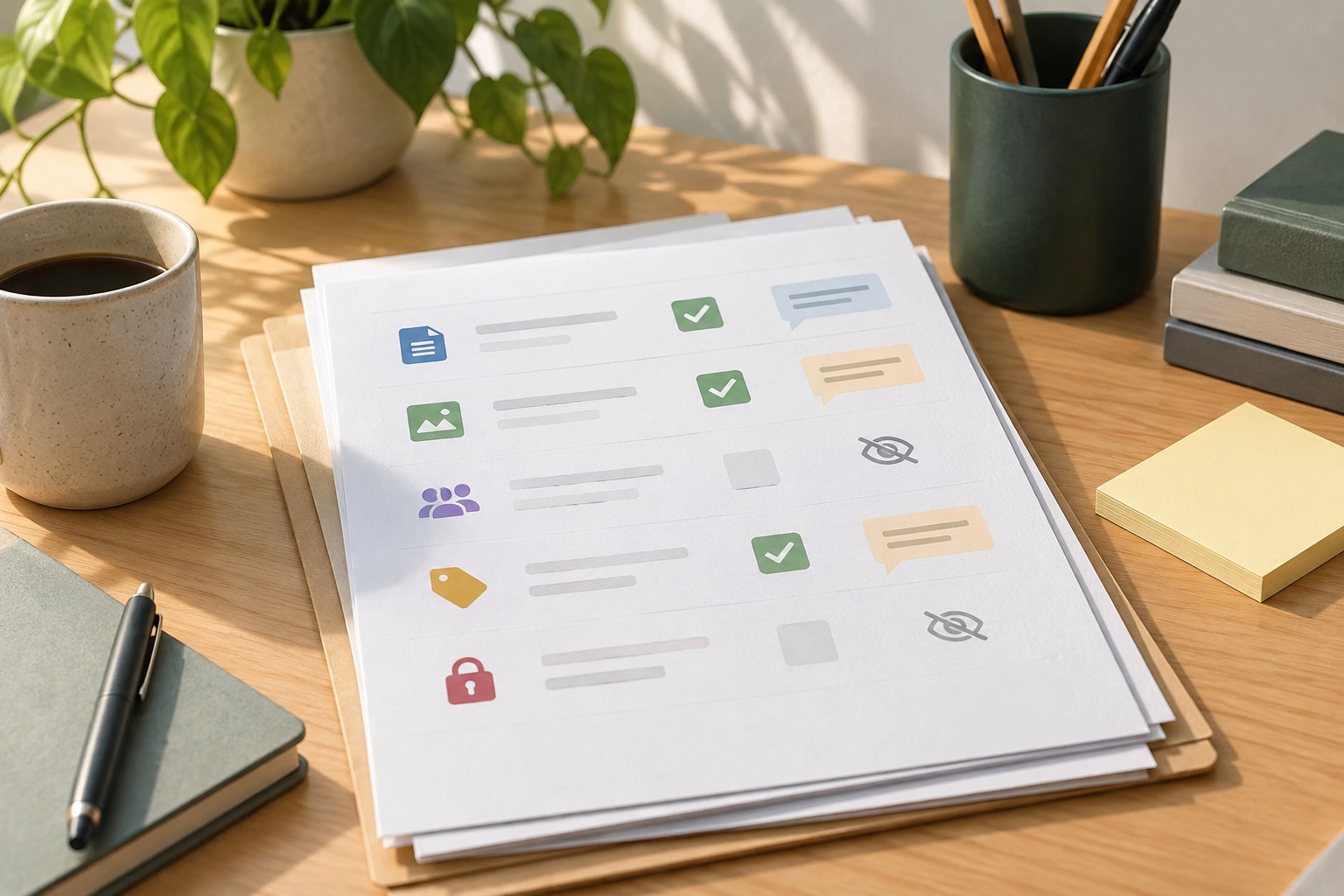
Review the document by category, without assuming that all file formats or editors contain the same elements. Check the properties or descriptive information shown by the tool you are using, and consider whether authorship or other identifying details should accompany the copy. Also review comments, changes, or working annotations if the document was created collaboratively. Their presence, location, and handling depend on the format and the program.
Next, inspect content that may not be visible during a quick read: sections not shown in the usual view, embedded objects, or supporting material related to the document. Do not assume an element is present just because it appears on a checklist, or absent because you cannot see it on the page. If a component is relevant and you do not know how to inspect it, consult the editor's help or request a technical review.
- Properties and authorship information shown by the editor.
- Comments, annotations, and tracked changes.
- Content not visible in the usual view and embedded elements, if any.
Inspect the original and create a working copy
Start by locating the source file and confirming that it is the version you need to prepare. Open the document with the appropriate tool for its format and conduct an initial review without making changes. Note which elements need to be retained for internal work and which should not be included in the external copy. This separation helps prevent a rushed cleanup from changing material the team still needs to edit.
Next, create a working copy with an unambiguous name, for example, “Client_report_reviewed_copy.” Keep the original separate and check that the copy opens before continuing. Do not rely only on names such as “final” or “final2”: agree on a simple convention that identifies the purpose or date. If the tool does not make it clear which file is the source, resolve that uncertainty before removing any content.
- Confirm the source version and open it without starting to make changes.
- Create a separate copy and give it a recognizable name.
- Keep a note of the planned changes and who will review them.
Remove only what should not be shared
Use the options appropriate to the editor or format, and consult its documentation to understand which action affects each category. Do not apply an indiscriminate cleanup: a comment may be necessary for internal use, while the external copy may require different content. Before confirming a change, review what will be removed and whether the action could alter elements the recipient needs. Names and available options can vary between tools.
Work on the copy, save the result, and reopen it to inspect the effect. If the tool offers a specific inspection feature, follow its instructions and record which categories you reviewed. Do not interpret a cleanup notice as proof that all possible information has been removed: verification must match the specific goal and the resulting file. If you are unsure about embedded elements or data you cannot inspect, escalate the review rather than guess.
- Consult the tool's help before using a removal feature.
- Review the scope of the change and keep the original intact.
- Reopen and inspect the copy after saving it.
Exporting to PDF does not replace verification
Converting a document to PDF may be part of the delivery process, but do not treat it as a guarantee that all accompanying data have been removed. The available evidence does not establish what information a particular export will retain or discard: this may depend on the source format, the editor, and the options used. So choose to export based on the delivery need, then check the result instead of inferring its status from the file extension.
Open the exported copy with an appropriate tool and review the document as the recipient will receive it. Check that the expected content displays correctly and that no annotations or elements appear that should not have been shared. If you need to confirm properties that are not visible on the page, use the inspection features available for that PDF and consult its documentation. If you cannot verify an important aspect, do not claim with certainty that the file has been cleaned.
- Verify the resulting PDF, not just the source file.
- Do not assume that changing formats removes every category of data.
- Request an additional review if the tool cannot verify what is needed.
Checklist for validating the final copy
Before sending, perform a brief, repeatable check. Confirm that the copy is intended for the correct recipient, that the name and format are as expected, and that the visible content is complete. Recheck the categories identified at the start: properties shown by the editor, authorship, comments, non-visible content, and embedded elements where applicable. Note anything you could not check rather than turning a partial review into a claim that everything has been removed.
Ask another person to conduct a second read when the document has an external audience or the impact of an error could be high. You can share the intended copy with them so they can confirm it opens and meets the defined use, without accidentally giving them the original. A second review does not replace technical inspection, but it can help catch confusion about the file, recipient, or version. If the copy fails a check, return to the working copy and validate it again.
- Correct recipient, name, format, and visible content.
- Planned categories reviewed and uncertainties documented.
- Final copy reopened and, where appropriate, checked by another person.
Organize the original and copy in Apification Cloud
Apification Cloud lets you manage files in an organized, versioned space designed for sharing. A useful practice is to keep the source file and the prepared copy as distinct items, with names that indicate their function. This helps the team identify which document remains editable and which is intended for a specific delivery. Cloud should not be confused with a metadata detection or removal tool: inspection and cleanup must be carried out with tools appropriate for the file.
Cloud's item history lets you review versions, download earlier versions, and restore content. Before sharing, confirm again which item is intended; then use the available sharing options to distribute it through links, users, or groups. If your workflow requires editing Office documents within the storage space, Apification offers creation and editing with ONLYOFFICE in Cloud. These capabilities help organize work, but do not certify that a copy is free of unwanted data.
- Save the original and reviewed copy as distinguishable files.
- Check the history and selected version before sharing.
- Share only the item intended for that recipient.
Limitations and common mistakes
A review can fall short if it is limited to what appears on screen, if the original is inspected but a different version is sent, or if the source file is changed by mistake. Different tools may also expose different controls. Do not assume that an option with a generic name covers every category or that a conversion always produces the same result. The practical response is to define what you can verify, document the limitation, and avoid absolute promises.
If the information is especially sensitive, the format includes components the team does not know how to inspect, or the requirement calls for a guarantee of removal, do not improvise. Consult the tool's official documentation and, if necessary, ask someone with technical knowledge of the format. Keep the original separate, validate the copy using the available means, and delay sending it if an important question remains unresolved. Version organization helps with management, but does not replace a specific check.
- Do not confuse “not visible” with “not present.”
- Do not infer that converting to another format is the same as cleaning.
- Escalate cases where an important category cannot be verified.
Frequently asked questions
What is document metadata?
It is information that accompanies a file, describes it, and is not visible at a glance. The specific information that may appear depends on the document and the tools used.
Does converting a document to PDF remove its metadata?
Do not assume that it does. The result depends on the format and export options; check the final copy with tools appropriate for the PDF.
Does Apification Cloud detect or remove metadata?
You should not attribute that function to Cloud. Apification Cloud lets you organize files, review versions, and share them; inspection and cleanup require tools appropriate for the format.
Sources and further reading
Documentation consulted while preparing this article.
- Qué son los metadatos y cómo eliminarlos — INCIBE
- Metadatos de documentos explicados — Metadata2Go
Explore Apification
Related articles

Documents and data
Convert PDF to Word: How to Recover an Editable Document and Review the Formatting
Conversion can make editing easier, but it does not guarantee that the layout will stay the same. Learn how to prepare a copy, review the result, and keep the original PDF.
Documents and data
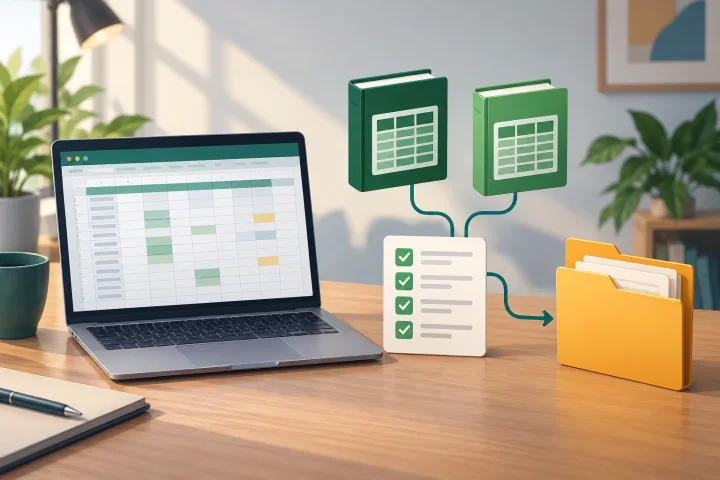
External Links in Excel: Review Dependencies Before Moving or Sharing a Workbook
Before moving a workbook, identify what depends on other files, decide what to include, and test a copy in the planned location.
Documents and data
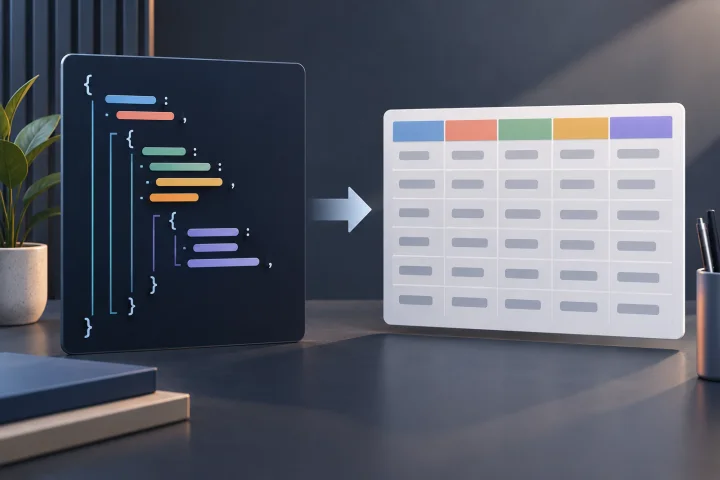
Convert Nested JSON to CSV: Flattening and Array Choices
Learn how to choose record nodes, flatten objects, and define rules for arrays. Follow conceptual examples, compare possible structures, and check the CSV preview.