Documents and data
How to Normalize Phone Numbers in a Spreadsheet Before Importing Contacts
Prepare a phone list for import without losing leading zeros, prefixes, or extensions: keep the original, resolve ambiguities, and validate the CSV.
Set Up the Spreadsheet to Keep Phone Numbers as Text
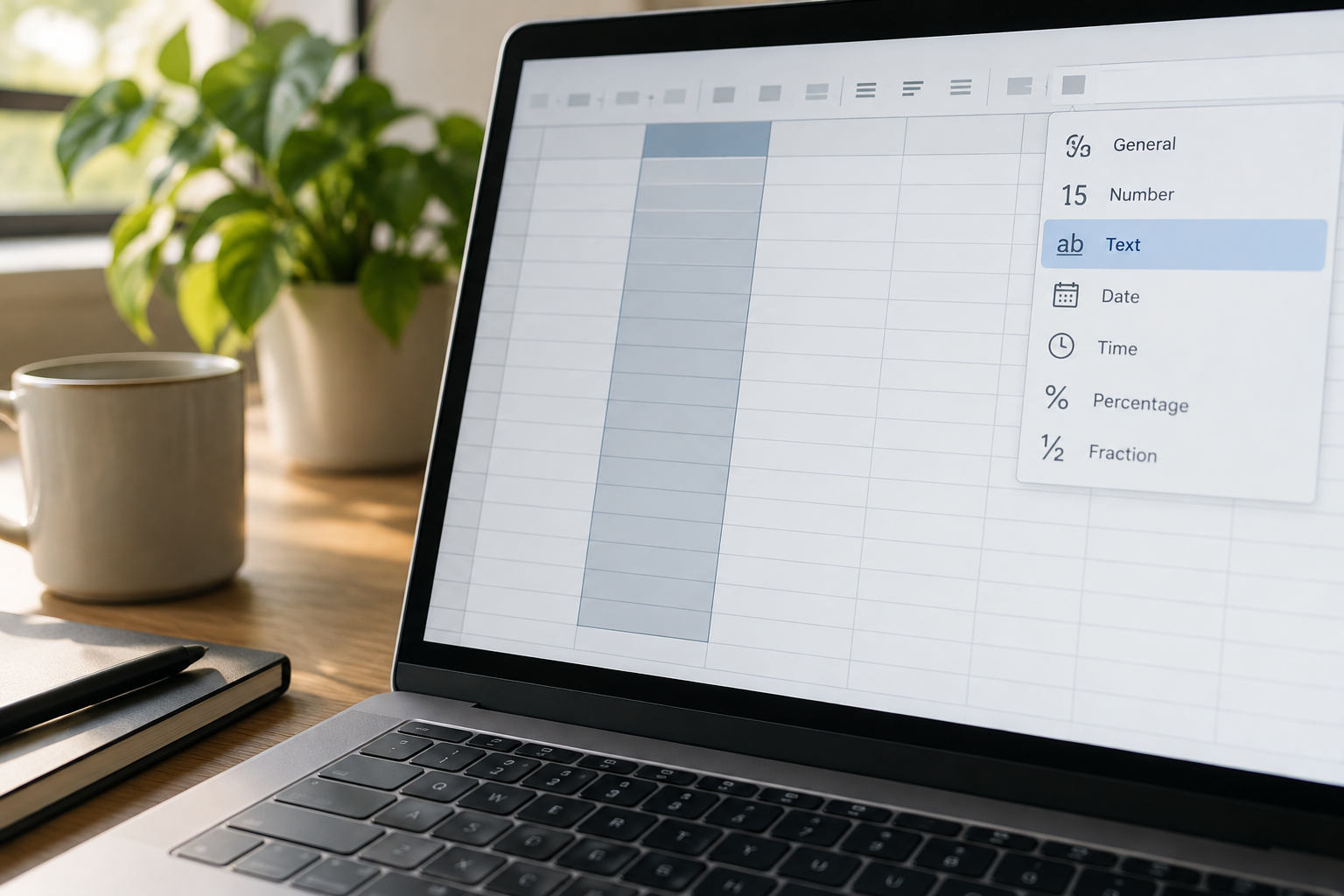
A phone number identifies a way to contact someone; it is not a quantity for arithmetic. If a spreadsheet interprets it as a number, it may remove leading zeros or display the value differently. Changing the visual format later does not guarantee that the original data has been preserved.
Work on a copy of the file. Before pasting or importing phone numbers, select the destination column and set it to text, if your application offers that option. If you import a CSV using a wizard, specify that the phone number column should be treated as text when that option is available. Do not rely only on how the cell looks: compare some values with the source.
If you can already see that zeros have been lost or a number has changed, return to the intact source. Do not try to reconstruct the digits from the altered value unless you have a reliable reference.
- First create a working copy, and keep a column with the unmodified original phone number.
- Set the column where you will prepare the values to text before pasting or importing them.
- Do not use visual formatting as a substitute for checking the content.
Organize the Data and Limit Access to Copies
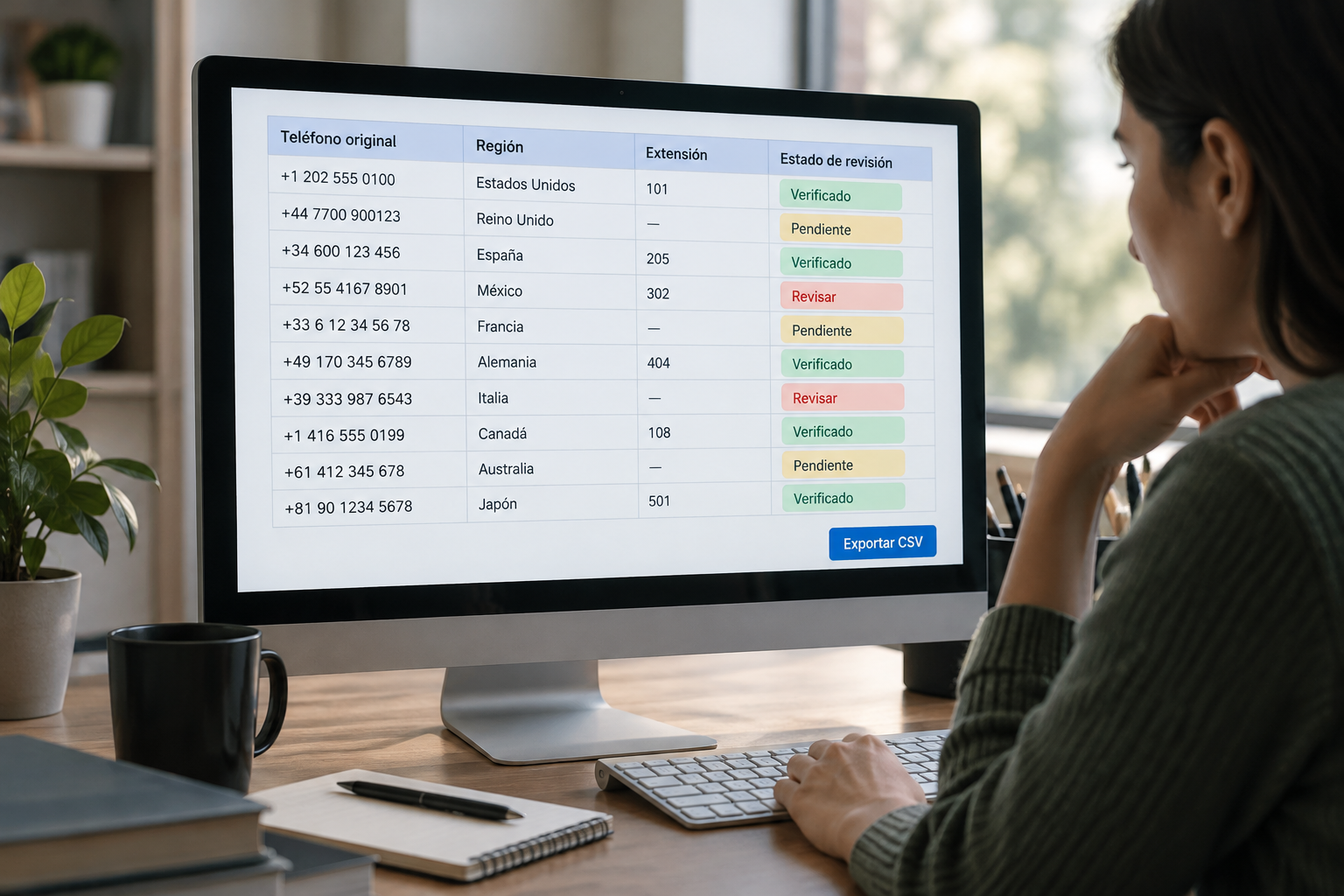
Keep the received file and create a separate working copy. Add columns for original phone number, country or region, extension, prepared phone number, and review status. Maintain the link to each person using an existing identifier, such as a contact ID, rather than using the phone number as an identifier.
Limit access to the source and copies to people authorized to process or receive the contacts. If you store the material in Cloud, Apification lets you share items with users, groups, or through links and offers permission controls; configure access according to who needs to view or edit the file. Save the final export in an identifiable location and share it only with its intended recipients.
Note how many rows the source contains and check that count again after significant changes. This makes it easier to detect if a transformation or export has omitted any rows.
- Keep the source file, working copy, and final deliverable separate.
- Use statuses such as reviewed, incomplete, ambiguous, or requires confirmation.
- Grant access only to people involved in the process.

Prepare Values Without Guessing the Country
Fill in the country or region column only with information from the source or a reliable detail associated with the contact. If you receive a local number without that context, leave it pending rather than automatically converting it to international format. A person's language, name, or position in a list is not enough to determine the phone number's country.
Apply the format requested by the receiving system only to records whose context has been confirmed. For example, Brevo says that phone numbers imported into its system must include the + sign and country code, with no characters separating the digits. This is a requirement for that import, not a universal rule. Check its current instructions in [Brevo's Spanish-language guide to creating a contact import file](https://help.brevo.com/hc/es/articles/208729849-Crear-un-archivo-para-importar-sus-contactos).
Separate extensions when the source identifies them and the destination provides an appropriate field. If you do not know whether a prefix, extension, or character is part of the number, keep the original and flag the row for review. Do not remove elements in bulk just to make values fit a pattern.
- Fill in country or region only when you can confirm it.
- Do not add missing digits or remove prefixes or extensions based on a guess.
- Document the rule applied to records you are able to review.
Review Cases That Need a Manual Decision
Before applying changes to a full list, filter for empty values, values containing multiple numbers, entries that mix text and digits, and numbers that appear incomplete. These may be partial data, extensions, notes, or identifiers other than a usable phone number.
Decide how to handle each type of case: check the source file, ask for confirmation, or leave the record out of the import until it has been clarified. Avoid a bulk replacement that deletes valid information. Keep the original value and record a brief reason for changes and exceptions.
- Group pending records by reason so you can review them in small batches.
- Do not correct a value automatically just because it does not fit a pattern.
- Leave cases you cannot resolve with the available information out of the import.
Test a Sample Before Processing the Whole List
Choose a sample that includes both straightforward and difficult cases: numbers already in international format, local numbers with a confirmed region, extensions, empty cells, and pending records. For each row that can be reviewed, compare the original with the prepared value and confirm that the change follows the receiving system's instructions.
If the destination provides a template, use it rather than assuming any header or format will work. Google Contacts Help says to complete its template and download it using File > Download before opening the spreadsheet. See [Google Contacts Help's Spanish-language instructions for importing contacts](https://support.google.com/contacts/answer/15147365?hl=es-ni&co=GENIE.Platform%3DDesktop).
When the process allows it, test the import with a small group. Check that fields are mapped as expected, review error messages, and compare the imported contacts with your sample. If anything does not match, adjust the rule in the working copy and repeat the test.
- Include every type of data found in the list in your sample.
- Record issues and the rule you ultimately applied.
- Do not assume the import is correct just because the file was accepted.
Export and Inspect the CSV Without Unexpected Conversions
Once the sample is correct, export the CSV from the final copy. To inspect it, avoid opening it directly and saving over it without checking: the spreadsheet application may interpret the phone numbers again. Open it in a text editor or use a controlled import option that lets you treat the column as text. Compare several rows with the spreadsheet and confirm that the fields still belong to the correct person.
Check the exported content for headers, the column separator, empty rows, and representative values. Verify that + signs, leading zeros, and extensions that need to be preserved are still there. If you find an alteration, export again from the working copy; do not overwrite the delivery file with a version you have not checked.
Accepted formats and field rules depend on the receiving system. Constant Contact lists Excel, CSV, vCard, and text files among its import formats, but that does not mean they share the same phone number rules. Check its current guidance in [Constant Contact's Spanish-language guidance on common file import questions and issues](https://knowledgebase.constantcontact.com/email-digital-marketing/articles/KnowledgeBase/35742-Preguntas-y-problemas-frecuentes-al-importar-contactos-desde-un-archivo?lang=es).
- Check a selection of rows in the CSV, not just the spreadsheet before export.
- Keep an exact copy of the export as it was delivered.
- Use the format and instructions requested by the destination.
Organize the Workflow with ONLYOFFICE and Cloud
You can store the source in Cloud, create a working copy, and edit the spreadsheet with ONLYOFFICE while keeping it in that storage. Keep the original, add review fields, and process confirmed cases in small batches. Before sharing the deliverable, verify that it is the correct final file and that the recipient is authorized to access it.
Cloud lets you review an item's history, download previous versions, and restore content. These features help you manage the files in the process, but they do not identify countries or normalize phone numbers automatically. Preparing the data still depends on confirmed context and the receiving system's instructions.
- Intact source → working copy → validated sample → final export.
- Keep versions identifiable and limit access to authorized people.
- Verify the export before sharing it.
Frequently asked questions
Can I normalize all the numbers with a formula?
Only if you know the source format, regional context, and destination rule. A formula applied to ambiguous data can remove prefixes, extensions, or useful information. Keep the original and manually review cases you cannot resolve.
Does the international format with + and a country code work for every import?
Not necessarily. Brevo specifies that format for its import, but each system may have different requirements. Check the destination's instructions and test a sample before processing the full list.
How can I prevent the spreadsheet from changing phone numbers?
Set the destination column to text before pasting or importing the values, if your application offers that option. When inspecting the CSV, use a text editor or a controlled import and compare several rows with the source.
Does Apification automatically normalize phone numbers?
No. Apification lets you edit office files with ONLYOFFICE in Cloud and manage versions, but reviewing the context and preparing phone numbers must follow the confirmed rules of the receiving system.
Sources and further reading
Documentation consulted while preparing this article.
- Crear un archivo para importar sus contactos — Brevo
- Cómo importar tus contactos a Contactos de Google — Google Contacts Help
- Preguntas y problemas frecuentes al importar contactos desde un archivo — Constant Contact
Explore Apification
Related articles

Documents and data
Document Metadata: What to Check Before Sharing a File
A practical guide to reviewing a document, preparing a copy to share, and keeping the editable original separate.

Documents and data
Convert PDF to Word: How to Recover an Editable Document and Review the Formatting
Conversion can make editing easier, but it does not guarantee that the layout will stay the same. Learn how to prepare a copy, review the result, and keep the original PDF.
Documents and data
External Links in Excel: Review Dependencies Before Moving or Sharing a Workbook
Before moving a workbook, identify what depends on other files, decide what to include, and test a copy in the planned location.