Documents and data
How to Create Bookmarks in a PDF: Headings, Exporting, and Checks
Plan a clear hierarchy, export the document, and check that every bookmark leads to the right section in the final PDF.
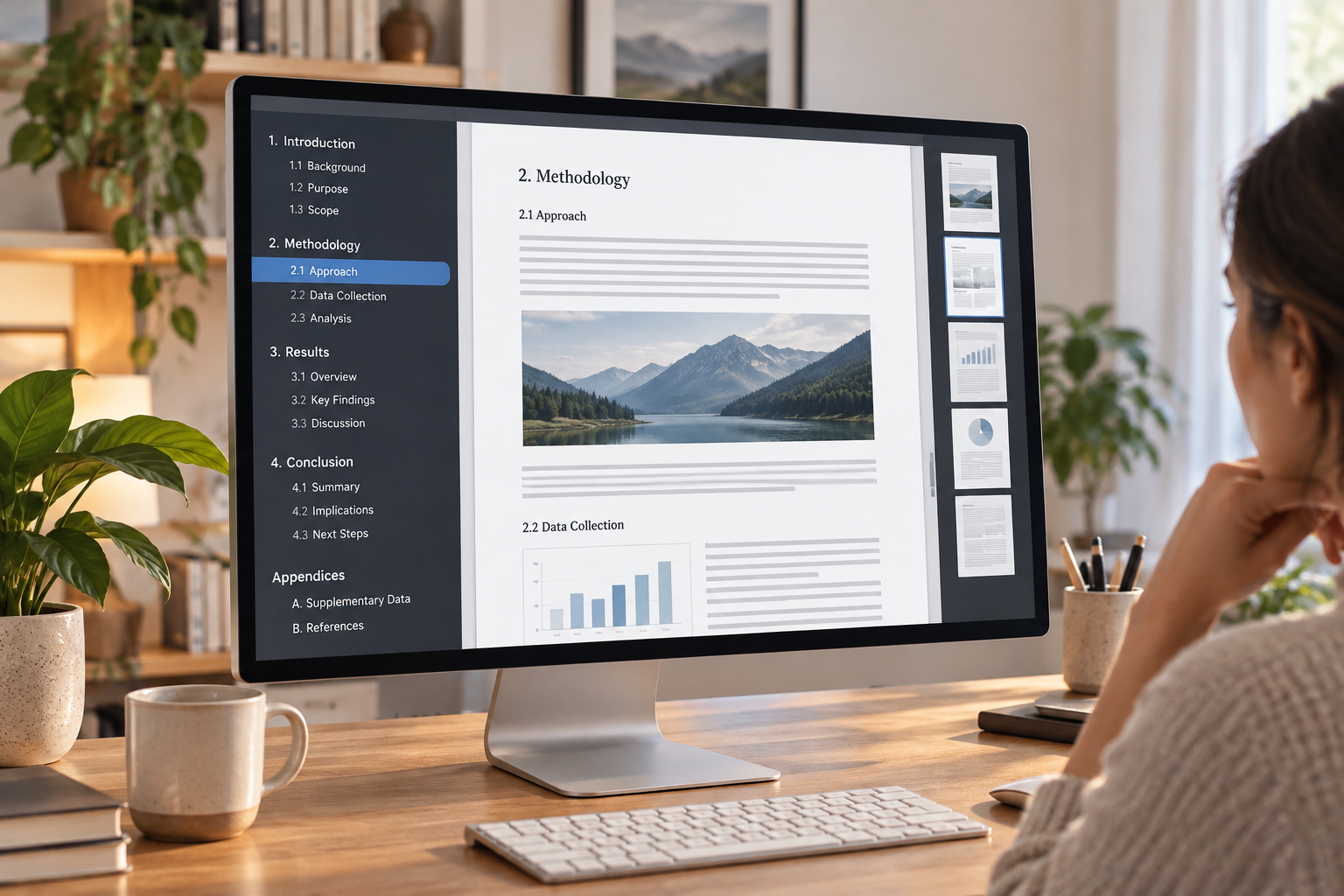
Bookmarks, a visual table of contents, and page numbers are not the same
A bookmark is a navigation entry linked to a destination within a PDF. When selected, it lets readers jump to a section without browsing through every page. Bookmarks are especially useful in manuals, reports, proposals, and lengthy documents that people consult in parts. The list usually appears in a viewer panel, separate from the page content; its availability and presentation can vary depending on the application used to open the file.
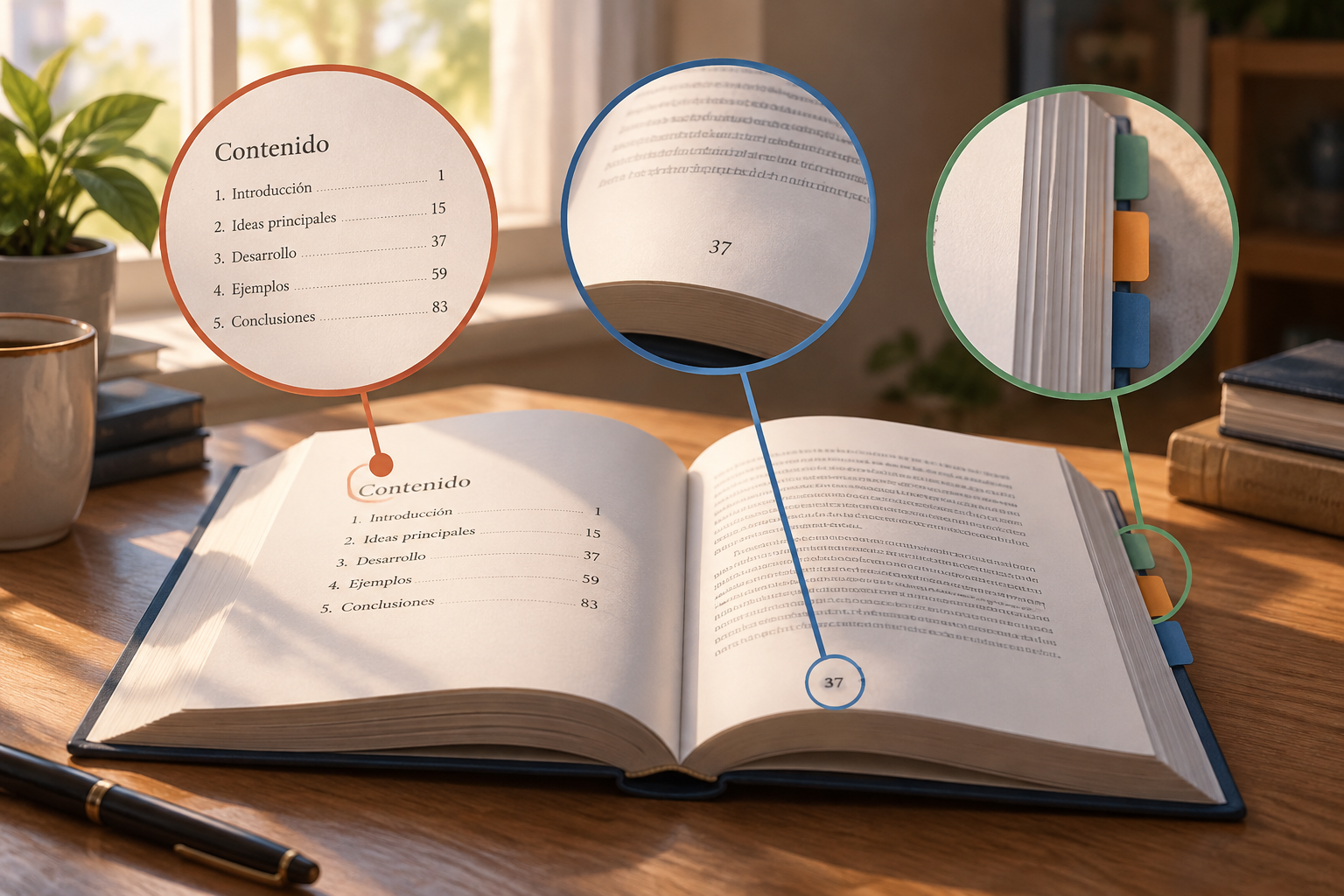
A visual table of contents, by contrast, is part of the document itself: usually a page listing section names and, if desired, their page numbers. Printed numbers help readers locate content in an edition, but they do not necessarily link anywhere. An internal link can jump to a destination when selected, even if it does not look like a bookmark. If readers need both a printed overview and side-panel navigation, plan both elements and check each separately.
- Bookmark: access it from the viewer’s navigation panel.
- Visual table of contents: visible document content that is also useful in print.
- Page number: a text reference; do not assume it is a link.
Plan a concise hierarchy before exporting
Before editing the file, list the sections readers are most likely to look for. A report might include Summary, Method, Results, and Appendices; a manual might have chapters and main tasks. Navigation should reflect the document’s organization, not every change of topic or every paragraph. If the list becomes long, group smaller sections under chapters and use secondary levels only when they provide useful orientation.
Also decide which parts to include: the cover page, table of contents, main body, appendices, and references may not all need the same treatment. Keep names short, recognizable, and consistent with the headings on the pages. Avoid skipping from a chapter directly to a deeply nested subheading without a clear reason. Planning this way helps you catch duplicates and omissions before generating the PDF, when correcting the structure is usually easier than rebuilding it in the final file.
- List chapters and subsections before creating bookmarks.
- Make sure each name identifies its destination without requiring readers to open it.
- Decide whether the cover page, table of contents, and appendices should appear in the navigation.

Use structured headings in the source document
When preparing the source document, mark headings with the heading styles or roles available in your tool instead of simulating the entire structure using only size, bolding, or color. Visual formatting helps readers distinguish levels, but a heading’s appearance alone does not guarantee that the application will interpret it as navigation structure. Use a consistent pattern: the main heading style for chapters, the next level for sections, and lower levels only when needed.
Review the source file from beginning to end. A heading that looks right may be treated as ordinary text, while a highlighted paragraph may have been accidentally marked as a heading. Check that levels follow a reasonable order and that there are no repeated, ambiguous titles, such as “Introduction” appearing in several places. If you work with office documents in Apification, ONLYOFFICE lets you create and edit those files in Cloud; the specific styles and export options available depend on the tool and configuration you use.
- Apply structure to headings, not to every block of highlighted text.
- Check heading levels and names throughout the document.
- Do not assume a heading’s visual appearance will turn it into a bookmark.
Export and confirm which options your tool supports
Exporting is a checkpoint, not an automatic guarantee. Tools and their options differ, so look in the export dialog for an option related to bookmarks, anchors, or navigation structure. If the tool offers a checkbox to export bookmarks, decide whether to enable it and check whether you can choose which levels to include. Save the result as a new PDF and check that file: do not assume navigation was preserved just because the source document had headings.
Affinity’s published instructions describe creating bookmarks manually from the Anchors panel and an “Export as Bookmarks” option. This illustrates why it is worth looking for the specific option in the application and workflow you are using rather than assuming there is a universal rule. If you cannot find an option to export the structure, consult that tool’s help or create and correct the bookmarks with an application that supports it. Keep track of which PDF is the test file and which version is intended for sharing.
- Look for bookmark, anchor, or navigation options in the export settings.
- Export a test copy and verify the actual output.
- Do not confuse converting a document to PDF with preserving its structure.
Check destinations, levels, and missing sections
Open the exported PDF in a viewer and display its bookmarks panel. Go through the list from top to bottom, looking for missing chapters, duplicate entries, inconsistent levels, and titles that do not match the content. Select every bookmark, especially those for important chapters and appendices, and confirm that it leads to the beginning of the section—not to an earlier page, a repeated heading, or the table of contents. Also check whether the list is easy to understand when expanded and collapsed.
If the PDF will be shared with people who use different viewers, repeat the checks in more than one viewer, including the one used by your team or recipient when possible. Do not assume the presentation will be identical across applications. Adobe Acrobat’s help explains that you can change a destination by selecting the bookmark in the Bookmarks panel, navigating to the desired location in the document, and setting it as the new destination. Treat this as an option available in Acrobat, not as a description of all viewers.
- Test each entry and confirm that it lands in the right place.
- Check for missing or duplicate titles and confusing levels.
- Repeat the checks in the viewers relevant to the people who will receive the PDF.
Correct the source, export again, and avoid sharing an outdated version
If a heading or destination is wrong, first identify where it should be corrected. If the problem comes from the document structure, edit the source and export it again so the correction remains tied to the version you can edit. If you only need to adjust a destination and your PDF editor allows it, document the change and test it again. In either case, repeat the full navigation review: fixing one bookmark may leave other errors untouched that you had not yet found.
Use filenames that distinguish the draft, test, and approved versions, and open the PDF from the delivery location to check the exact file you intend to share. If you manage files in Apification Cloud, you can organize them in a versioned workspace; an item’s history lets you review and download earlier versions and restore content. This can help you identify or recover copies, but it does not replace checking the final PDF or determine which file the recipient should receive.
- Correct the source when the heading structure is the problem.
- Export again and repeat the navigation checks after every change.
- Before sharing, confirm the PDF’s name, location, and version.
Frequently asked questions
Does a visible table of contents in a PDF automatically create bookmarks?
Do not assume so. The table of contents is page content; check separately whether the PDF has a navigable list of bookmarks.
Why are there no bookmarks even though the document has headings?
Exporting can depend on the tool and its settings. Check whether the headings are structured and whether there is an option to export bookmarks or anchors.
Can I correct a bookmark’s destination after exporting?
Some tools let you edit it. In Adobe Acrobat, you can select the bookmark, go to the desired location, and set that as its new destination.
How can I tell whether the PDF is ready to share?
Open the final file, review the list, test the important destinations, and confirm that you are sharing the version you just checked.
Sources and further reading
Documentation consulted while preparing this article.
- Miniaturas y marcadores de página en PDF — Adobe
- Marcadores — Affinity
Explore Apification
Related articles
Documents and data
How to Normalize Phone Numbers in a Spreadsheet Before Importing Contacts
Prepare a phone list for import without losing leading zeros, prefixes, or extensions: keep the original, resolve ambiguities, and validate the CSV.

Documents and data
Document Metadata: What to Check Before Sharing a File
A practical guide to reviewing a document, preparing a copy to share, and keeping the editable original separate.

Documents and data
Convert PDF to Word: How to Recover an Editable Document and Review the Formatting
Conversion can make editing easier, but it does not guarantee that the layout will stay the same. Learn how to prepare a copy, review the result, and keep the original PDF.