Documents and data
Excel Files with Macros: What to Check Before Sharing or Editing an XLSM
Before sharing an XLSM, identify which processes depend on its macros, keep the original, and test a copy in the destination application. If someone only needs the data, consider adding an XLSX version and explain what’s different.
What changes when you share an XLSM
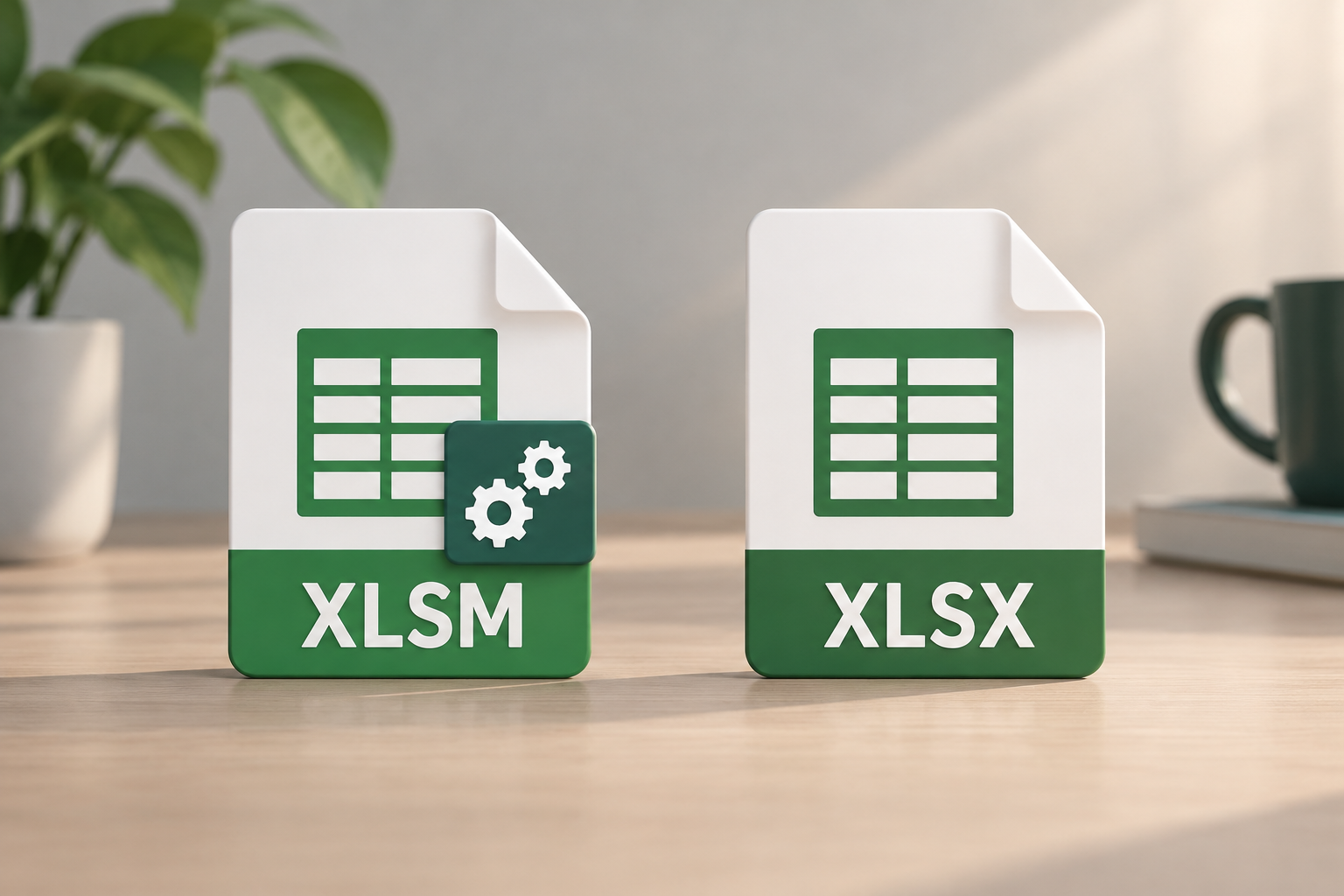
The file extension helps identify the workbook type: Microsoft distinguishes the modern Excel format without macros, .xlsx, from the .xlsm format, which can contain macros. That difference matters before you send a file, open it in another application, or save it in a different format. It is not enough to check whether the recipient can open a spreadsheet: you also need to know whether their task depends on automations built into the workbook. See Microsoft’s documentation on protecting yourself from macro viruses to verify these recommendations: https://support.microsoft.com/es-es/office/add-ins/protect-yourself-from-macro-viruses?version=undefined
It helps to distinguish three goals that are sometimes confused: viewing data, editing cells, and running an automated process. Microsoft says that you normally do not need to run a macro to view content or make simple edits. If the recipient only needs to review figures or correct text, sharing an XLSM does not mean they need to enable active content. If they need an automated workflow, you will need to check that workflow specifically in the application they will use.
- Purpose: does the person need to read data or run an automation?
- Format: does the workbook containing macros need to be preserved?
- Destination: which application and version will the recipient use?
Inventory macros, buttons, and dependencies
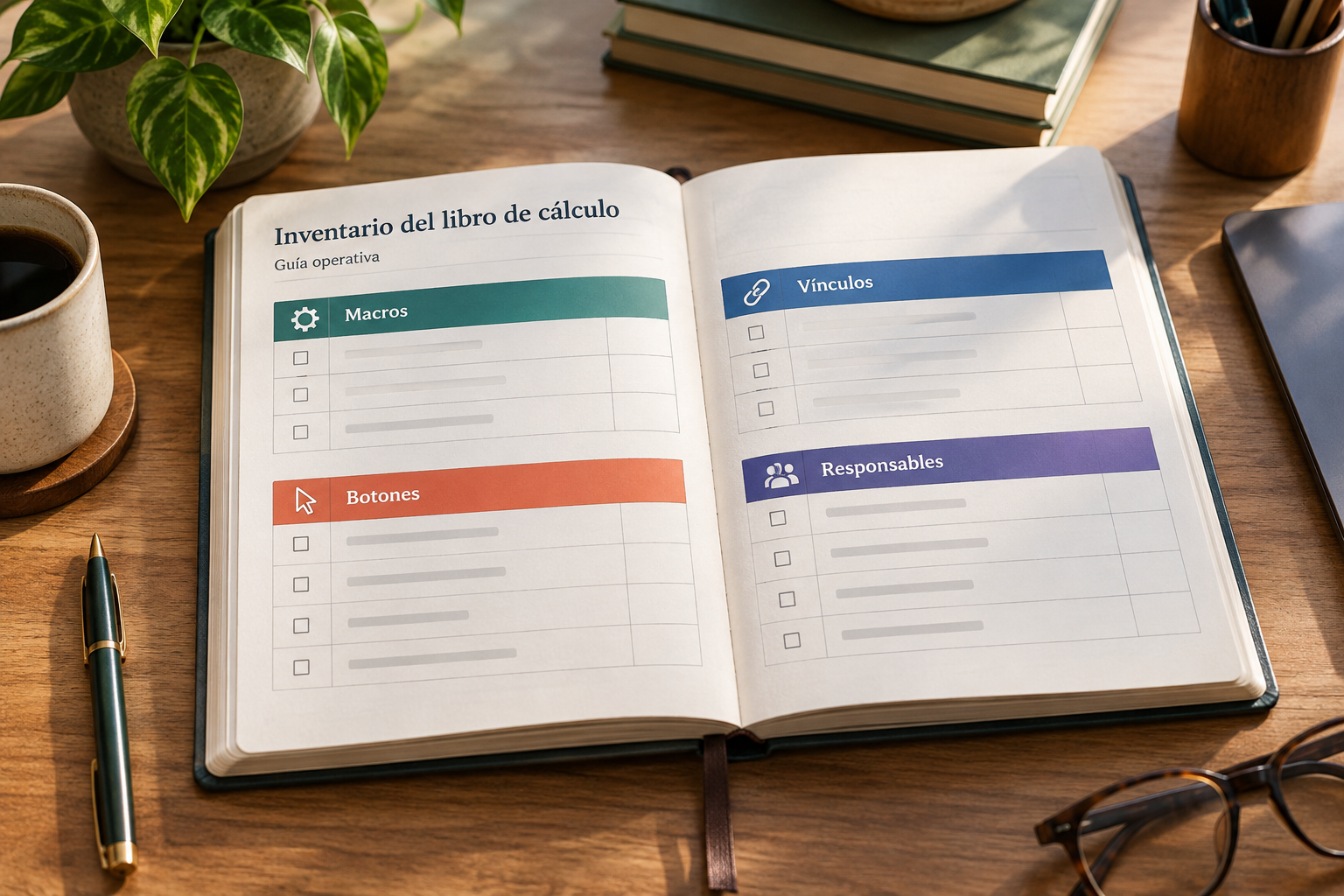
Before distributing a workbook, note what each known macro is used for and what action starts it. It might be a button, a visible option in the sheet, or a procedure the team runs by following instructions. Do not assume a button’s name describes all its effects: ask the person who maintains the file what inputs it expects, what results it produces, and what steps are usually performed afterward.
The inventory should also include dependencies that are not obvious from looking at a cell: links to other workbooks, hidden sheets the process needs, file paths, data someone updates manually, and results another system or team expects to receive. This list does not certify that the code is safe or that it will work in another application; it helps define what to test and identify what might be missing when the file leaves its usual environment.
- Record the purpose of each macro and how it is started.
- Note inputs, outputs, external links, and associated manual steps.
- Identify someone who can explain the process and validate the result.
- Flag critical workflows that cannot easily be replaced with manual editing.
Keep the original and prepare a test copy
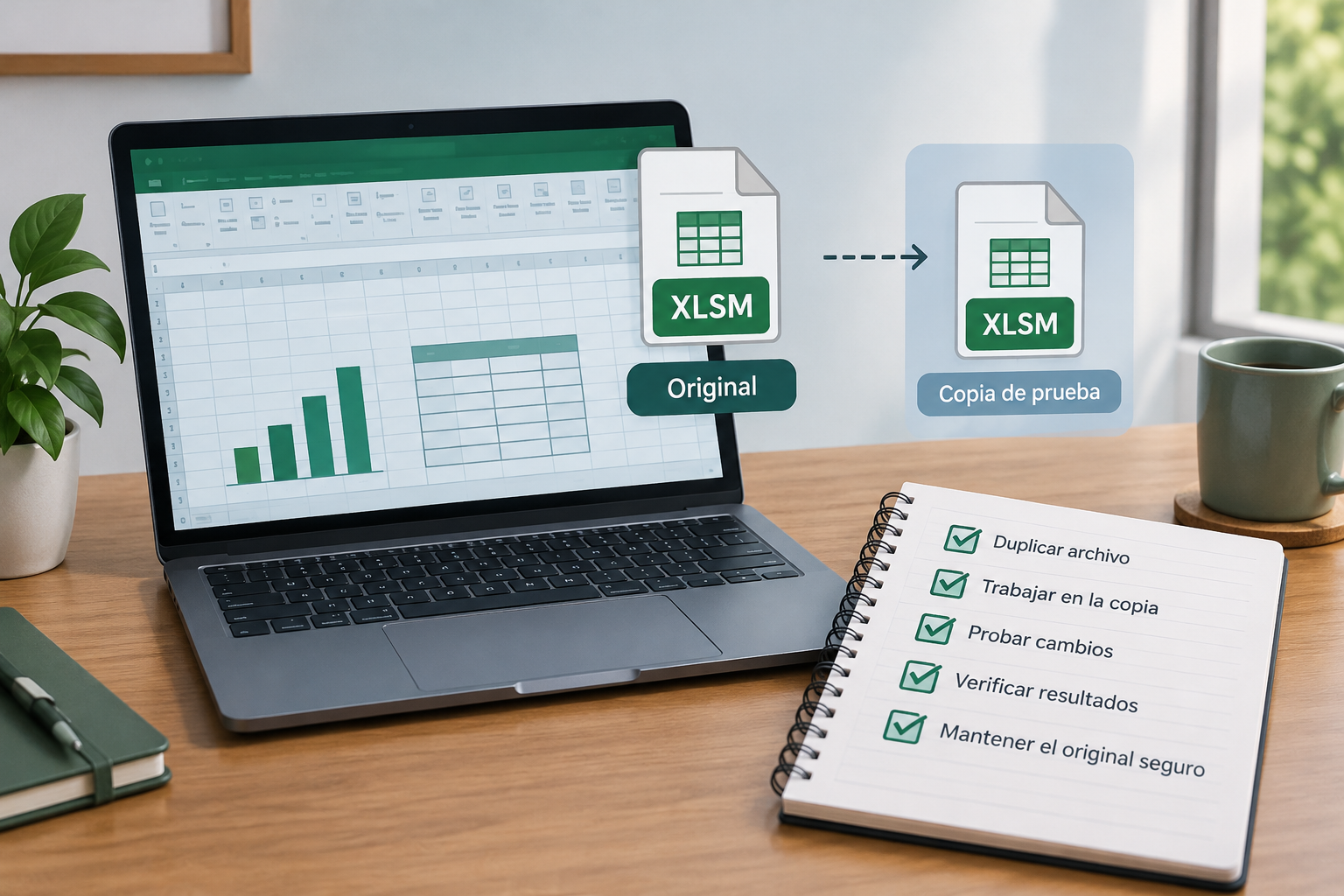
Save the original XLSM unchanged in a controlled location before experimenting. Create a clearly identifiable test copy and record which file it came from, who made the copy, and what change will be tested. If the work is shared in a space with version control, check the history before editing and avoid having two people test changes on the same copy without coordinating.
Run a small, reversible test rather than converting the only available file directly. If you plan to save a copy as XLSX to share data, treat it as a separate deliverable, not as a replacement for the original with its automations. Check what information the recipient needs and explain that the macro-free version is not the copy to use for running those processes. Clearly label the purpose of each file.
- Keep the original XLSM intact and restrict editing access when needed.
- Name the test copy with a date or purpose so it is distinct from the operational file.
- Record the result of each test and keep a way to return to the previous version.
Test important workflows in the destination application
Before opening the copy, define what a successful test means. The criteria should not be limited to whether the sheet appears without visual errors: include the tasks the team actually needs, such as opening the workbook, viewing data, completing a routine operation, saving, and reopening the result. Compare values and outputs against a known reference. If a process depends on external files or manual steps, include them in the test or record that they were out of scope.
Run tests in the environment the recipient will use and record which application was used, what steps were followed, and what behavior was observed. Do not enable active content just to dismiss a warning. Microsoft recommends not enabling it if you do not know exactly what it does, even when the file appears to come from a trusted person or organization. Microsoft 365 does not automatically run macros and other active content, except under trust conditions specified by Microsoft; this measure does not prove that a macro is safe.
- Test at least one routine case and one relevant edge case for the process.
- Check input data, results, messages, and saved changes.
- Close and reopen the copy to check its final state.
- If a task fails, stop operational distribution and consult the workbook’s maintainer.
Decide whether to deliver an XLSM, an XLSX, or both
Deliver the XLSM when the recipient needs to keep the workbook with macros and has a specific reason to run its processes. Include instructions covering the intended application, the purpose of the macros, the required input data, and a contact person. Do not ask recipients to enable content automatically. The person receiving the file should understand what it does before deciding whether to allow it to run, and trust in the sender does not replace that understanding.
Add an XLSX when the goal is to provide a copy for viewing or simple editing without relying on macros. Explain that it is a different version, what date or dataset it reflects, and which processes are unavailable in it. Do not present the two extensions as interchangeable or assume the XLSX copy will update along with the XLSM. If keeping them current requires manual work, assign that task and define which file is the source of truth to avoid decisions based on an outdated version.
- Viewing or simple editing only: consider an XLSX copy and clarify its scope.
- Automated process required: keep and deliver the XLSM, subject to testing and review.
- Mixed needs: deliver both with explicit names, dates, and purposes.
- Unclear what the code does: do not ask anyone to enable macros; escalate the review.
Edit Office documents in Apification Cloud
Apification Cloud lets you create and edit Office files with ONLYOFFICE inside Cloud storage, as well as organize and share files. This can help centralize documents, make them easier for the team to access, and work with clearly identified copies. However, this capability alone does not establish that macros in an XLSM will run, be preserved, or behave the same way as they do in Excel. Do not assume macro compatibility or treat the availability of the editor as a guarantee about active content.
If the team will open or edit an XLSM using this feature, follow the validation process above: note the task, check what the editor can actually do, save the test, and reopen it to review the result. If a macro is essential and has not been validated in the destination environment, do not rely on it for an operational process there. Clearly state which version was tested and which was not.
- Do not claim that macros are compatible or preserved without a specific test.
- Communicate which version is being shared and which workflows have been verified.
- Use Cloud version history to help review or recover content when appropriate.
Frequently asked questions
Does an XLSM file always run its macros when opened?
No. Microsoft says Microsoft 365 does not automatically run macros and other active content except under certain trust conditions. Do not enable content if you do not know exactly what it does.
Can I use an XLSX as a copy to share?
It can be useful for viewing or editing data without relying on macros. Identify it as a different version and do not use it as a replacement for the XLSM when the process needs those automations.
Does ONLYOFFICE in Apification Cloud guarantee that XLSM macros will work?
Do not assume that macros are compatible or will be preserved. Test a copy in the destination environment and validate the required workflows before relying on them for an operation.
Sources and further reading
Documentation consulted while preparing this article.
- Protéjase de los virus de macros — Microsoft Support
- Excel con macros con las opciones de desproteger y progeter desactivado — Microsoft Q&A
Explore Apification
Related articles
Documents and data
Tables Split Across Pages: Keep Rows Together and Check the Final PDF
Diagnose confusing table breaks, choose which rows to keep together, and review the exported PDF before sharing it.
Documents and data
Excel and CSV Durations: How to Agree on and Validate Their Meaning
Before sharing durations, agree on what they represent and how they will be written. A test sample helps confirm that the other system interprets the values as expected.
Documents and data
XML to CSV with Repeated Elements: Choosing What Each Row Represents
Before converting XML to CSV, define what each row represents and how to preserve shared fields, optional values, and empty records.