Documents and data
Tables Split Across Pages: Keep Rows Together and Check the Final PDF
Diagnose confusing table breaks, choose which rows to keep together, and review the exported PDF before sharing it.

Diagnose why the table breaks badly
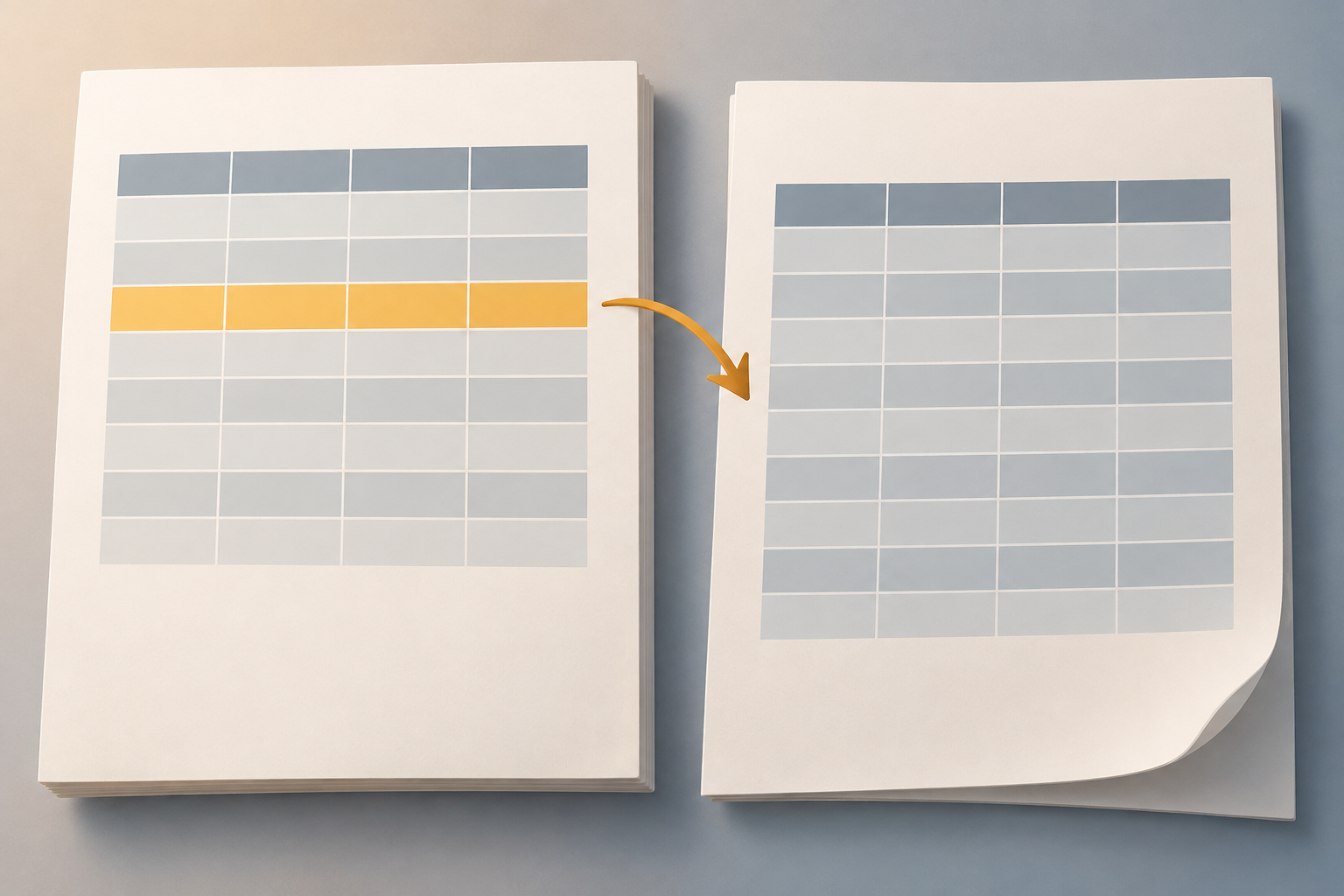
A table can continue onto the next page without any problem: what matters is that the break preserves its meaning. Reading becomes difficult when a row is split in two, the header is left on its own, or only one line of the table appears at the bottom of a page. Before changing any settings, find the first confusing break and look at what remains on either side.
The most common causes are a row’s height, the space left at the bottom of the page, and pagination rules applied to the table or to paragraphs in its cells. A cell with several lines can make a row too tall for the available space. A nearby title or note may also force the program to move content. Distinguishing these causes helps you avoid adding a manual page break that merely moves the problem.
- Note the page and row where the confusing break begins.
- Check whether a row is being split or the entire table is moving to the next page.
- Review titles, notes, and paragraphs inside the cells before changing pagination.

Decide whether to keep a row together or move the whole table
Keeping a complete row together is usually the first option when a break separates a data point from its label or leaves a description incomplete. This is a targeted change: the entire row can move to the next page while the other rows continue to flow. LibreOffice Writer has a specific control to allow or prevent rows from splitting across pages and columns. In other editors, look for an equivalent option in the row or table properties; its name and availability depend on the application.
Preventing the entire table from splitting is a different and more drastic choice. It may make sense for a short table that needs to be presented as a single unit, but it usually does not work for a table taller than the space on one page. Writer distinguishes the table-splitting control from the row-splitting control: disabling table splitting may require the table’s full height to fit on one page. If it does not fit, the result can be a large blank space or impractical pagination.
- Prefer keeping specific rows together if the problem affects one or a few records.
- Move the entire table only if it fits reasonably in the available space.
- Check the effect on the previous and following pages: fixing one break can create another.
Preserve context with headers and groups of rows
When a table spans several pages, readers need to know what each column represents as they continue. If your editor lets you repeat header rows, enable this so they also appear on subsequent pages. InDesign documents the repetition of header and footer rows in subsequent frames; Aspose.Words describes repeating the first row as a header. The specific option is not universal, so check the help for the application you use.
Not every row should be repeated or kept together. Repeat only the header that identifies the columns, and avoid accidentally turning a data row into a header. If several rows form a logical group—for example, a category followed by its items—some applications offer rules for keeping a selection of rows together with the next row. Apply these rules sparingly: the more content you try to keep together, the less freedom the program has to distribute it.
- Clearly identify the header row before setting it to repeat.
- Group only rows that lose their meaning when separated.
- Check that the repeated header does not also appear as data in the continuation.
Adjust the content before inserting manual page breaks
Before forcing a page break, check whether the table can make better use of the available space. A column that is too narrow creates more lines in its cells and increases row height; widening it, if there is room, may fix the break without changing the content. You can also shorten repeated labels, remove redundant phrases, or move a lengthy explanation outside the cell, as long as you do not lose information needed to interpret the data.
Also review spacing and structure. A row with separated paragraphs or extra spacing may take up more height than expected. Reducing the font size to make everything fit should not be your first resort: a compact but hard-to-read table does not improve the document. If the table is still too long to fit on one page, let it continue neatly and focus on complete rows, clear headers, and understandable breaks.
- First adjust column widths and the wording in the tallest cells.
- Check paragraph spacing before reducing the font size.
- Do not remove data or context just to avoid letting the table take up another page.
Test changes in a copy and check the pagination
Pagination changes have knock-on effects: moving one row can shift text, notes, or the next table. To compare options without putting your working version at risk, save a copy with a recognizable name and first modify the affected table. Change one setting at a time and check what happens on the page with the break, the previous page, and the next one. This makes it easier to link the result to a specific cause.
If you work with office documents in Apification Cloud, you can create and edit files with ONLYOFFICE within Cloud storage. Cloud also lets you review an item’s history, download previous versions, and restore content. These features help you organize the editable file and recover a version if needed; they do not replace a visual check of the pagination or guarantee that two applications will display the document in exactly the same way.
- Save a copy before testing split settings or manual page breaks.
- Note which setting you changed so you can reverse it precisely.
- Compare several pages around the change, not just the affected page.
Export to PDF and review the affected pages
The editing view is not always enough to assess the version you plan to share. Export a copy to PDF from the application you use and open the resulting file. Check the beginning and end of the table, every page break, and the adjacent pages. Make sure no rows are missing, the headers still serve their purpose, and the text in the cells remains legible. If the PDF will be viewed on screen, also check that readers do not need to zoom constantly to interpret columns or notes.
Do not consider the job finished just because the first break looks right. A repeated header can take up space and push rows down; a manual break can leave a gap at the bottom of a page; and the export may distribute content differently from the preview. If you find a problem, return to the editable file, fix the cause, and generate another PDF copy. Keep both versions clearly identified so you do not accidentally share an earlier test.
- Inspect the first and last pages of the table and every page with a break in the PDF.
- Look for incomplete rows, missing headers, clipped text, and unexpected gaps.
- Open the exported PDF again; do not rely only on the editor’s preview.
Fix common problems without making the document worse
A large gap often means the following content cannot fit under the current rules, or that a block that is too tall is being kept together. Instead of adding more breaks, check whether the entire table is set not to split and whether several rows are set to stay with the next one. Try allowing the table to continue while keeping complete only the rows that need to remain intact. The goal is balanced pagination, not filling every inch of a page at any cost.
If a row is still splitting, check that the rule was applied to that row and not just to another part of the table. Some tools distinguish between row-splitting controls and paragraph rules inside cells; Aspose.Words documents these options separately. If the content in a row exceeds the available page space, preventing it from splitting may not produce the expected result. In InDesign, an individual row also cannot split across frames: the solution must take the row’s height and the continuation of the frame into account.
- Large gap: reduce keep-together rules to the blocks that truly need them.
- Split row: confirm the option is applied to the correct row, then export again.
- Change during export: identify the application and the final file you are checking before adjusting anything else.
Deliver an editable file and a clearly identified PDF
When the document is going to be shared, keep the editable file separate from the final PDF copy. Use names that indicate the content and status and, if useful, the date—for example, a working version and a reviewed final version. Avoid ambiguous names such as “final2” or “latest,” which make it difficult to know which file should be opened or shared. If you make a later correction, generate a new PDF and verify that it corresponds to the current editable version.
An organized workspace helps reduce distribution errors. Apification Cloud lets you manage files in a workspace with versions and share items using links, users, or groups, with the option to offer original or transformed downloads. Decide which file each person should receive and check that the link points to the right copy. The final checklist is simple: editable file saved, PDF reviewed, unambiguous name, and correct recipients.
- Clearly separate the editable file from the PDF version you plan to share.
- Check the file name and contents before creating or sending a link.
- Keep a previous version if you may need to return to an earlier layout.
Frequently asked questions
Should I prevent the entire table from splitting across pages?
Only if the table fits on one page and it is useful to present it as a single unit. For a long table, that rule can leave blank spaces or make pagination worse. It is often better to keep the necessary rows complete and let the table continue.
Why should I review the PDF as well as the editable document?
The PDF is the copy that will be shared, and its pagination may differ from the editing view. Reviewing it helps you catch split rows, missing headers, large gaps, or layout changes before delivery.
Can headers be repeated on every page?
Some applications let you repeat header rows when a table continues onto later pages or frames. The option and its location depend on the application; confirm that the correct row is defined as a header and review the resulting PDF.
Sources and further reading
Documentation consulted while preparing this article.
- Guía de Writer 26.2, capítulo 13: Tablas — The Document Foundation / LibreOffice Books
- Dividir tablas entre marcos en InDesign — Adobe Help Center
- Trabajar con columnas y filas en Aspose.Words para .NET — Aspose
Explore Apification
Related articles
Documents and data
Excel Files with Macros: What to Check Before Sharing or Editing an XLSM
Before sharing an XLSM, identify which processes depend on its macros, keep the original, and test a copy in the destination application. If someone only needs the data, consider adding an XLSX version and explain what’s different.
Documents and data
Excel and CSV Durations: How to Agree on and Validate Their Meaning
Before sharing durations, agree on what they represent and how they will be written. A test sample helps confirm that the other system interprets the values as expected.
Documents and data
XML to CSV with Repeated Elements: Choosing What Each Row Represents
Before converting XML to CSV, define what each row represents and how to preserve shared fields, optional values, and empty records.