Documents and data
XML to CSV with Repeated Elements: Choosing What Each Row Represents
Before converting XML to CSV, define what each row represents and how to preserve shared fields, optional values, and empty records.
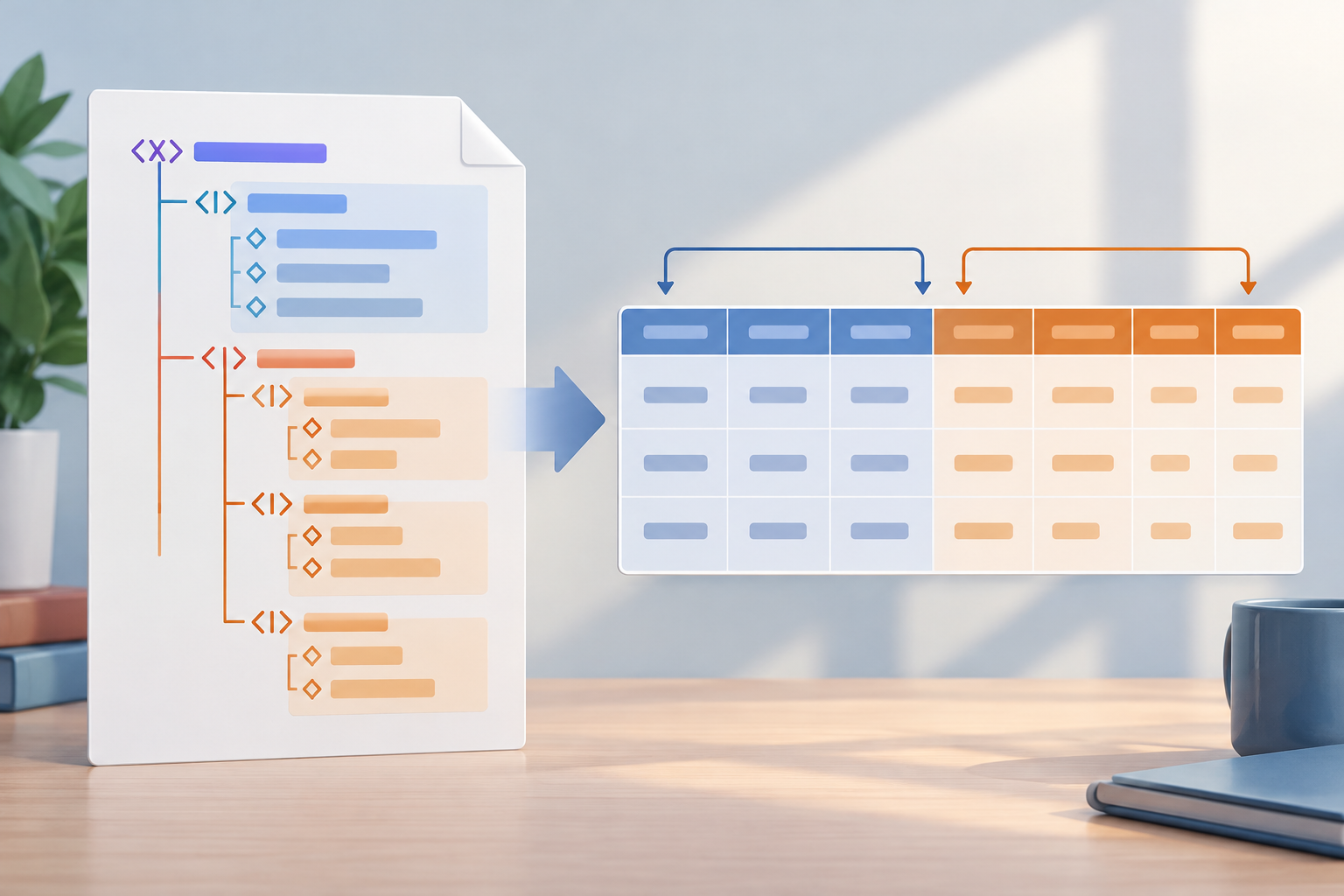
Why hierarchical XML does not convert directly into a single table
XML organizes information using nested elements: a document can contain an order, and that order can contain several product line items. CSV, by contrast, is tabular text: each row represents a record, and values are separated by a delimiter, usually a comma. That is why converting XML to CSV with repeated elements requires deciding how to translate different levels into rows and columns. There is no single interpretation that always preserves the original meaning.
The choice depends on how the output will be used. A spreadsheet may need one row per line item to sort products; an order system may expect one row per order. Selecting XML elements and attributes lets you define which data to include, but it does not, by itself, determine what each row represents or how to maintain relationships. Before starting the conversion, write down who will use the file and what record they expect to find in each row.
- Identify the element that repeats and the levels that contain it.
- Define the intended use: reading, analysis, import, or exchange.
- Check the options provided by your chosen tool and validate its output.
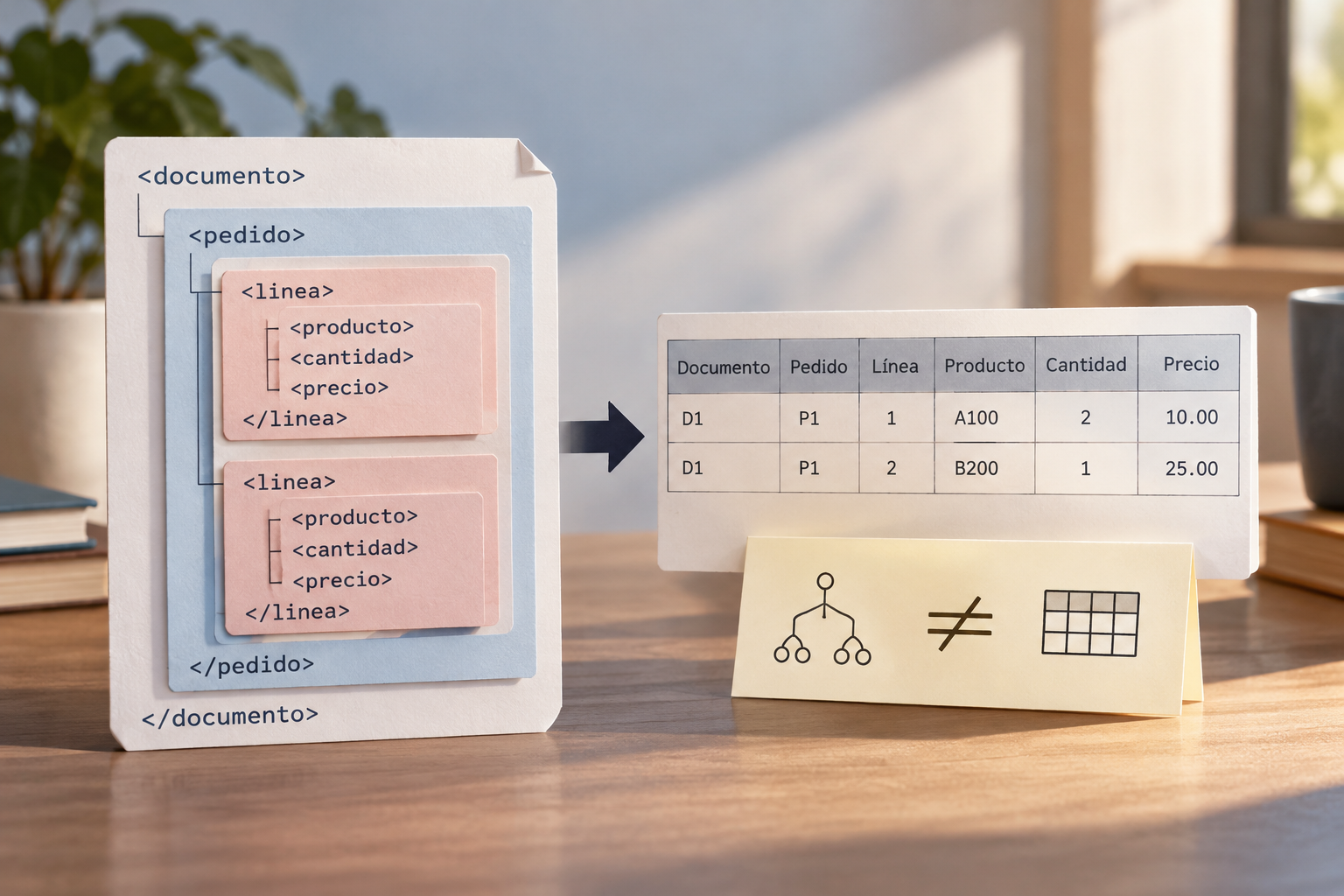
Example: an order with several line items and shared fields
Imagine an order with the ID P-204, a date, and a customer, plus two line items: one keyboard and one monitor, with quantities of one and two, respectively. The order fields describe the order as a whole; the product, quantity, and price describe each line item. If the goal is to analyze sales by product, one row per line item is usually more useful: there will be two rows associated with order P-204. The ID and date will appear in both.
That repetition does not necessarily mean the conversion has duplicated data by mistake. It can be a deliberate way to show that two line items belong to the same order in a flat table. However, when summing amounts or counting orders, you need to distinguish the level represented by each field. Counting rows counts line items, not orders. If each row is interpreted as an order, the result may overstate counts or confuse the meaning of the measures.
- Order level: ID, date, and customer.
- Line-item level: product, quantity, and price.
- The same column can appear in several rows without representing several orders.
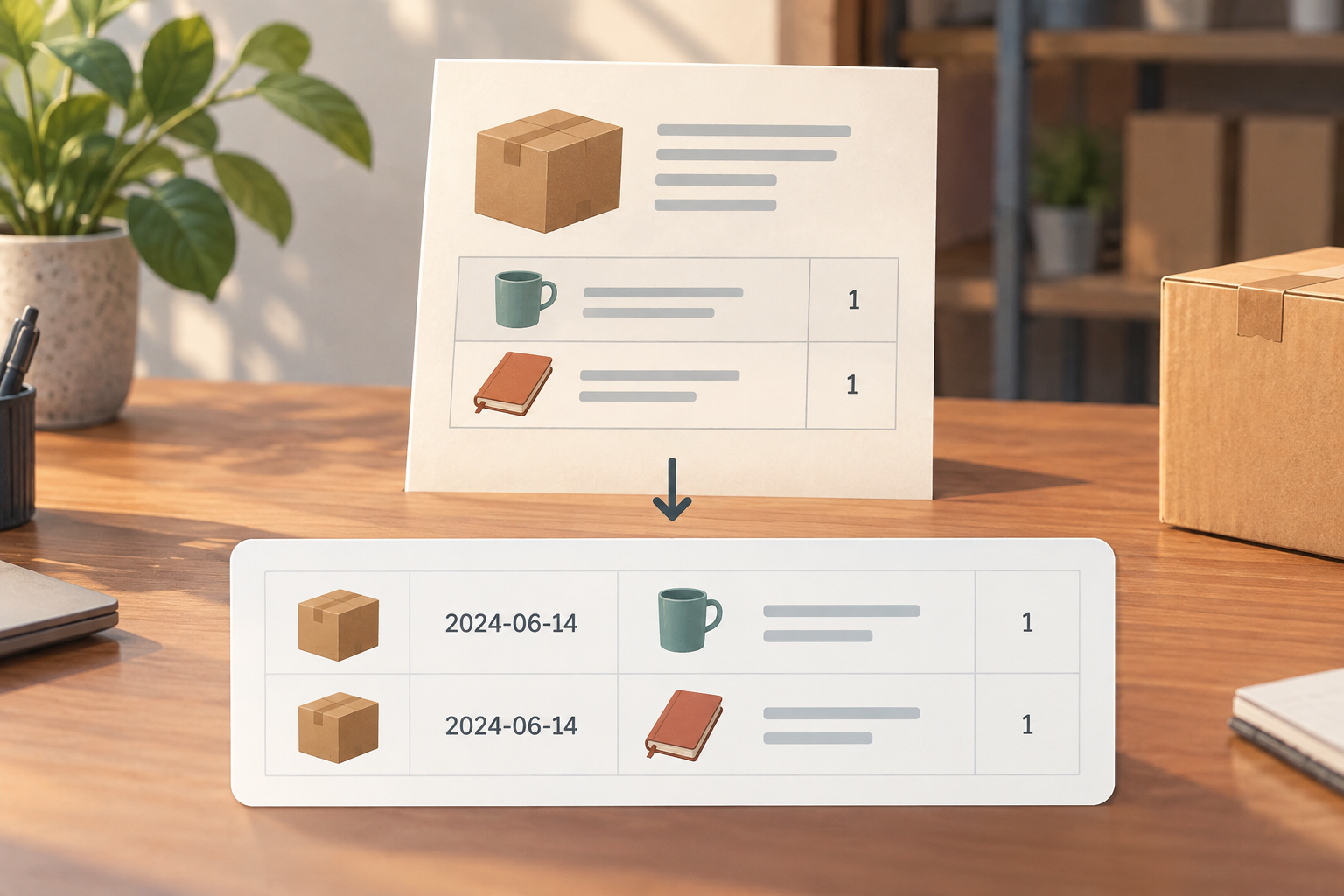
Choose what each row means: one per document or one per repeated element
The one-row-per-document model preserves the main unit, such as an order or a record. It works when the consumer needs one record per document and can handle child elements separately. Its limitation appears when there are multiple repeated values: a single cell cannot cleanly represent a list of line items without an agreed encoding, and fixed columns for the first, second, or third line item stop scaling when the number changes.
The one-row-per-repeated-element model turns each line item into a tabular record. It makes filtering or grouping by product easier, but repeats parent fields and may omit documents with no line items if the transformation generates rows only from the children. Before choosing, ask: What object will the user count? Are there consumers that expect one row per order? What should happen to orders with no line items? Document the answer along with the CSV.
- One row per document: suitable when the main record is the unit of work.
- One row per element: suitable when child elements will be analyzed or imported individually.
- Choose according to the destination data contract, not just what is easiest for the import tool.
Decide what to do with parent fields when creating multiple rows
When producing one row per line item, it is common to copy the parent fields needed to interpret or relate each line into every row—for example, the order ID. The date or customer code may also be needed, depending on the use. Repetition increases the file size, but makes each row independently readable and avoids relying on a previous row to provide its context.
Do not repeat every field automatically. Keep the fields the consumer needs to identify the relationship, filter, or validate; exclude data that does not support the intended use. If a parent field changes meaning or there could be different values at different levels, define which value to export and how. Use clear column names: the header describes each field, so avoid ambiguous headings such as “code” when they could refer to the order or the product.
- Keep a parent key in child rows when it is needed to associate them.
- Clearly distinguish order fields from line-item fields.
- Check that repeating a value does not lead to summing or counting it as if it were a child-level value.
Handle optional elements, empty values, and records with no child elements
A real XML document may omit optional elements, include them with no content, or contain a document with no repeated elements. Do not assume these situations convert in the same way: a tool may handle a missing tag, a present tag with no content, and an explicit value differently. Before using the file, decide whether these cases should appear as an empty cell, an agreed value, or a row retained with empty child data.
The case with no children deserves a separate decision. If the table is generated from line items, an order with no line items might not appear in the output; if it must be retained, a different model or a separate table may be needed. The solution depends on the structure and the tool, so do not assume that automatic conversion will preserve every document. Record the rule and tell anyone using the CSV how to interpret empty values and omissions.
- Treat a missing tag, an empty tag, and a populated value as distinct cases until you confirm how the tool handles them.
- Decide how to represent documents with no children and verify whether they are retained.
- Do not automatically replace empty values with zero, “N/A,” or another value without agreement.
Test and validate the CSV before reusing it
Before processing a full dataset, use a small test XML file that covers the cases identified in your conversion rules. Compare the output with the source: check which rows and columns it creates and what information it omits or transforms. For a one-row-per-line-item model, confirm that each expected line item appears once and that the parent ID matches; for a one-row-per-document model, check how collections are represented.
For the full output, compare row counts at the correct level: if one row per line item is expected, compare exported rows with the source line items; if one row per order is expected, compare documents, not line items. Also count distinct order IDs where useful. Matching totals alone are not enough, since omissions could be offset by duplicates. Review headers, delimiter, quotation marks, accented characters, keys, and samples with unusual values, including the first and last rows. If an application splits columns incorrectly or interprets fields differently, adjust the settings and repeat the checks. Keep the test XML, approved CSV, and documented conversion rules; repeat the checks if the XML or configuration changes.
- Check expected rows, keys, headers, delimiter, special characters, and unusual values.
- Compare counts at the level represented by each row; totals alone do not show whether omissions and duplicates cancel out.
- Record the conversion criteria alongside the reference files and recheck after changes.
When it makes sense to split the output into more than one table
Flattening everything into one table is practical if each row must be consumed independently, but it can repeat a lot of parent data. When there are multiple repeated levels—for example, orders with line items and line items with discounts—a single table can produce combinations that are difficult to interpret or an unnecessary number of duplicated fields. Separating the information lets you represent each level in its own table and relate them using shared identifiers.
As a general guide, use one table for documents and another for elements when both levels need to be preserved and analyzed separately. The main table keeps one row per document; the secondary table has one row per element, with a key that associates it with the document. This design requires the destination system to accept multiple tables and for the relationships to be documented. If the destination accepts only one CSV, explicitly choose the row model and validate what information is flattened, repeated, or left out.
- Separate levels when they have different counts or uses.
- Keep a shared key that lets you relate the tables.
- If the destination requires a single file, document the limitations of flattening.
Frequently asked questions
Should I repeat the parent element’s fields in every row?
If each row represents a child element, repeat the parent fields needed to identify, filter, or relate it. Define which fields add value, and avoid treating those shared values as child-level measures.
What happens if an XML document has no repeated elements?
It depends on how the table is generated and on the tool’s options. If rows are generated from the repeated elements, the document might not appear. Include this case in a test and decide whether it should be retained in another table or with a dedicated row.
Does an automatic conversion choose the right model?
Not necessarily. Some tools let you select elements and attributes to include in a table, but deciding what each row means and how to preserve relationships requires reviewing the XML, the configuration, and the output.
Sources and further reading
Documentation consulted while preparing this article.
- Importar datos XML — Microsoft Support
- Selección y configuración de elementos XML — Help Center de HighBond
- Guía práctica para la publicación de datos tabulares en archivos CSV — datos.gob.es
- Qué es un archivo CSV, cómo crearlo y usarlo — Adobe Acrobat
Explore Apification
Related articles
Documents and data
Hidden decimals in Excel: How to avoid differences between what you see and what you export
A guide to distinguishing how a number looks from the calculation rule you need, checking discrepancies, and verifying an export before sharing it.

Documents and data
Hidden Rows in Excel: How to Check a Sheet Before Sharing
A sheet that looks incomplete has not necessarily lost data. Learn to check filters, hidden rows, and expected records before sharing a copy.

Documents and data
How to Make a Spreadsheet More Accessible for Screen Readers
A practical guide to organizing sheets, headings, and tables, reducing navigation barriers, and testing the file before sharing it.