Multimedia
Safe zones for text in vertical video: how to keep controls from covering titles and subtitles
Learn to plan flexible margins for titles and subtitles, review framing for each destination, and test your video without publishing unreleased material.
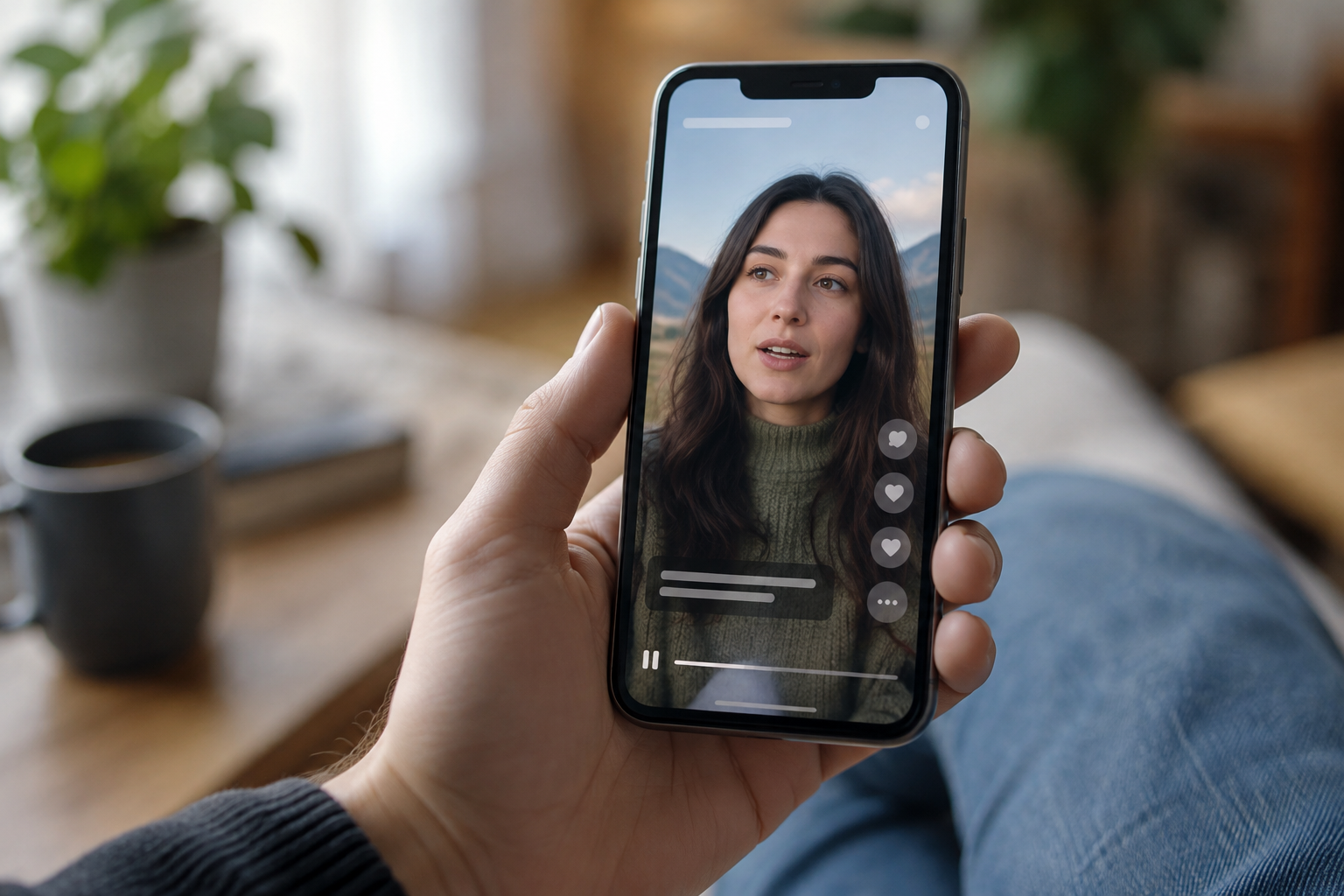
What a safe zone means in vertical video
A safe zone is a practical guide for placing important text where playback controls, buttons, or app labels are less likely to cover it. It is not a guarantee: the interface may occupy part of the image, and its layout varies by platform and device. In vertical videos, pay particular attention to the bottom edge and the right-hand column, which may overlap with captions, descriptions, or interaction buttons.
Think of a safe zone as a flexible margin, not a template with universal coordinates. The same video may appear full-screen, in a feed, or in a preview with different overlaid elements. The goal is to keep whatever viewers need to read or remember away from vulnerable areas: instructions, names, figures, and calls to action.
- Leave space around essential information, especially at the bottom and on the right.
- Do not treat a generic visual guide as an official specification for every platform.
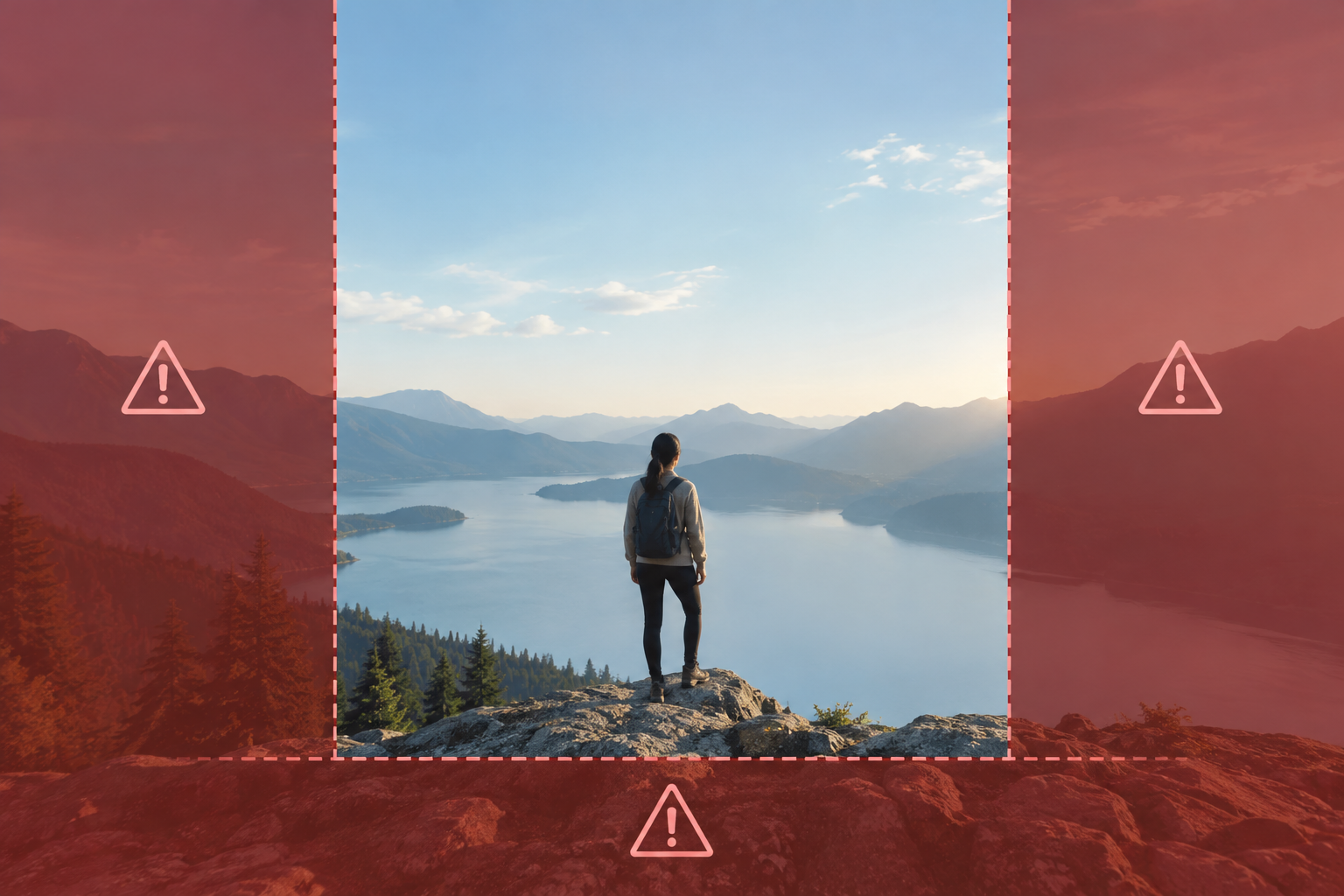
Which text needs more clearance
Prioritize elements whose loss would change the meaning of the video. Subtitles must remain legible from beginning to end; if a button hides a sentence, it is not enough for viewers to understand the audio. You should also protect people’s or products’ names, dates, prices, instructions, and contact details. If you include a call to action, place it where it does not compete with controls or sit right against the edge, and check that viewers can understand it without relying on an external description.
A decorative title can tolerate more risk than an operational instruction. You can place a secondary word near a visual boundary if it does not affect comprehension, but do not put the only information that enables someone to act there. For each piece of text, ask what would happen if it were partly hidden: would viewers still know who is speaking, what they should do, and when? If not, move it or repeat the essential information in a more stable location, such as in the narration and in the title itself.
- Protect these most: subtitles, names, dates, instructions, and essential details.
- Do not make a critical message depend on a single location.

Plan the composition without confusing margins with format
A video's format describes the canvas proportions; the safe zone concerns where content is placed within that canvas. Resizing or cropping a video to a vertical format does not guarantee that its text will be protected from the interface. Before editing, define the intended use: one specific platform, several social networks, or a delivery that will also be viewed outside them. Identify what information must remain visible and reserve enough space for text without covering faces, products, or relevant actions.
If you publish on more than one platform, do not assume a single master will work equally well everywhere. Consider the intended placements and, if the interface occupies different areas, prepare different text positions or render versions. Keep the base composition flexible enough to allow adjustments instead of pushing text to the edge from the outset. That way, adaptations will not require rebuilding the entire edit or shrinking the type until it becomes difficult to read.
- First define the platforms, placements, and priority messages.
- Distinguish the video's crop or aspect ratio from the safe placement of its text.
Position text and review it on the timeline
Treat every title and subtitle as an element to review for position, size, contrast, and duration. In a multitrack timeline, it is useful to keep video, audio, and text elements organized so you can locate changes without altering other parts of the edit. Apification Video Studio lets you edit video, audio, images, text, and subtitles in a multitrack editor, with preview and rendering. Safe-zone review is still manual: do not assume the editor automatically detects or corrects areas covered by a platform.
Read every subtitle in the preview and check that it stays on screen long enough to understand, without crowding the next one. Avoid overly long lines and check contrast over bright, dark, or busy scenes. An outline or shadow can help separate letters from the background, but it cannot make up for text that is too small or in a vulnerable location. Alternate between playing the sequence and pausing on moments with text to catch overlaps, cutoffs, or abrupt changes in position.
- Check each piece of text in context, not just as an isolated box.
- Verify position, size, contrast, line breaks, and reading time before rendering.
Test the render without publishing unreleased material
The editor preview can help you find editing issues, but it does not necessarily reproduce the interface where the video will be viewed. Export a test and open it on a phone to review the file. If you also need to check the destination interface, use a draft, a private preview, or test content when those options are available; do not publish unreleased material or expose sensitive data just to test. Play the opening, the scenes with the most text, and the ending, and check whether any control or label covers words or details.
When a video is intended for several destinations, record which ones you reviewed and which version you used. If the framing looks good in one app but not another, adjust the position or prepare a variant rather than forcing a compromise that harms both. Designs can change between apps and devices, so a successful check only applies to that specific review. Repeat the check whenever you change text, cropping, or composition.
- Review the exported file on a phone and, where appropriate, check the destination interface using a draft or private preview.
- Recheck after changing any text, framing, or destination.
Common mistakes to avoid
A frequent mistake is pushing titles right to the edge because they still fit on the editor canvas. It can also go wrong when too many words are squeezed into a few lines, the type is made smaller to fix overflow, or all the important information is placed in the bottom strip. In each case, viewers may miss content or have to work harder to read it. Reorganize the message, shorten the text when doing so will not change its meaning, and leave breathing room around elements instead of trusting that the interface will not occupy that space.
Another mistake is approving the video based only on the project preview or on subtitle files reviewed separately. The final composition may behave differently after export and publication. Nor should you copy measurements from a guide as if they applied to every service: references may be conservative, and interfaces vary. If you cannot test a destination privately or with test content, document that limitation and avoid promising that the text will always remain free of overlays.
- Do not push text to the edge or reduce its legibility just to make it fit.
- Do not approve a video based only on the editor preview or on subtitles reviewed in isolation.
Pre-publication checklist
Before exporting, confirm that you know the destinations, have identified the essential messages, and have not placed any critical element in a vulnerable area. Play the entire sequence in the preview, paying attention to the size, contrast, duration, and continuity of subtitles. Also check that destination tests were done without accidentally publishing unreleased material or exposing sensitive data.
Keep an editable version of the project and clearly distinguish working material from the reviewed final file. An organized, versioned workspace such as Apification Cloud can help manage projects and files; this does not replace visual inspection or ensure that text is positioned correctly. Save the approved render alongside the project version that produced it so you can locate and review it again if the content or destination changes.
- Do critical text elements have enough margin, and are they legible against every background?
- Have you reviewed the moments with the most subtitles and the ending?
- Were destination checks carried out without publishing unreleased material or exposing sensitive data?
- Are the editable project and reviewed final version clearly identified and preserved?
Frequently asked questions
Is there a universal measurement for text safe zones?
No. Interfaces vary across platforms and devices, so safe zones should be treated as flexible margins, not universal official measurements.
Is the editor preview enough to approve a video?
Not necessarily: it may not show the destination interface. Also review the render, and if you check the destination, do so in a draft, a private preview, or with test content when possible.
Does Apification Video Studio automatically detect vulnerable areas?
No. Its verified capabilities include multitrack editing of video, audio, images, text, and subtitles, as well as preview and rendering. Safe-zone review must be done manually.
Sources and further reading
Documentation consulted while preparing this article.
Explore Apification
Related articles
Multimedia
How to Edit a Tutorial with Screen and Camera Side by Side Without Losing Readability or Sync
Decide when to show the camera alongside the screen and when to switch between them. Organize your recordings, check synchronization, and review an export before delivering the tutorial.

Multimedia
How to Create a Favicon from a Logo: Small Versions, Contrast, and Export
Turn your logo into a readable favicon: decide what to simplify, prepare a balanced canvas, check contrast, and adapt each variant to its destination.
Multimedia
How to Add Audio Description to a Video: Script, Pauses, and Mixing
Learn how to select the visual information that needs narration, write concise descriptions, fit them between dialogue, and check the mix before publishing.