Multimedia
How to Edit a Tutorial with Screen and Camera Side by Side Without Losing Readability or Sync
Decide when to show the camera alongside the screen and when to switch between them. Organize your recordings, check synchronization, and review an export before delivering the tutorial.
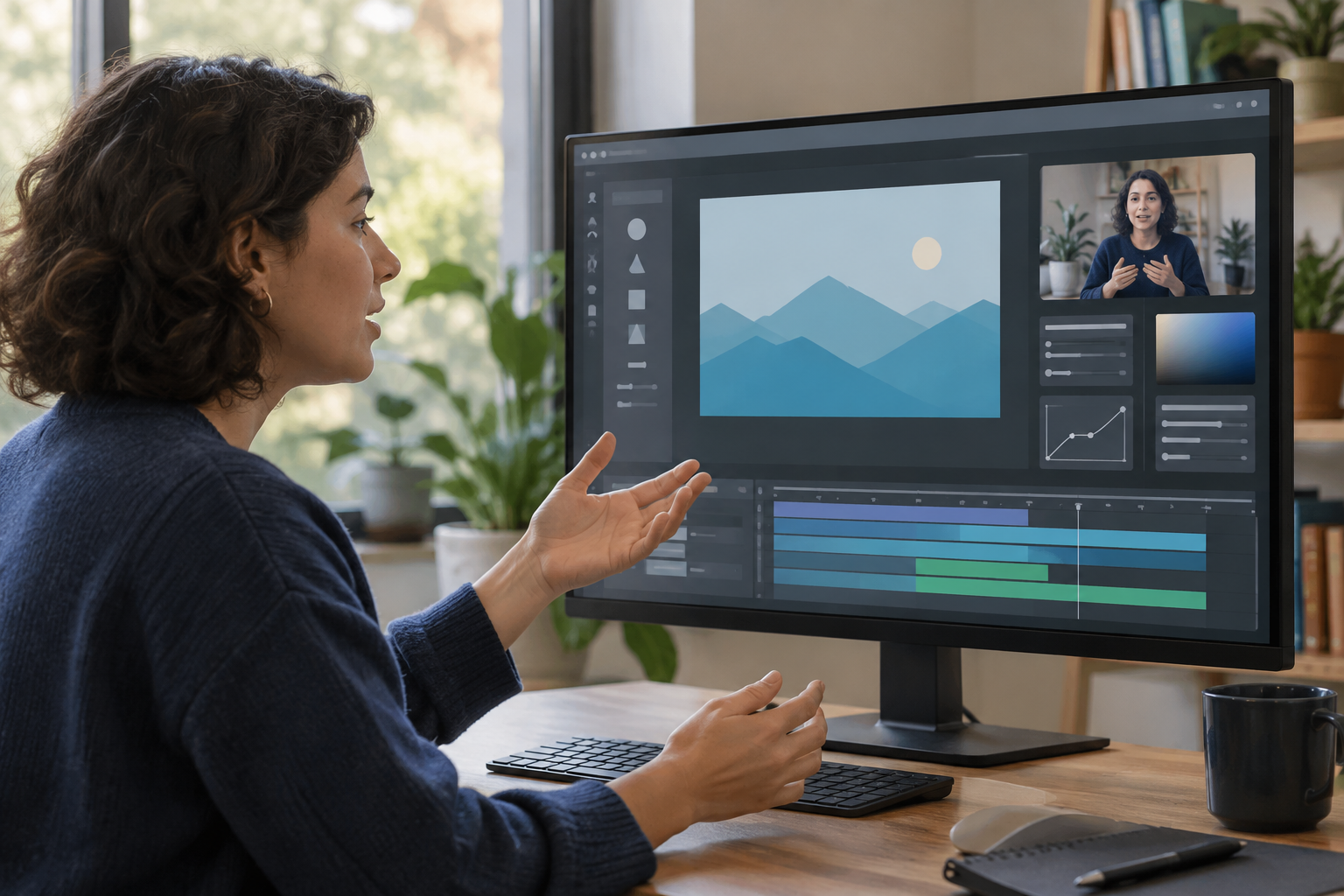
Decide When to Keep Both Images in View
Showing the screen and camera simultaneously is one possible way to connect an action with the person explaining it. It also adds visual elements that may compete for attention. If viewers need to read small text, compare fields, or follow several controls, compare the combined layout with a full-screen view and see which makes the action easier to follow. The camera can remain visible for an introduction or general commentary, then be removed from view during detailed operations if that better suits the material.
Consider the choice segment by segment rather than applying one layout throughout the video. Note what viewers need to observe at each moment and whether seeing the instructor adds useful context. For example, you might compare a full-screen view during a sequence of clicks with a combined view during a transition or general explanation. If you keep both images on screen, check that the interface remains readable. Give the main action enough space to be understood.
- Compare the combined view with a full-screen view when deciding how to present each section.
- Check readability when there is small text, dense controls, or an action that needs close attention.
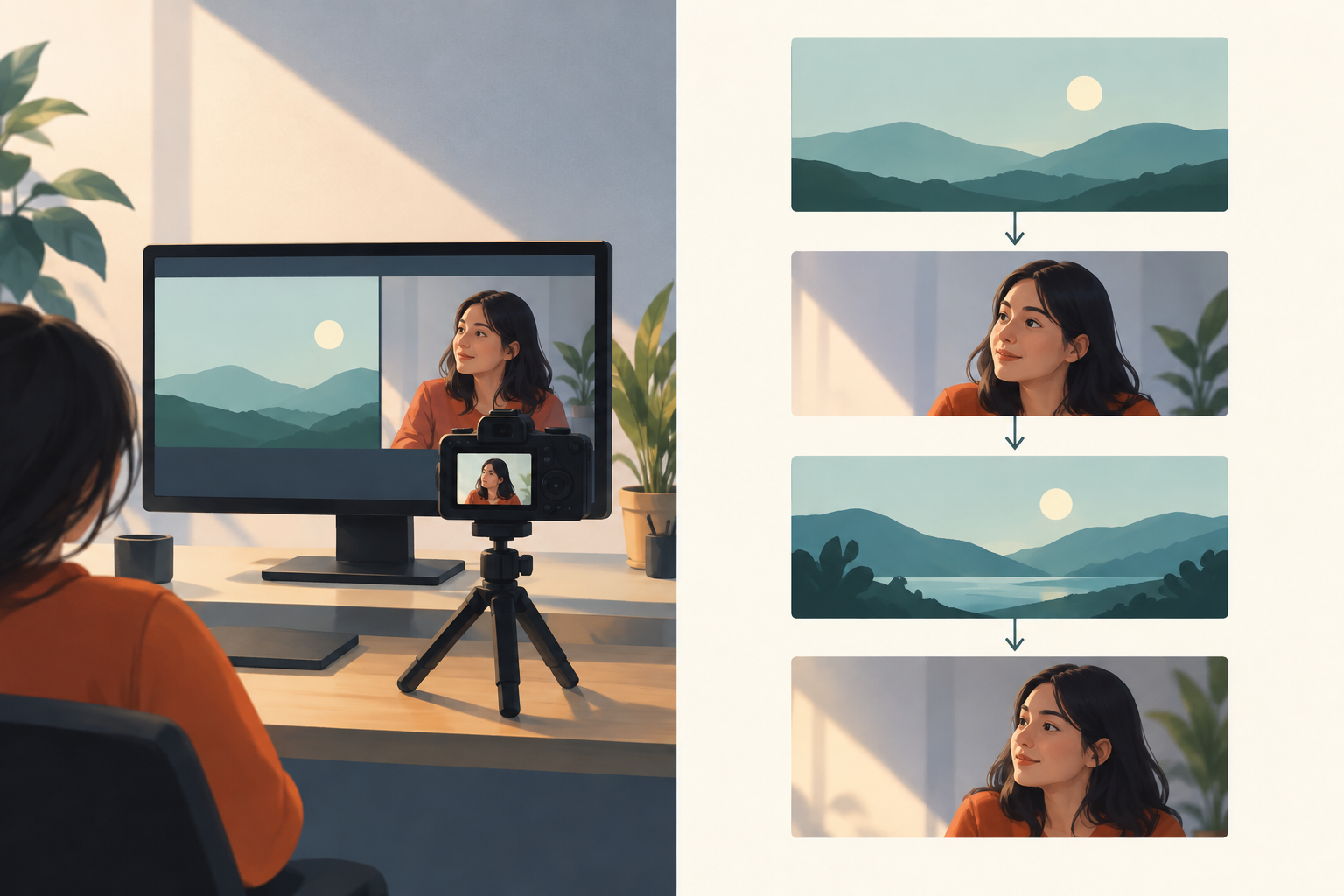
Prepare and Organize the Recordings Before Editing
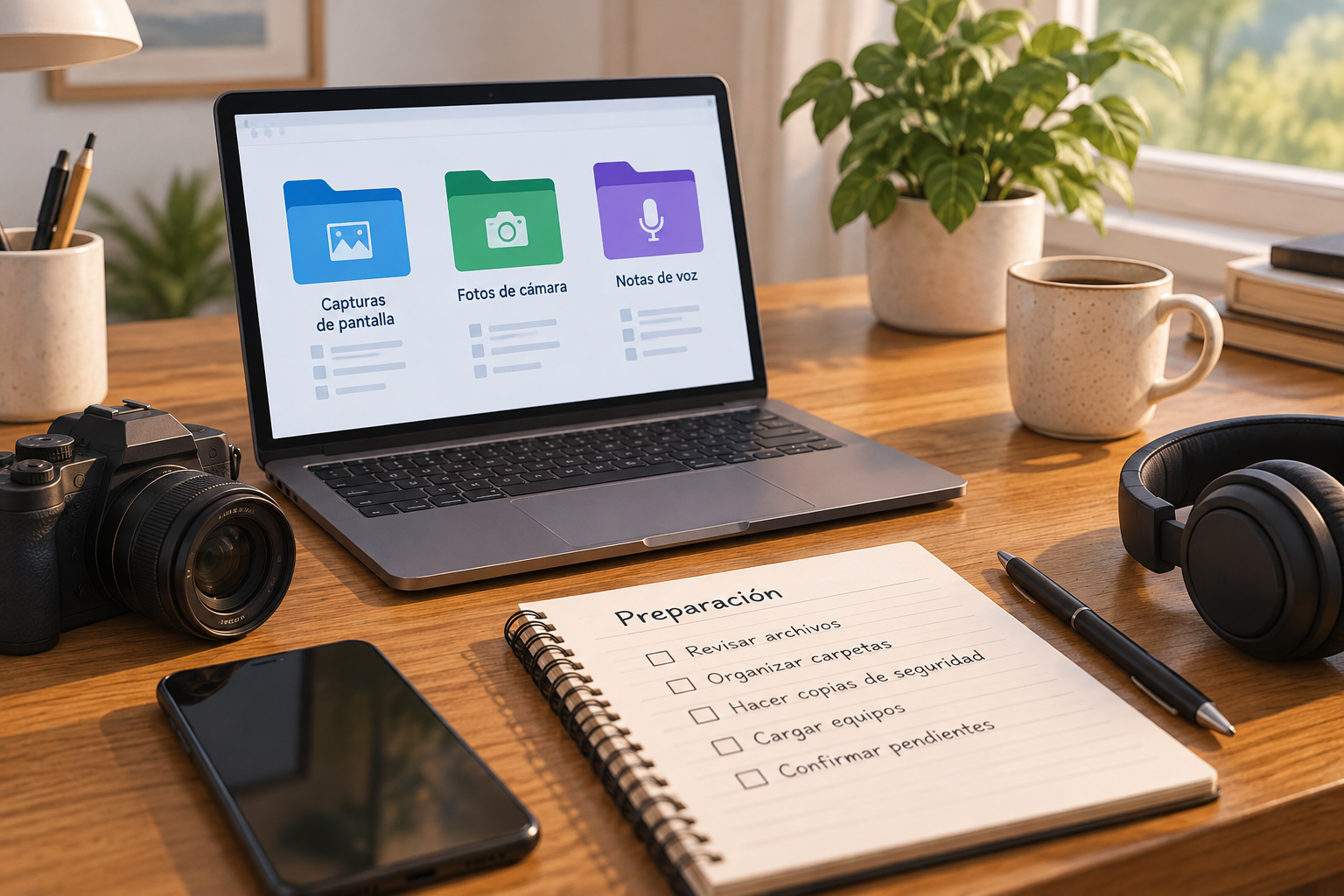
Before opening the project, gather the screen capture, camera recording, and voice track separately if it was recorded in its own file. Check that each file plays and corresponds to the take you want to use. Keep the originals without overwriting them and create a working copy. This gives you a source to return to if you need to revise an edit or redo a section. Keep the final export separate from the source files.
Use names that indicate the content and version, for example, module-02-screen-original and module-02-voice-take-1. Add a brief note with the planned order of steps and any takes that should not be included. If you work with several versions, use consistent numbering and avoid ambiguous names such as final-final. Apification Cloud provides a versioned workspace for organizing files and projects. Keep the structure simple so someone else can locate each item.
- Checklist: originals intact, files playable, descriptive names, and an identifiable working copy.
- Note any take with a pause, mistake, or difference in content that affects the edit.
Check Synchronization Using a Shared Reference
If the screen, camera, and voice recordings started separately, look for a recognizable event that appears in more than one recording. It could be a word spoken at the start, a clap, or a visible action that coincides with a sound. Use that point as a reference when lining up the recordings, then listen and watch to see whether the voice and movement match. If there is no shared reference, exact synchronization may be difficult to establish; avoid relying on visual alignment alone.
Check more than one moment rather than deciding based on the beginning alone. Review a point near the middle and another near the end, especially if the sources were recorded separately or have different durations. After an edit changes the order of a phrase or action, check the affected section again. Possible signs of a mismatch include lips that do not match the voice, a click heard before it appears, or an explanation that refers to a control after the screen has moved on.
- Review the beginning, a point in the middle, and the end.
- After moving or cutting a track, recheck the relationship between the voice, action, and screen capture.
Keep Important Interface Elements Visible
Before deciding where the camera will appear, identify the parts of the interface viewers need to see: menus that will open, buttons that will be clicked, alerts, fields, and explanatory text. Make a list of important moments and check the composition at those moments, not just on a static screen. An area that looks empty at the beginning may contain a notification or necessary control a few seconds later. If the camera would hide information or make the interface too small, compare the result with showing the camera at another point.
Consider the size at which the tutorial will be watched. An interface that looks acceptable on a large monitor may be harder to follow in a smaller window. Play a sample at the intended size and check that control names and the destination of each action are clear. Do not assume an editor offers a particular positioning, masking, or tracking option; check the available controls first. Apification Video Studio supports multitrack editing, preview, and rendering, but this does not establish that any particular composition control is available.
Before sharing, review the screen recording for personal information, credentials, or sensitive notifications that should not be exposed. Check the entire sequence, including moments when menus or notifications appear, and address any exposed information before delivering the video.
- Check every important action and any alerts that appear during the capture.
- If the camera covers information or makes the usable area too small, compare another layout or switch views.
- Review the recording for exposed personal information, credentials, and sensitive notifications before sharing.
Review Pacing, Readability, and Audio
Watch the complete edit at least once without stopping, as someone following the tutorial would. Note moments when an action happens too quickly, the voice gets ahead of the screen, or a pause makes the steps hard to follow. Then review those sections more closely and check whether the cursor, menu, and explanation correspond. Avoid shortening a sequence in a way that makes the steps difficult to recognize; consider removing an unnecessary wait while keeping the context that explains the result.
Listen to the audio at a moderate level and check that the voice remains clear, including after edits. Look for unintended silences, cut-off words, and interface sounds that are distracting or out of sync. Review transitions between clips and the moments when the camera appears or disappears. Apification Video Studio provides multitrack editing for video, audio, images, text, and subtitles, as well as preview and rendering. Use the preview to review the edit without assuming the editor includes unconfirmed audio or composition tools.
- Visual review: readable text, complete actions, camera clear of important areas, and understandable cuts.
- Audio review: continuous voice, acceptable synchronization, and no unintended cuts.
Export and Validate the Result
Before delivering the video, export the project and play the resulting file. Check that it preserves the intended sequence, paying particular attention to the first and last seconds, edits, synchronization, and small text. The project preview alone is not a substitute for checking the exported file. Review it at the size at which it is intended to be viewed; check the available export settings rather than assuming particular options.
If you find a problem, return to the project and correct the relevant section, then export the project again and review the result. Keep the project, originals, and approved file separate, and clearly identify which version is intended for sharing. Apification Video Studio supports rendering, while Apification Cloud provides versioned organization and options for sharing items through links, users, or groups. This helps keep editing materials distinct from deliverables. Share the video only after reviewing the complete exported file at the intended playback size.
- Test the exported file by playing it and reviewing the intended sequence and viewing size.
- Delivery: clear version name, originals retained, and final file distinguished from the project.
Frequently asked questions
Should the camera stay visible throughout the tutorial?
There is no single layout for every section. Compare the combined view with a full-screen view and check whether the camera adds context while the interface remains readable.
How can I check that the voice and screen are synchronized?
Use a shared reference, such as a word, a clap, or a visible action, to help line up the recordings. Review the beginning, a point in the middle, and the end, and check again after editing.
What does Apification Video Studio offer for this workflow?
Apification Video Studio provides multitrack editing for video, audio, images, text, and subtitles, along with preview and rendering. Do not assume it offers specific composition controls that have not been confirmed.
Sources and further reading
Documentation consulted while preparing this article.
Explore Apification
Related articles

Multimedia
How to Create a Favicon from a Logo: Small Versions, Contrast, and Export
Turn your logo into a readable favicon: decide what to simplify, prepare a balanced canvas, check contrast, and adapt each variant to its destination.
Multimedia
How to Add Audio Description to a Video: Script, Pauses, and Mixing
Learn how to select the visual information that needs narration, write concise descriptions, fit them between dialogue, and check the mix before publishing.
Multimedia
How to Hand Off an Editable Layered Design Without Losing Context or Assets
A useful handoff includes an organized editable file, the necessary assets, a visual reference, and a clear explanation of what should continue or change.