Multimedia
How to Add Audio Description to a Video: Script, Pauses, and Mixing
Learn how to select the visual information that needs narration, write concise descriptions, fit them between dialogue, and check the mix before publishing.
What audio description adds and how it differs from subtitles
Audio description adds spoken narration of relevant visual information that is not clear from the dialogue or sound. It can explain who enters a scene, what action changes the meaning of what is being said, or what information appears in an on-screen title. Its practical aim is to give someone who cannot follow the images enough context to understand the content—not to describe every element on screen.
Subtitles, by contrast, present dialogue and other relevant sound elements in writing. They do not usually explain actions or visual changes that are not mentioned in the audio. That is why subtitles and audio description serve different purposes, and both may be needed. Neither solution alone guarantees that a video is accessible to everyone: it is also worth reviewing the language, structure, sound quality, and distribution method.

Decide which visual information deserves narration
Start by watching the entire video without writing anything yet. Note the moments when understanding depends on something that can only be seen: a person performing an action, a change of place or time, a spatial relationship, an important gesture, a graphic, or a title containing necessary information. Then compare your notes with the dialogue and sounds: if information is already clear through another channel, it may not need to be repeated.
Prioritize what helps viewers follow the action and understand its consequences. In a demonstration, it may be more useful to say that the person selects a particular option than to list the color of every button. In an interview, it may be important to identify who is speaking when the image switches between several people. Leave decorative details until last. If a decision depends on context or audience, consult people who will use the video rather than assuming what information they will find useful.
- Note the moment, the visual information, and why it is needed for understanding.
- Mark what is already communicated through words, sounds, or on-screen titles.
- Rank descriptions by importance, not by the number of details.

Write a brief script that complements the dialogue
Write clear, specific sentences that are easy to follow. Name people unambiguously once their names are known; otherwise, use a consistent, understandable description. Choose precise verbs—for example, “opens the folder” instead of “does something with the folder”—and avoid interpreting intentions that the image does not confirm. The script should say what is visible and what viewers need to know, not add an opinion about the scene.
Read each sentence while playing the clip. Check that it adds new information and fits into the available space without rushing the narration. If it is too long, remove secondary context first, not the detail needed to understand the action. Also check ambiguous names, abbreviations, and numbers: a reference such as “he puts it there” can lose its meaning if it is unclear who is acting or where. Keep a script sheet with timecodes to make later changes easier.
Find pauses and handle scenes with continuous speech
Look for natural gaps between sentences, during transitions, or when the original sound conveys no essential information. Do not place a description over a key word just because there is room on the timeline: the overlap may make both messages hard to hear. Play the entire clip and check that the narration starts and ends with enough breathing room, without cutting off dialogue or feeling abruptly attached to a scene change.
A scene with continuous dialogue may not have a clean pause. First, consider whether the visual information can be introduced in an earlier silence or explained afterward without confusing the sequence of events. If not, prioritize essential visual details and consider whether the edit can be revised or another way of accessing the content would be appropriate. Do not automatically cover the dialogue with a louder voice: that can make both the description and the original audio unintelligible. If there is no clear solution, document what information remains undescribed and review the decision with the intended audience.
Prepare the source files and organize the tracks
Before editing, gather the original video, the audio that must be preserved, and the recorded or planned narration. Save a working copy and name files so the team can identify the version, language, and date. Keep the script with the relevant material; this lets you check what text was recorded and which version of the video was used. An organized workspace with versioning helps prevent a correction from being applied to the wrong file.
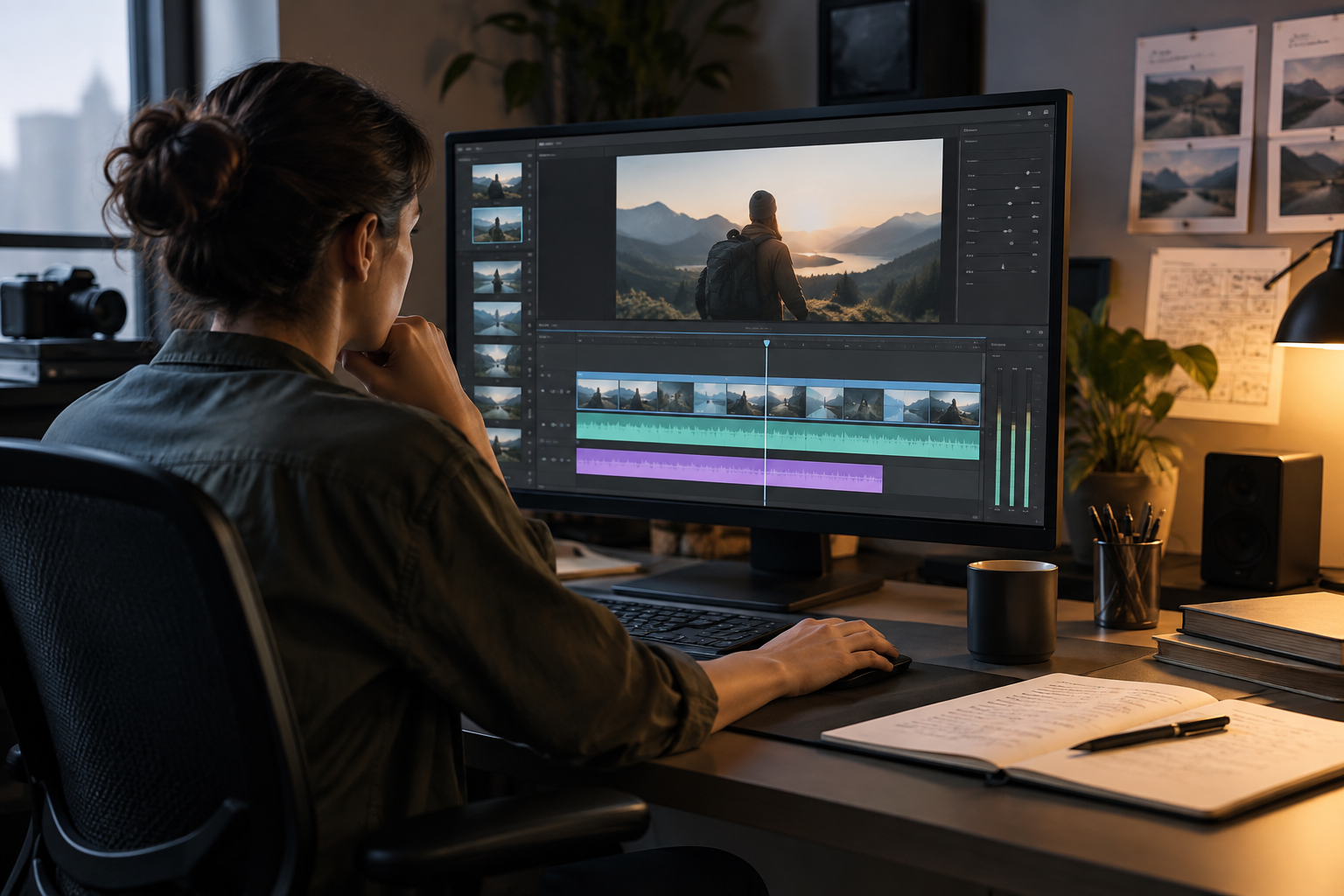
On a multitrack timeline, keep the image, original audio, and audio description on separate tracks. Align each sentence with the script timecodes and listen to the transitions, not just the isolated words. Apification Video Studio lets you edit video, audio, images, text, and subtitles in a multitrack editor with preview and rendering; it can be used to assemble and review these tracks. The tool does not replace editorial decisions: choosing what to describe, fitting the narration, and checking the result remain the team's responsibility.
- Check that the working video matches the script and narration.
- Keep tracks separate and preserve the originals without overwriting them.
- Record pending changes with specific timecodes.
Review the mix by listening to the entire video
Reviewing is not just a matter of checking that the voice is clear on its own. Listen to the entire video with the original audio and audio description playing together. Pay attention to dialogue, music, effects, the start and end of each sentence, and moments that remain uncovered. An adjustment that works in a quiet scene may be distracting when it overlaps with a sound effect or important voice elsewhere.
Check that the narration stays at an understandable volume and that its fades do not cut off consonants or create abrupt entrances. If the original audio loses clarity, do not assume that simply raising the narration volume is enough: first check whether the sentence can be moved, shortened, or rephrased. Listen a second time with the content in mind: is it clear who does what? Does the description arrive in time? Has important visual information been left out? When possible, ask someone else to review the result and note changes by minute and second.
Export and check the version the audience will receive
After rendering, review the exported file, not just the editor preview. Check it from beginning to end to make sure synchronization holds, there are no truncated sentences or accidental silences, and the volume does not change unexpectedly. Open the file in the player or context where it is intended to be used: a mix that seems right at the editing station may behave differently in another environment.
Also decide how the audio description will be offered. A narration track integrated into the video may be heard alongside the original audio in that version, but it is not the same as having an alternative track that each person can turn on or off. If the publishing channel supports separate tracks, review its instructions and prepare the files to meet its requirements; do not assume all services work the same way. YouTube, for example, includes an option to add an audio description by selecting a file. Check the final publication and confirm which version is accessible.
Final checklist and common mistakes
Before delivery, review the video using a short checklist tailored to its intended use. Confirm that each sentence describes necessary information, that people and actions are identified unambiguously, and that the narration does not overlap essential dialogue. Also check that the script, recording, and edit all belong to the same video version. If there are several versions, keep a clear record of which one was reviewed and which one was published.
Common mistakes include describing an action too late, filling every silence with secondary details, using pronouns without a clear referent, and assuming that an export that looks correct on screen has already been verified. First fix anything that prevents viewers from understanding the scene; then refine pacing and mixing. If you change the edit or text after review, check the affected clips again and listen to the entire video once more if the change could alter the overall balance.
- Are the actions, changes, and titles needed for understanding described?
- Does the narration complement the dialogue and respect useful pauses?
- Is the mix clear from beginning to end without losing original information?
- Have the exported file and published version been checked?
Frequently asked questions
Does audio description replace subtitles?
No. Subtitles present dialogue and other relevant sounds in writing; audio description explains visual information that may be needed to follow the content. Depending on the video, both may be necessary.
What should I do if there are no pauses between lines of dialogue?
See whether the information can be introduced earlier or described afterward without changing the meaning. Prioritize what is essential and avoid automatically covering the dialogue. If there is no clear, understandable fit, consider revising the edit or providing another way to access the content.
Does an integrated audio description track guarantee that a video is accessible?
No. The mix is only one part of accessibility. The clarity of the script, audio quality, distribution of the version, and audience needs also matter. Check how it will be played and what options the chosen channel offers.
What does Apification Video Studio contribute to this process?
It lets you edit video, audio, images, text, and subtitles on a multitrack timeline, with preview and rendering. It facilitates assembly and review, but it does not decide which visual information should be described.
Sources and further reading
Documentation consulted while preparing this article.
- Vídeos con Subtitulado, Audiodescripción y Lengua de Signos — Real Patronato sobre Discapacidad
- Añadir audiodescripciones — Ayuda de YouTube
- Cómo añadir una Audio Descripción a tus vídeos — Amberscript
- Cómo crear una audiodescripción óptima para tu vídeo — Ikusee
Explore Apification
Related articles

Multimedia
How to Hand Off an Editable Layered Design Without Losing Context or Assets
A useful handoff includes an organized editable file, the necessary assets, a visual reference, and a clear explanation of what should continue or change.
Multimedia
Extract Audio from a Video: Steps and Tools
Compare documented Premiere and Canva workflows, review the result, and organize the audio for your next project.
Multimedia
Audio with Different Sample Rates: How to Combine It Without Changing Speed or Duration
A process for identifying source sample rates, choosing a target, preparing copies with the right conversion, and checking the edit before delivery.