Documents and data
Clear and accessible downloadable documents: how to prepare them before sharing
A practical guide to publishing downloadable documents that are easy to understand, reasonably sized, preserve context, and avoid version confusion.

Why a correct document can fail when downloaded
A downloadable document can be well written and still be useless to the person who receives it. The problem appears when the file travels separately from the context that explained it: an internal page, an email, a conversation, or a project folder. If the recipient does not know whether it is a guide, a template, a current policy, or a draft, the document creates doubts before it delivers value. Preparing accessible downloadable documents starts with reducing that uncertainty.
The most common failures are not strictly technical. A 40 MB PDF may open, but be inconvenient on mobile. A file named final_final_2 may be the correct one, but no one will trust it. A table may look fine on a large screen, but be unreadable in a browser. A link that says “download here” may work, but it does not explain what is being downloaded. Operational quality depends on clarity, size, format, version, and distribution method.
- Warning sign: the user needs to ask which file they should use.
- Warning sign: the file only makes sense within the team that created it.
- Warning sign: there are several published copies without a clear history.

Before exporting: decide the recipient, objective, and format
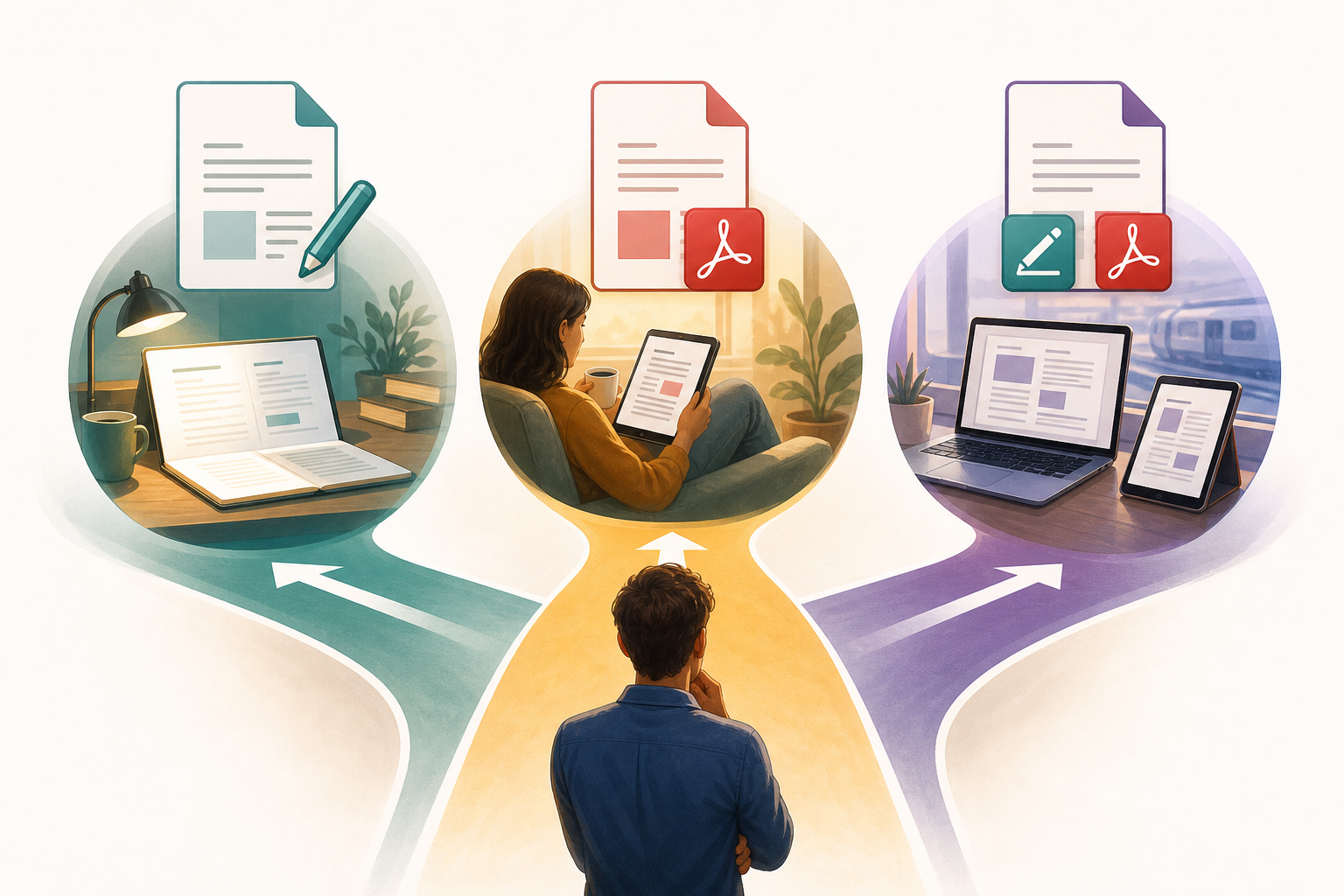
Before converting or publishing, it is worth answering four questions. Who will use the document, for what decision or task, on which device they will open it, and whether they need to edit it. An administrative template is not the same as a customer guide, a training presentation, or a support datasheet. This definition prevents premature exports and helps you choose between an editable document, a PDF, or a combination of both.
The practical criterion is simple: if the recipient needs to complete, adapt, or reuse the content, keep an editable format. If they need to read, print, or keep a stable version, offer a PDF. If there are two audiences, offer both, but with different names and link texts. For example, “Supplier onboarding guide, PDF, reading version” and “Supplier onboarding template, editable document.” Offering both without explaining the difference usually doubles incidents.
- Define the primary and secondary recipients.
- Indicate whether the file is for reading, editing, archiving, or printing.
- Clarify whether it replaces a previous version.
- Avoid publishing an export if the original is still under review.
Minimum structure so the file can be understood on its own
A clear downloadable file must be able to stand on its own outside the page where it was published. Include a visible title at the beginning, a date or status, a brief explanation of its purpose, and recognizable sections. The W3C’s web accessibility recommendations highlight the use of short, descriptive headings because they group related paragraphs and provide an outline of the content. This practice also benefits fast readers, support teams, and users looking for a specific section.
Tables, lists, and links require special care. A table must make sense without relying on colors or an oral explanation. Lists help separate steps, requirements, and exceptions. Links should describe the destination: “Review billing requirements” is more useful than “click here.” In a PDF, the purpose of the link should be clear from its text or context, and it is preferable to create links correctly in the source document before converting it.
- Visible title: what the document is, not just the file name.
- Status: draft, current, replaced, or supporting material.
- Date: publication, review, or validity date, as appropriate.
- Links: descriptive and unambiguous text.
- Tables: clear headings and content that is readable without external explanation.
File name, metadata, and download context
The file name is part of the user experience. It should make it possible to recognize the content in a downloads folder, in a forwarded email, or in a document management system. One practical formula is to combine topic, audience, status, and date when it adds value: customer-onboarding-guide-current-YYYY-MM.pdf. There is no need to turn the name into a long sentence; you should, however, avoid generic names such as document.pdf, new-manual.pdf, or final.pdf.
In addition to the name, review document metadata when your tool allows it. Fields such as title, subject, and keywords can be preserved as PDF properties in export processes from office suites. There is also document support for metadata such as title, topic, identifier, publisher, rights, source, and type. They do not replace visible content, but they help describe physical or electronic documents and reduce ambiguity when the file moves between systems.
- Use consistent and understandable names.
- Avoid “final,” “new,” “copy,” or “definitive” as the only identifier.
- Include the document type when there is a risk of confusion.
- Check that the internal title is not from an old template.
Size, compatibility, and opening tests
An overly large file does not just take longer: it can also increase friction, mobile errors, or drop-offs, and make forwarding more difficult. Before publishing, review embedded images, unnecessary pages, orientation, fonts, and duplicate elements. In PDF exports, some tools allow you to choose all pages, a specific range, or a selection; using this prevents publishing appendices or work pages that were not meant to be included. It is also worth checking whether images need compression, a resolution change, or adjusted JPEG quality.
Reducing size has costs. JPEG quality that is too low can introduce artifacts and visible pixel loss. On the other hand, accessibility-oriented options, such as Tagged PDF, add structural information that can help across different devices and screen readers, but they can also greatly increase the file size. The goal is not always the smallest file, but the right file: readable, downloadable, compatible, and true to its purpose.
- Open the file in a desktop browser.
- Test the download on mobile.
- Check that tables are not cut off.
- Verify page and appendix orientation.
- Review the final file size before publishing the link.
Version control: keep the original and publish identifiable exports
Version control is where most downloadable documents break. The typical mistake is overwriting the editable file with an export or publishing a copy called “final” without preserving the history. The editable file should be the source of truth for future corrections, while each PDF or transformed download should be identified as an output intended for distribution. This makes it possible to correct the original, generate a new export, and withdraw the previous one without losing traceability.
To work safely, separate three concepts: source document, current version, and published link. The source document is edited internally. The current version is the export or file that is delivered. The published link is the access point the recipient will see. If you confuse these levels, you may withdraw a link thinking you deleted the history, or restore an old file thinking you only changed a download. Documenting this relationship prevents incidents.
- Always keep the original editable file.
- Name exports with a date or status.
- Do not use “final” as a versioning system.
- Record which file is associated with each published link.
- Before replacing a download, verify which users or groups depend on it.
How to do it with Apification without mixing responsibilities
In Apification, the operational part starts in Cloud: before sharing, it is worth reviewing permissions, visibility, and recipients so that each resource reaches the right audience. From that space, you can manage files, services, and digital projects in an organized and versioned environment. For office documents, Apification lets you create and edit files with ONLYOFFICE while keeping them inside Cloud storage, which helps preserve the editable file in the same work environment.
When it is time to prepare the delivery, the transformation assistant lets you convert, split, merge, optimize, and process documents, images, video, audio, and data through a guided flow. After that, you can share items through links, users, or groups, and provide original or transformed downloads. If something goes wrong, the item history in Cloud lets you consult saved versions, download previous content, and restore an earlier state when necessary.
- Edit the original office file inside Cloud with ONLYOFFICE.
- Generate a transformed or optimized download with the assistant when appropriate.
- Review the file and its access settings before sharing.
- Share by link, user, or group depending on the audience.
- Use history to recover previous versions if the wrong file is published.
Common mistakes and final checklist before publishing
Some mistakes are repeated because they seem small. Publishing the wrong file often happens when several copies coexist in local downloads. Overwriting the editable file with a PDF prevents quick corrections. Withdrawing a link does not necessarily mean the document cycle has been resolved if previous versions or internal access still exist. Promising legal accessibility without a specialized review is also risky: the WCAG define testable criteria, and conformance requires evaluation, not just good intentions.
The final checklist should be short and mandatory. Confirm that the document has a visible title, date or status, purpose, clear sections, descriptive links, readable tables, a coherent file name, reasonable size, and an appropriate format. Open the download as the recipient would, not just from your internal session. If the document is for customers, students, or suppliers, test the link with an account or access equivalent to theirs. The best prevention is to detect confusion before publishing it.
- Does the recipient understand what it is without reading the original email?
- Is the current version clearly identified?
- Has the original editable file been preserved?
- Does the link indicate the file type and, when useful, the size?
- Was the download tested in a browser and on mobile?
- Was legal conformance not promised without a specific review?
Frequently asked questions
Is it always best to publish a PDF instead of an editable document?
No. A PDF is usually useful for reading, printing, or preserving a stable version. If the recipient needs to complete, adapt, or reuse the content, it is better to offer an editable file or both formats with clearly differentiated download text.
Does a tagged PDF guarantee full accessibility?
Not necessarily. Tagged PDF adds structural information that can help on different devices and with screen readers, but conformance with accessibility criteria requires a specific evaluation of the document.
What text should a download link have?
It should describe the destination. It is better to use “Download customer onboarding guide, PDF” than “click here.” When relevant, add the file type and size so the user can decide before downloading.
How does Apification help in this flow?
Apification lets you edit office documents with ONLYOFFICE inside Cloud, transform or optimize files with a guided assistant, review history, restore versions, and share originals or transformed downloads through links, users, or groups.
Sources and further reading
Documentation consulted while preparing this article.
- Writing for Web Accessibility – Tips for Getting Started — W3C Web Accessibility Initiative
- Web Content Accessibility Guidelines (WCAG) 2.2 — W3C
- PDF11: Providing links and link text using the Link annotation and the /Link structure element in PDF documents — W3C Web Accessibility Initiative
- PDF Export General — LibreOffice Help
- Description — File Properties — LibreOffice Help
- Version history — ONLYOFFICE Help Center
- Sharing files and folders — ONLYOFFICE Guides
Explore Apification
Related articles
Documents and data
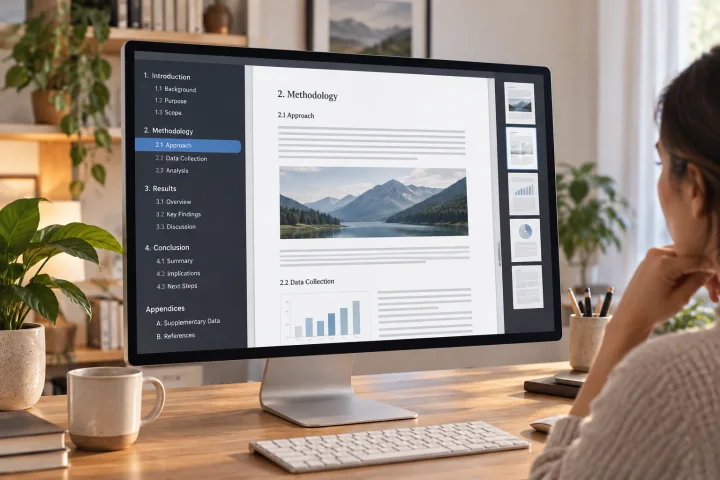
How to Create Bookmarks in a PDF: Headings, Exporting, and Checks
Plan a clear hierarchy, export the document, and check that every bookmark leads to the right section in the final PDF.
Documents and data
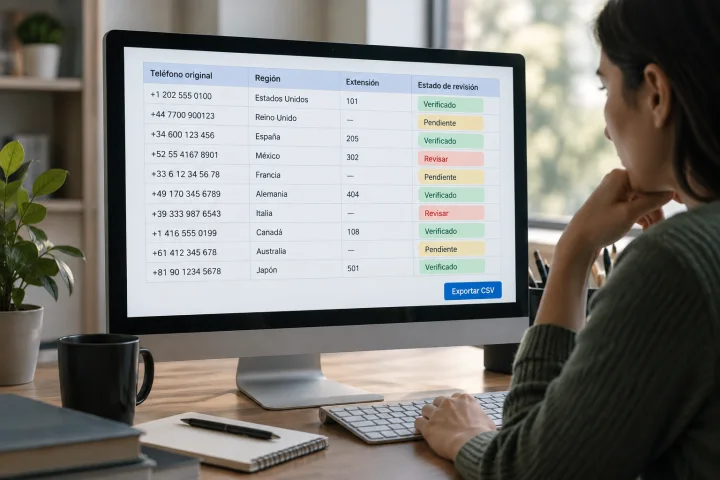
How to Normalize Phone Numbers in a Spreadsheet Before Importing Contacts
Prepare a phone list for import without losing leading zeros, prefixes, or extensions: keep the original, resolve ambiguities, and validate the CSV.
Documents and data
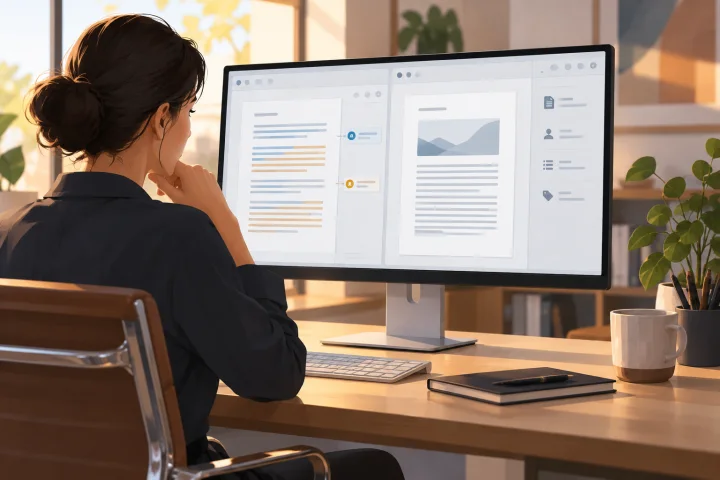
Document Metadata: What to Check Before Sharing a File
A practical guide to reviewing a document, preparing a copy to share, and keeping the editable original separate.