Documents and data
PDF or Editable Document: How to Choose the Right Format for Review Without Losing Control or Traceability
Choosing between an editable Office file and a PDF is not a matter of preference, but of control: it depends on whether you need live changes, stable reading, permissions, versions, or a closed delivery.
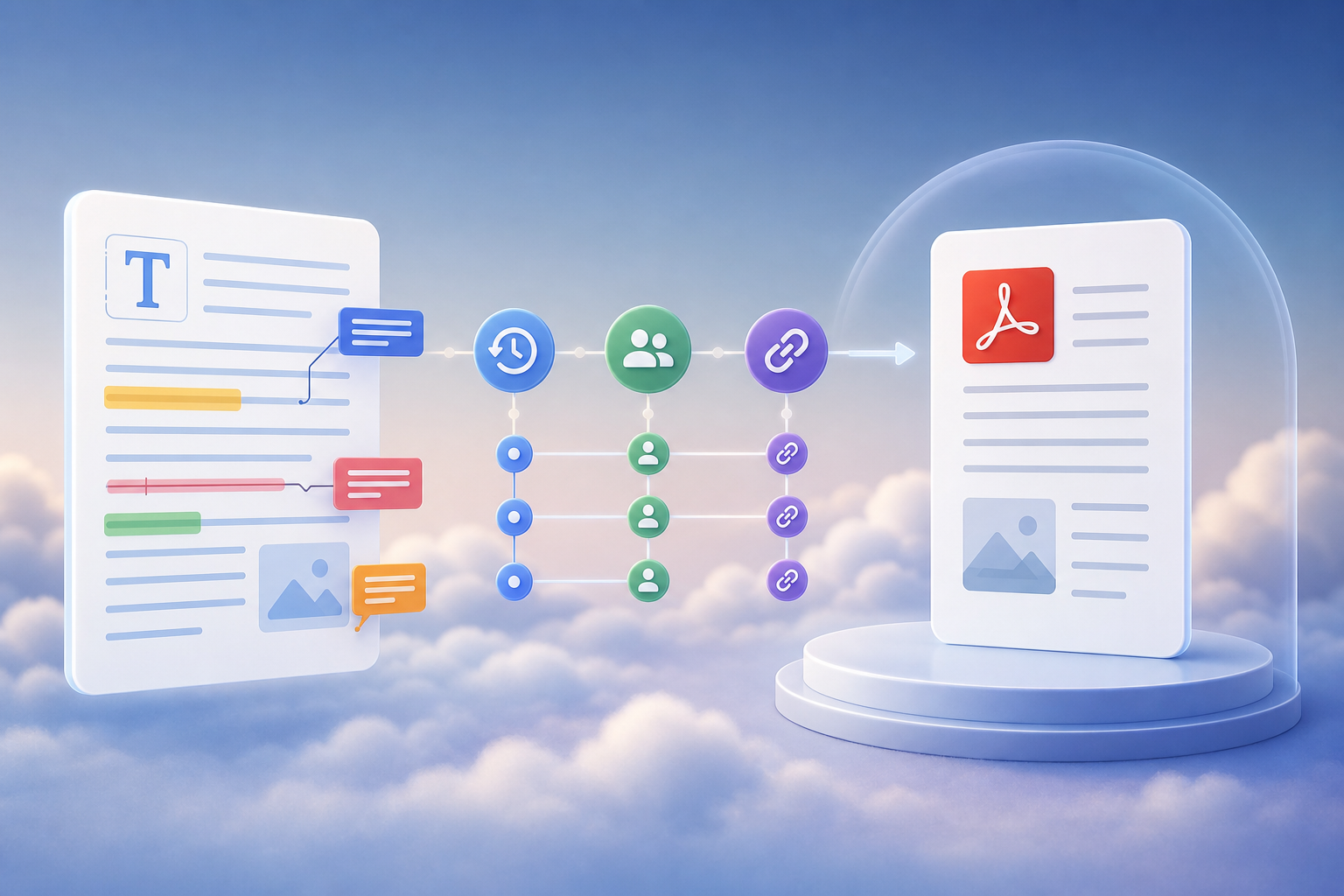
The real problem: reviews fail before they even start
The question “PDF or editable document for review” usually comes up when the process is already underway: someone sent an attachment, another person corrected a local copy, a client replied about an old version, and the team is trying to reconstruct what changed. The problem is not only the format. It is having mixed conversation, editing, approval, and distribution in the same channel without a single reference version.
An editable document and a PDF solve different needs. The editable file is useful for working on live content: text that changes, tables that are adjusted, presentations that are still being organized, and comments that must become real modifications. The PDF works better when what matters is that everyone sees a stable representation of the document. If the wrong choice is made, predictable failures appear: converting to PDF too early, editing the wrong file, losing the editable original, or mixing drafts and final deliverables in the same folder.
- Warning sign 1: there is more than one file called “final,” “final2,” or “reviewed.”
- Warning sign 2: important comments are spread across emails, chats, and local copies.
- Warning sign 3: no one can say for sure which version a client or supplier received.

The practical difference between editable and PDF
An editable file, such as an Office document, spreadsheet, or presentation, is designed to keep being modified. In Apification, these files can be created and edited with ONLYOFFICE without taking them out of Cloud storage. This makes it possible to work with comments, co-editing, change tracking, version history, and review of suggested modifications. It is the right format when discussion is still expected about content, structure, figures, messaging, or the design of a presentation.
PDF, for its part, was defined to represent electronic documents so they can be exchanged and viewed independently of the environment where they were created, viewed, or printed. Its practical usefulness in closed deliverables is based on preserving visual fidelity across devices, platforms, and software. It may include annotations, links, forms, permissions, and digital signatures depending on how the specific file was created and processed, but you should not assume those capabilities in any PDF without verifying the workflow used.
- Editable: prioritizes modification, co-authoring, comments, and changes that can be accepted or rejected.
- PDF: prioritizes consistent reading, stable distribution, and a lower risk of accidental changes.
- Risk of editable files: someone may modify content without proper control.
- Risk of PDF: it may be used too early and block a review that still needed editing.
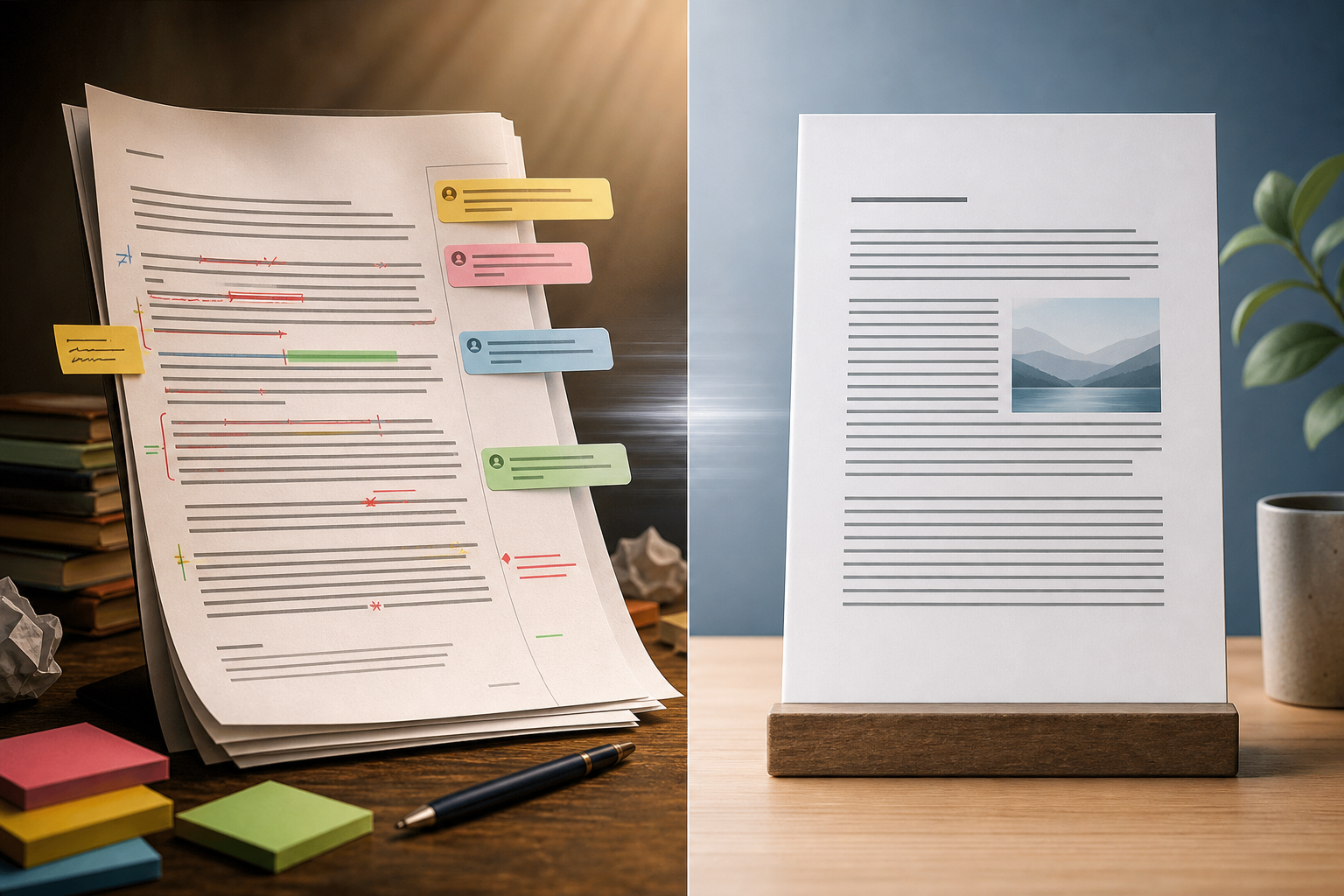
When to use an editable document
Use an editable document when the goal is to build the content, not just read it. It is the natural option for proposal drafts, briefings, internal contracts before formal review, reports with live tables, marketing presentations, and documents that require several rounds of comments. In ONLYOFFICE, reviews can be managed with review permissions and change tracking: a third party can propose modifications without directly editing the final content, and the person responsible can accept or reject each change.
It is also advisable to keep the editable file when there is real co-editing. The collaboration tab in ONLYOFFICE centralizes functions such as sharing settings, co-editing modes, comments, change tracking, suggestion management, chat, and version history. In Apification, this is combined with Cloud to keep the file inside an organized and versioned space. This avoids the most dangerous pattern: downloading the file, sending it by email, receiving several copies, and trying to manually merge incompatible contributions.
- Use it if the content can still change.
- Use it if there are several internal reviewers with editing responsibility.
- Use it if you need to accept or reject proposed changes.
- Use it if you must keep tables, text, or slides as reusable material.
When to use PDF
Use PDF when the document is already considered a closed deliverable or when the goal is consistent reading, approval, or distribution. A final report, a proposal sent to a client, a validated campaign sheet, or a presentation that should not be reordered by third parties fits better as a PDF. From ONLYOFFICE, it is possible to download the edited document in formats such as DOCX, PDF, ODT, PDF/A, RTF, TXT, HTML, JPG, and PNG, allowing you to work in an editable format and deliver a stable PDF copy when the time comes.
PDF should not be treated as a magic traceability solution. It helps fix a representation of the document, but the operational evidence of what was shared also depends on the workflow: where it was stored, which version was generated, who had access, and whether it was delivered through a link, user, or group. When a consent record or signature in PDF applies, it can provide evidence within the corresponding process, but it should not be presented as a universal legal guarantee or as a cryptographic signature or visual stamp if those functions are not part of the implemented workflow.
- Use it for final or semi-final deliverables that should not be freely edited.
- Use it for approvals where it matters that everyone sees the same layout.
- Use it as a transformed download from a retained editable original.
- Avoid using it if you still expect rewrites, table changes, or section reorganization.
Decision matrix for choosing the format
The decision should be made based on the type of review, number of reviewers, need for editing, access control, and output format. If the internal team needs to discuss the content line by line, the editable file with comments and change tracking is superior. If a client only needs to validate an already closed composition, the PDF reduces visual ambiguity. If there are external reviewers with different roles, first define whether they should edit, suggest, comment, view, or download.
A useful operational rule is to separate the “master file” from the “delivery format.” The master file is usually editable and should be kept in Cloud with history. The delivery may be the original or a transformed download, for example PDF. Apification allows elements to be shared through links, users, or groups, and provides original or transformed downloads. This allows the same content to have a controlled source and different outputs depending on the phase of the process.
- Internal draft with several authors: editable in Cloud with co-editing and versions.
- External review with suggestions: editable with appropriate permissions, comments, and reviewable changes.
- Reading approval: PDF generated from the retained editable file.
- Public distribution or distribution to many recipients: PDF or transformed download with permissions and publication window if applicable.
- Correction of an old version: restore or download the previous version before starting a new round.
Recommended workflow in Apification
A robust workflow starts by saving the file in Apification Cloud, not in a local folder or email thread. From there, the Office document is edited with ONLYOFFICE inside Cloud storage. During the live phase, comments, review, co-editing, and change tracking are used according to the required level of involvement. Before inviting external users, it is advisable to review the history and confirm that the correct file is the one that will be shared.
Then the distribution method is chosen: users, groups, or links. For recurring collaborators or reviewers with clear responsibility, sharing with users or groups makes it possible to assign permissions according to the task. For a one-off delivery, a link may be enough to share or provide the download, provided the level of control is sufficient. Apification also allows files and services to be protected with permissions, OTP, external authentication, restrictions, and publication windows, so distribution does not depend only on an attachment not being forwarded.
- Step 1: keep the editable original in Cloud.
- Step 2: carry out the live review in ONLYOFFICE.
- Step 3: review the history before sharing.
- Step 4: define permissions by role, not by convenience.
- Step 5: deliver the original or a transformed version, such as PDF, depending on the goal.
Versions: traceability without loose copies
Versions are not the same as scattered copies. In ONLYOFFICE Workspace, revisions reflect saved minor changes, while versions correspond to major changes linked to editing sessions. The version history shows author, date, and time, and allows changes highlighted by author to be viewed. It also allows a previous version or revision to be restored when it is necessary to return to an earlier state of the document.
In Apification, the ability to review the history of Cloud elements, download previous versions, and restore content helps turn traceability into a daily practice. The recommendation is to name important milestones in the process: “draft sent to management,” “client version,” “approval PDF,” or “final delivery.” That way, when someone asks what was shared, the team does not rely on memory or attachments in inboxes, but on a recoverable and consistent history.
- Do not duplicate files for every minor comment.
- Create milestones when the phase of the process changes.
- Download a previous version only if you need to evidence or compare a specific state.
- Restore content carefully and inform the team that the document has returned to an earlier state.
Permissions, links, and mistakes to avoid
Invite collaborators when you need identity, continuity, and differentiated permissions. This is appropriate for internal teams, agencies, active suppliers, or clients who participate in several rounds. Use links when the need is simpler: distributing a copy, allowing access, or enabling a one-off download. In ONLYOFFICE, read-only permission allows the file and existing comments to be viewed without enabling editing; in addition, there are advanced settings to restrict printing, downloading, and copying in files shared with read-only or comment permissions.
Common mistakes almost always arise from confusing phase and format. Converting to PDF too early forces people to comment on a piece that still needed editing. Allowing edits on the wrong file contaminates the history. Sending attachments by email breaks the single version. Not retaining the editable original makes it difficult to correct properly after approval. Mixing drafts and final deliverables in the same folder increases the risk of sending the wrong file. The solution is not more bureaucracy: it is deciding the format, permissions, folder, and output before starting the review.
- Before sharing, confirm: correct file, correct phase, correct permissions, and correct format.
- Separate work folders from closed deliverables.
- Do not send attachments if you need a single source of truth.
- Do not delete the editable file after generating the PDF.
- Review who can edit, comment, download, or only view.
Frequently asked questions
Which format is best for a review with many changes?
It is best to use an editable document inside Cloud, with comments, co-editing, and change tracking. This way, proposals can be accepted or rejected without creating loose copies.
When should I convert a document to PDF?
When the content is already stable and the goal is consistent reading, approval, or distribution. The recommended approach is to keep the editable original and generate the PDF as the delivery output.
Does a PDF guarantee traceability by itself?
No. A PDF helps fix a stable representation, but traceability depends on the history, versions, permissions, and sharing method used.
Is it better to share by link or invite users?
Invite users or groups when you need clear roles, ongoing collaboration, and differentiated permissions. Use links for one-off access or download when the required level of control is lower.
What should I do if someone edited the wrong version?
Review the history, identify the correct version, download or restore the necessary state, and tell the team which source will be the single working reference before continuing.
Sources and further reading
Documentation consulted while preparing this article.
- ISO 32000-1:2008 — Portable document format — Part 1: PDF 1.7 — International Organization for Standardization
- PDF 32000-1:2008 specification, Adobe-hosted copy — Adobe Developer / ISO PDF specification copy
- ONLYOFFICE Document Editor — Collaboration tab — ONLYOFFICE Help Center
- ONLYOFFICE Document Editor — Reviewing documents — ONLYOFFICE Help Center
- ONLYOFFICE Document Editor — Save, download, print your document — ONLYOFFICE Help Center
- ONLYOFFICE Workspace — Sharing files and folders — ONLYOFFICE Help Center
- ONLYOFFICE Workspace — Managing versions and revisions — ONLYOFFICE Help Center
- ONLYOFFICE Document Editor — Version history — ONLYOFFICE Help Center
- LibreOffice Help — Using Microsoft Office and LibreOffice — The Document Foundation / LibreOffice Help
- LibreOffice Help — Export as PDF — The Document Foundation / LibreOffice Help
Explore Apification
Related articles

Documents and data
Document Metadata: What to Check Before Sharing a File
A practical guide to reviewing a document, preparing a copy to share, and keeping the editable original separate.

Documents and data
Convert PDF to Word: How to Recover an Editable Document and Review the Formatting
Conversion can make editing easier, but it does not guarantee that the layout will stay the same. Learn how to prepare a copy, review the result, and keep the original PDF.
Documents and data
External Links in Excel: Review Dependencies Before Moving or Sharing a Workbook
Before moving a workbook, identify what depends on other files, decide what to include, and test a copy in the planned location.