Documents and data
External Links in Excel: Review Dependencies Before Moving or Sharing a Workbook
Before moving a workbook, identify what depends on other files, decide what to include, and test a copy in the planned location.
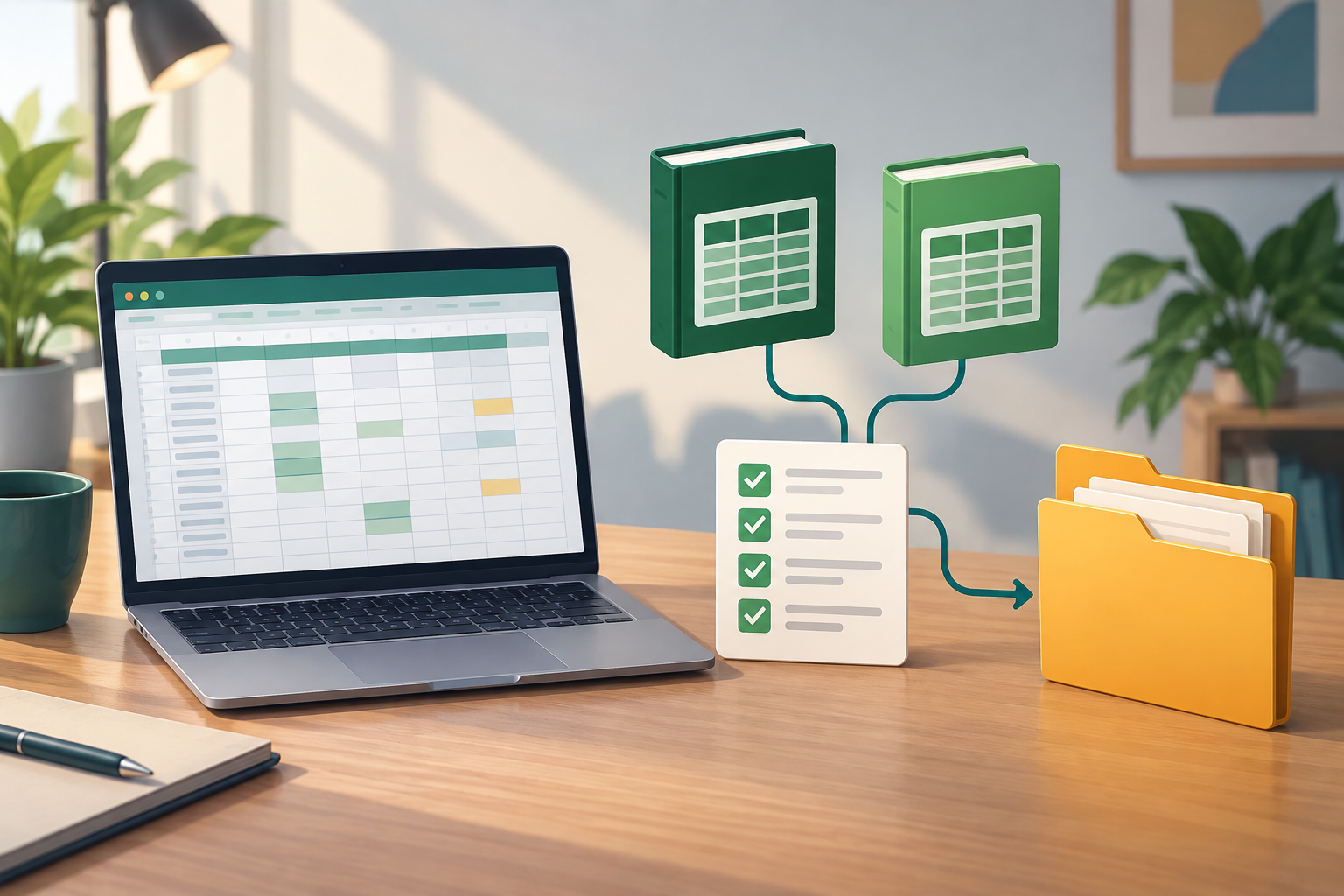
What It Means for a Workbook to Have External Links
An external link appears when a formula or workbook element depends on information in another file. The workbook containing the formula is not necessarily self-contained: it may display a result, but to update it or check where it came from, you may also need to locate the source file. That is why a worksheet that looks complete is not enough to conclude that it is ready to move or share.
When you move the workbook, the practical risk is losing the path or access that allowed it to reach the source. As a result, the dependency may not update, or you may be unable to verify the result. As a practical check—not a guarantee about how Excel behaves—work on a copy and note the move you plan to make: to another folder, another computer, or another person. The key question is not just “Does it open?” but “Can the recipient access the sources they need?”
- Note the workbook’s name and its planned new location.
- Identify who will keep or provide the source files.
- Do not consider a dependency verified just because you see a number in the cell.
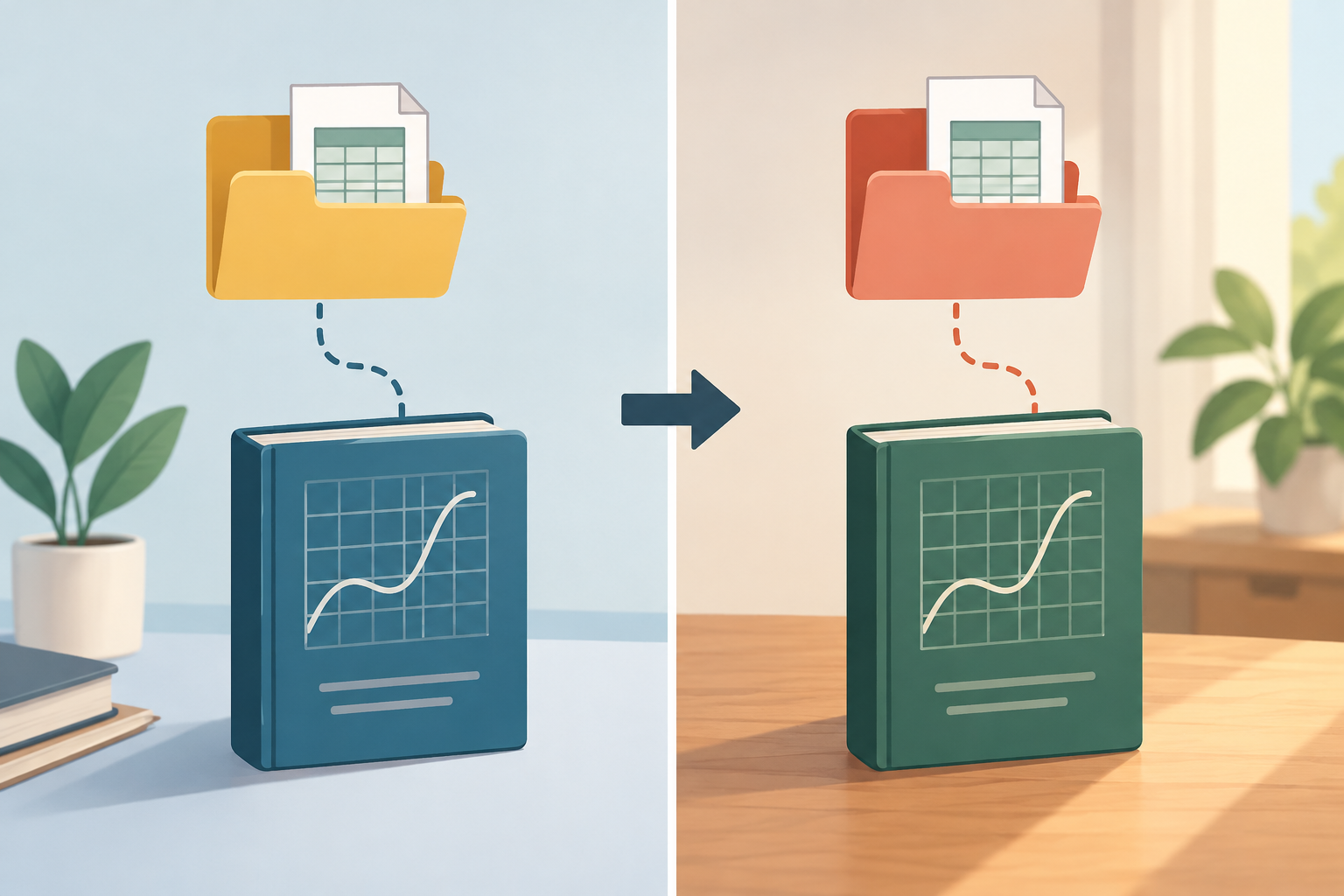
Distinguish Workbook Links, Data Connections, and Hyperlinks
Group items by their function before deciding what to do. A workbook link represents a dependency on another file; a data connection retrieves data from a source; a hyperlink takes you to a location when followed. They may seem similar because they all point to something outside the workbook, but they do not pose the same problem: a formula may need a source to calculate, while a navigation link may simply open a destination.
This classification helps prevent applying one solution to different types of items. Microsoft’s guide to [external links found](https://support.microsoft.com/en-us/excel/external-links-found) refers to the external links that appear in the Edit Links dialog box. The available evidence does not provide a complete procedure for separately inventorying data connections and hyperlinks. Record them as different categories, and do not assume that finding one type means you have reviewed the others.
- Label each finding as a workbook link, data connection, or hyperlink.
- Note its purpose: calculation, data refresh, or navigation.
- If you cannot identify the type, mark it as pending rather than deleting it.

Inventory Dependencies Before Changing the File
In Excel, go to Data > Edit Links to review the workbook links listed in that dialog box. According to Microsoft, the Document Inspector detects external links that appear there. The documentation on [external links found](https://support.microsoft.com/en-us/excel/external-links-found) describes this check; use it as a starting point for your inventory, not as a guarantee that every possible reference in the file has been located. Record each finding in a working list: the file mentioned, the affected area, the source owner, and the decision still to be made.
Charts also deserve their own check. To search for workbook links used in chart data series, Microsoft says to select the chart and use Chart Design > Current Selection. See the steps in [Manage workbook links](https://support.microsoft.com/en-us/excel/manage-workbook-links) and add the results to the same inventory, noting that they came from charts. Paths and command names may vary by Excel version; consult the documentation for the steps that apply to your version. A written list reduces the risk of missing a dependency when several people review different parts of the workbook.
- Create a table with columns for item, source, location, owner, and decision.
- Record findings from the Edit Links dialog box and chart series separately.
- Also note the categories you have not yet been able to review.
Check the Sources and Don’t Rely Only on Visible Results
As practical advice for preparing a handoff—not as an Excel procedure documented by the linked sources—confirm with the person responsible which file should be used and whether it will be available at the destination. Also check that the recipient will have access to that file. A path recorded in the inventory does not, by itself, prove that the destination exists or that permissions are sufficient; those checks depend on the actual handoff context.
Before accepting the figures, a practical check is to compare them with the agreed source and record what you were able to verify. If you do not have access to the source, note that the check is pending and do not present the result as freshly updated. The available evidence does not support assuming that visible values are up to date or that Excel will automatically repair an inaccessible reference.
- Confirm which source is authorized, not just a similarly named copy.
- Verify access from the environment intended for the recipient.
- Mark results as unverified if you could not check their source.
Consider the Options for Formulas, Values, and Source Files
The available evidence does not support recommending one strategy for every situation. As a general analysis of the possible trade-offs, keeping linked formulas may preserve the active dependency, but requires the sources and necessary access to remain available. Converting results to values may work when you only need to present figures, but those values will no longer update through the linked formulas. Providing the sources as well may give someone reviewing or updating the workbook useful context, although it means organizing those files and checking access.
These are general considerations, not instructions or a preference attributed to the linked Microsoft documentation. The choice depends on the purpose of the file and what the people preparing and receiving it agree on. Record which option you chose and what it means for future updates.
- Consider whether the workbook needs to retain active formulas or only display results.
- If you provide values, note that they will not update through those formulas.
- If you include sources, record which ones they are and who needs access to them.
Test a Copy in the Planned Location With the Intended Permissions
As a practical handoff check, save a working copy and put it in the actual destination or an environment that reproduces its conditions. Perform the checks with the permissions intended for the recipient, not only with your own account. Check whether the file can access the agreed sources and whether the observed results match what you documented. This is a recommended workflow check, not an Excel feature whose effectiveness guarantees that dependencies will be repaired.
If an error, different result, or inaccessible source appears, pause the handoff and return to the inventory. Confirm whether the source file was moved, access is missing, or the workbook needs to be delivered under a different approach. Do not change links or replace formulas without recording the reason and expected effect. The test does not prove that all dependencies have been repaired; record only which checks were performed and under what conditions.
- Open the copy from the planned destination.
- Check results and sources using the recipient’s permissions.
- Record errors, differences, and any dependencies that remain pending.
Keep the Original and Organize the Review With Versions
Keep the original separate from the copy prepared for moving or sharing. Clearly identify each file and note the date, purpose of the copy, and decisions made about its dependencies. This reduces the risk of overwriting the working source or confusing a reviewed version with one that still needs checks.
As optional support for organizing this workflow, Apification Cloud lets you keep files in a versioned workspace and review, download, or restore earlier versions. This can help distinguish the prepared copy from the original and recover content, but it does not diagnose or repair external links. Check dependencies separately in Excel and keep the inventory with the reviewed copy.
- Keep the original and name the handoff copy unambiguously.
- Save the inventory and decisions alongside the reviewed material.
- Use version history to review or recover content when needed.
Frequently asked questions
Does the Document Inspector check every type of external link?
Microsoft’s documentation says it detects external links that appear in the Edit Links dialog box. It does not establish that it also provides a complete inventory of data connections and hyperlinks. See [External links found](https://support.microsoft.com/en-us/excel/external-links-found) for more details.
What should I do if the workbook shows results but I can’t access the source?
As practical advice, record that you could not verify the source and do not present the results as checked or up to date. Confirm with the person responsible which source is correct and how to get access.
Should I remove external links before sharing the file?
The available evidence does not support recommending one option for every case. As a general analysis, keeping formulas may be important if the workbook needs to remain linked to its sources; if you only need to present results, you can consider keeping them as values, bearing in mind that they will not update through those formulas. Document your decision and its implications.
Sources and further reading
Documentation consulted while preparing this article.
- Enlaces externos encontrados — Microsoft Support
- Administrar vínculos de libros — Microsoft Support
Explore Apification
Related articles

Documents and data
Convert Nested JSON to CSV: Flattening and Array Choices
Learn how to choose record nodes, flatten objects, and define rules for arrays. Follow conceptual examples, compare possible structures, and check the CSV preview.

Documents and data
Merge PDFs with Interactive Forms: How to Check Fields Before Sharing
An operational guide to identifying fillable fields, preparing files, combining copies, and testing the result before distributing it.
Documents and data
Replaced Fonts in a Document: How to Spot Layout Changes and Prepare a Reliable Delivery
A practical guide to investigating font warnings, comparing layout, and deciding which files to deliver without losing the editable original.