Documents and data
Convert PDF to Word: How to Recover an Editable Document and Review the Formatting
Conversion can make editing easier, but it does not guarantee that the layout will stay the same. Learn how to prepare a copy, review the result, and keep the original PDF.
When to convert a PDF to Word
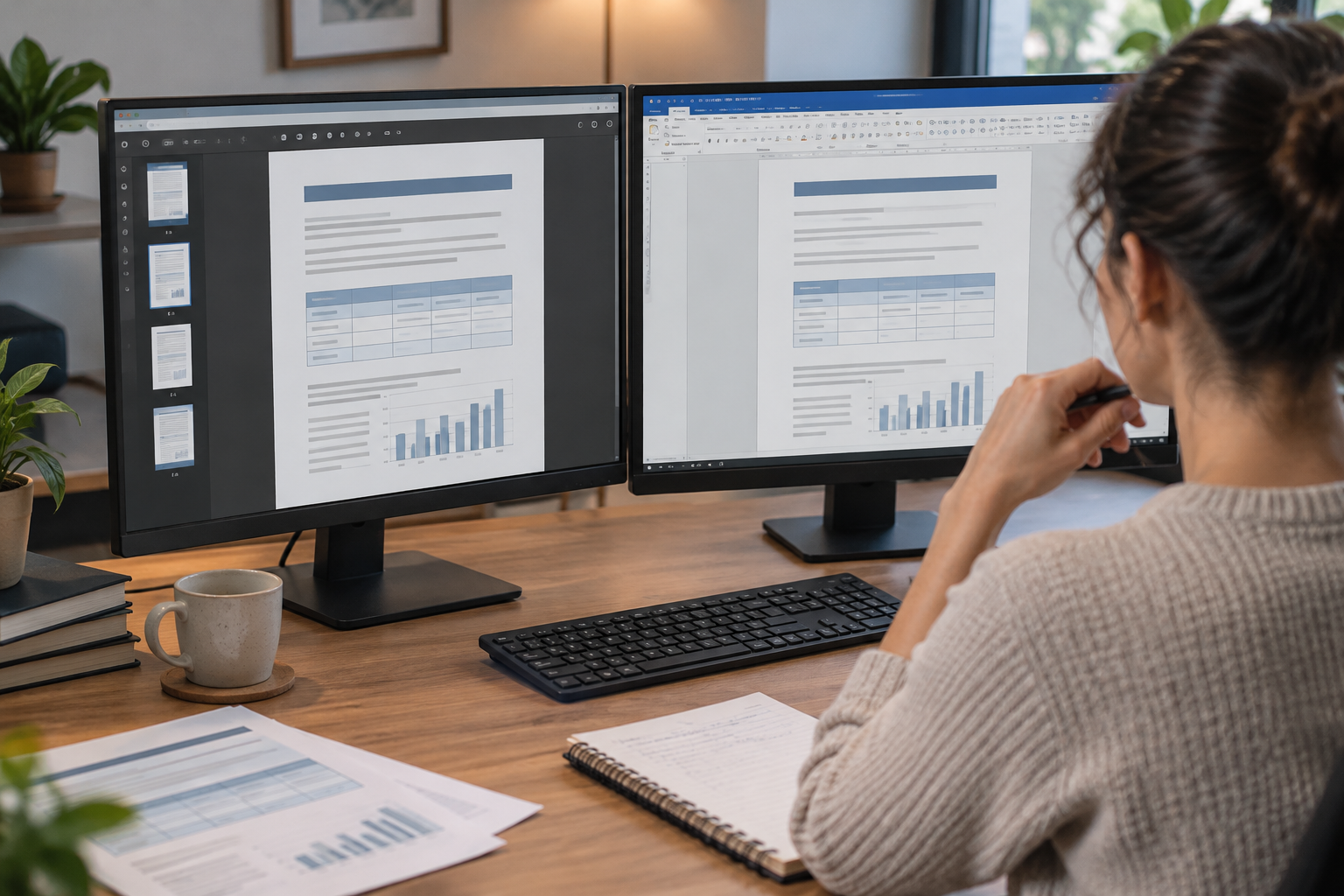
Converting a PDF to Word is useful when you need to correct a sentence, update data, reuse parts of a report, or work with the content in an editor. The DOCX can serve as an editable starting point, although you will need to review the result.
If you only need to view or share the file as received, keep the PDF. Conversion does not guarantee an identical layout, so choose based on your goal and keep both versions when you want to edit while retaining a reference.
- Convert the file if you need to edit its content and can review the result.
- Keep the PDF if you only need to view the version you received.
Before you start: identify the type of PDF
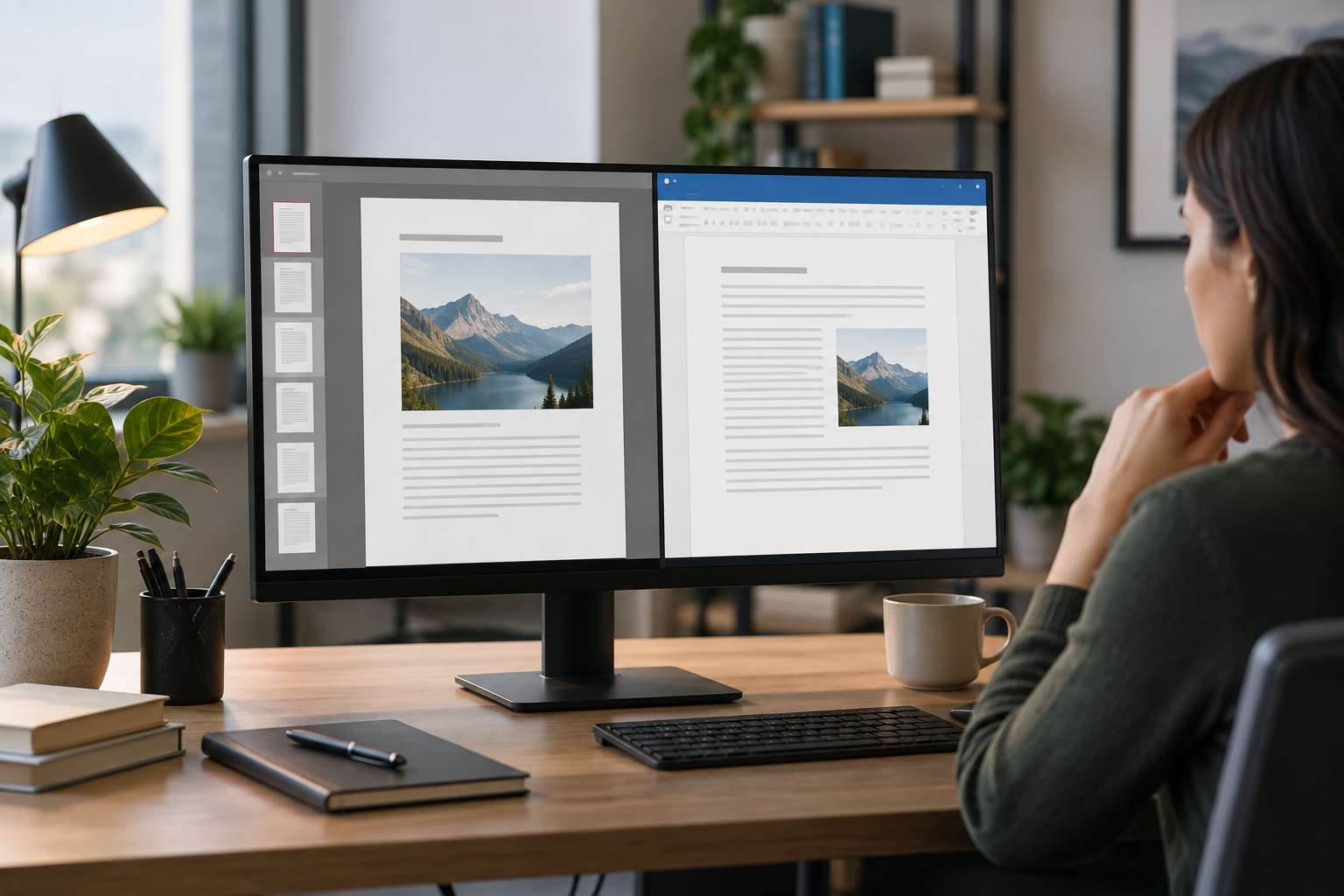
Try selecting and copying a sentence. If you can select characters, the PDF contains text that can be used as text. If the page behaves like an image and you cannot select words, it is probably a scan or its content is represented as an image.
For a PDF with selectable text, check how its structure and layout are reconstructed. For a scan, also check that text recognition interprets the image correctly. Some tools offer OCR to process scans, but do not assume every character has been recognized without errors. If the file contains both types of pages, review them separately.
- Try selecting and copying a line of text.
- Identify scanned pages or pages with images of text.
Prepare a copy and protect sensitive information
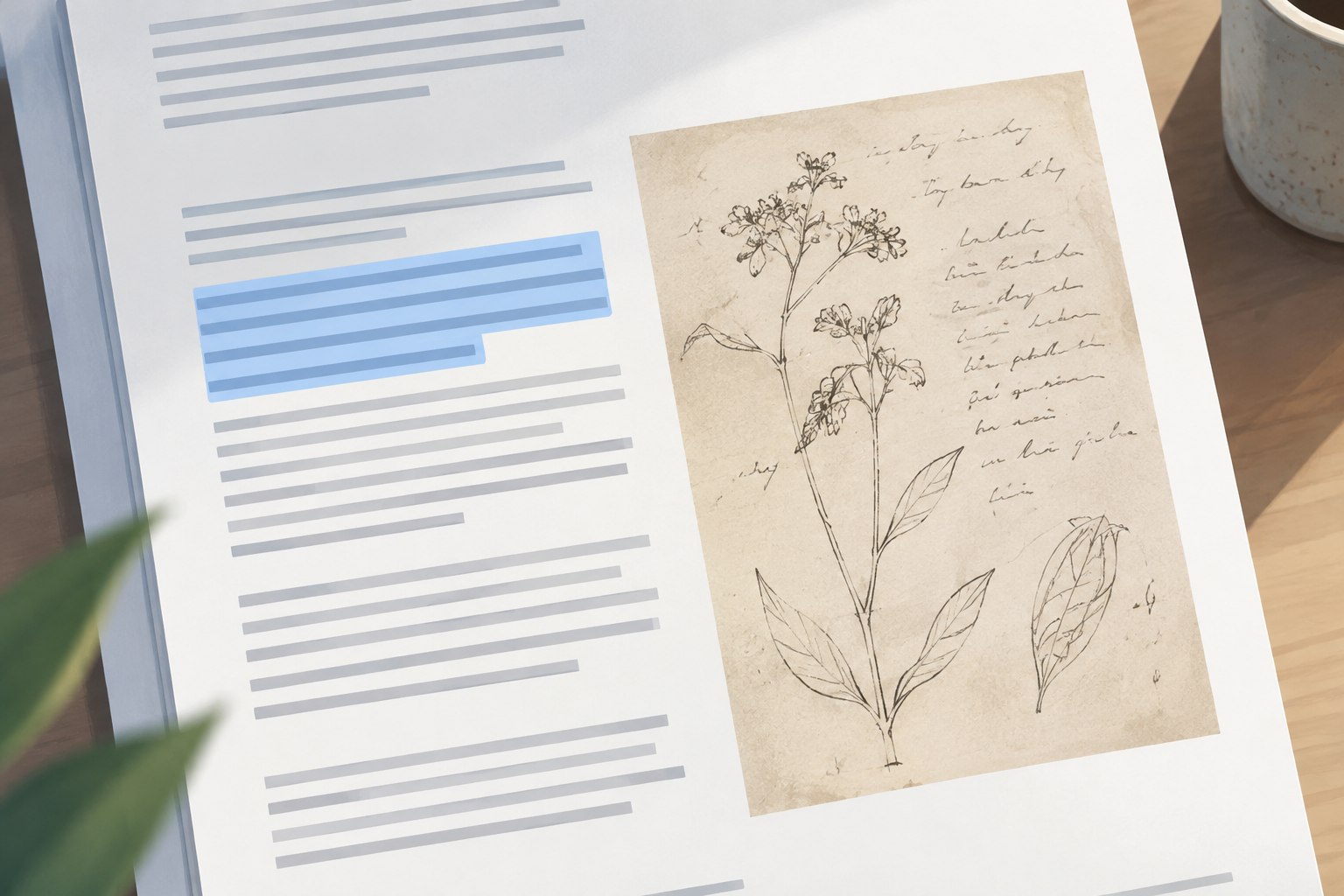
Keep the PDF you received and create a working copy with a name that makes its purpose clear, such as “report_original.pdf” and “report_review.docx.” This way, you can identify the source file if you need to refer back to it.
Before uploading or sending a PDF containing sensitive information, make sure the tool and environment are authorized to handle it. Do not share the document through a service that is not approved for that type of information.
Apification Cloud lets you organize files and projects with versions; its guided wizard offers workflows for converting and processing documents. You can also open and edit office files with ONLYOFFICE within Cloud. Check that the available operation matches the format you need and review the file it produces.
- Keep the original PDF and working copy clearly identified as separate files.
- Check that the environment is authorized before uploading sensitive information.
Convert the file and understand what may change
Choose a tool that supports both the source file and the editable document you need. Start the process using the copy, then open the resulting DOCX in an editor. Go through the entire document: checking only that the text appears is not enough to validate the result.
Conversion reconstructs the content in an editable document, but the way each element is represented may vary. A heading might become a regular paragraph, a table might change width, or the content might be distributed differently across pages. If preserving the exact presentation is a priority, compare the work needed to correct the DOCX with the option of keeping the PDF.
- Open the converted document in the editor you will use to make changes.
- Go through every page and note any differences that affect how the document will be used.
Review tables, lists, headings, and characters
Inspect tables, especially cells containing figures, units, or text spread over multiple lines. Check that the rows and columns are understandable, headings match the data, and all necessary content is present.
Review bullets and numbering, headers, footers, page breaks, and special characters. Look for accents, quotation marks, hyphens, symbols, or numbers separated from their units. Also check that lists remain in the correct sequence and headings are not confused with body text.
- Cross-check figures, names, dates, references, and symbols.
- Look for broken lines, unusual spaces, and displaced elements.
- Check the order of lists and sections.
If the PDF is a scan, check the OCR
When the text is not selectable, conversion may depend on optical character recognition (OCR). Some tools offer OCR to process text on scanned pages and generate editable characters. The result depends on the source file: do not assume an unclear character was recognized correctly.
Compare the recognized text with the original image, especially proper names, amounts, dates, reference numbers, and words with similar-looking characters. If you cannot verify a section with confidence, consult the original PDF before editing it.
- Prioritize data that could change the meaning of the document.
- Check any uncertain reading against the scanned page.
Validate the DOCX against the original PDF
Work through the PDF in order and check that the DOCX sections appear in the expected sequence, with no missing or duplicated paragraphs. Then return to the parts that could affect interpretation: tables, lists, notes, headers, and footers. Keep both files available so you can compare their content.
Check readability on pages where the layout has changed, and look for clipped text, overlaps, or spaces that separate a label from its value. Save your changes in the working copy, then reopen the DOCX to review the result.
- Content: order, completeness, and data accuracy.
- Layout: tables, page breaks, headings, and readability.
- File: changes saved in the working copy.
Save and share the right version
Keep the source PDF and reviewed DOCX as separate files, and name them so their status is clear. In Apification Cloud, you can view an item's history, download earlier versions, and restore content, which helps you manage revisions.
Before sharing, decide whether the recipient needs an editable file or the PDF whose presentation you have checked. Cloud lets you share items through links, users, or groups and offer original or transformed downloads. Check the file and download type you selected before distributing them.
- Share the DOCX if the recipient needs to edit the content.
- Share the PDF if the recipient needs to view the version whose presentation you have validated.
- Share both if it is useful to distinguish the reference from the editable version.
Frequently asked questions
Does converting a PDF to Word preserve the exact formatting?
Do not assume that it will. Conversion reconstructs an editable document, and the result depends on the source file; review the layout before using or sharing it.
Can I convert a scanned PDF to Word?
Some tools offer OCR to process scans. Afterward, compare the recognized text with the original image, especially names, figures, dates, and symbols.
Should I delete the PDF after converting it?
Keep the original PDF as a reference and save the DOCX as a separate version. That way, you can consult the source if you need to check the content.
Sources and further reading
Documentation consulted while preparing this article.
- Convertir PDF a Word online — Adobe
- Convert PDF to Word online — Microsoft Word
- Convertir PDF escaneado a Word — iLovePDF
Explore Apification
Related articles
Documents and data
External Links in Excel: Review Dependencies Before Moving or Sharing a Workbook
Before moving a workbook, identify what depends on other files, decide what to include, and test a copy in the planned location.
Documents and data
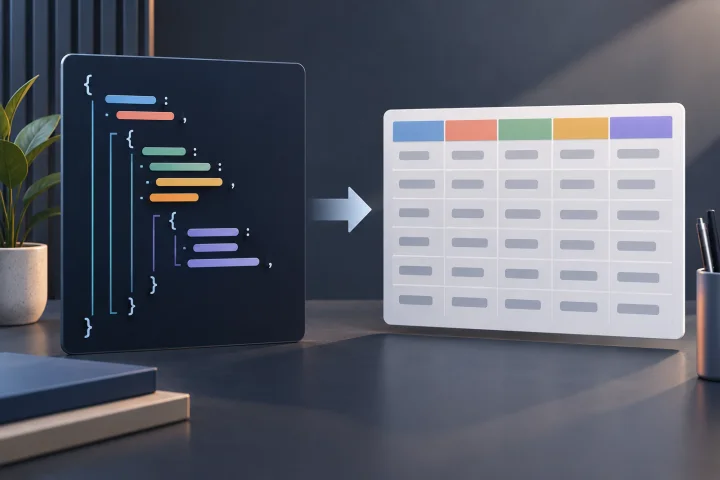
Convert Nested JSON to CSV: Flattening and Array Choices
Learn how to choose record nodes, flatten objects, and define rules for arrays. Follow conceptual examples, compare possible structures, and check the CSV preview.
Documents and data
Merge PDFs with Interactive Forms: How to Check Fields Before Sharing
An operational guide to identifying fillable fields, preparing files, combining copies, and testing the result before distributing it.