Documents and data
Editing Office documents in the cloud without duplicates: a workflow with history and controlled delivery
A practical guide for teams that review editable documents without multiplying copies, using Cloud work, permissions, history, and controlled delivery.
The problem: too many copies and too little traceability
Editing Office documents in the cloud without duplicates is not just a matter of keeping things tidy: it is a way to reduce operational errors. The most common pattern starts with an email attachment, continues with several people downloading it, ends with names like “final,” “reviewed final,” or “definitive final,” and leaves the team without a clear answer about what changed, who changed it, and which file is current. In administrative departments, training, agencies, or operations, that lack of control can affect templates, proposals, manuals, control sheets, and deliverable presentations.
The solution is not to ban copies in every case, but to decide where the editable document lives and when a copy makes sense. In Apification Cloud, the operating principle is to keep files, services, and digital projects in an organized, versioned space prepared for sharing. If the document under review stays inside Cloud and is edited there with ONLYOFFICE, people work on the same item instead of creating local branches that are difficult to reconcile.
- Warning sign: several people send edited versions by email.
- Warning sign: the deliverable file is mixed with internal comments.
- Warning sign: a document is replaced without checking the previous history.

Working principle: one live editable file inside Cloud
The practical rule is simple: while a document is in the creation, review, or approval phase, it should be treated as a “live editable file” and remain in Cloud storage. Apification allows you to create and edit documents, spreadsheets, and presentations with ONLYOFFICE while keeping them inside Cloud storage. This prevents the cycle of downloading, editing locally, and reuploading under another name, which is usually the source of duplicates and conflicts. Downloading should be reserved for specific deliveries, external archiving, or situations where distributing a separate format is necessary.
ONLYOFFICE Docs allows you to create, edit, and collaborate on text documents, spreadsheets, presentations, PDFs, and forms directly in the browser. Its editors include documents, spreadsheets, presentations, PDFs, forms, and diagram viewing. For teams that work with Office, this allows daily editing to happen in the browser and on the hosted file, without asking each participant to keep a local copy. The advantage is not just convenience: it is clearer traceability of the item’s lifecycle in Cloud.
- Work inside the file while the content is still changing.
- Download only when there is a specific delivery or an external need.
- Avoid forwarding editable attachments if the team can access the item in Cloud.

Recommended structure: work, review, and delivery
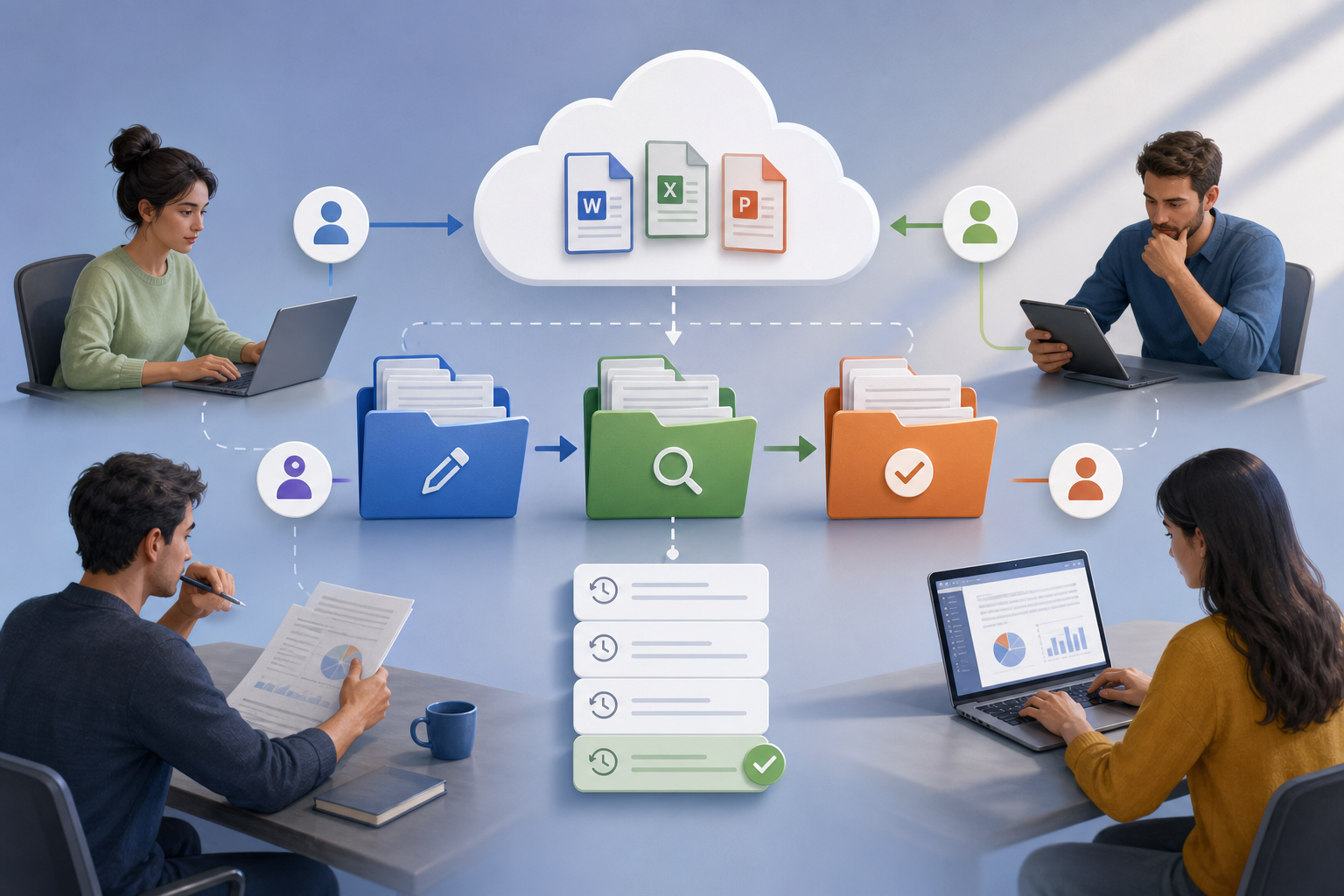
A stable workflow needs to separate intent, not just formats. A simple structure is to create three areas: work folder, review folder, and delivery folder. The work folder contains active drafts, source material, and documents that can still change freely. The review folder contains items ready for comments, approval, or validation by the people responsible. The delivery folder contains only files that have been distributed or are ready to be distributed, with no pending internal notes. In Apification Cloud, this organization is supported by a space designed to manage files, services, and digital projects in an organized and versioned way.
Names also help prevent accidental duplicates. Instead of “final presentation,” use names that indicate purpose and status, for example “Operations_manual_draft,” “Operations_manual_review,” and “Operations_manual_delivery.” If the team needs to preserve milestones, it is better to do so with version history than with ten parallel copies. When a file already exists with the same name in certain ONLYOFFICE-based collaboration spaces, the system may create a copy by default; that is why it is worth agreeing in advance whether an existing item is being updated or a deliberate variant is being created.
- 00_Work: writing, editing, and internal adjustments.
- 10_Review: comments, validation, and approval.
- 20_Delivery: approved materials for consultation, download, or distribution.
Office collaboration: edit, review, and avoid breaking the file
To create new content, the team can start documents, spreadsheets, and presentations directly in the work environment. In ONLYOFFICE workflows, files can be created from room actions, creation buttons, or the context menu, including documents, spreadsheets, presentations, PDF forms, folders, diagrams, Markdown, and URL files. In Apification, the relevant capability for the Office workflow is that documents, spreadsheets, and presentations are created and edited with ONLYOFFICE without taking them out of Cloud storage.
For existing documents, the rule is to upload them once and continue editing in Cloud. Files can be uploaded by selecting them or by dragging and dropping; folders with subfolders and documents can also be uploaded. If the uploaded format is not Office Open XML, ONLYOFFICE can convert it to .docx, .xlsx, or .pptx for faster editing. This is where an important decision appears: whether or not to keep the original in addition to the converted file. If there is no need to keep the original copy inside the space, it is best not to generate two visible files that later compete to be “the right one.”
- Before uploading, decide whether the original must be kept as a reference.
- If it is converted to .docx, .xlsx, or .pptx, clarify which file will be the main editable version.
- Do not keep two active editable files unless they are real variants.
Practical permissions: users, groups, and links
Not every type of access serves the same purpose. Giving access to users or groups is appropriate when people are part of the workflow: they write, review, approve, or need to return to the document frequently. Apification allows items to be shared through links, users, or groups, and protects files and services with permissions, OTP, external authentication, restrictions, and publishing windows. For ongoing collaboration, users or groups are usually easier to govern than a collection of scattered links.
Links are useful for consultation, one-off review, or controlled download. In ONLYOFFICE environments, files and folders can be shared via link, and when creating a link, access can be limited to anyone with the link or only users in the space. Link permissions can include editing, review, filling, commenting, or read-only access, depending on the file type. Link name, password, time period, and restrictions on copying content, downloading, or printing can also be configured. A common mistake is treating a public link as if it were an internal collaboration permission.
- Use users or groups for recurring, traceable work.
- Use links for consultation, download, or limited review.
- Avoid links with open editing if you do not know who should modify the file.
History and recovery: what to do if an edit goes wrong
Every collaborative workflow must assume that mistakes will happen: someone deletes a section, pastes incorrect data, changes a formula, or accepts a modification too early. That is why history should not be seen as an unfamiliar emergency resource, but as part of the normal process. Apification allows you to review the history of a Cloud item, download previous versions, and restore content safely. This capability is the basis for working on a single editable file without fear of losing all progress.
The recommended practice is to review the history before replacing a file, before moving it to delivery, and after an intense round of editing. If the problem is minor, it can be corrected in the active document. If the change broke relevant content, a previous version can be downloaded for comparison or restored if appropriate. The decision should be documented operationally: who restores, why it is restored, and which version remains current. This prevents another common failure: fixing an error by creating a local copy that splits the workflow again.
- Check history before declaring a file approved.
- Download a previous version if you need to compare content.
- Restore only when the team agrees that the active version has been compromised.
Controlled delivery: original editable file or transformed version
The delivery does not always have to be the editable document. If the recipient needs to keep working, it makes sense to share the original with the right permissions. If they only need to read, review, or archive it, it is usually better to offer a more stable version or a transformed download. Apification allows you to share items and provide original or transformed downloads. It also has a guided assistant to convert, split, merge, optimize, and process documents, images, video, audio, and data. This allows the work file to be separated from the piece that is distributed.
The operating criterion is to ask what risk each delivery introduces. Sharing the editable file makes changes easier, but it can also open the door to unwanted modifications. Sharing a transformed version reduces the temptation to edit the final material, although it does not replace permission control. In training materials, closed proposals, or approved manuals, the delivery folder should contain what is distributed, not the draft with comments. If the content is updated, it goes back through work and review before generating a new controlled delivery.
- Share the editable file if the recipient must modify it.
- Share a transformed version if the recipient only needs to read or download it.
- Keep internal comments out of the delivery folder.
Operational checklist and mistakes worth preventing
Before starting a review round, confirm five points: the editable file is in Cloud; there is a work, review, and delivery folder; participants have access through a user, group, or link according to their role; the team knows where to review the history; and the planned delivery is defined as either the original editable file or a transformed version. This list prevents improvisation. It also helps train new collaborators, because it turns a preference for order into a repeatable procedure.
The most frequent mistakes are predictable. Editing local copies breaks the continuity of the document. Mixing comments with deliverables confuses internal or external clients. Replacing files without reviewing history can hide content loss. Using public links as if they were collaboration permissions makes it harder to control who edits. And keeping the converted original plus the editable copy without a clear reason can produce two apparently valid files. The correction is not only technological: it requires naming responsible people, document states, and delivery rules.
- One active document, not five parallel attachments.
- One clear state: work, review, or delivery.
- A permission that matches the recipient’s actual role.
- A reviewable history before restoring or replacing.
- A delivery separated from the internal draft.
Frequently asked questions
What is the main rule for editing Office documents in the cloud without duplicates?
Keep the editable document inside Apification Cloud and edit it there with ONLYOFFICE. Download or transform files only when there is a specific delivery or a defined external need.
When should I use users or groups instead of links?
Use users or groups for recurring collaboration, internal review, or approval. Reserve links for consultation, download, or one-off reviews with clear permissions and limits.
What should I do if someone breaks an important part of the document?
Review the history of the item in Cloud. You can download a previous version to compare or restore it if the active edit has been compromised and the team agrees to roll back.
Should I always share the editable file as the final delivery?
Not necessarily. If the recipient must modify it, share the original with the right permissions. If they only need to read or download it, consider a more stable transformed version.
How do I avoid duplicates when uploading documents that are converted to Office format?
Decide in advance whether you need to keep the original in addition to the converted file. If you do not, avoid keeping two active editable files that may compete as the current version.
Sources and further reading
Documentation consulted while preparing this article.
- ONLYOFFICE DocSpace — Getting Started — ONLYOFFICE Help Center
- ONLYOFFICE DocSpace — Managing and editing documents — ONLYOFFICE Help Center
- ONLYOFFICE DocSpace — Sharing files and folders — ONLYOFFICE Help Center
- ONLYOFFICE DocSpace — Managing document versions — ONLYOFFICE Help Center
- ONLYOFFICE DocSpace — Working with Collaboration rooms — ONLYOFFICE Help Center
- ONLYOFFICE DocSpace — File management settings — ONLYOFFICE Help Center
- ONLYOFFICE Docs — Getting started — ONLYOFFICE Help Center
- ONLYOFFICE Docs — Document Editor version history — ONLYOFFICE Help Center
- ONLYOFFICE Docs — Co-editing documents in real time — ONLYOFFICE Help Center
- ONLYOFFICE Docs — Supported formats of electronic documents — ONLYOFFICE Help Center
Explore Apification
Related articles
Documents and data
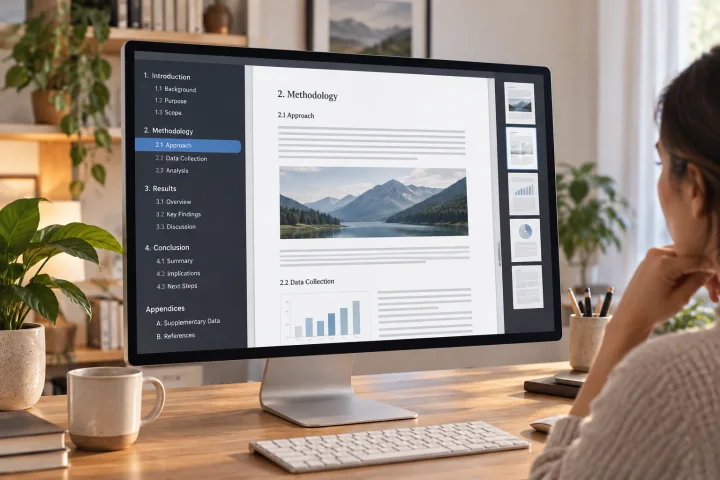
How to Create Bookmarks in a PDF: Headings, Exporting, and Checks
Plan a clear hierarchy, export the document, and check that every bookmark leads to the right section in the final PDF.
Documents and data
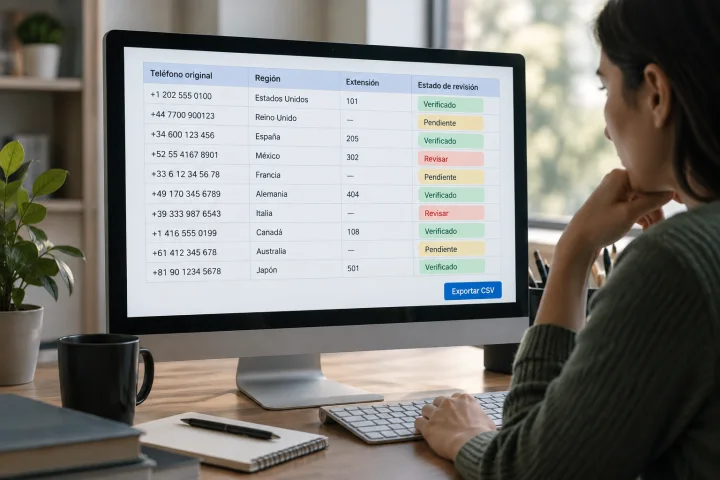
How to Normalize Phone Numbers in a Spreadsheet Before Importing Contacts
Prepare a phone list for import without losing leading zeros, prefixes, or extensions: keep the original, resolve ambiguities, and validate the CSV.
Documents and data
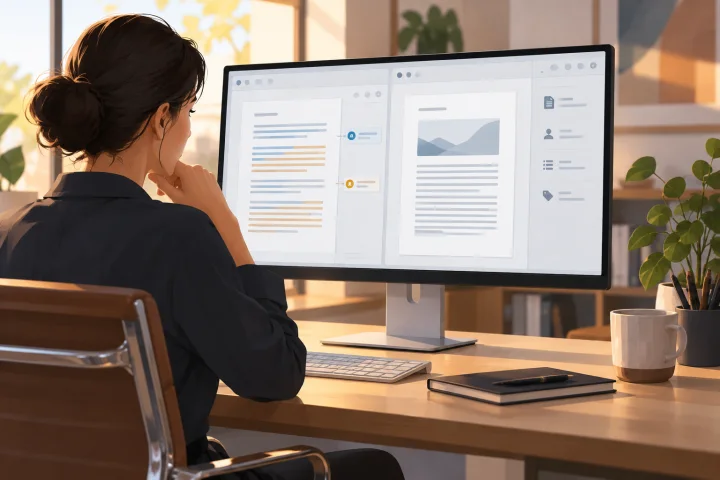
Document Metadata: What to Check Before Sharing a File
A practical guide to reviewing a document, preparing a copy to share, and keeping the editable original separate.