Documents and data
How to Convert a CSV to a Spreadsheet Without Losing Leading Zeros or Breaking Identifiers
A practical guide to converting CSV to Excel without losing zeros, preserving critical identifiers, reviewing the resulting sheet, and recovering versions if something goes wrong.
The problem: a valid CSV does not always open correctly
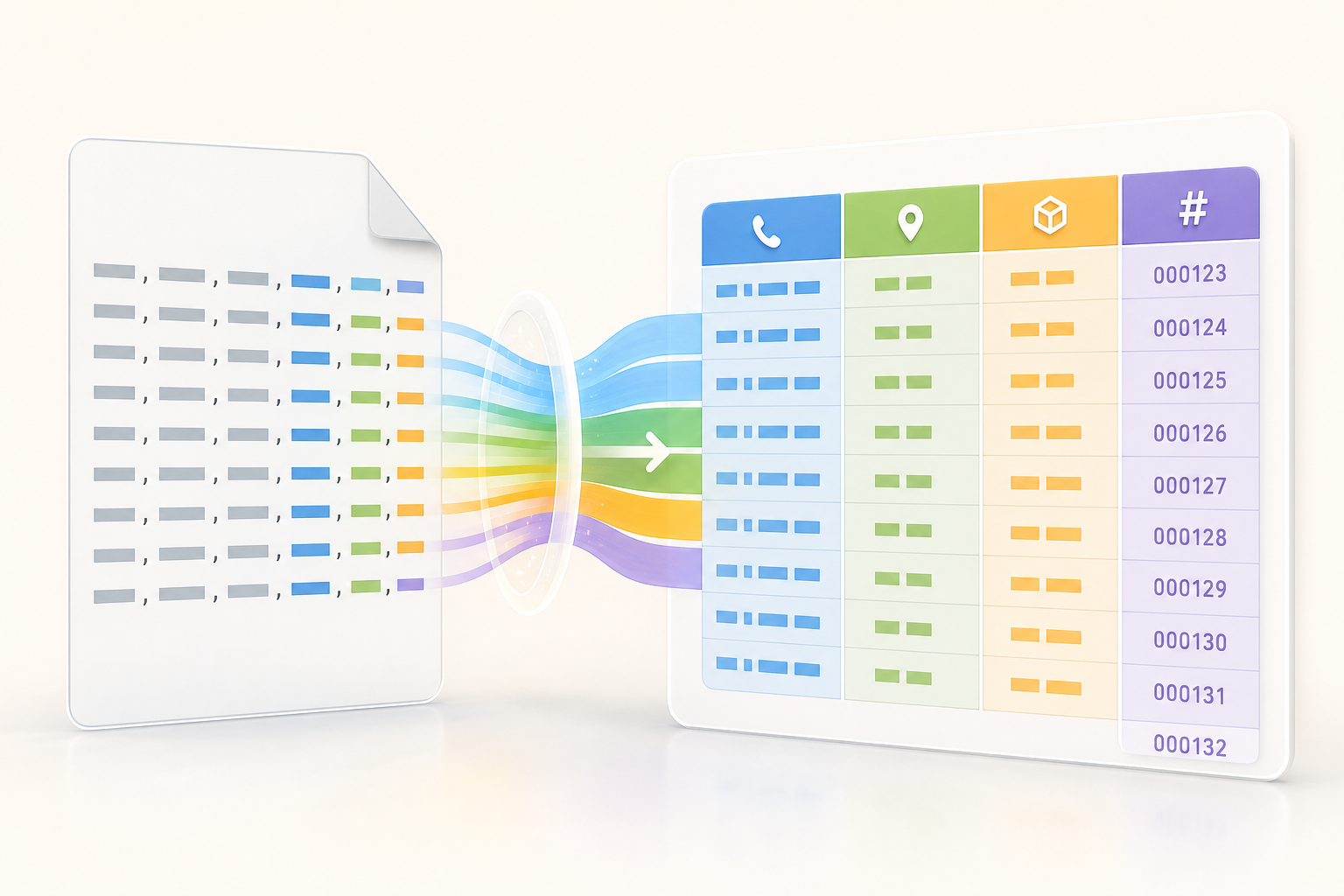
A CSV can be well formed and still look wrong when opened as a spreadsheet. The reason is simple: the CSV format stores tabular data as plain text, but it does not reliably state whether a column is text, a number, a date, or an identifier. The W3C warns that CSV does not include its own mechanism for indicating a column’s data type or rules such as uniqueness. That is why a spreadsheet tool may try to help by detecting types and, in the process, convert values that should have been preserved literally.
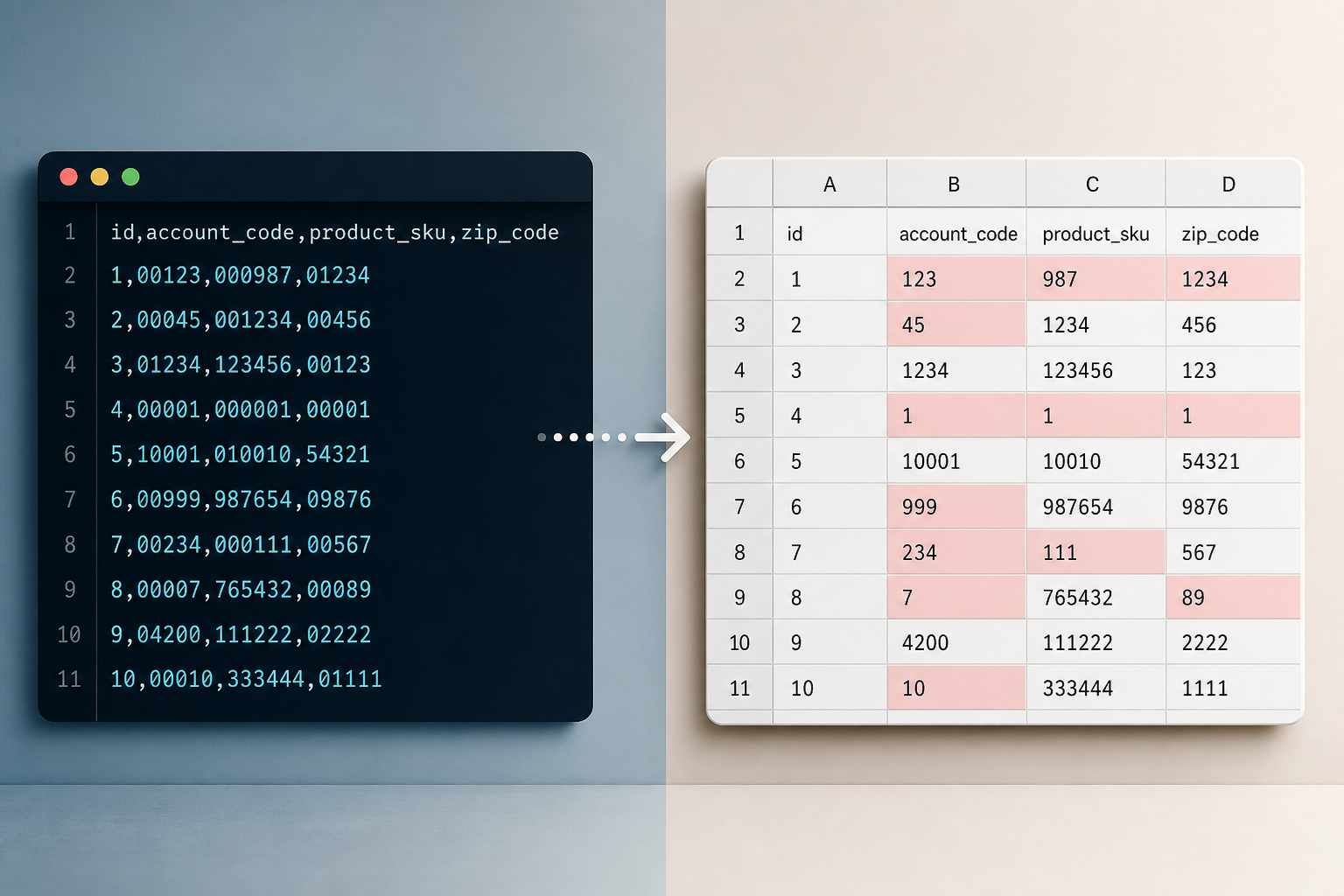
The most visible failure appears with leading zeros: a postal code such as 08001, a phone number that starts with 0, or an internal identifier such as 000458 can be transformed into 8001, 458, or another visually different value. Ambiguous dates, long numbers, or values with regional separators may also change. The operational lesson is that converting CSV to Excel without losing zeros does not start when you click “open,” but when you decide which columns must be treated as text before allowing automatic conversions.
- Typical failure: opening the CSV directly and only later discovering that the zeros have already disappeared.
- Additional risk: changing the format to Text after import does not automatically recover lost zeros.
- Baseline rule: any value that is an identifier, even if it contains only digits, should be evaluated as text.
Risk fields: when a number should not be treated as a number
Not everything that looks numeric should be imported as a number. Phone numbers, postal codes, license plates, SKUs, order numbers, inventory codes, and customer identifiers are usually labels, not quantities. If leading zeros are part of the value, they must be preserved as text. LibreOffice documentation summarizes this clearly: normal number formats remove a zero at the start of a sequence of digits, so phone numbers and postal codes that start with zero must be treated as text.
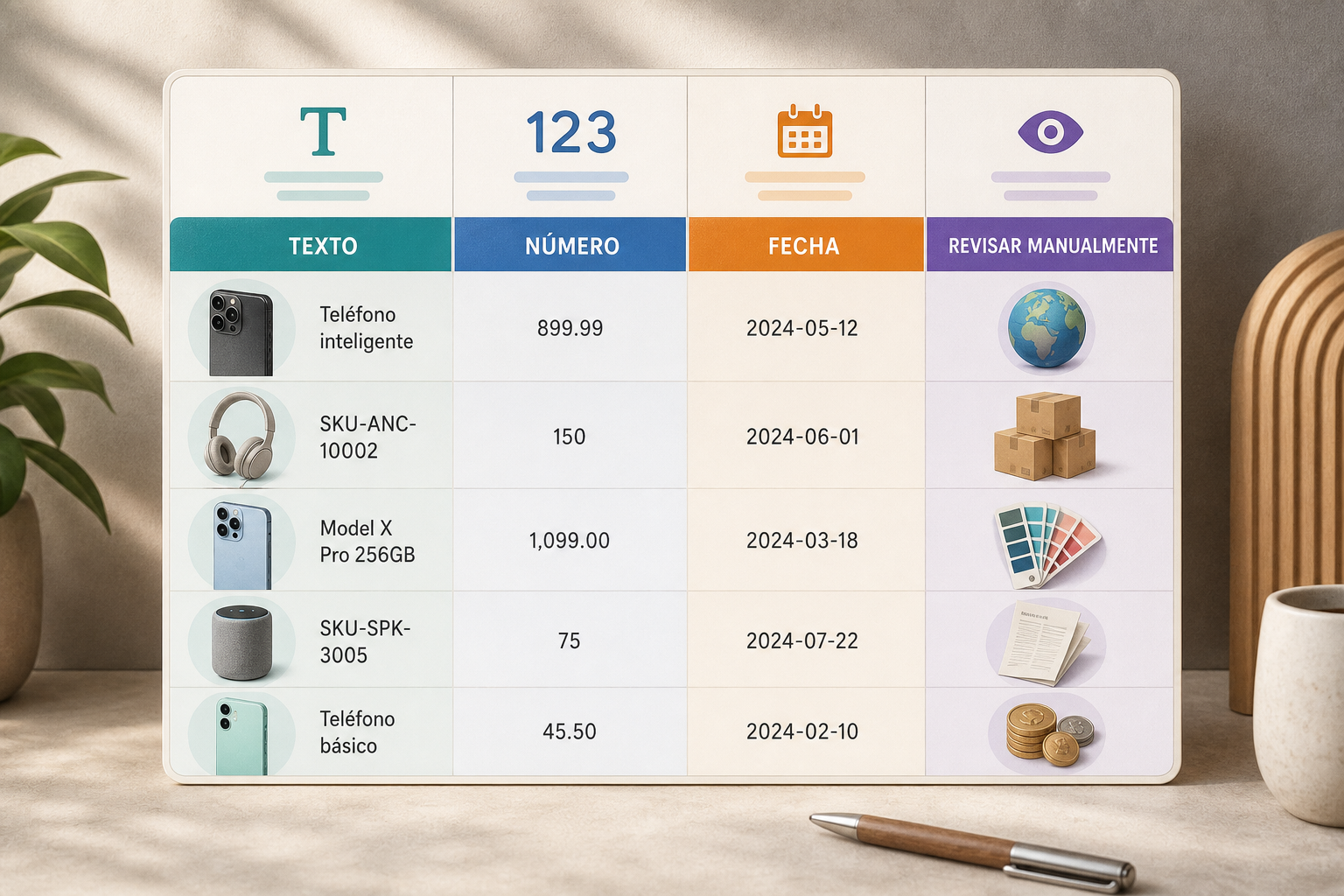
Long numbers, borderline dates, and regional values are also sensitive. Some tools automatically detect dates, times, and scientific notation as “special numbers.” A string such as 1-2 may be interpreted as a date depending on regional settings; 1,234 may mean one thousand two hundred thirty-four or one point two three four depending on separators; and a long identifier may be altered if interpreted as a number. The regional setting, decimal separator, and thousands separator must be reviewed when the CSV contains locally formatted data.
- Treat as text: phone numbers, postal codes, SKUs, license plates, IDs, and campaign codes.
- Review especially carefully: ambiguous dates, times, scientific notation, and long numbers.
- Confirm separators: comma, period, semicolon, tab, space, or another delimiter used by the file.
Before converting: working copy and minimum metadata
Before converting, create a working copy and keep the original CSV unchanged. This separation lets you compare, repeat the process, and go back if an import damages a critical column. In Apification Cloud, the file can be saved inside an organized and versioned space designed to manage files, services, and digital projects. That foundation is useful when several teams receive customer lists, orders, inventories, or responses exported from forms and need to review them without losing the original reference.
Document three minimum details: delimiter, encoding, and columns that must be preserved as text. RFC 4180 describes records made up of fields separated by commas and fields that may be enclosed in double quotes; in addition, fields with commas, line breaks, or internal quotes require careful handling. Controlled import should not focus only on the comma: file encoding and the text qualifier also matter. If this record is missing, each person may open the same CSV with different assumptions and get different results.
- Pre-conversion checklist: save the original, create a copy, note the delimiter, note the encoding, list text columns.
- Useful metadata: column name, expected type, valid example, and preservation rule.
- Warning sign: fields with commas, line breaks, or quotes inside the content.
Control method: prepare rows that expose automatic conversions
A control sample helps avoid discovering the problem after the sheet has already been shared. Include rows with leading zeros, long identifiers, codes with hyphens, ambiguous dates, and values with regional separators. The goal is not to represent the whole file, but to create cases that fail quickly if the tool decides to convert types automatically. For example: 000123, 08001, 001-ABC, 01/02/2026, 1,234, and a long identifier that is not an operational quantity.
The check should be done before and after the transformation. Open the working CSV through guided import, review the preview, and confirm that critical columns still have the same representation. If a value with a leading zero appears without that zero, stop the flow: changing the cell format to Text after import does not guarantee recovery of the original data. In that case, it is better to return to the intact CSV, adjust import options, and repeat the conversion.
- Recommended test values: 000001, 08001, 0123456789, 1E10 as a code, 01/02/2026, and 1,234.56.
- Acceptance test: the visible value in the sheet must match the expected text value.
- Stop criterion: any loss of a leading zero requires reimporting from the original.
Workflow with Apification Cloud: preserve, transform, and edit without scattering files
A practical workflow in Apification starts by uploading the original CSV to Cloud and saving it as the reference. Then, create a working copy or a transformed item when appropriate. Apification lets you convert, split, merge, optimize, and process documents, images, video, audio, and data through a guided assistant. For CSV, the operational advantage is not only transformation: it is keeping the original file and the result in the same space, with context, history, and sharing options.
When review requires editing, Apification lets you create and edit office files with ONLYOFFICE while keeping them inside Cloud storage. In ONLYOFFICE Spreadsheet Editor, TXT/CSV import can be done from the Data tab with “Get data from Text/CSV file.” The assistant lets you review encoding, delimiter, preview, and destination; it also supports delimiters such as comma, semicolon, colon, tab, space, or another manual character. In advanced options, the decimal separator and thousands separator must be reviewed if the data will be recognized as numeric.
- Step 1: upload the original CSV to Apification Cloud.
- Step 2: create a working copy or guided transformation when applicable.
- Step 3: open the spreadsheet with ONLYOFFICE and check encoding, delimiter, preview, and destination.
- Step 4: review regional separators before accepting numeric data.
Review in ONLYOFFICE: look beyond column width
After importing, it is not enough for the table to “look good.” Review the critical columns first: sort, filter, and search for the values from the control sample. Widen columns to rule out a value being merely hidden visually. Check that identifiers, phone numbers, and codes are not recalculated or displayed as dates, scientific notation, or rounded numbers. If the file includes quoted fields, remember that the text qualifier helps recognize where the content starts and ends during import.
Also decide whether the resulting sheet should remain CSV or move to a spreadsheet format. CSV is plain text for tabular data; if you need formulas, formatting, persistent filters, or a presentation for review, it is better to work in a spreadsheet format. ONLYOFFICE help warns that when downloading as CSV, features such as font formatting or formulas are not preserved, only plain text. If you download as CSV again, choose options such as encoding and delimiter explicitly.
- Post-import review: control sample, critical columns, filters, sorting, width, and regional values.
- Do not assume: a right-aligned column may contain numbers where you expected text.
- Recommended output: CSV for plain exchange; spreadsheet for editing, formatting, and collaborative review.
Share, version, and recover if a column was damaged
How you share depends on the goal. Send the original CSV if the recipient needs to load it into another system without your changes. Share a transformed version if the team needs to review, comment on, or correct data in a spreadsheet. Use collaborative access when several people need to work on the same document and it is important to avoid parallel copies. Apification lets you share items through links, users, or groups and offer original or transformed downloads; in addition, ONLYOFFICE lets you share files and folders with users or groups and assign permissions according to each co-editor’s task.
If an error appears, act methodically. First identify the affected column and confirm whether the incorrect value was already in the original CSV or arose during conversion or editing. Then use the item history in Cloud: Apification lets you review the history of Cloud items, download previous versions, and restore content safely. This capability is especially useful when a bulk edit, an import with the wrong delimiter, or an automatic conversion has damaged identifiers. Restore does not replace prevention, but it reduces the cost of a failure.
- Share original: when the recipient needs the intact plain text.
- Share transformed: when review in a spreadsheet is required.
- Share access: when several users or groups edit with different permissions.
- Recovery: locate the failure, compare with the original, download a previous version, and restore if appropriate.
Frequently asked questions
Why are leading zeros lost when opening a CSV?
Because the spreadsheet may interpret a column of digits as a number. In normal number formats, leading zeros are not part of the numeric value and are removed. That is why phone numbers, postal codes, and identifiers must be imported as text if those zeros are significant.
Does changing the column to Text after import recover the zeros?
Not necessarily. If the values already entered as numbers, changing the cell format to Text does not automatically reconstruct the original representation. The safest approach is to return to the original CSV, adjust the import, and repeat the process.
What should I review before converting a CSV?
Keep the original, work on a copy, and document the delimiter, encoding, text qualifier, and columns that must be text. Also prepare control rows with leading zeros, ambiguous dates, long identifiers, and regional separators.
How does Apification help in this workflow?
Apification Cloud lets you save the original CSV in an organized and versioned space, process files through a guided assistant when appropriate, edit spreadsheets with ONLYOFFICE inside Cloud, share originals or transformed files, and restore previous versions if an error is detected.
Sources and further reading
Documentation consulted while preparing this article.
- CSV on the Web: A Primer — W3C
- RFC 4180: Common Format and MIME Type for CSV Files — IETF Datatracker
- LibreOffice Help: Text Import — The Document Foundation / LibreOffice
- LibreOffice Help: Formatting Numbers as Text — The Document Foundation / LibreOffice
- LibreOffice Help: Entering a Number with Leading Zeros — The Document Foundation / LibreOffice
- ONLYOFFICE Help Center: Getting data from TXT/CSV file — ONLYOFFICE
- ONLYOFFICE Help Center: Supported formats of spreadsheets — ONLYOFFICE
- ONLYOFFICE Help Center: Save/print/download your spreadsheet — ONLYOFFICE
- ONLYOFFICE Help Center: Sharing files and folders — ONLYOFFICE
- ONLYOFFICE Help Center: Version history — ONLYOFFICE
Explore Apification
Related articles

Documents and data
Document Metadata: What to Check Before Sharing a File
A practical guide to reviewing a document, preparing a copy to share, and keeping the editable original separate.

Documents and data
Convert PDF to Word: How to Recover an Editable Document and Review the Formatting
Conversion can make editing easier, but it does not guarantee that the layout will stay the same. Learn how to prepare a copy, review the result, and keep the original PDF.
Documents and data
External Links in Excel: Review Dependencies Before Moving or Sharing a Workbook
Before moving a workbook, identify what depends on other files, decide what to include, and test a copy in the planned location.