Multimedia
Annotate Screenshots Without Exposing Internal Data
A practical guide to preparing clear screenshots, with layers and visual markers, without accidentally sharing originals or internal data.
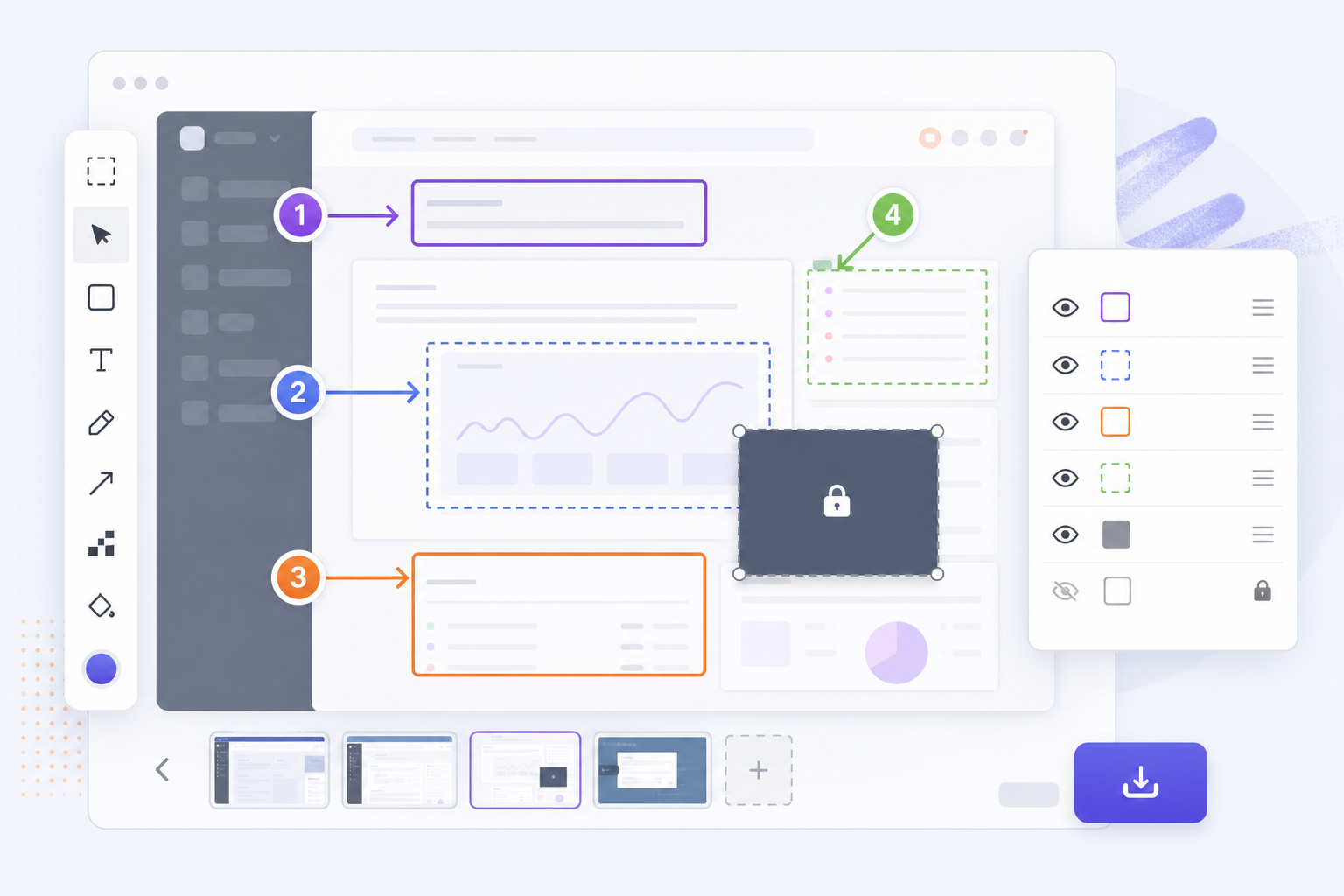
The problem: explaining more clearly without showing too much
Screenshots help support, product, and documentation teams because they show the exact context: an error, a menu option, a checkout flow, or the status of an account. The risk appears when that same image includes customer names, internal URLs, tokens, email addresses, account data, or information that only the team should see. A screenshot sent in a hurry can resolve a ticket, but it can also reveal information that was not necessary to understand the case.
The safe way to annotate screenshots is not just to draw an arrow. It requires deciding what should be shown, working non-destructively, separating the original from the editable file, covering data thoughtfully, and delivering only a reviewed export. Apification fits into that workflow because Cloud lets you organize files, editable services, and results in the same versioned space, while Image Studio offers a canvas with layers, text, shapes, filters, and export to modern formats.
- Common risks: personal data, internal URLs, account identifiers, tokens, customer names, and screens with business information.
- Operational goal: the screenshot should explain the step or issue without including details the recipient does not need to know.
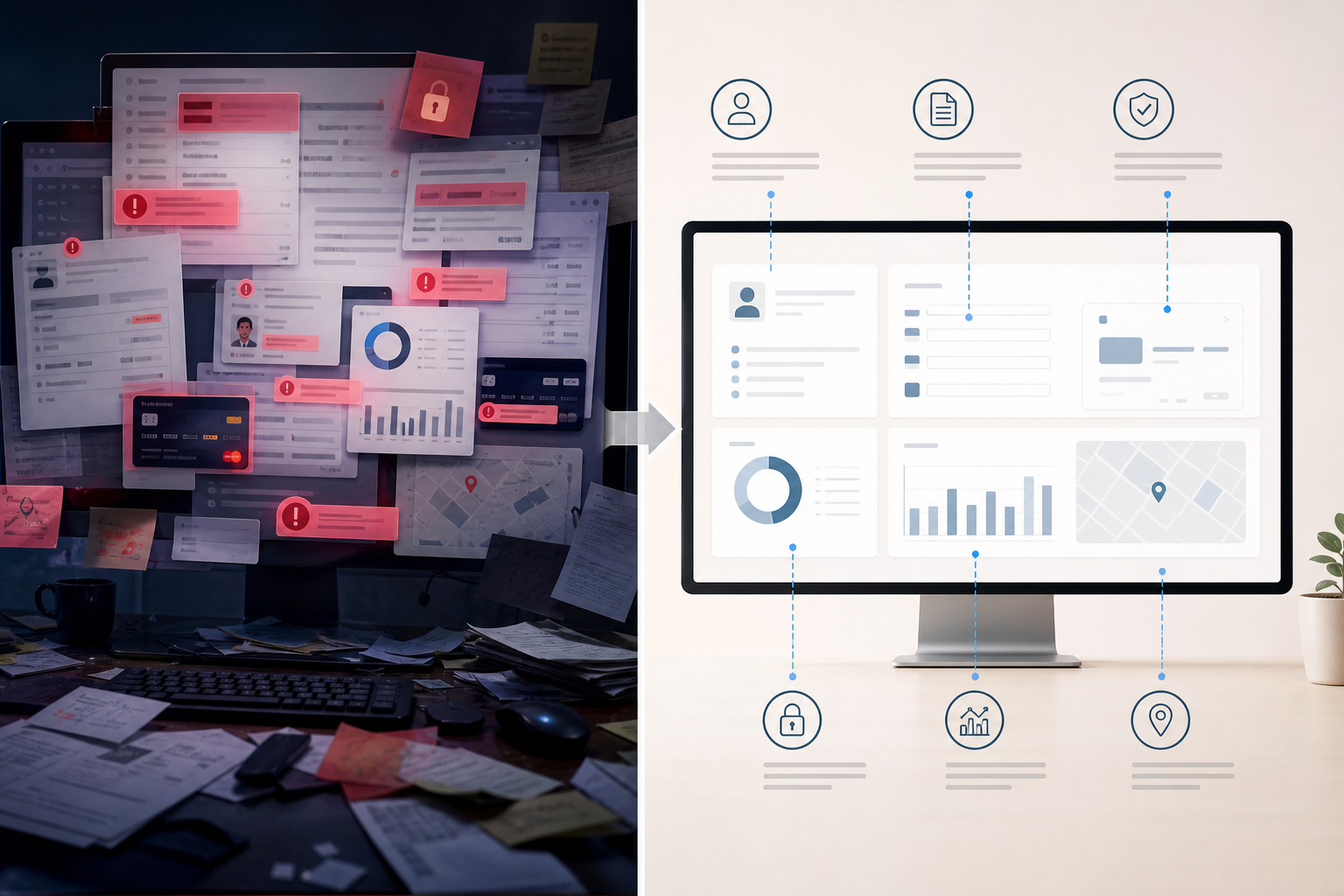
Before editing: decide what screenshot is needed
The first control happens before opening the editor. Ask yourself whether the full screenshot is necessary or whether cropping an area, creating a sample image, or explaining the data with text is enough. In many manuals, it is not essential to show a real URL, a customer name, or a specific amount. If the goal is to guide the user to a button, a numbered label and a box can communicate better than a full screen filled with secondary details.
It is useful to classify the screenshot according to its destination. An image for an internal ticket is not the same as one for a public guide, an audit, or a client delivery. The broader the audience, the stricter the selection should be. Good practices for protecting personal information recommend reducing exposure to the minimum necessary; applied to screenshots, that idea means showing only what helps resolve the case and replacing the rest with explanations, shapes, or neutral text.
- Pre-editing list: recipient, purpose, visible data, necessary areas, unnecessary areas, and expected final format.
- Simple criterion: if a piece of data does not help explain the step, it should not appear in the deliverable version.

Organize the workflow in Cloud: original, editable, and final
An orderly workflow reduces errors. Save the original in Apification Cloud as a reference and avoid modifying it directly. Cloud works as a unified library for files, folders, editable services, and generated results, so you can keep the source screenshot, the visual project, and the final export in the same space. In addition, new resources are private by default until their visibility or recipients are configured, which helps you work before sharing.
Use explicit names that indicate status and destination: for example, screenshot_original_ticket_4821, screenshot_editable_support, and screenshot_final_client. Cloud lets you rename items and review metadata, ownership, size, public URL, and public or private visibility. If you move an item to another folder, its organization changes, not its identity; its properties and existing access remain associated with the same item. For that reason, do not use folders as a substitute for permissions: always review the item’s visibility.
- Recommended structure: case folder, originals subfolder, editables subfolder, and approved exports subfolder.
- Common mistake: sharing from the wrong folder without checking whether the recipient will receive the original, the editable file, or the final image.
Edit with Image Studio using layers and clear markers
In Image Studio, editing is non-destructive: the original remains available, and saving the editable project is a separate operation from exporting a rendered image. The project preserves the canvas, layers, and objects; exports are independent final images. This makes it possible to annotate screenshots without losing the source, test variants, and maintain a reusable composition for documentation, support, or internal review.
To make the screenshot useful, combine a small number of visual resources and apply them consistently. Image Studio lets you add, rename, reorder, hide, and lock layers without modifying the source images. It also lets you create text, shapes, and visual elements with editable typography, fill, border, and alignment. You can position, scale, crop, rotate, and flip each object independently, as well as adjust opacity, brightness, contrast, or saturation by composition when it helps highlight an area.
- Useful layers: base screenshot, visual masking, arrows, boxes, numbering, text notes, and internal review.
- Good markers: short arrows, rectangles with sufficient contrast, brief text, and steps numbered in the real order of the action.
Responsible visual masking: covering is not always anonymizing
Covering an area with a rectangle, visual blur, or opaque shape can be enough for a final export if the recipient only receives the rendered image and the area is truly unreadable. But that layer on top is not the same as irreversible anonymization when the editable file is shared. If someone accesses the project with layers, they could hide or move the top layer and see what was underneath. Therefore, the editable file should be treated as internal material when it contains the original screenshot.
The check should be done on the exported file, not only on the canvas. Open the final image as the recipient will see it, zoom in, and verify that no letters, patterns, avatars, URLs, or fragments of information can be distinguished. Image Studio lets you choose during export whether to keep or remove compatible metadata; when there is a risk of sensitive data in metadata, it is advisable to remove it. The documentation also recommends verifying rights to photos, logos, and fonts used in the composition.
- Do not share the editable file if it contains layers that only cover sensitive data.
- Review the final export at high zoom, not only the view inside the project.
- Remove compatible metadata when it may contain sensitive or unnecessary information.
Export the publishable variant with the right format and readability
Export is the point where the screenshot stops being a working project and becomes a deliverable asset. Image Studio can export to PNG, JPEG, WebP, AVIF, TIFF, BMP, ICO, and other compatible formats. The choice depends on the use: PNG is usually suitable for interfaces with crisp text; JPEG can work when transparency is not needed and a defined background is acceptable; WebP or AVIF can be useful when the destination supports those formats.
Before delivery, review dimensions, crops, contrast, and visual weight. Image Studio lets you configure the width, height, orientation, background, and transparency of the final canvas. If you use formats with an alpha channel such as PNG, WebP, AVIF, or TIFF, you can preserve transparency; JPEG and formats without alpha require a background color. Make sure the annotated text remains legible at the actual size in which it will be viewed in a ticket, manual, or help page.
- Final checklist: correct format, reviewed metadata, hidden data, legible text, correct crops, and suitable background.
- Common mistake: a screenshot that looks impeccable at 200% but becomes illegible when embedded in a guide or viewed on mobile.
Share with control: link, users, groups, and downloads
Once the publishable variant has been exported, decide how to share it. Cloud lets you grant access to individual users or reusable groups without making an item public. This is useful for internal reviews, support teams, or agencies working with multiple projects. If a link is needed, review public or private visibility and confirm that the link points to the final export, not to the original or the editable project.
Cloud also lets you download the source file or generate a compatible target format from the sharing flow. That distinction is important: in some cases, the recipient should receive the transformed or exported version, not the source file. For client deliveries, it is worth stopping the habit of sending “whatever I have on hand” and using a simple rule: share the approved final image, with appropriate permissions, and keep the original inside the workspace.
- For internal review: access for specific users or groups.
- For external delivery: prefer the approved export and check permissions before sending.
- For documentation: verify that the embedded file does not come from the unmasked original.
Versions, restoration, and error control
Even with a careful workflow, errors can happen: a layer accidentally deleted, an export with the wrong crop, or an annotation that no longer matches the product. Cloud lets you inspect saved versions, download previous content, and restore a prior state when necessary. This provides a safety net for teams that produce many screenshots and need to make corrections without rebuilding everything from scratch.
The history also helps separate work in progress from approved material. If a final screenshot changes, keep the previous version while you validate the new one. If the team detects that an incorrect variant was shared, restore or download the appropriate version and review permissions and links. Versioning does not replace the review before delivery, but it does reduce the impact of accidental edits within the Cloud space.
- Recoverable errors: incorrect annotation, accidental crop, final version replaced by another, and organizational changes in folders.
- Recommended routine: review history before redoing work and document which export is approved for sharing.
Frequently asked questions
Can I annotate screenshots without modifying the original?
Yes. In Image Studio, editing is non-destructive: the original remains available, the project preserves layers and objects, and export generates an independent final image.
Is a black layer over sensitive data enough?
It can only be enough in an exported and reviewed final image. It should not be considered irreversible anonymization if you share the editable file with layers, because the layer could be hidden or moved.
What format is best for interface screenshots?
PNG is usually a practical option for crisp text and interfaces. Image Studio also exports to JPEG, WebP, AVIF, TIFF, BMP, ICO, and other compatible formats, depending on the destination.
How do I share the final screenshot without making the original public?
In Cloud, you can grant access to users or groups without publishing the item. Check that the link or permission points to the approved final export, not to the original or the editable project.
Can I recover a previous version if I edit a screenshot incorrectly?
Yes. Apification Cloud lets you inspect saved versions, download previous content, and restore a prior state when necessary.
Sources and further reading
Documentation consulted while preparing this article.
- Apification Cloud product page — Apification / Afilnet SL
- Apification Image Studio product page — Apification / Afilnet SL
- Apification Image Studio documentation — Apification / Afilnet SL
- Apification File Transformer documentation — Apification / Afilnet SL
- Google Search Central: Keep redacted information out of Google Search — Google Developers
- NIST SP 800-122: Guide to Protecting the Confidentiality of Personally Identifiable Information — National Institute of Standards and Technology
- NIST SP 800-188: De-Identifying Government Datasets: Techniques and Governance — NIST Computer Security Resource Center
Explore Apification
Related articles

Multimedia
How to Add Audio Description to a Video: Script, Pauses, and Mixing
Learn how to select the visual information that needs narration, write concise descriptions, fit them between dialogue, and check the mix before publishing.

Multimedia
How to Hand Off an Editable Layered Design Without Losing Context or Assets
A useful handoff includes an organized editable file, the necessary assets, a visual reference, and a clear explanation of what should continue or change.

Multimedia
Extract Audio from a Video: Steps and Tools
Compare documented Premiere and Canva workflows, review the result, and organize the audio for your next project.