Documents and data
Hidden Rows in Excel: How to Check a Sheet Before Sharing
A sheet that looks incomplete has not necessarily lost data. Learn to check filters, hidden rows, and expected records before sharing a copy.
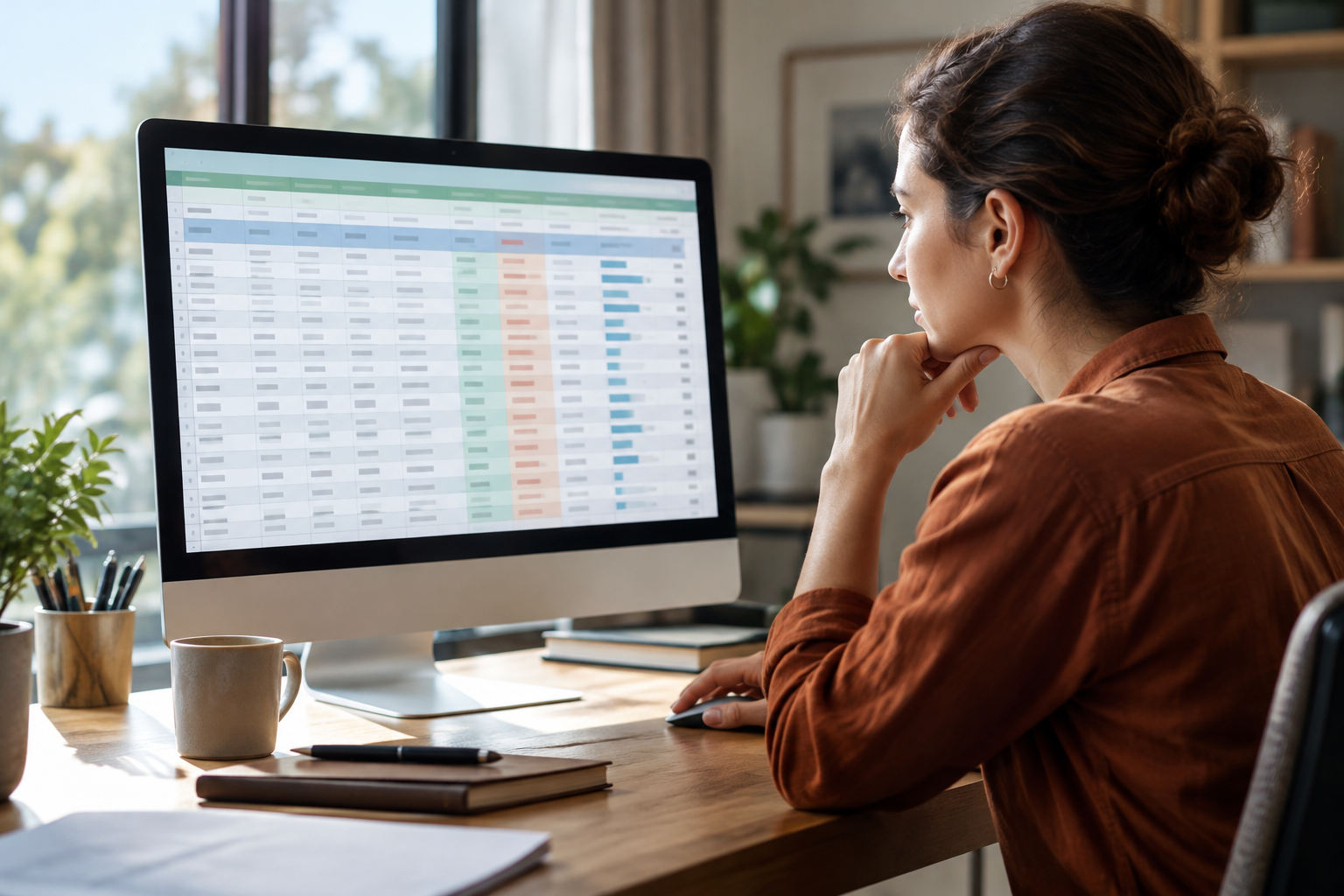
Why a sheet can look incomplete even when it still contains its data
If you open a sheet and see fewer records than expected, do not immediately assume they were deleted. Rows may have been hidden manually, or a filter may be limiting the view. Appearance alone cannot tell you what happened to the data. Before reviewing the file, keep the one you received and work on a copy.
Clarify what you mean by “incomplete”: Are specific records you know about missing? Does the table end earlier than usual? Or are simply fewer rows visible than before? Note the sheet, the headers, and a few records that should be there. Use those as references to check the copy. Without a reliable list of expected records, you may be able to identify a possible explanation for what you see, but you cannot confirm that all records are present.
- Distinguish between the rows you can see and the records contained in the file.
- Note a few expected records before you begin checking.
Tell a manually hidden row from a possible filtered view
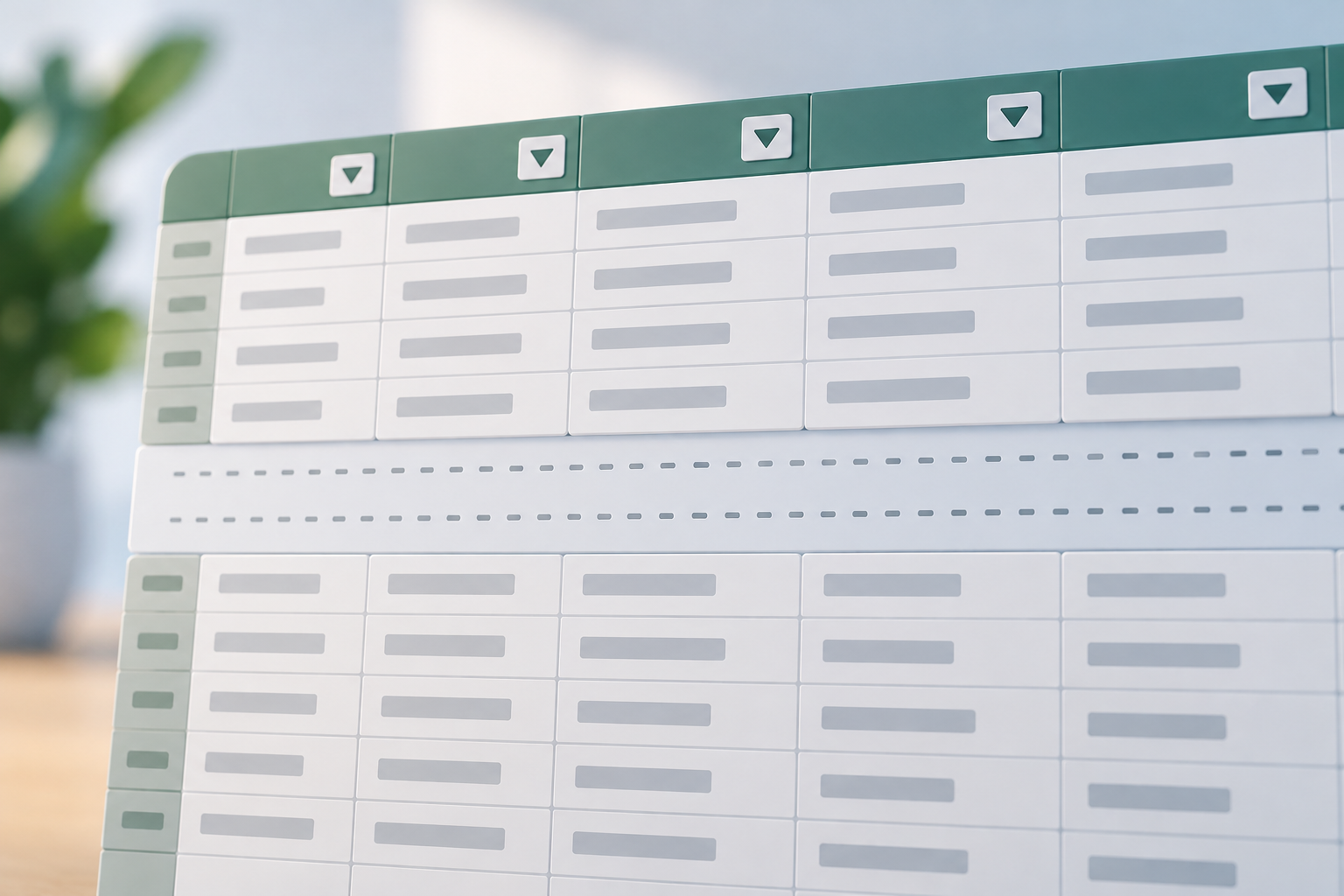
As an initial check, look for filter dropdown arrows in the header row. This clue is recommended in Iron Software’s guide on how to show hidden rows in Excel. The linked Iron Software guide is in Spanish: https://ironsoftware.com/es/excel/csharp/blog/excel-tools/how-to-unhide-rows-in-excel/. The arrows alone do not confirm that a filter criterion is active or that a filter accounts for every missing row. The available evidence also does not establish a complete procedure for checking or removing an applied criterion, so this guide cannot diagnose a filter based only on that sign.
To check for manual hiding, Microsoft advises selecting the rows adjacent to the hidden ones and using the context menu to show them. Microsoft Support’s linked “Hide or show rows or columns” documentation is in Spanish: https://support.microsoft.com/es-es/excel/get-started/hide-or-show-rows-or-columns. If you are unsure which rows to select, or need to identify a filter criterion that is unclear in your interface, do not guess. Consult the Excel help for your version or ask the person who prepared the file.
- Arrows in the headers are a clue to investigate, not confirmation that a filter is active.
- For manually hidden rows, follow Microsoft’s documented procedure and check the result in the copy.
Review the sheet and the boundaries of the list
In the copy, identify the sheet and headers that correspond to the list. Note which sign you are checking—filter arrows or a possible gap caused by hidden rows—and what changes on screen when you check for manual hiding. Since the available evidence does not describe a complete check of filter criteria, do not treat a partial result as proof that you have found the cause.
Compare the first and last visible records, the headers, and the references you noted. Check whether the area you reviewed seems to include all the rows and columns needed for the handoff, or whether another area is also part of the list. If the boundaries are unclear, ask the person who prepared the file before expanding, deleting, or rearranging data.
- Record what you checked and what you observed.
- If it is unclear which rows or columns belong to the list, ask for confirmation before changing it.
Confirm that the expected records are still there
Check specific references rather than counting rows by eye. Choose a few records you know should be there, from different parts of the list if possible, and look for them in the copy using the tools available in your spreadsheet. Compare their identifying fields, not just a total number. If they do not appear in the view, that alone does not tell you whether they are hidden, outside the selection, or no longer in the file.
After checking for possible hidden rows, search for those references again and verify that the data matches the expected records. If an important reference is still missing, do not reconstruct or fill in information based on guesswork. Keep the copy as it is and request the correct source or confirmation from the person responsible.
- Check recognizable records and their identifying fields, not just the number of rows.
- If a discrepancy remains, ask for confirmation instead of filling in data by assumption.
Validate the copy and the view another person will receive
Decide what the copy is for: showing all the records that need to be reviewed, or presenting a specific selection. In the second case, explain that the list is limited and what it represents. Before sharing, check the headers and the references you compared, and make sure you are attaching or linking to the reviewed copy—not the original or an earlier version.
If you share through a workspace, Apification Cloud lets you manage files in an organized, versioned environment. Its sharing features let you distribute items through links, users, or groups. Choose the method based on who needs access and which file they should receive.
- State whether the copy shows all records or a selection.
- Verify the specific file and view you are going to share.
If something goes wrong: keep the file and review its versions
If values change during your review or you cannot restore the expected view, stop editing. Identify the working copy and note which action came before the problem and what you see now. Do not assume that a filter deleted data or try to reconstruct it from what remains.
Apification Cloud lets you edit Office files with ONLYOFFICE while keeping them in Cloud, and provides an item history for reviewing versions, downloading an earlier version, and restoring content. Version history may help you recover prior file content. If the file is there, review its history and compare a candidate version with the current state before deciding whether to download or restore it. Then check the expected records again.
- Stop editing and record what happened.
- Use version history to review or recover prior file content.
- Check the expected records again before sharing.
Frequently asked questions
Do filter arrows mean that the rows are hidden by a filter?
Not necessarily. The arrows are a clue to inspect the filters, but on their own they do not confirm that a criterion is active or explain all the rows that are not visible.
Does a filter mean the data was deleted?
Do not assume data was deleted just because it is not displayed. A filtered view may explain why some records are not visible, but you need to check expected references to review the specific file.
How can I check whether rows were hidden manually?
Microsoft advises selecting the rows adjacent to the hidden ones and using the context menu to show them. The Microsoft Support documentation linked in the article is in Spanish.
What can I do if I changed the sheet and cannot restore its previous state?
Stop editing and keep the current copy. If you are working in Apification Cloud, review the version history: you can view earlier versions, download them, and restore content. Compare a candidate version with the current state before deciding whether to use it.
Sources and further reading
Documentation consulted while preparing this article.
- Mostrar u ocultar filas o columnas — Microsoft Support
- Cómo mostrar filas ocultas en Excel: La guía práctica — Iron Software
Explore Apification
Related articles
Documents and data
Hidden decimals in Excel: How to avoid differences between what you see and what you export
A guide to distinguishing how a number looks from the calculation rule you need, checking discrepancies, and verifying an export before sharing it.

Documents and data
How to Make a Spreadsheet More Accessible for Screen Readers
A practical guide to organizing sheets, headings, and tables, reducing navigation barriers, and testing the file before sharing it.
Documents and data
A Data Dictionary for a CSV: How to Document Every Column
A CSV can open without errors and still be difficult to interpret. Learn how to document names, types, codes, missing values, units, and dates with a practical template.