Files and formats
How to Validate a File Conversion Before Sharing the Result
Opening the converted file is not enough. Learn how to check its content, presentation, and compatibility for its intended use without losing the original.

What it means to validate a conversion and why opening the file is not enough
Validating a file conversion means checking that the result serves its intended purpose, not merely that it opens. A PDF may display correctly yet still be missing a page; an image may retain its subject but lose detail; a spreadsheet may open even though some values or separators have changed. That is why it helps to break the review into three questions: Is the information preserved? Is it presented clearly? Can it be used in the target environment?
The depth of the check depends on the risk. An internal draft may need only a quick inspection; a document sent to a client, published, or used in another process deserves a more systematic review. No tool can replace the judgment of someone who understands the content and its intended use. Even automated assessments in other areas, such as web accessibility, require human interpretation: a quick check alone does not prove that everything is correct.
Define the intended use and acceptance criteria before converting
Before choosing an output format, note who will receive the file, where they will open it, and what they need to do with it. Archiving a non-editable version is not the same as sharing a document for continued work. In the first case, a stable appearance may matter most; in the second, the ability to edit text, tables, or slides may be essential. For audio or video, decide whether playback is all that matters or whether duration, tracks, subtitles, or other relevant elements must also be preserved.
Turn these needs into observable criteria. For example: all pages are present and in order; key figures are identical; images are legible at the intended zoom level; duration is within the expected range; fields and headings are recognizable. Also define which differences you will accept. When exporting to another office format, some visual features may be represented differently. If a change affects understanding or subsequent use, do not treat it as a cosmetic variation.
- Specify the format and purpose: reading, editing, publishing, playback, or importing into another system.
- Identify elements that must not change and differences that are tolerable.
- Choose a representative application or device to open the result in beforehand.

Check the content: text, figures, order, and preserved elements
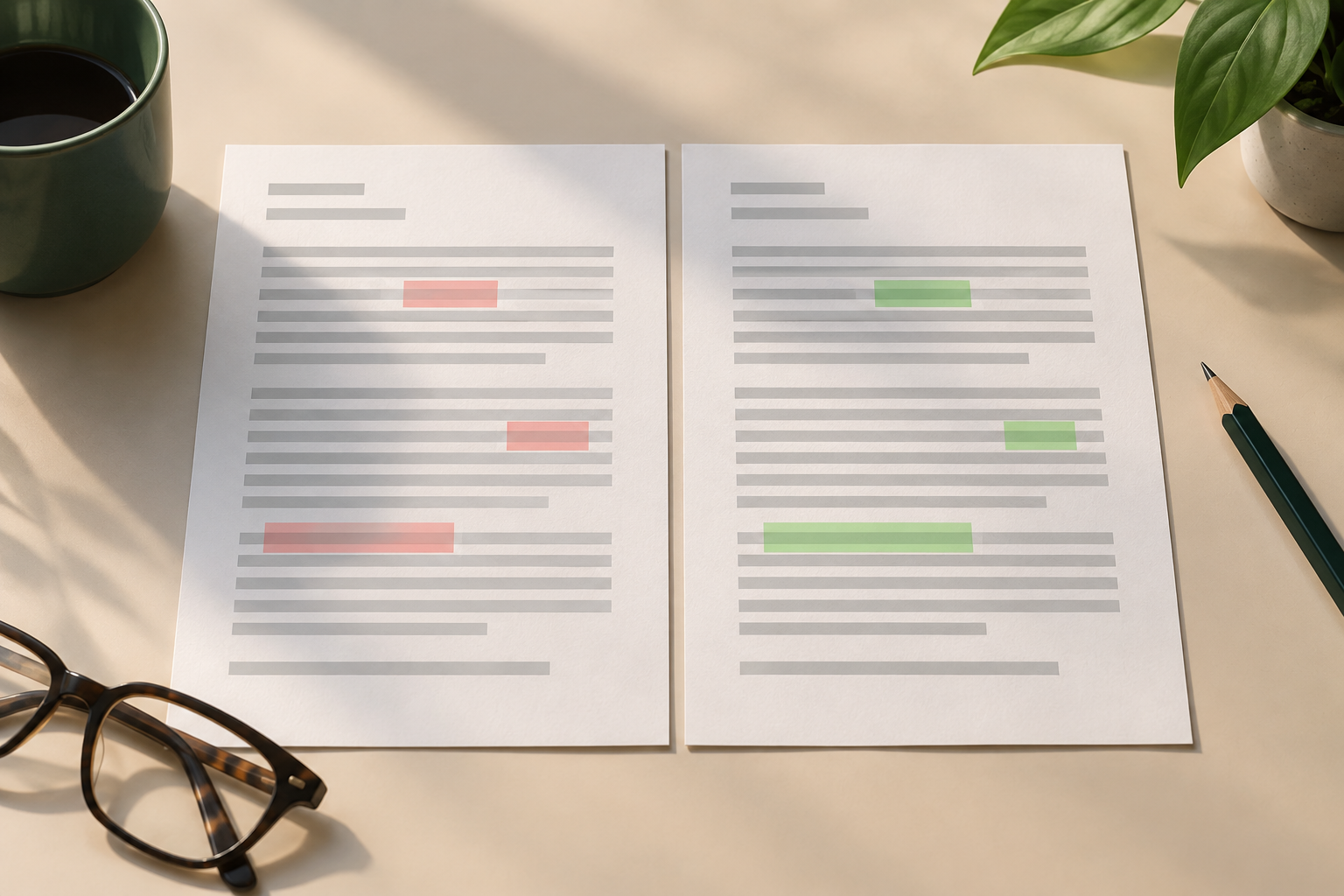
Compare the original and the result with a review focused on what matters. In documents, check titles, paragraphs, tables, notes, headers, and page order. In spreadsheets, review column names, the first and last rows, representative values, decimal signs, and dates. For images, video, and audio, verify that the expected material is present from beginning to end, that nothing is cut off, and that the duration or dimensions are consistent with the request.
Do not review only the beginning. Losses may occur on a middle page, in the final row, or during the last few seconds of a recording. Select recognizable reference points: a critical figure, a name with an accent, a long table, or a particular scene. When converting documents, comparing two versions can help locate differences; for example, ONLYOFFICE documents features for comparing documents and displaying changes. Even so, manually inspect relevant differences and confirm that omissions are not intentional.
Review the presentation and properties relevant to the format
A visual review can reveal problems that a quick content check may miss: clipped text, unexpected page breaks, split tables, substituted fonts, blurry images, or out-of-sync subtitles. Open the file in a view suited to its destination. If it will be delivered as a PDF, review it page by page and, where relevant, check bookmarks, comments, included pages, and other options selected during export. The available options can determine which content or properties appear in the result.
Adapt your checks to the file type. Zoom in on images to look for compression artifacts; listen to audio carefully at the beginning and end and during silences; watch the video at several points and confirm that picture and sound remain synchronized. Some export options can affect visual quality: for example, low-quality JPEG compression can introduce artifacts. Do not assume that every feature of the original will carry over identically; decide whether a difference affects the intended use.
Test representative files and edge cases
A conversion that works with a simple file may fail with a complex one. Before repeating a workflow across many items, test a sample that represents the actual variety: short and long documents, images with different dimensions, recordings of different durations, or datasets with varied formats. Include at least one file with content that can challenge the process, such as wide tables, lengthy columns, text in several languages, or high-resolution visual material.
Add edge cases that could reveal subtle errors: long filenames, spaces, accents, special characters, empty values, content-heavy pages, and elements near the edge. Also evaluate how the result behaves when opened in its intended destination. If the process runs in batches, do not generalize from the success of a single example: keep a sample for review from each important combination of format and complexity. Note which case failed and what change resolved the problem.
- Test a typical case, a complex one, and one with unusual characters or structures.
- Check the beginning, middle, and end of long documents and recordings.
- Record the input format, output, and application used to check it.
Identify common failures and decide whether to fix or repeat the conversion
Common failures include missing content, altered order, changes to fonts or spacing, quality loss, a file extension that does not match the actual format, and incompatibility with the receiving application. Context can also be lost: a figure may remain intact but become separated from its heading, or an image may retain its pixels but become hard to understand because its caption is missing. That is why integrity is not just a matter of counting elements; you also need to verify how they relate to one another.
Classify each finding by impact. A minor visual variation may be acceptable if it does not hinder reading; an incorrect figure, missing page, or file the recipient cannot use will usually require correction. If the cause is unclear, review the export settings and test a representative copy again. For example, when exporting to PDF, options such as page range, comments, or hidden slides can affect what is included. Avoid correcting the result without keeping a reference to the original.
Keep the original and record which output was reviewed
Keeping the original intact makes it easier to compare, correct, and repeat the conversion. In Apification, the transformation creates a separate result and preserves the source file; you can review and download the result before deciding whether to save it to Cloud. This workflow lets you inspect the output without immediately replacing the reference. Use filenames that distinguish the source from the result, and avoid confusing an approved version with an output still awaiting review.
If the item is in Apification Cloud, you can view its history and download an earlier version to inspect or compare without making it the active version. The availability of versions depends on your account policy and limits, so do not rely on it as your only preservation method. Record which file was reviewed, its format, the date, and the outcome of the check; if a correction was made, keep a brief note of what changed. This helps another person understand which version was approved.
Final checklist before approving or sharing
Before delivering the result, go through a short, specific checklist. Confirm that the file corresponds to the correct original, meets the criteria defined for its use, and opens in the intended environment. Review sensitive points in the content and presentation, not just the first page or first minute. If someone else will receive the file, consider what they need to understand it: a clear filename, context, a suitable format, and, where appropriate, an editable version or a read-only copy.
Apification can transform, organize, and share files; it can also provide an original or transformed download through the available distribution options. Choose what to share after reviewing the result, rather than assuming the conversion guarantees its quality. If a check fails, keep the original, adjust the process, and inspect the new output again. If the criteria are met, record the approval and share the identified version, keeping versions still under review separate.
- Content is intact: the text, figures, sequence, and required elements are all present.
- Presentation is legible: no clipping, artifacts, or misalignments that affect use.
- Compatibility has been checked in a representative application or on a representative device.
- The original is preserved and the approved output is clearly identified.
- If a criterion fails, correct the issue and review again before sharing.
Frequently asked questions
What is the difference between checking and validating a conversion?
Checking may mean confirming that the file opens. Validation means comparing it against criteria defined for its intended use: content integrity, presentation, and compatibility.
Do I need to review every converted file?
It depends on the risk and volume. For repeated processes, test representative samples and edge cases; review files more closely when loss or alteration could have significant consequences.
Does Apification automatically validate that a conversion is correct?
The described features let you transform, review, and download results, but you should not assume that the platform automatically approves the integrity or quality of each conversion. Define criteria and check the result.
Can I recover an earlier version in Apification Cloud?
You can view the history and download an earlier version for review without making it active. Retention depends on your account policy and limits.
Sources and further reading
Documentation consulted while preparing this article.
- Evaluating Web Accessibility Overview — W3C Web Accessibility Initiative (WAI)
- Easy Checks – A First Review of Web Accessibility — W3C Web Accessibility Initiative (WAI)
- Comparing and combining documents — ONLYOFFICE Help Center
- Export as PDF — General — LibreOffice Help
- Microsoft Office — LibreOffice Help
- Supported formats of PDFs — ONLYOFFICE Help Center
- File transformation — Apification
- Versions and restoration — Apification
Explore Apification
Related articles

Files and formats
File Conversion Requests: What to Ask Before Transforming a Document, Image, Audio, or Video
A practical workflow for receiving complete requests, storing originals in Cloud, transforming files with clear criteria, and delivering reviewable results without losing traceability.
Files and formats
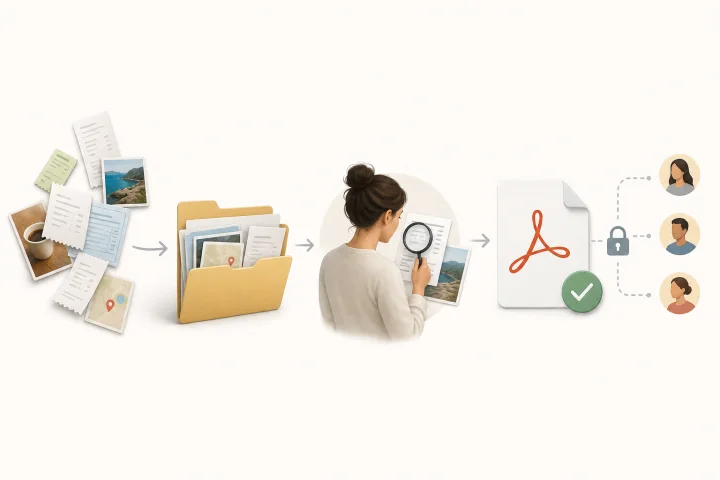
Convert Images to PDF: Order, Review, and Deliver Without Losing the Originals
A practical guide to preparing receipts, screenshots, or photographed pages, converting them into a reviewable PDF, and sharing it without losing originals or versions.

Files and formats
Create a delivery ZIP without losing the originals
A practical guide to preparing a final package with clear names, a simple structure, controlled download, and traceability in Apification Cloud.