Files and formats
Convert a PDF to Grayscale for Printing: What to Check Before You Send It
Prepare a monochrome version without losing the original, then check pages, graphics, contrast, and readability before sending the PDF to print.
When to Convert and When to Keep the Color Version
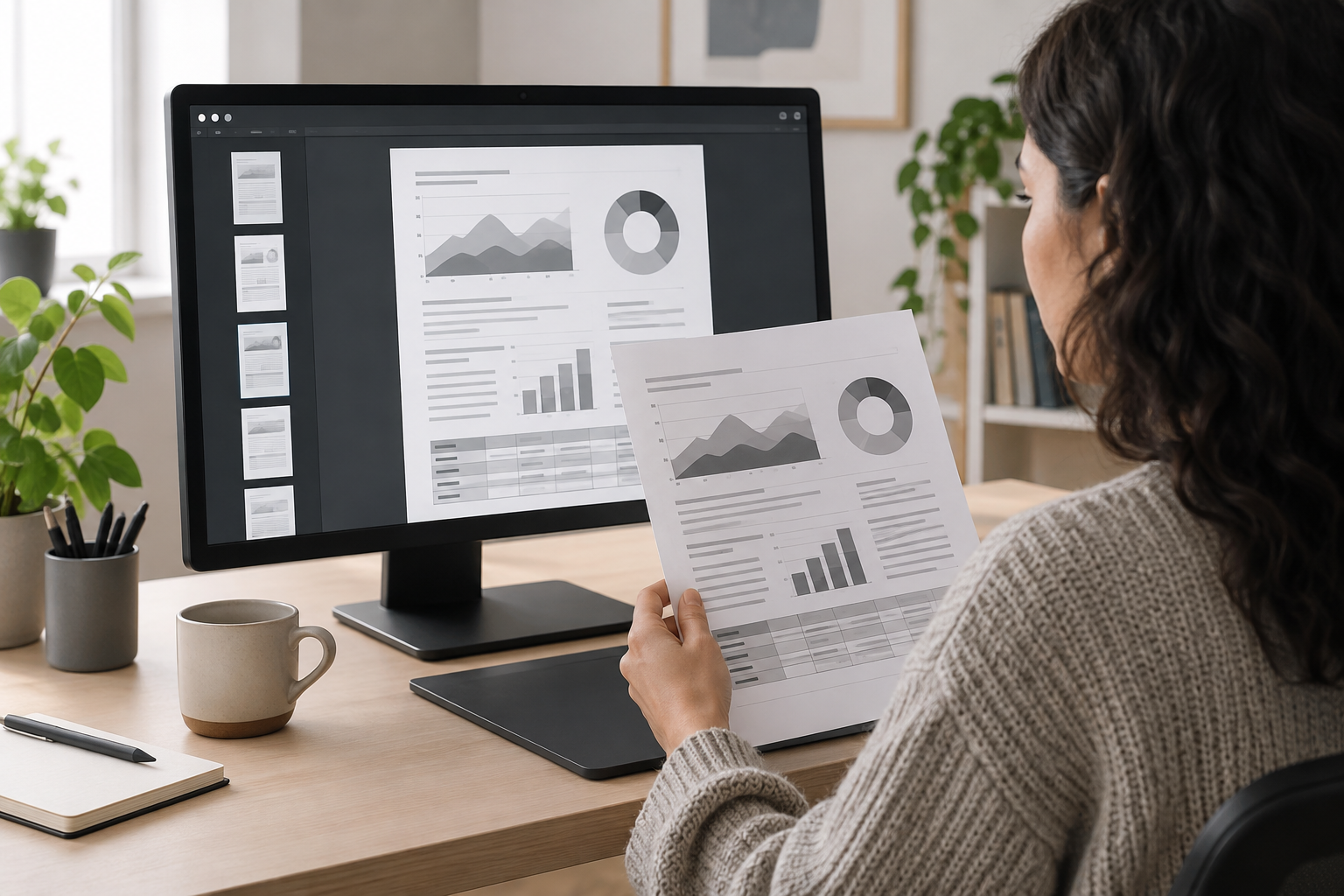
Converting a PDF to grayscale can be useful when the document will be printed in monochrome or when you need a copy that does not depend on color reproduction. This is often considered for reports, forms, manuals, and training materials. The decision should not be based only on whether the file looks right on screen: what matters is whether the information remains understandable in the format in which it will be distributed.
Keep the color version if color identifies categories, statuses, routes, or instructions and you have not checked for a clear alternative. Instead of replacing it, create a monochrome copy with a different name. That way, you can compare both versions, correct the one intended for printing, and return to the original file if the result is not suitable. Do not assume that all tools convert with the same controls: check the options available in the specific tool you use.
- Convert when there is a genuine need for monochrome printing.
- Keep the color version if its visual cues do not yet have a recognizable alternative.
- Do not replace the only original file.
Grayscale and Pure Black and White
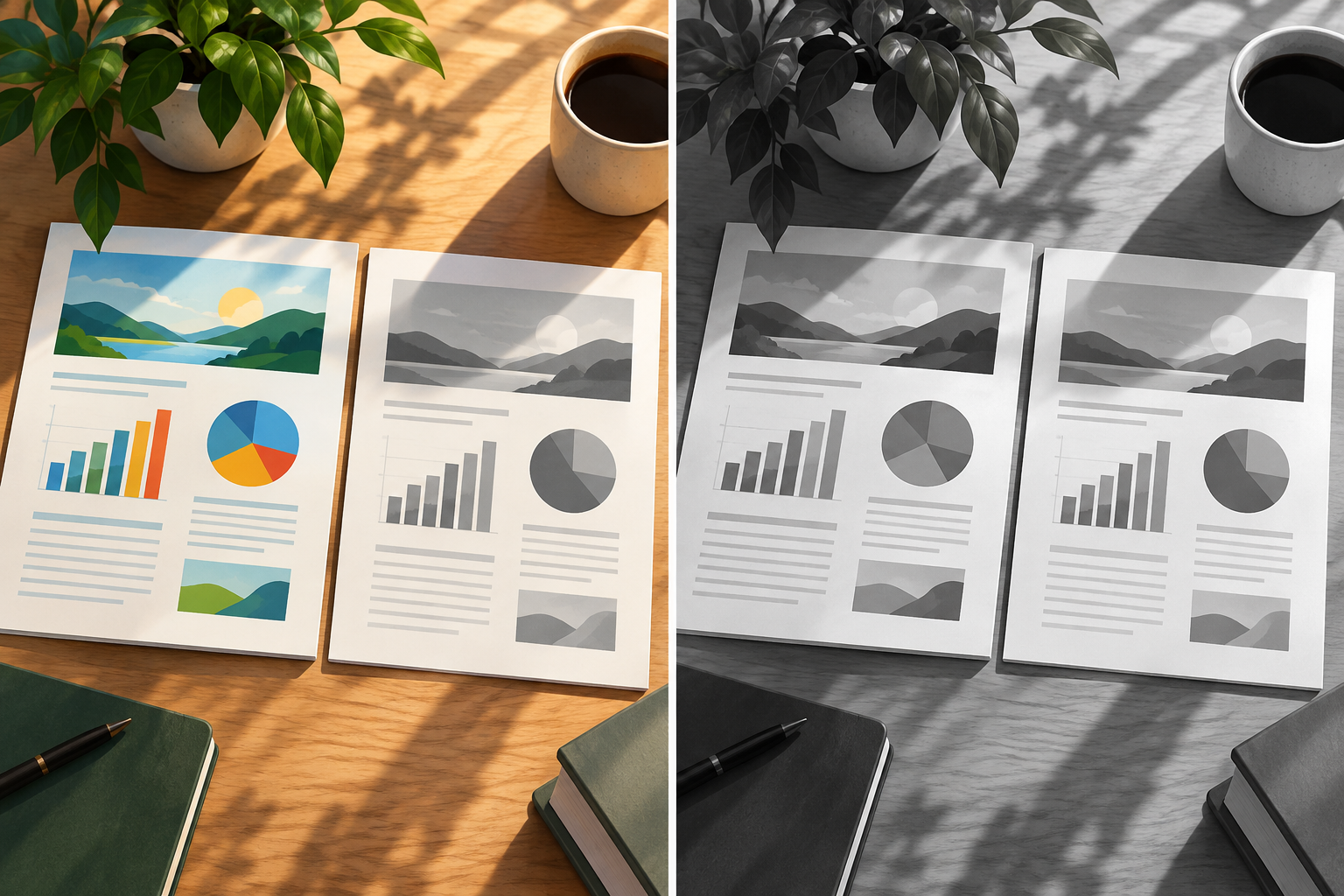
Although some tools present both options together, grayscale and pure black and white are not interchangeable terms. Grayscale allows intermediate tones between light and dark; pure black and white limits the image to those two extremes. VisualPDF advertises both modes, but the available information does not describe how each one processes a file or allow you to predict its exact effect on a particular PDF.
For that reason, make your decision by looking at the result, not just the button label. On a page with photographs, lines, small text, or backgrounds, check whether the option preserves the distinctions needed to interpret the content. Sejda describes its tool as able to convert text and images to grayscale and export a PDF for black-and-white or balanced printing. That description applies to Sejda; do not assume other converters offer the same modes.
- Check which mode the selected tool actually offers.
- Evaluate photographs, text, and lines in the resulting PDF, not just in a general preview.
- If a mode loses important visual information, try another option or keep that page in color.
First Identify Pages That Depend on Color
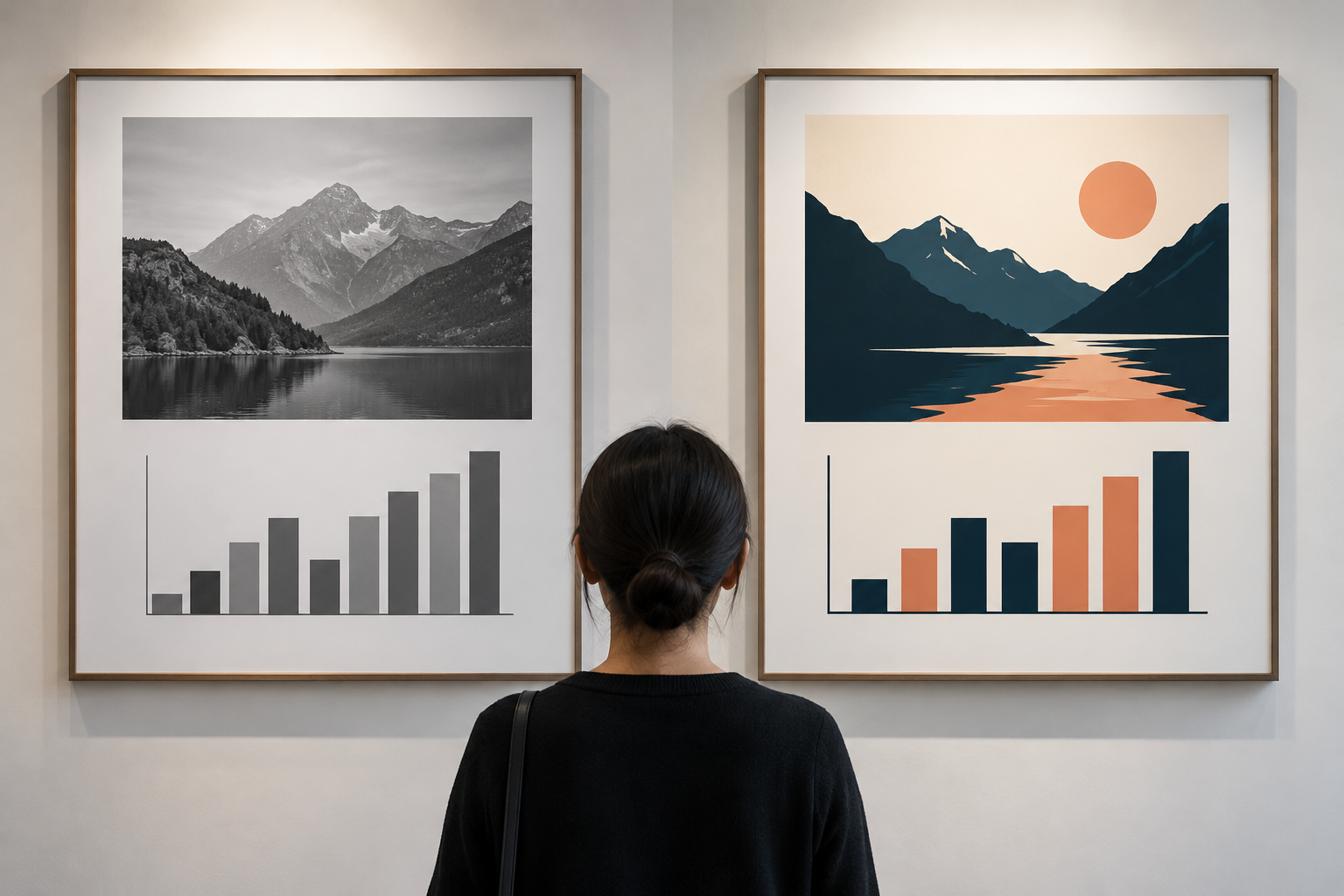
Before converting, go through the document and flag the pages that need attention: charts with series in different colors, maps, diagrams, legends, color codes, and forms where color indicates a choice or status. Also include pages with photographs, dark backgrounds, thin lines, or highlighted notes. The purpose of this review is not to decide in advance that these pages will fail, but to identify where conversion may change how information is distinguished.
Make a short list with the page number and the reason for checking it. For example: “page 3, chart with four series” or “page 8, map with colored zones.” If you cannot find a legend that makes the categories recognizable without color, consider editing the source document to add labels, patterns, or names. The monochrome copy should be understandable without requiring readers to remember the color code in the original version.
- Look for charts, maps, diagrams, legends, and color-coded forms.
- Note pages that may pose a risk before you start the process.
- Check that each category can be identified by labels or another cue.
Test a Representative Copy, Not the Only File
Save the original and create a working copy before converting. For the test, choose at least one simple page and the most demanding pages on your list: for example, the page with the most complex chart and the one with small text or lines. If the tool lets you choose pages, you can limit the first test; VisualPDF advertises a per-page preview and the ability to select which pages to convert. This capability is specific to that tool and cannot be attributed to all tools.
Generate the test using the available controls and open the resulting file separately. Note which mode you used and which pages you included, especially if you may need to repeat the process. Do not proceed to convert the entire document until the representative copy passes a visual review. If the converter does not allow previews or page selection, still keep the original copy and carefully review the complete document once it has been generated.
- Create a working copy before converting.
- Include the most complex pages in the test, not just the cover.
- Record the options used so you can repeat the process or compare results.
Check Contrast, Labels, and Fine Details
On each test page, compare the result with the original and confirm that important distinctions are still visible. Check series labels, boundaries between areas, arrows, numbers, notes, and overlaid text. Pay special attention to elements that had similar colors or were distinguished mainly by their hue. It is not enough for a chart to retain a tidy appearance: readers must be able to identify what each element represents.
Zoom in on areas with small text and fine lines to spot details that might be missed when viewing the whole page. Also check backgrounds and shaded areas: if a label is unclear against its background, review the source document or try another conversion mode. The quality of the result depends on the file and the specific tool; a visual review helps you decide whether the content needs correction before delivery.
- Are all the series and their labels distinguishable?
- Are small text, lines, and arrows still legible?
- Are there areas whose meaning depended only on color?
- Does the background make any note or label hard to read?
Check the PDF on Screen and in a Test Print
A screen helps you go through the file and compare pages, but it does not replace a print test when the final destination is paper. Print a sample that includes a page with text, another with graphics, and any page that raised questions. Review the paper at a normal reading distance and confirm that labels, divisions, and instructions are understandable. If you cannot print a sample, note that the review was done on screen only and do not treat it as a check of the physical result.
Also review the exported PDF from beginning to end: page selection, order, orientation, and whether the open file is the intended monochrome copy. Common mistakes include accidentally delivering the test version, omitting selected pages, or assuming a legend is still identifying its categories when it no longer does. If you find a problem, correct the source or change the available settings and generate the copy again; then repeat the review of the affected pages.
- Print a sample that includes as many different page types as possible.
- Check the order, orientation, and pages included in the final file.
- After making corrections, inspect the exported result again.
Save and Deliver the Right Version
Use names that indicate the content and purpose, such as “manual_color.pdf” and “manual_grayscale_print.pdf.” Avoid ambiguous names such as “final2” or “new,” especially if several people are involved in preparing the file. Save both versions in an organized location and confirm which one should be downloaded or printed. If you work with Apification Cloud, you can manage files in an organized, versioned space; its history lets you review earlier versions, download them, and restore content.
Before sharing, open the file you are going to deliver and verify its name, page count, and appearance. Apification lets you share items through links, users, or groups and provide original or transformed downloads; use a delivery method that clearly identifies the monochrome version. Do not claim that a particular transformation tool offers a grayscale option without checking its interface: Apification File transformation processes documents through a guided assistant, but specific options depend on what the relevant workflow offers.
- Distinguish versions with explicit names.
- Open and verify the exact file you are going to share.
- Keep the color version and the reviewed copy intended for printing.
Frequently asked questions
Are grayscale and pure black and white the same?
No. Grayscale includes intermediate tones; pure black and white uses only those two extremes. Tools may offer both modes, but you should review the result because the options and processing vary.
Should I convert every page of the PDF?
Not necessarily. First identify the pages that depend on color and check whether the tool lets you select pages. If you can only convert the entire document, review every resulting page before delivery.
Can I delete the color version after converting?
It is safer to keep it and create a monochrome copy with a different name. That way, you can compare the results and return to the original if conversion makes a chart, map, or instruction difficult to interpret.
Sources and further reading
Documentation consulted while preparing this article.
Explore Apification
Related articles
Files and formats
How to Extract Images from a PDF Without Mistaking Them for Page Captures
Learn when to retrieve embedded graphic resources and when to rasterize pages, and how to check resolution, cropping, transparency, and color before reusing the results.

Files and formats
How to Find Duplicate Files Before Cleaning a Shared Folder
A cautious method for finding possible copies, checking how they are used, and deciding what to keep before deleting or archiving.

Files and formats
How to Organize Conversions of Many Files Without Mixing Settings or Results
An operational guide to inventorying files, grouping them by task, testing compatible transformations, and reviewing each output before sharing or importing it.