Documents and data
How to Share an Editable Spreadsheet Without Breaking Formulas or Reports
Organize data entry, calculations, and reports before sharing a spreadsheet. Learn to coordinate changes, test formulas, and recover an earlier version if something goes wrong.

Why shared spreadsheets become fragile
A spreadsheet starts to fail when the same space has too many jobs. Someone pastes data over a formula, another person adds a row outside the expected range, and a third collaborator changes a heading that feeds a report. The problem is not always a calculation error; often, the spreadsheet lacks a structure that shows where to enter data, which cells contain results, and which areas people should consult to make decisions.
Before sharing, review the file as if you had never created it. Look for formulas mixed in with records, ranges that do not include new rows, filters applied to only part of a table, and ambiguous labels such as “data” or “final total.” Note which changes are routine and which could affect results. This review helps you decide what to reorganize and what instructions collaborators need to see.
- Warning signs include manually copied formulas, blank rows within a table, and reports fed by hard-to-identify ranges.
- Do not assume that sharing a file protects its formulas: organize the layout and set access permissions separately.

Separate data entry, calculations, and reporting
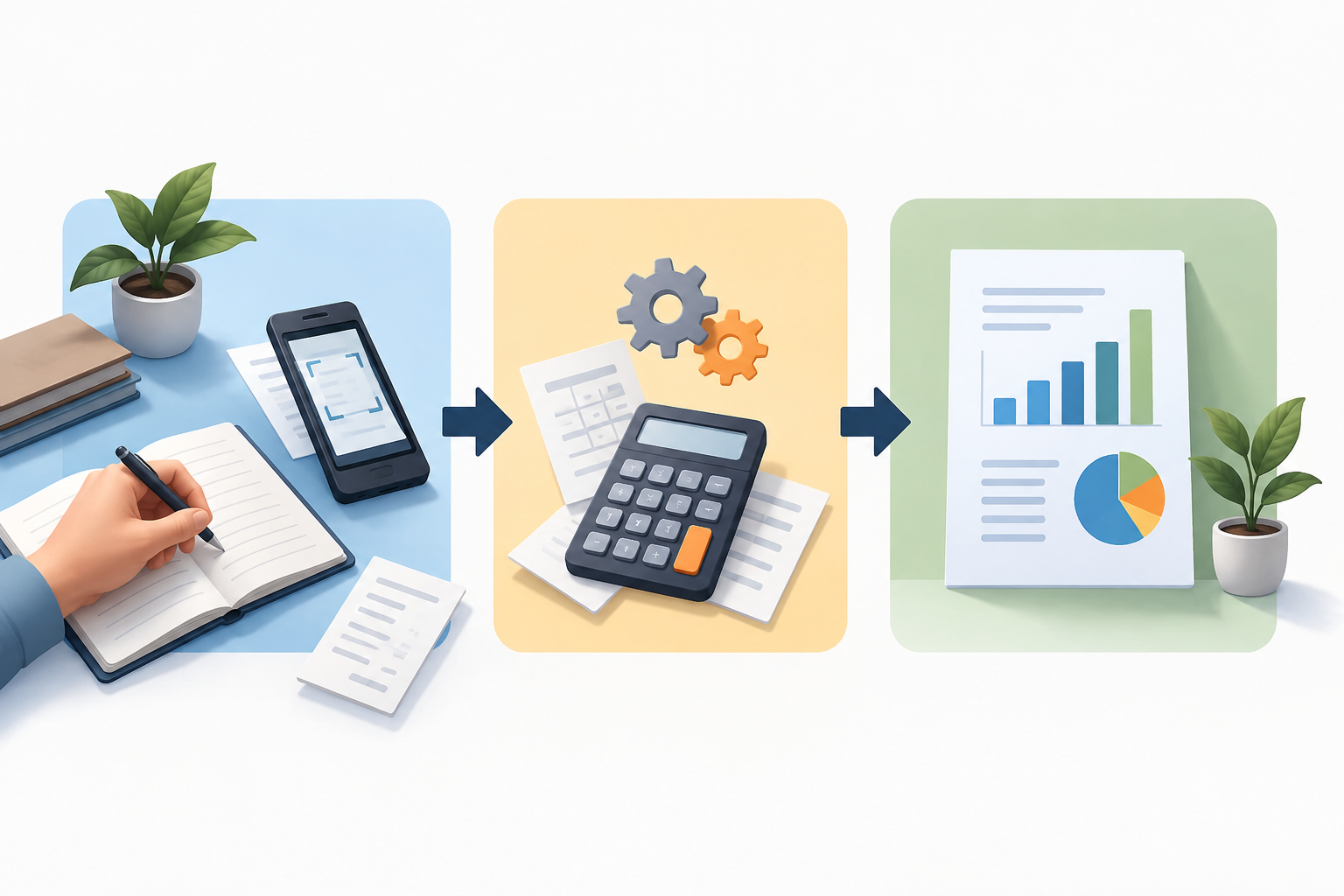
Design three areas with distinct responsibilities. The data-entry area receives records and should have predictable fields, such as date, owner, category, and amount. The calculation area transforms that data using formulas. The reporting area presents summaries for people to consult, such as totals by period or status. These areas can be on separate sheets or clearly delineated; what matters is that each collaborator understands where to work and what content to use when interpreting results.
Next, decide who needs to edit the file and who only needs to view it. Share the document with the relevant users or groups and choose access permissions suited to their tasks. Someone entering values does not necessarily need to change the report structure. This separation reduces accidental changes, but it is not the same as protecting specific cells: do not assume the layout alone prevents people from editing formulas.
- Practical rule: grant editing access only to people who need to update content; for everyone else, consider a viewing option if one is available in the usage settings.
- Avoid an entry area with unclear boundaries: specify the columns, rows, or sheet intended for data entry.
Clarify what values each person should enter
Consistent headings reduce confusion and make filtering and review easier. Choose specific names and use them consistently throughout the workflow: if a column is called “Request Date,” do not rename it “Date” on another sheet without a reason. Indicate whether a field accepts text, a date, a number, or a category. If there are possible statuses, list them in a visible instruction rather than relying on each person to invent their own label.
Add examples that clarify the expected format without using sensitive real data. For instance, show a date in the agreed format and an amount with its corresponding unit. If a row requires several fields, identify which ones are mandatory and explain what to do when a value is not yet available. A useful example prevents different interpretations; it does not replace reviewing entries or guarantee that no one will make mistakes.
- Before opening the sheet for data entry, check that every column has a unique, understandable heading.
- Include examples of valid values and explain how to record exceptions, pending data, or new categories.
Test changes in a working copy
A structural change deserves testing before it reaches the file the team uses. Create a working copy and apply the change there: adding a column, extending a range, or changing a label can affect formulas, references, filters, and linked charts. Use representative test records, including edge cases such as a new row, an allowed blank field, and an unusual value. This helps you catch problems before a change affects a shared report.
Compare known results before and after the change. Check that formulas still point to the correct columns, include new rows, and that filters cover the expected dataset. Verify several results manually, not just the grand total: a plausible result can still hide a shifted reference. If a number changes, determine whether the change is expected or the result of an error. Document what you tested and update the shared file only after the review is complete.
- Minimum test: key formulas, references, added rows, filters, and sample results.
- If you cannot explain why a result changed, pause the update and review the structure before continuing.
Coordinate editing in a single working file
Downloaded copies can be useful for preparing a review, but they become a risk if several people edit them as though they were the original. Agree on which file is the working file, where it is located, and who incorporates structural changes. For high-impact changes, notify the team before modifying formulas or headings. If two collaborators need to update data at the same time, define which area belongs to each person and how duplicate or conflicting records will be resolved.
Apification Cloud lets you keep Office files in Cloud and edit them with ONLYOFFICE. This provides a shared place to work on the file, but it does not eliminate the need to coordinate or demonstrate that calculation cells are locked. Before getting started, confirm that everyone recognizes the same document and agree on how to communicate an important change. Share the file with the appropriate people or groups, and distribute the original when that is what they need.
- Agree on the name and location of the current file; avoid confusing names such as “final,” “final2,” or “new definitive.”
- Give notice before changing formulas, headings, or structure; keep a working copy for testing those changes.
Recover a version thoughtfully if something goes wrong
If a report no longer adds up, first avoid making further changes to the affected file. Note what you observed, when the problem appeared, and what change may have preceded it. Review the formulas and references involved and compare the content with an earlier version. In Apification Cloud, you can view an item's history and download previous versions for examination. Downloading a version lets you review its contents; it does not mean you should immediately replace the current file.
Restore only after identifying which version represents the correct state and checking which later changes would be lost. If the history does not resolve the issue, keep the current file while comparing it with the downloaded version, and check with anyone who made recent changes. After recovering content, check formulas, ranges, filters, and key results again, and tell the team which version is now the reference. Restoring helps recover content, but it does not replace a review process.
- Follow this sequence: pause changes, review the history, download a candidate version, compare, and confirm before restoring.
- After restoring, check key results and announce which file is the current working file.
Checklist before handing the spreadsheet to the team
A clear handoff does not depend on everyone knowing the file's internal logic. Check that the shared document is easy to identify, that the data-entry, calculation, and reporting areas are distinct, and that each field explains what value it expects. Review the permissions against the list of collaborators and confirm that each person has the access they need. If there are multiple sheets, clarify which ones are updated and which are for viewing.
Run one final test with a representative entry and confirm the full path: from the value entered to the result shown to someone viewing the report. Check formulas, references, and filters after any recent changes. Finally, make sure the team knows how to view an earlier version and who decides whether to restore it. If any of these points are unclear, resolve them before announcing that the file is ready.
- The current file is identifiable and shared with the appropriate users or groups.
- Entry, calculation, and reporting areas are distinct; headings are clear and valid examples are included.
- Formulas, ranges, references, filters, and results have been checked after changes.
- The team knows the review and recovery process.
Frequently asked questions
Does sharing a spreadsheet automatically protect its formulas?
Do not assume that it does. Sharing a file and organizing its access permissions do not mean that formula cells are protected. Design the areas clearly and check which controls are available before relying on a specific form of protection.
Can I edit Office files in Apification Cloud?
Yes. Apification Cloud lets you create and edit Office files with ONLYOFFICE while they remain in Cloud storage.
What should I do if a formula or report stops working?
Pause changes, identify the problem, and review the history. You can download an earlier version to compare it, and restore only after confirming that it is the right point to return to and considering any later changes.
Sources and further reading
Documentation consulted while preparing this article.
- Compartir el libro de Excel con otros usuarios — Soporte técnico de Microsoft
- Colaborar en Hojas de cálculo — Ayuda de Google Docs
Explore Apification
Related articles

Documents and data
Reusable Document Templates: Protect the Original and Control Every Copy
A practical method for keeping a reliable master version, working from project copies, and reviewing changes before delivery.

Documents and data
Manage document translations without overwriting files
Set a source of reference, organize copies by language, and create a review process that makes it clear which translation corresponds to each original.

Documents and data
From form responses to a spreadsheet without losing the original
A practical guide to preserving a raw export, working on an editable copy with ONLYOFFICE, cleaning data with judgment, and delivering traceable results.