Documents and data
From form responses to a spreadsheet without losing the original
A practical guide to preserving a raw export, working on an editable copy with ONLYOFFICE, cleaning data with judgment, and delivering traceable results.
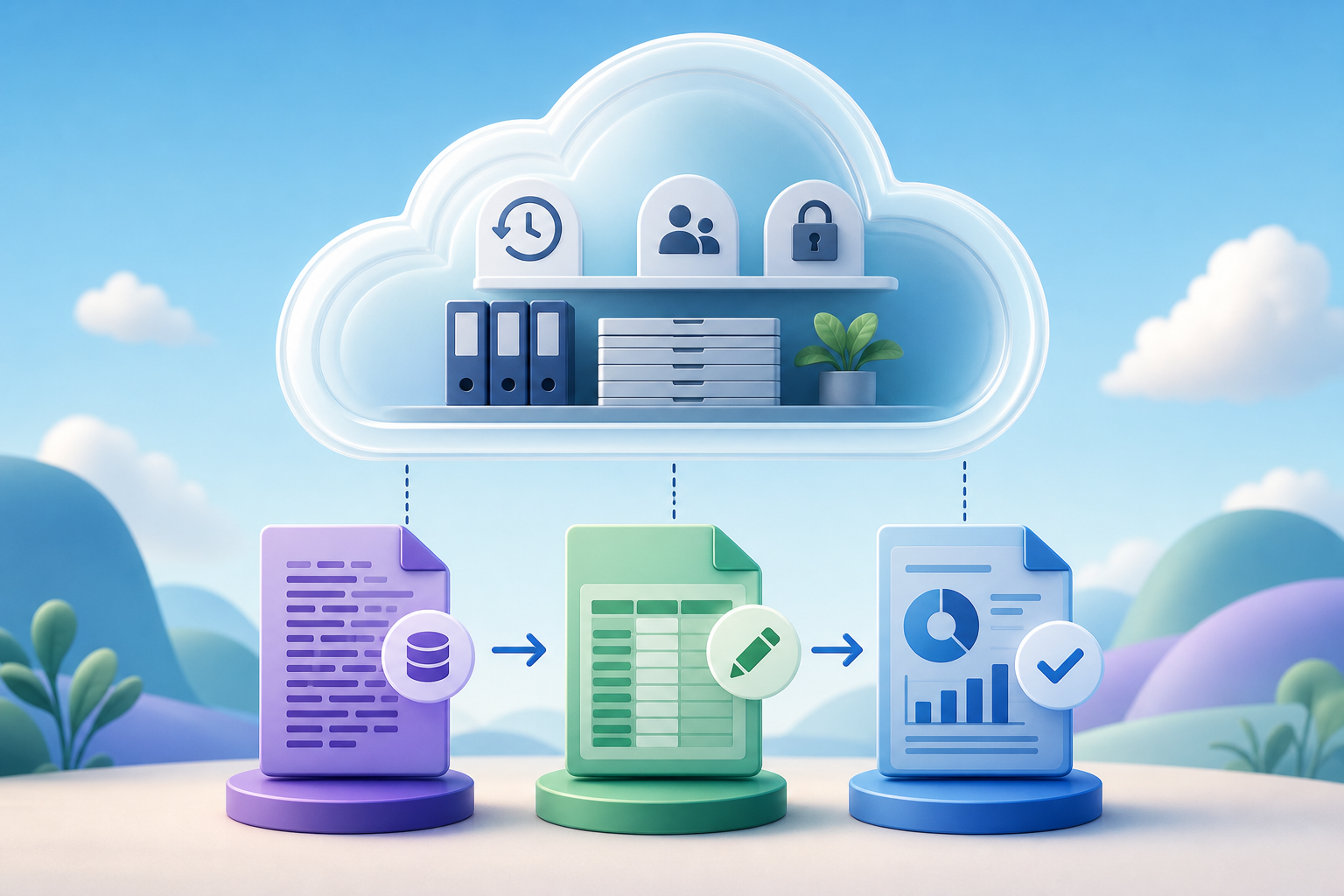
The problem: editing the direct export creates errors that are hard to detect
Form responses fit naturally into a table: each row represents a response and each column contains a property, such as email, date, score, or comment. That structure seems simple, but that is precisely why mistakes happen: a corrected cell with no record, a row deleted because it appears to be a duplicate, or a replacement applied to the whole workbook can change the result without making it clear what happened. If the original export disappears, the team loses its point of comparison.
The risk increases when several people review the same sheet with different goals. Operations may correct formats, training may classify open-ended responses, and marketing may segment contacts. All these actions are legitimate, but they should not be mixed with the raw record. In Google Forms, for example, downloading responses as a CSV is an available action; in Microsoft Forms, opening results in Excel generates an editable sheet where the questions are columns and the responses are rows. The operating rule is simple: exporting is not the same as cleaning.
- Typical mistake: sorting only one column and misaligning complete responses.
- Typical mistake: deleting a response because it is assumed to be a duplicate without preserving evidence.
- Typical mistake: using replace all without limiting the range, sheet, or workbook.
- Typical mistake: sharing the working sheet as if it were the final version.
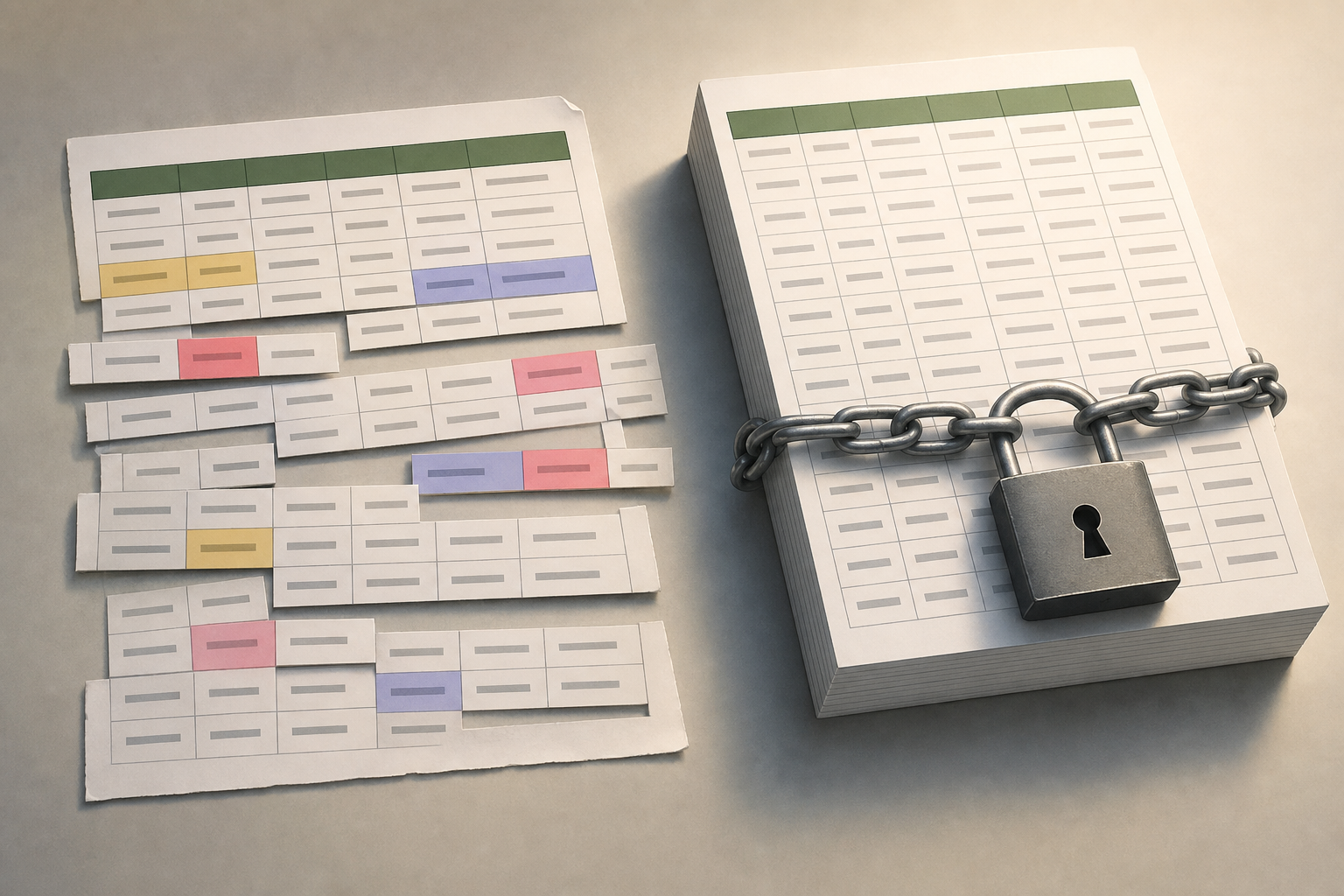
Define three files: raw, analysis, and deliverable
Before reviewing form responses in a spreadsheet, it is worth separating three objects. The first is the raw file: the export exactly as it came from the form, with no manual edits. The second is the analysis sheet: an editable copy where data is normalized, review columns are added, and decisions are documented. The third is the final deliverable: a controlled copy, prepared for sharing with management, internal clients, or external teams.
This separation prevents later disputes. If someone asks why a response was discarded, the team can compare the original row, the reviewed row, and the final decision. Apification Cloud fits this pattern because it lets you manage files, services, and digital projects in an organized, versioned space designed for sharing. The practical recommendation is to create one folder per campaign, course, research project, or period, and within it keep subfolders or clear names for each stage.
- Raw file: it is not edited and serves as operational evidence.
- Analysis sheet: it is worked on with ONLYOFFICE inside Cloud.
- Final deliverable: it is shared with permissions or a controlled link.
- Useful naming: 2026-customer-survey-raw, 2026-customer-survey-analysis, 2026-customer-survey-deliverable.

Export and save the responses in an organized Cloud
The first step is to get the export from the form tool. Google Forms lets you view responses in a linked sheet and also download all responses as a CSV from the responses tab. Microsoft Forms lets you open the results in Excel to review an editable sheet. In both cases, the goal should not be to start correcting as soon as possible, but to capture a stable snapshot of the set of responses that will be reviewed.
By uploading that file to Apification Cloud, the team brings it into a workspace where it can be organized alongside documents, services, and other project materials. If the file is not in a modern editable spreadsheet format, ONLYOFFICE can convert it to .xlsx for editing and preserve both the original file and the converted file when appropriate. This is useful with CSV: W3C recommends that the first line contain column names and that each line keep the same number of values, but even so, the import should be reviewed before working.
- Check that the first row contains clear headers.
- Verify that no rows have shifted columns after importing a CSV.
- Save the raw export before converting, filtering, or replacing.
- Record the extraction date if the form is still receiving responses.
Create an editable copy with ONLYOFFICE without moving the original record
The analysis sheet should start as a copy, not as a continuation of the raw file. In Apification, office files can be created and edited with ONLYOFFICE while remaining inside Cloud storage. ONLYOFFICE Documents lets you create spreadsheets and folders, upload files, and create copies. The safe practice is to open the export only to verify that it can be read correctly and then generate the working copy in the project location.
This editable copy lets the team apply filters, sort, validate data, search for values, and prepare classifications without touching the source. It also reduces the fear of making a mistake: if a cleanup goes wrong, the raw file remains intact and the Cloud history makes it possible to review changes, download previous versions, or restore content. The key decision is who can edit the analysis sheet. Not every reader of results needs editing permission; separating reading, commenting, and editing helps prevent accidental damage.
- Create the analysis sheet from a copy, never from the only exported file.
- Assign editing permissions only to those who clean or classify data.
- Keep the raw file in a folder with restricted access.
- Before making bulk changes, confirm that a recoverable version exists.
Review columns worth adding
A response sheet usually includes question columns, a timestamp, and contact details, but it does not explain what the team did during review. That is why it is useful to add operational columns at the end, without inserting data between the original responses. The minimum columns are review status, notes, owner, and decision taken. In internal studies or support processes, it may also be useful to add rejection reason, priority, or normalized category.
These columns turn cleanup into an auditable process. “Review status” can use values such as pending, reviewed, questionable, or discarded. “Notes” should explain changes that are not obvious, for example: “email corrected due to trailing space” or “duplicate response compared with row 128.” “Owner” helps resolve questions without searching through external conversations. “Decision taken” separates the original fact from the interpretation: accept, consolidate, exclude, or escalate.
- Add new columns at the end so evidence and review do not get mixed.
- Use value lists whenever possible to avoid inconsistent labels.
- Do not overwrite an open-ended response if you can add a normalized version in another column.
- Document the rejection criterion before applying it to many rows.
Safe cleanup rules: normalize, detect, and correct without deleting evidence
ONLYOFFICE Spreadsheet Editor includes data tools for sorting, filtering, removing duplicates, validating data, and getting data from TXT or CSV files. It also lets you find and replace one occurrence or all occurrences, limiting the action to a sheet, an entire workbook, or a specific range. These functions are powerful, but they should be applied with one rule: first identify, then mark, and only at the end modify. For data that is sensitive for a decision, marking is usually better than deleting.
Safe cleanup starts by normalizing obvious text issues: extra spaces, inconsistent capitalization, or variants of the same category. Duplicates are then reviewed with judgment: two rows may share an email address and still be valid responses if the form allowed multiple participations, or they may be true duplicates if the process required only one. For formats, it is useful to create auxiliary columns for normalized dates, phone numbers, or codes, so that the original response remains available for comparison.
- Before removing duplicates, define which combination of columns proves duplication.
- Use find and replace on specific ranges, not on the entire workbook by default.
- Filter empty or anomalous values and classify them before correcting.
- Keep one original column and one normalized column when the data may be disputed.
Collaboration and delivery control: users, groups, or links
Sharing by user or group is the right option during collaborative review. ONLYOFFICE lets you share files and folders with individual users or groups, assigning permissions according to the task. In Apification, items can also be shared through links, users, or groups, and original or transformed downloads can be provided. The decision depends on the control required: if you need to know who edits and limit internal actions, use users or groups; if you are only delivering a closed copy, a link may be enough.
External links are useful for third parties who do not need to enter the workspace. ONLYOFFICE lets you configure different access rights and options such as a password, time limit, and restrictions on printing, downloading, or copying for read-only or comment access. For the final deliverable, avoid sharing the analysis sheet if it contains internal notes. Create a dedicated copy, review visible columns, and share only what the recipient needs.
- Use groups for stable teams with recurring tasks.
- Use individual users for one-off reviews or limited-access data.
- Use an external link for controlled delivery to third parties without collaborative editing.
- Before sharing, review the permissions of both the file and the folder that contains it.
Using history: restore when cleanup goes wrong
History does not replace discipline, but it reduces the impact of errors. Apification Cloud lets you review an item’s history, download previous versions, and restore content safely. ONLYOFFICE also shows versions and revisions with the author, date, and creation time. This is especially important before bulk actions: removing duplicates, replacing text in many cells, importing another CSV, or reordering data to prepare a deliverable.
When something fails, do not improvise on the same sheet. First identify the approximate moment of the change: who was working, what task they were doing, and which columns were affected. Then compare with a previous version or download an earlier copy to verify. If the error affects many rows, restoring may be better than correcting manually. If it affects only a few cells, document the correction in notes and keep the reviewed version.
- Before bulk changes, notify the team and avoid unnecessary simultaneous edits.
- If a cleanup fails, stop new edits until the scope has been assessed.
- Download a previous version if you need to compare without overwriting.
- Restore only when the benefit is greater than the loss of later changes.
Frequently asked questions
Why not edit the original form export directly?
Because the original export works as a reference. If information is corrected, filtered, or deleted in it, it will be harder to prove what really came from the form and what changed during review.
Which file should I share at the end of the process?
The safest option is to share a final copy prepared for delivery, not the raw file or the internal analysis sheet. This lets you remove notes, auxiliary columns, or decisions that are not relevant to the recipient.
Can I use ONLYOFFICE to clean an exported CSV?
Yes. You can upload the file to Cloud, convert it to .xlsx for editing when appropriate, and work with spreadsheet tools such as filters, validation, duplicate removal, and range-based search.
When should I restore a previous version?
It is worth restoring if a bulk change affected many rows or columns and correcting it manually would create more risk. If the error is small, correcting it and documenting it in the analysis sheet may be enough.
Which permissions are best for a collaborative review?
During review, it is usually better to share with users or groups and assign permissions according to the task. For a closed external delivery, a link with limited rights and security options may be enough.
Sources and further reading
Documentation consulted while preparing this article.
- W3C Recommendation: Model for Tabular Data and Metadata on the Web — World Wide Web Consortium (W3C)
- Google Forms: View & manage form responses — Google Help
- Google Forms: Choose where to save form responses — Google Help
- Microsoft Forms: Check and share your form results — Microsoft Support
- Microsoft Forms: View results of your form — Microsoft Support
- ONLYOFFICE Workspace: Getting Started with Documents — ONLYOFFICE Help Center
- ONLYOFFICE Workspace: Managing versions and revisions — ONLYOFFICE Help Center
- ONLYOFFICE Workspace: Sharing files and folders — ONLYOFFICE Help Center
- ONLYOFFICE Spreadsheet Editor: Data tab — ONLYOFFICE Help Center
- ONLYOFFICE Spreadsheet Editor: Search and Replace functions — ONLYOFFICE Help Center
Explore Apification
Related articles

Documents and data
Convert a Presentation to PDF Without Surprises
A practical guide to reviewing an editable presentation, keeping it as the canonical source, and delivering a stable PDF without losing traceability.
Documents and data
Export spreadsheets to CSV for integrations: separators, dates, and fields that must not break
A practical guide to preparing an editable sheet, converting it into a CSV consumable by external systems, and retaining control over versions, testing, and delivery.
Documents and data
Editing Office documents in the cloud without duplicates: a workflow with history and controlled delivery
A practical guide for teams that review editable documents without multiplying copies, using Cloud work, permissions, history, and controlled delivery.