Documents and data
Reusable Document Templates: Protect the Original and Control Every Copy
A practical method for keeping a reliable master version, working from project copies, and reviewing changes before delivery.
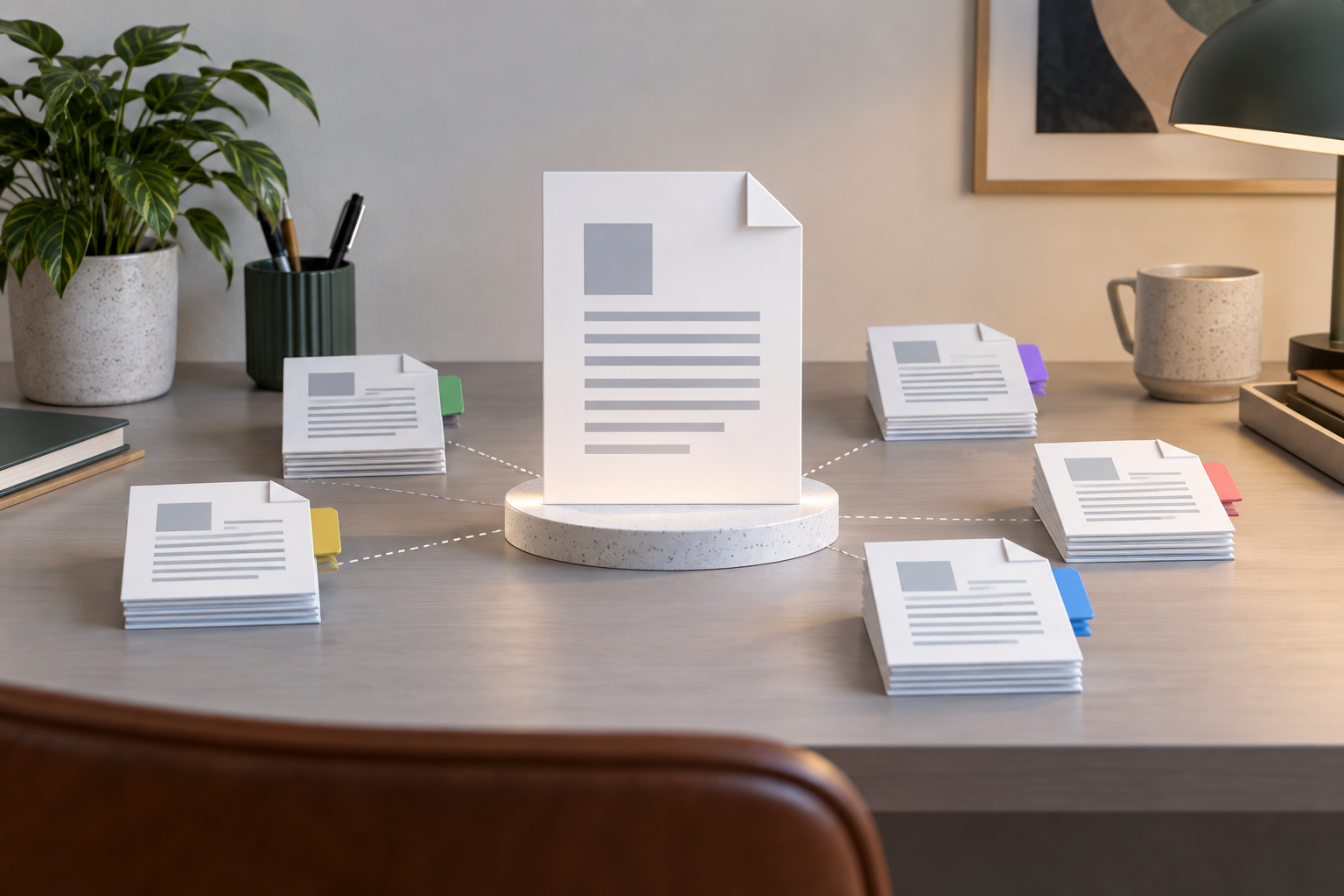
What problem does a master template solve?
When a team repeatedly creates proposals, reports, briefs, or procedures, starting every document from a blank page can mean repeating the same setup work. A reusable template offers a reference for structure and core content, while a working copy can be adapted to an individual project. Reusing a template can save time by reducing repeated document creation; PandaDoc describes reusable templates as a way to save time through automation: https://support.pandadoc.com/es/articles/9714616-ahorra-tiempo-con-una-plantilla-reutilizable-nueva-experiencia.
Treat the template as a starting point, not as proof that its contents are correct for a new situation. Before reusing a document, look for client information, dates, figures, instructions, or examples left over from earlier work. If the content changes substantially between uses, review it carefully before deciding what belongs in a reusable reference.
A simple test is to ask which parts would remain appropriate if the project, audience, or date changed. Repeated headings may be useful to retain, while a named client, a particular deadline, or a project-specific figure may need to be replaced or removed. This is a suggested review method, not an automatic feature.
- Identify sections that are likely to be reused.
- Review the core content before treating a document as a template.
- Look for details specific to previous projects.

Separate fixed content from variable fields
As a preparation method, sort document elements into three groups: content intended for reuse, content that needs review each time, and fields that must be completed for the project. For example, a proposal might retain its section order while its scope, schedule, and people responsible are checked for each client. This is an illustration, not a required document structure.
Make fields that need completion easy to find. Consistent labels such as “Project name” or “Delivery date” can work as visible reminders. Before delivery, replace each label with the correct information or remove it if it does not apply. Do not assume that a label will be noticed simply because it is easy to search for.
Separate instructions for the person preparing the document from text intended for the recipient. For instance, a note reminding an editor to confirm a figure should not be confused with the final wording. Remove sample names and example figures that could be mistaken for real information. If a section is optional, decide whether it belongs in the current copy rather than leaving that decision implicit.
- Mark fields that need to be completed for each project.
- Distinguish internal instructions from text intended for delivery.
- Review examples, names, and inherited details.

Keep an approved reference and create working copies
As an organizational practice, keep one clearly identified reference version and use separate copies for assignments. A naming convention can include the document type, project, and date, such as “Proposal_NorthProject_YYYY-MM.” The particular pattern is up to the team; the purpose is to distinguish the reference, working files, and deliverables. A file name alone does not establish that a document has been reviewed or approved.
Decide who is responsible for reviewing and updating the reusable content. If someone improves wording in a project copy, assess whether the change should apply more broadly before transferring it to the reference. Project-specific language may not suit other cases. Keeping that decision explicit can help avoid treating a local change as a general rule without review.
It can also help to record, in a way the team agrees on, who reviewed the reference and when. That note is an organizational choice, not a special Cloud function. When a new project begins, start from the identified reference, give the working file a distinct name, and check that changes stay in the intended copy.
- Use consistent names to distinguish reference files, working copies, and deliverables.
- Record who reviewed the core content and when, using an agreed team method.
- Evaluate changes before adding them to the reference.
Assign access according to the task
As a general organizational guideline, distinguish between viewing, editing, and distributing a document. A team might designate a person or group to maintain the reference and have project contributors work from copies. This is a proposed division of work, not a guarantee that mistakes will be avoided or that the right file will always be selected.
Apification Cloud lets you share items through links, users, or groups and provides permission and access controls. Choose settings according to the intended audience and the configuration of the space being used. Do not assume that a link provides the same access as permission to edit a file; confirm the intended access type before sharing.
When a project ends, review whether the people who had access still need it. This is a practical check for the person managing the document, not a claim that access will be adjusted automatically. Before sending a link or sharing an item with a group, verify that the selected file is the copy intended for that audience.
- Determine who needs to view, edit, or share each item.
- Review who should retain access when a project ends.
- Confirm the audience and access type before sharing.
Edit Office files within the shared space
Apification Cloud lets you create and edit Office files with ONLYOFFICE while keeping them in Cloud storage. This allows Office files to remain in that storage space while you work on them. This describes the verified editing capability; it should not be taken to imply additional features or behavior that has not been confirmed for your configuration.
As a team practice, confirm that you opened the intended copy and agree on who will edit it and when it will be reviewed. Keeping a file in a shared space does not, by itself, coordinate the people working on it. If contributors use separate copies, make a deliberate decision about which changes, if any, should be brought together.
Before editing, check the file name and location against the project you are working on. After editing, use the team’s agreed review process to check the content before treating the copy as ready to share. These are recommendations for handling the work; they are not automatic checks performed merely because the file is stored in Cloud.
- Confirm the file name and location before editing.
- Agree on who edits the copy and when it moves to review.
- Use ONLYOFFICE in Cloud to create or edit Office files within the storage space.
Review each copy before delivery
Set aside a final review that is separate from editing. Check names, dates, figures, and people responsible. Look for labels such as “To be completed,” internal instructions, or sample content that should not appear in the delivered document. Also check references to clients, locations, deadlines, and attachments that may have been carried over from another use.
Then check the document against the needs of the current project: are required fields complete, have optional sections been addressed, and does the wording match the intended audience? Confirm that you selected the file meant for delivery and that it will be shared with the correct people. This checklist is a work recommendation, not an automatic Cloud feature.
Do not rely on a name such as “final” as evidence that the file is ready. If the review identifies a change, make it in the intended copy and check the affected content again. Where a team uses a reviewer other than the editor, make clear when the document is ready for that review and who will decide that it can be delivered.
- Check names, dates, figures, and people responsible.
- Remove instructions and inherited details that do not apply.
- Confirm the intended file and delivery audience.
Investigate accidental changes with version history
Apification Cloud lets you review the history of Cloud items, download earlier versions, or restore content. If you suspect a file was changed by mistake, identify the affected item and inspect relevant versions by downloading them. Compare the content manually; an automatic comparison between versions is not assumed here.
Before restoring content, consider whether there are later changes that should be kept separately. After recovery, inspect the result and confirm that it is the file you intended to correct. Version history offers a way to review and recover content, but it does not replace checking the document or deciding which changes should remain.
To reduce confusion during this process, identify the specific item before acting and avoid treating a similarly named copy as the same file. If more than one working copy exists, determine which one is relevant to the issue. These are careful-use recommendations; they do not imply that Cloud automatically chooses the correct version for you.
- Identify the file and versions you want to review.
- Download relevant versions and inspect their content manually.
- After restoring content, check the result and confirm the intended file.
Avoid three common confusions
First, a reusable reference and a project copy are not interchangeable. The reference is the starting point for future work; the copy is the document being adapted to a particular project. Give them clear names and review a project-specific change before deciding whether it belongs in the reusable content.
Second, storing or sharing a file does not amount to reviewing it. Apification Cloud provides file sharing and access controls, but people still need to check the contents and confirm who should receive access. A shared location does not, by itself, settle who edits a copy or whether it is ready to deliver.
Third, version history is not an automatic comparison or a substitute for judgment. Cloud lets you review history, download earlier versions, and restore content. Inspect the relevant versions and the restored result, and decide which changes should be kept. These distinctions help set realistic expectations for both the workflow and the available product capabilities.
- A reference file does not replace a project-specific copy.
- Sharing a file does not confirm that its contents are ready.
- Version history supports review and recovery but does not make review decisions.
Frequently asked questions
What is the difference between a template and a working copy?
The template is the reference for future use. A working copy is adapted to a specific project and should be identified so it can be distinguished from the reference.
Can Office files be edited from Apification Cloud?
Yes. Apification Cloud lets you create and edit Office files with ONLYOFFICE while keeping them in Cloud storage.
What can I do with Cloud version history?
You can review an item's history, download earlier versions, or restore content. Before restoring, check which later changes may need to be kept.
Can I protect content in a Word template?
Microsoft says you can protect a section of a Word template or apply a password to help protect its content. This should not be treated as a substitute for good organization and review. Source: [Microsoft Support, “Crear una plantilla”](https://support.microsoft.com/es-es/word/save-a-word-document-as-a-template).
Sources and further reading
Documentation consulted while preparing this article.
- Crear una plantilla — Microsoft Support
- Ahorra tiempo con una plantilla reutilizable (nueva experiencia) — PandaDoc Support
Explore Apification
Related articles
Documents and data
Manage document translations without overwriting files
Set a source of reference, organize copies by language, and create a review process that makes it clear which translation corresponds to each original.
Documents and data
From form responses to a spreadsheet without losing the original
A practical guide to preserving a raw export, working on an editable copy with ONLYOFFICE, cleaning data with judgment, and delivering traceable results.

Documents and data
Convert a Presentation to PDF Without Surprises
A practical guide to reviewing an editable presentation, keeping it as the canonical source, and delivering a stable PDF without losing traceability.