Documents and data
Replaced Fonts in a Document: How to Spot Layout Changes and Prepare a Reliable Delivery
A practical guide to investigating font warnings, comparing layout, and deciding which files to deliver without losing the editable original.
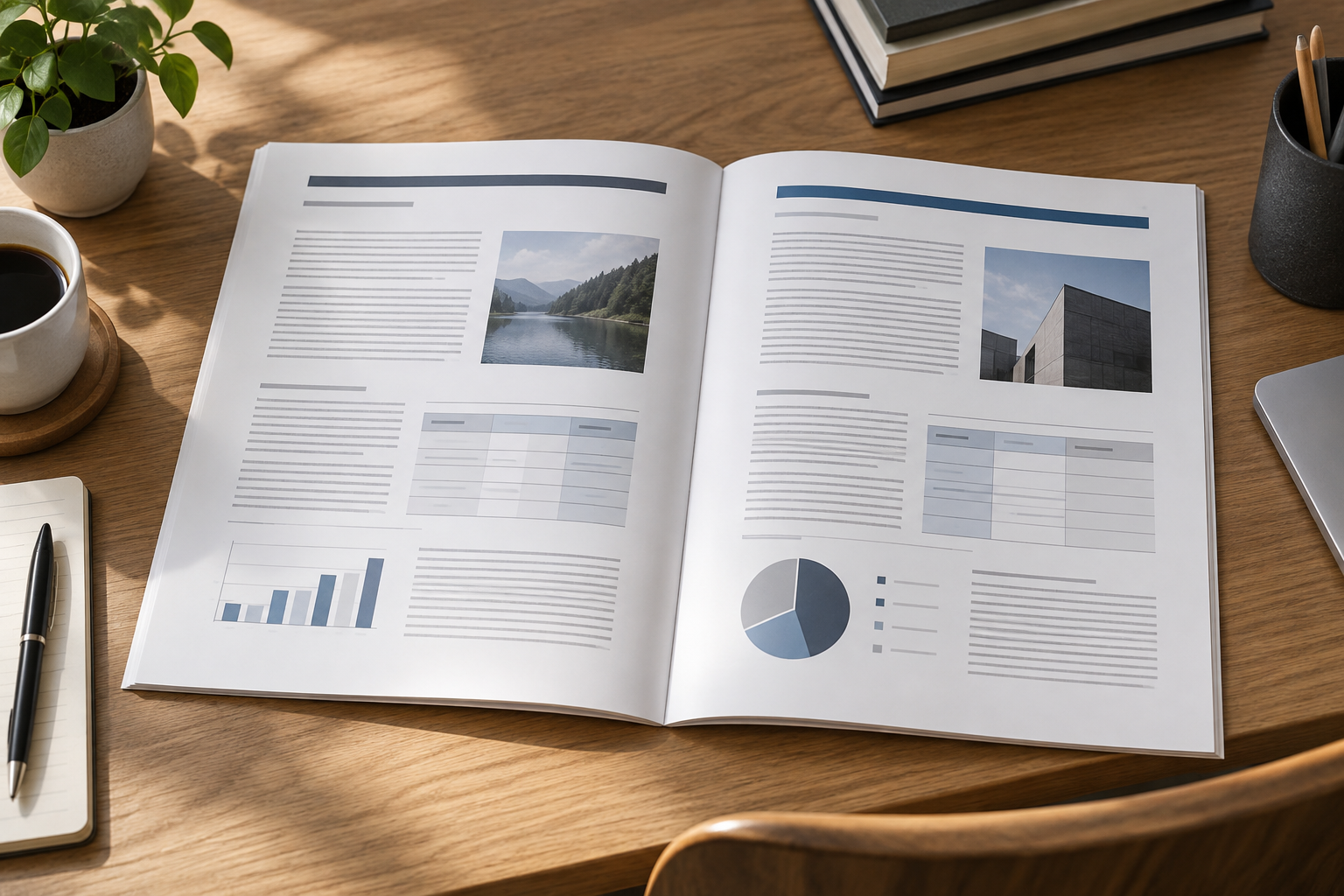
Recognize the signs, but don’t attribute every change to the font
A missing or substituted font may be a reasonable hypothesis when a document looks different on another computer. Look for observable signs: lines ending in different places, headings taking up more space, pages being redistributed, tighter text in tables, or content close to the margin. These differences justify a review, but on their own they do not prove that typography is the cause. The available information about font management does not establish a universal link between font substitution and every layout change.
Compare the file under controlled conditions before editing it. Open the same version, check equivalent pages, and avoid comparing print view with editing view. Note the page, element, and specific difference, for example: “the last row of the table moves to the next page.” Also check whether the page size, margins, zoom, or content changed; any of these factors could confuse the diagnosis.
- Record where the change appears and whether it affects text, tables, or both.
- Do not overwrite the original while investigating.
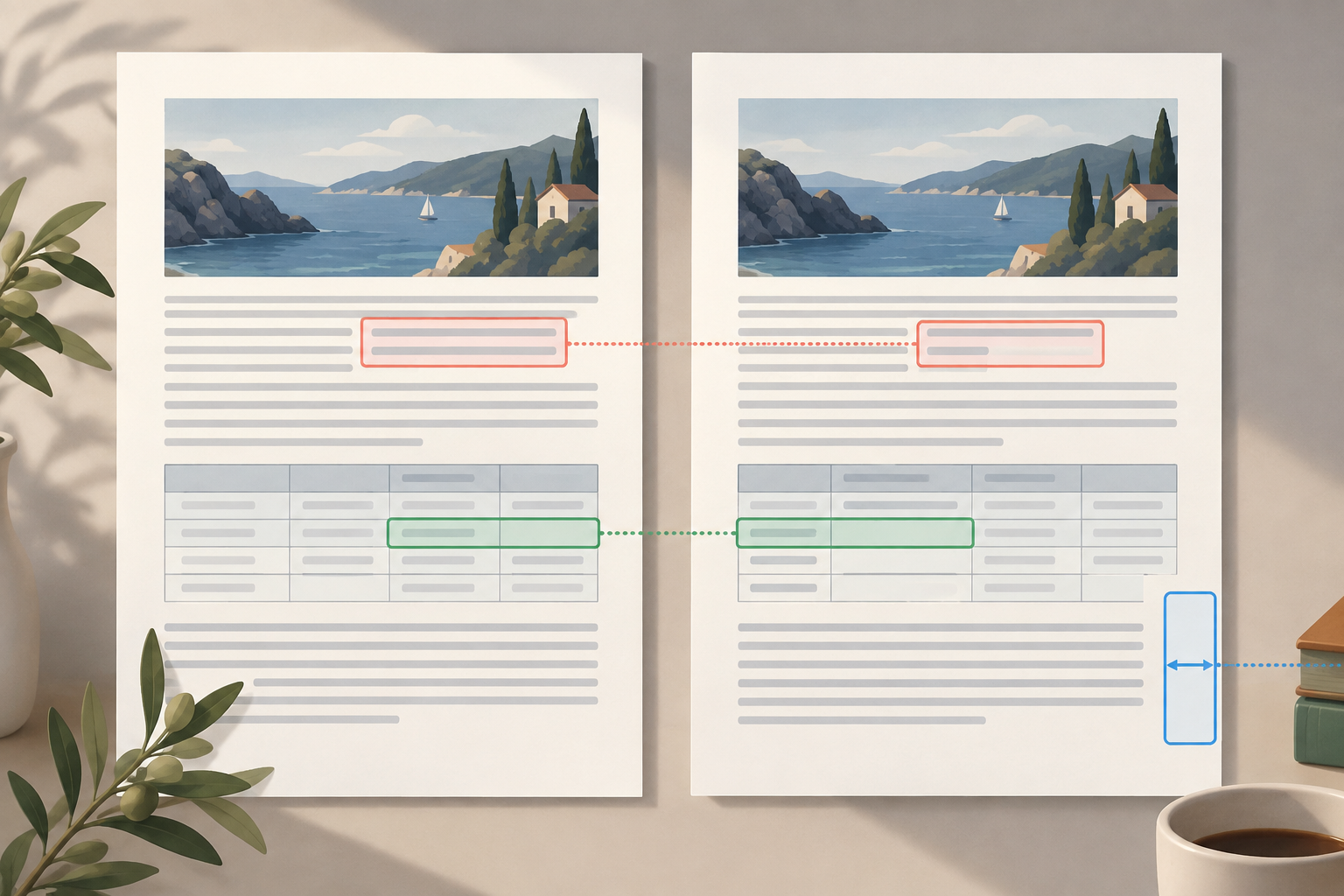
Check which font the file expects and what your application detects
Start with the application used to create or edit the document. Look for missing-font warnings and review the fonts in use before replacing anything. The steps depend on the program. In InDesign, [Adobe’s official help on finding and replacing fonts](https://helpx.adobe.com/es/indesign/desktop/fonts/find-and-replace-fonts.html) documents the Type > Find/Replace Font option, which lets you select fonts from “Fonts in Document” and choose a new one. Affinity provides a Font Manager for managing document fonts and checking whether any are missing, according to its [official documentation](https://www.affinity.studio/es_419/help/text-managing-fonts/). Don’t assume these features or menu names are available in every Office editor.
If the warning identifies a particular font, record its name and, if the application shows this information, where and in which style it is used. Check whether the problem affects only part of the document. The available information cannot confirm that a font is installed on the recipient’s computer or that it can be embedded or used on every device. If you can’t verify this, keep in mind that the recipient’s environment may differ.
- Note the name of the flagged font and the affected styles.
- Distinguish a font warning from other configuration or content changes.
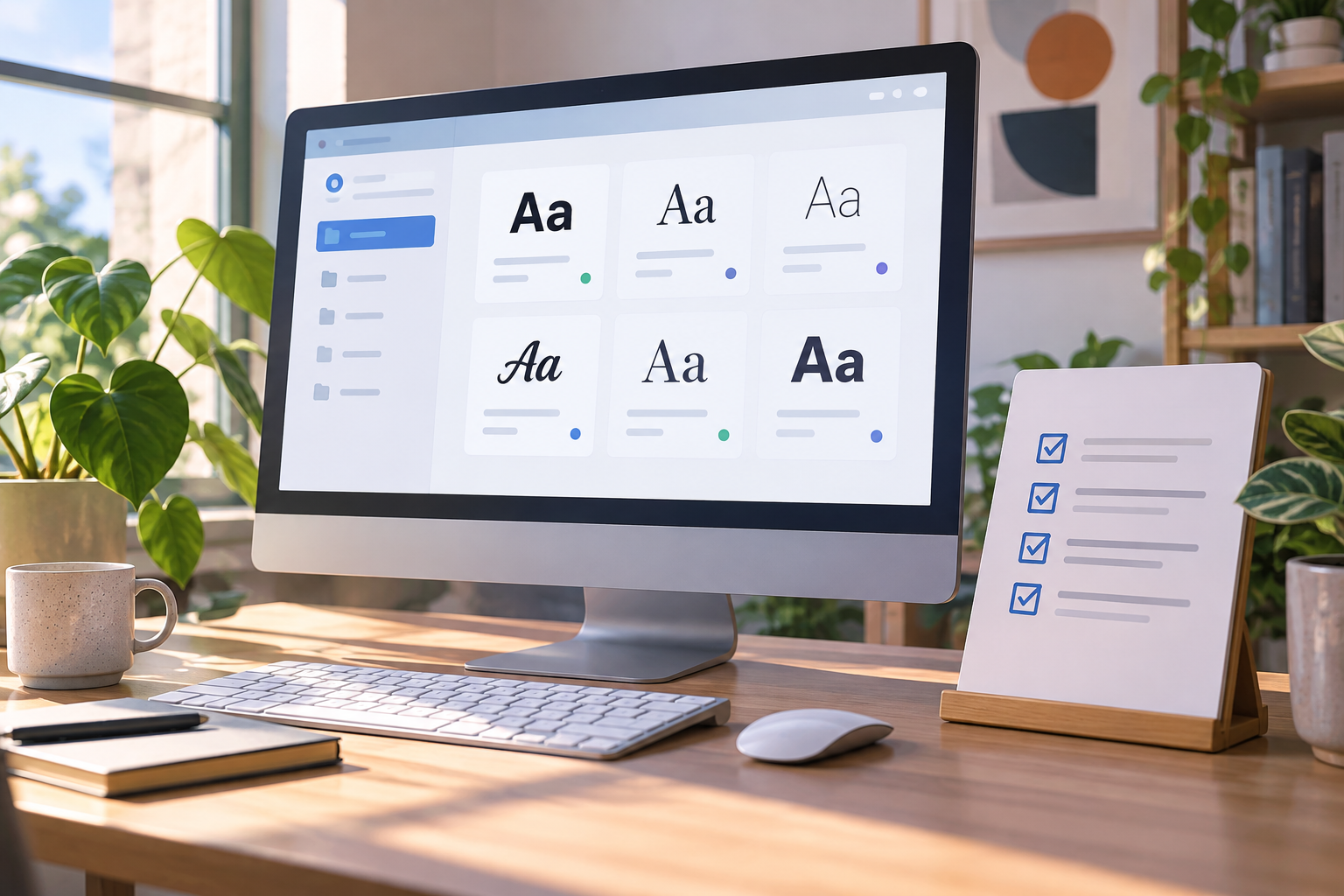
Choose an alternative for compatibility and function, not just appearance
Before replacing a font, decide what the document needs to preserve: comfortable reading, hierarchy between headings and body text, table fit, or consistency with a template. Choose an alternative available in your working environment and check that it includes the necessary characters and styles. The verified information does not support recommending a universal replacement font, so test your choice in the actual document rather than relying only on how similar two typefaces look in a sample.
Make the change in a working copy first. Review the same points you noted earlier: line endings, headings, tables, footnotes, and pages near the changes. If the substitution means you have to reduce text size, narrow margins, or rewrite content to restore the layout, consider the impact on readability and structure before continuing. Change one variable at a time and keep a brief note of what you replaced and which areas need approval.
- Check hierarchy, readability, special characters, and table fit.
- Change one variable at a time and review the result before proceeding.
Decide whether to deliver the editable file, a fixed-layout copy, or both
Keep an editable version when the recipient needs to correct, reuse, or update the content. This format lets them continue working, but its appearance may depend on the application, fonts, and environment settings. Indicate which file is the working version and which elements should be checked if it is opened on another computer.
If the priority is to make a reviewed design easy to read, consider also providing a fixed-layout copy, such as a PDF exported from the original application. Choose the format based on how it will be used: further editing, reading, approval, or archiving. If both uses matter, delivering the editable file and the reviewed copy allows work to continue while providing a visual reference.
- Editable: for continuing changes, with a note that it should be reviewed in the recipient’s environment.
- Fixed-layout copy: for reference, after exporting and checking it.
- Both: when the recipient needs to edit the document and consult a visual reference.
Review the export in another viewer and look for specific issues
After saving your changes, export from the source document and open the copy in a viewer other than the one you used to create it. This practical check can help identify differences, although it does not guarantee that every recipient will see exactly the same thing. Go through the entire document and review pages that contained tables, long headings, or text close to the edge.
Look for special characters that have changed or failed to display, rows or columns that are difficult to read, clipped text, and elements outside the margins. If you find a problem, correct the source file, create a new export, and repeat the review. Don’t consider the delivery complete just because the thumbnail or preview looks correct. When possible, ask someone else to open the copy in their environment and check the critical pages.
- Checklist: pages, tables, special characters, margins, and clipped content.
- If an area fails review, correct the source, export again, and verify once more.
Keep the original, reviewed copy, and versions separate
Use names that explain the file’s status and purpose, for example “report_original_editable” and “report_delivery_review_date.” Avoid ambiguous names such as “final_final2.” Save the exported copy alongside the original, but identify it as a reference deliverable, not as a new editing source. If the document changes after you generate the PDF, export it again so the copy matches the editable file.
In Apification Cloud, you can organize files and projects in a versioned workspace, review an item’s history, download earlier versions, and restore content. Apification lets you create and edit Office files with ONLYOFFICE while keeping them in Cloud, and share items using links, users, or groups. These features help organize the workflow, but they do not by themselves detect a substituted font or certify that the layout will be identical on the recipient’s computer. Record which version you reviewed and which one you shared so the team can find the source if an issue arises.
- Identify the editable original, the delivery copy, and the date or revision.
- Before sharing, open the exact version you are going to send.
Avoid mistakes that turn a simple review into rework
One mistake to avoid is assuming that the recipient uses the same application and settings. It is also risky to replace a font without reviewing the design again, rely only on the preview, or send an old PDF after updating the editable file. Avoid fixing only the exported copy when the problem comes from the source document: that copy does not necessarily provide a practical way to continue editing.
Before delivery, follow a short sequence: identify the file and application, record the warning or symptom, test the alternative in a copy, compare the affected areas, and review the export in another viewer if you need a reference copy. If you can’t confirm the cause or the copy has significant differences, explain which version was checked and ask the recipient to confirm the critical areas.
- Don’t replace fonts blindly or rely only on a preview.
- Keep the editable source file and communicate which version you reviewed.
Frequently asked questions
How can I tell whether a substituted font caused the layout change?
A missing-font warning together with observable changes is a clue, not conclusive proof. Compare the same version, record the differences, and check other factors such as content, page size, and margins.
Which application can check for missing fonts?
It depends on the document type and program. Adobe documents the Find/Replace Font option in InDesign; Affinity provides a Font Manager for checking for missing fonts. Don’t assume other editors have the same options.
Is it enough to send a PDF?
It can serve as a reference copy when the design has been reviewed, but it does not necessarily replace the editable file if the recipient needs to continue working. Open the export in another viewer and check the entire document.
Does Apification automatically detect substituted fonts?
Apification’s verified capabilities include Office editing with ONLYOFFICE, versioned file management, and conversion tools. Automatic detection of substituted fonts is not documented, so the review should be done in the relevant application.
Sources and further reading
Documentation consulted while preparing this article.
- Buscar y reemplazar fuentes en InDesign — Adobe
- Administrar fuentes — Affinity
Explore Apification
Related articles

Documents and data
How to Share an Editable Spreadsheet Without Breaking Formulas or Reports
Organize data entry, calculations, and reports before sharing a spreadsheet. Learn to coordinate changes, test formulas, and recover an earlier version if something goes wrong.
Documents and data
Reusable Document Templates: Protect the Original and Control Every Copy
A practical method for keeping a reliable master version, working from project copies, and reviewing changes before delivery.

Documents and data
Manage document translations without overwriting files
Set a source of reference, organize copies by language, and create a review process that makes it clear which translation corresponds to each original.