Documents and data
Manage document translations without overwriting files
Set a source of reference, organize copies by language, and create a review process that makes it clear which translation corresponds to each original.

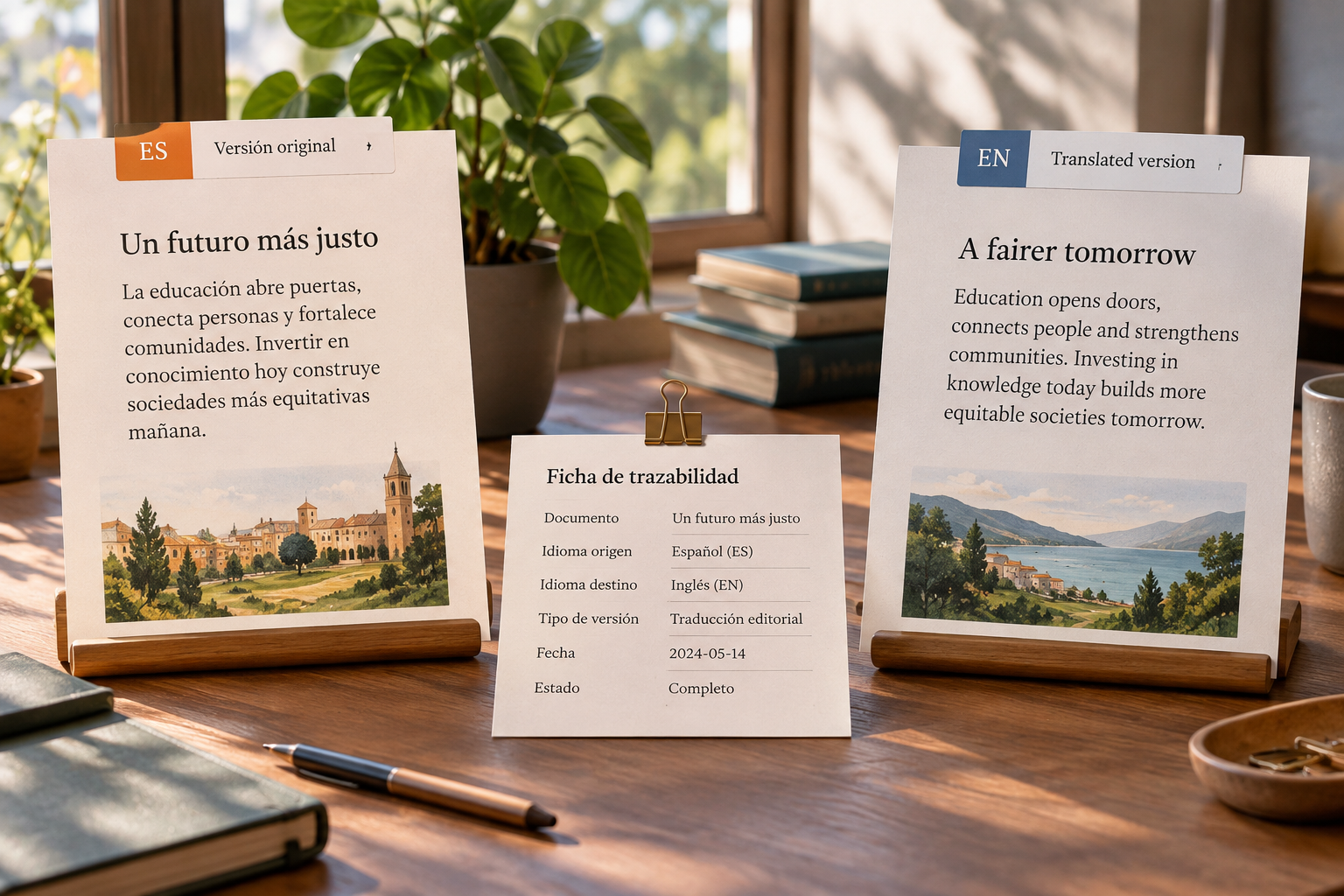
Link each translation to a specific version of the original
A translation can only be reviewed accurately if you know which version it came from. If the original changes after work has begun, a sentence, warning, or instruction could be missing from the translated document without anyone noticing. That is why labeling a file “Spanish” or “French” is not enough: you also need to record the source version, its date or identifier, and the translation’s status.
Before commissioning the work, designate a reference original and avoid editing it while it is being translated. If you need to correct it, save a new version and communicate what changed. Maintain an explicit link between the source and target, for example, in the file name or a tracking record: “manual_es-ES_source-v03_draft”. The exact convention matters less than applying it consistently and being able to retrieve the correct pair quickly.
- Record the target language and the version of the original.
- Note who is translating, who is reviewing, and the current status.
- Do not use “final” unless there is a shared criterion for distinguishing it from other versions.
Define the source and separate drafts from approved translations
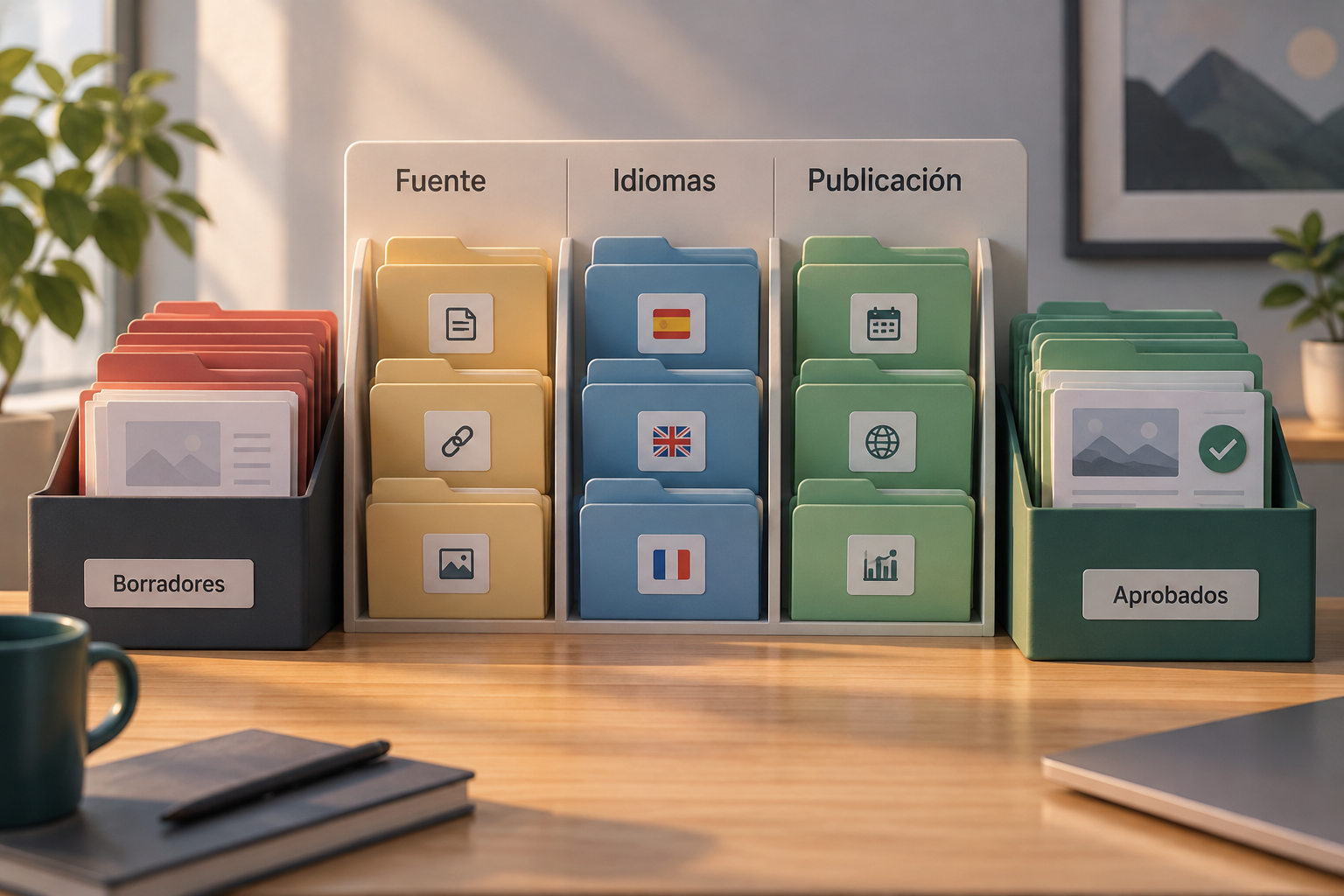
Designate one file as the reference source for each document and keep it separate from working copies. A simple structure could include a folder for originals, a folder for each language, and a publishing area for approved files. Within each language, separate drafts from current, approved versions. This reduces the risk of someone translating an outdated copy or accidentally publishing a file that still contains internal notes.
When naming files, combine the document’s stable name, the language code or name, the source version, and the status. For example: “access_guide_fr-FR_source-v03_review”. Avoid ambiguous names such as “new”, “latest”, or “final_final”. In Apification Cloud, folders, sharing, and version history can help organize resources and retrieve earlier states; for editing Office documents, ONLYOFFICE lets you work with files within the Cloud space. These tools organize and version the work, but they do not translate automatically.
- Keep a single copy identified as the current source.
- Do not mix approved material with drafts or reference files.
- Check the source version before starting each translation.
Organize review by language and distinguish comments from edits
Each language needs an assigned reviewer, not just a generic “reviewed” label. Define who checks fidelity to the original, who validates language use, and who gives final approval for publication. In small teams, one person may perform more than one role, but it is useful to record what they checked. For a meaning-focused review, compare the original and translation side by side, as recommended in W3C’s translation review guide.
Agree on how observations will be recorded before work begins. A comment can request clarification without changing the text; a tracked change alters the document and requires a decision. Do not resolve comments based on intuition or delete markup before the responsible person has assessed it. If you use LibreOffice, its track changes and comments features can facilitate this discussion; in any other editor, check which options it offers before defining the process. At the end of a review round, confirm that accepted changes have been incorporated and rejected ones no longer appear in the deliverable.
- Assign a person responsible for each language and a person to authorize publication.
- Indicate whether an observation is a question, a proposed correction, or an approval.
- Close each review round with a list of accepted, rejected, or pending changes.
Check content and layout before delivery
The review should check that the translation conveys the meaning of the original, not that it mechanically repeats its words. Read both texts and compare headings, instructions, figures, names, links, notes, and warnings. Pay special attention to tables, image captions, and passages that may have been omitted when copying content. If the document is adapted for another market, also consider whether linguistic, cultural, or other local changes are needed: localization can involve more than translation.
Then review the appearance of the file in the target language. Text length can change line breaks, cause a table to overflow, move an image, or leave a page nearly empty. Go through the entire document, not just the edited pages, and open a view that makes layout issues easy to spot. Also check that the exported or shared file is the one that was approved. A correct translation with an unreadable table or a cut-off instruction is still not ready for delivery.
- Compare meaning, figures, links, and repeated elements against the source.
- Review tables, headings, page breaks, images, and footnotes.
- Check the final file in the format and presentation its recipient will receive.
When the original changes, decide which translations to review
A source update does not always mean every language must be redone, but its impact must be assessed. Identify the sections that changed and classify the change: it may be editorial, informational, or critical to the document’s use. Then compare the affected sections with each current translation. If instructions, conditions, figures, or warnings change, do not assume a version is still valid just because its date is recent.
Record the decision for each language: still current, requires partial review, or needs a complete update. If only one section changes, indicate which one and maintain the link to the new source version. Avoid overwriting the approved document before assessing the impact, because you could lose a useful reference or confuse an old copy with the new one. Apification Cloud’s version history lets you review previous states and restore content; this recovery can help correct file-management mistakes, but it does not replace reviewing the translated content.
- Summarize what changed in the original and when the change was approved.
- Assess each language separately; do not assume they all need the same work.
- Keep the previous file until you have verified the new version.
Share the right version and keep a useful history
Share each reviewer the file in their language and the corresponding source, not a confusing folder of copies from every stage. Apification Cloud lets you share resources with users, groups, or links, depending on how the team works. Before sending, confirm which file is being shared and whether the person needs to review, edit, or only view it. In projects with several reviewers, a brief note about the language, source version, and task can reduce unnecessary back-and-forth.
When the work is complete, keep a history that makes it possible to understand how the current file came about. Save the approved version, its associated source, and the relevant decision record; also keep previous versions when they may be needed to recover changes or resolve questions. ONLYOFFICE version history shows versions with their author and date, and lets you review changes and restore an earlier version. Avoid restoring or replacing files without checking afterward that the translation is still linked to the correct source.
- Share only the copy relevant to the recipient’s task.
- Include the language, status, and source version in your message.
- Check the history before restoring or replacing a file.
Pre-publication delivery checklist
Before distributing a document, perform a final check that does not depend on remembering conversations or file names. Confirm that the language and variant are the intended ones, that the source is identified, and that pending changes have been resolved. Check that no internal comments, review markup, or provisional text remains that the recipient should not see. Also make sure the layout has not changed during saving or export.
Finally, save the publishable file in the agreed location and share that file, not a nearby draft. If it is updated later, keep the delivered version and record the reason for the change. This final step creates a simple trail for answering later questions: what was published, in which language, with which source version, and who approved it. For teams maintaining many documents, applying the same checks to every delivery is more reliable than relying on individual memory.
- Correct target language and market.
- Source version identified and its relationship to the translation verified.
- Language and content reviews complete; changes and comments resolved.
- Layout, links, figures, and delivery format checked.
- Approved file saved and shared; previous versions remain retrievable.
Frequently asked questions
Does Apification Cloud translate documents automatically?
Not according to the capabilities documented here. Apification Cloud is for organizing, sharing, and versioning files; ONLYOFFICE lets you edit Office documents within the Cloud space.
How can I prevent someone from working on an outdated translation?
Identify a current source, record its version in each translation, and ask anyone starting a review to confirm that reference before editing.
What should I check besides the translated text?
Check that the meaning matches the source, and review figures, links, tables, images, page breaks, and any adaptations needed for the target market.
Can I recover an earlier version if I overwrite a file?
Apification Cloud offers version history and restoration of earlier states. Before restoring, confirm that you are retrieving the right version, then check its relationship to the original again.
Sources and further reading
Documentation consulted while preparing this article.
- Reviewing a WAI Translation — W3C Web Accessibility Initiative
- Localization vs. Internationalization — W3C Internationalization
- Comparing Versions of a Document — LibreOffice Help
- Recording Changes — LibreOffice Help
- Version history — ONLYOFFICE Help Center
- Documents, sheets and presentations — Apification
- Apification Cloud — Apification
Explore Apification
Related articles
Documents and data
From form responses to a spreadsheet without losing the original
A practical guide to preserving a raw export, working on an editable copy with ONLYOFFICE, cleaning data with judgment, and delivering traceable results.

Documents and data
Convert a Presentation to PDF Without Surprises
A practical guide to reviewing an editable presentation, keeping it as the canonical source, and delivering a stable PDF without losing traceability.
Documents and data
Export spreadsheets to CSV for integrations: separators, dates, and fields that must not break
A practical guide to preparing an editable sheet, converting it into a CSV consumable by external systems, and retaining control over versions, testing, and delivery.