APIs and automation
How to Link Form Responses to External Records Without Using Email as an Identifier
An operational guide to matching form exports with records in a CRM or another system without relying on email addresses that can change or be shared.

Why email and other contact details are not stable identifiers
Email addresses seem like a practical key because they are usually available in forms and customer systems. However, they can change, be written in different ways, or be shared between people. They may also be missing: for example, anonymous Microsoft Forms responses do not show names or email addresses in the results. A phone number is not necessarily stable or unique either. If an integration uses these values to decide which record to update, a change in contact details could create a duplicate record or modify the wrong one.
The operational rule is to separate data used to contact someone from data used to identify a record. Email is still useful for communication, searching, or manual reconciliation, but it should not be the only update key unless the system contract explicitly defines it that way. UiPath documentation shows that using email as an identifier depends on the integration: email is the default value for SAML there, although another unique identifier can be configured. Do not assume that behavior applies to a CRM or a different API.

Response ID, internal key, and external key
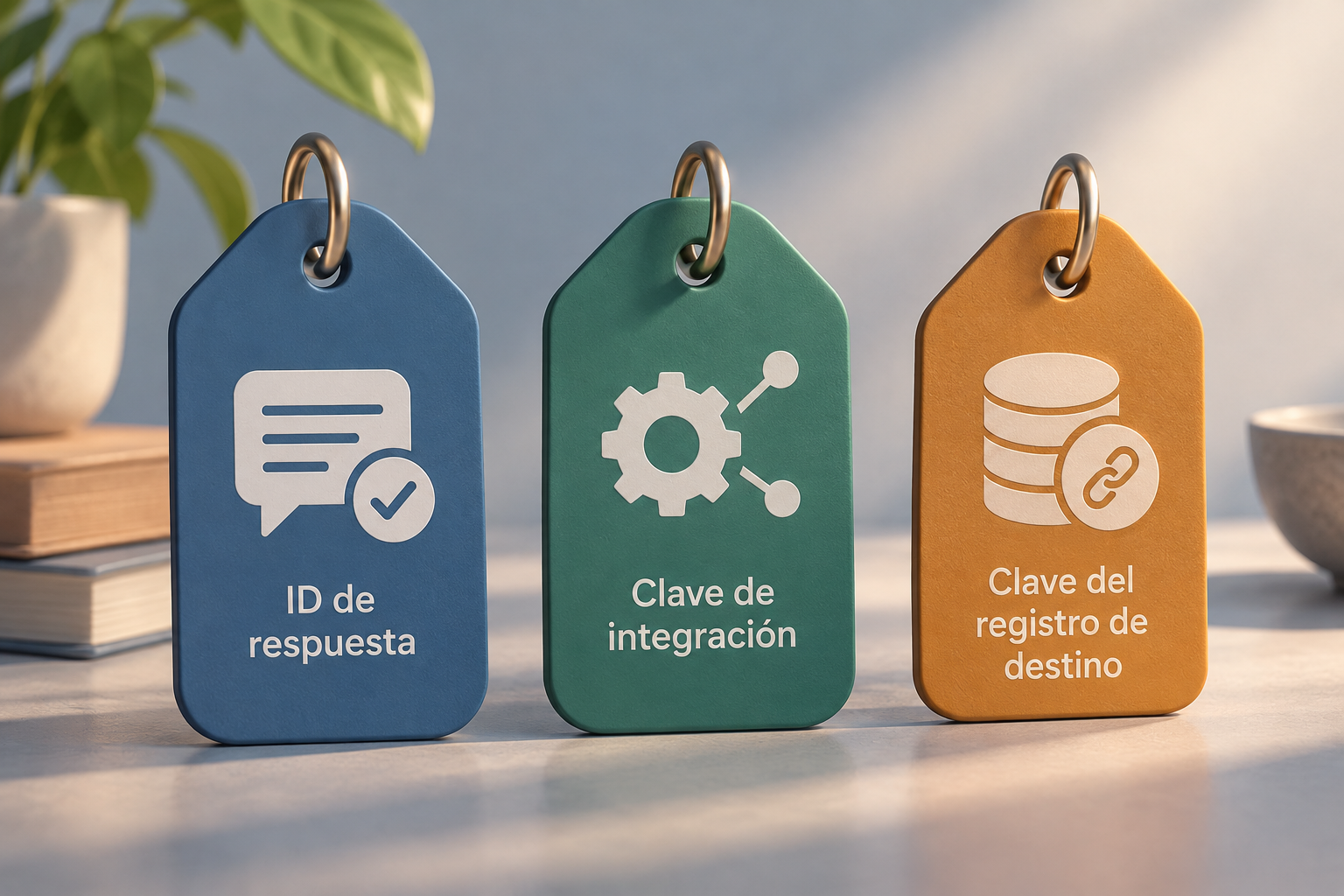
It helps to distinguish three identifiers. The response ID, if documented in the export or API, distinguishes one specific form response from other responses. The internal key is generated and retained by your integration to track that response through its own processes. The external key identifies the destination record in the other system, such as a contact or customer ID. They should match only if both systems explicitly establish that relationship; do not assume that a response ID is equivalent to a contact ID.
Before designing the workflow, check which identifiers the source actually provides and which ones the destination accepts. In its Salesforce integration, Qualtrics documents a unique key used to decide which record to update and notes that the Salesforce record ID is typically used. It also describes saving that key as embedded data. This is an integration pattern, not a guarantee that every form exports a usable ID or that every API supports updates using any field.
Designing a minimal mapping table
A mapping table prevents you from having to infer the relationship again with every import. As a minimum, store the response's source identifier—if one exists and is stable—the internal key assigned by the integration, the external record ID, the destination system, and the link status. Add creation and last-reconciliation dates if they help you operate the process. If a response may be processed again, a combination of the source system and response ID can work as a lookup key, but first confirm that the ID does not change between exports.
Do not turn this table into an unnecessary copy of the responses. Avoid storing email addresses, phone numbers, or complete responses if they are not needed to resolve the mapping. If there is no reliable response ID, you can assign an internal key when each row is received, but that key alone will not identify the same row if it reappears in a new export. You will need an agreed alternative rule—for example, a business reference that the system guarantees is unique—or a review process for uncertain matches.
- Initial fields: source, available response ID, internal key, external ID, status, and reconciliation date.
- Define who creates the internal key, how it is retained, and what to do if the source identifier is missing.
Step-by-step workflow for matching and updating records
First, export the responses and keep a working copy labeled with the date or batch. Check that the expected columns are present and that identifiers have not been left blank or altered by the spreadsheet format. Then look up each response ID in the mapping table. If it exists, retrieve its associated external key; if it does not, apply the agreed creation rule and record the result. Do not silently use email as a fallback when the key is missing: send the case to a review queue or mark it as unreconciled.
Next, verify in the destination whether a new record should be created or an existing one updated. Explicitly map each form column to a destination field and define what to do with empty fields: leaving the previous value, clearing it, or sending no change are different options. Finally, record the result for each row, including the external key, status, and any error, so that a partially completed run can be resumed without blindly reprocessing data. For example, Microsoft's Power Automate method for Forms documents selecting response tokens and mapping them to Excel columns; that mapping alone does not determine the record's identity in another system.
Repeated responses, corrections, email changes, and reimports
A person may submit the form more than once. Decide whether each submission should create a new event or response, or whether the business expects an existing record to be updated. Do not infer that two rows with the same email address represent the same response. Qualtrics documents an example in which each completed response creates a new survey response record and links it to the contact: separating the response event from the contact record preserves this distinction. The right behavior depends on the data model and what you want to report on later.
Also define how to identify corrections. If the source keeps the same response ID when a response is edited, the integration could update the corresponding link; if it creates a new response, handle it according to the rule for repeat submissions. Do not assume either behavior without verifying it. A change in email address should update the contact detail, not the record's technical identity. For reimports, retain the source ID or a batch manifest that helps detect rows already processed, and distinguish permanent errors—such as an invalid key—from failures that can be retried.
Testing before automation: duplicates and changed data
Test the workflow with controlled records before processing operational data. Include two different responses with the same email address, a response with no email, an email address changed after the first import, and an identical response imported twice. Add a corrected response and a case where the external record does not exist or the external key is invalid. For each case, define the expected outcome: create, update, ignore, stop, or send for review. A useful test does more than demonstrate the correct path; it reveals which condition could associate data with the wrong person.
Compare the destination system's results with the mapping table and input file. Check the number of rows processed, rejected, and pending, as well as the external key for each update. Repeat the import of the same batch: if duplicate records appear or responses are overwritten unexpectedly, the process is not yet safe to rerun. Keep recovery instructions and decide who will resolve ambiguous cases; automating an incorrect rule only makes the error happen faster.
- Test list: repeated email, changed email, repeated response, correction, missing ID, and nonexistent destination record.
- Reimport the same batch and confirm that the result matches the duplicate-handling policy.
What to check in the API and export documentation
Before implementation, identify the contract on both sides. On the source side, check whether a response ID exists, whether it remains the same when a response is edited, whether it is exported for every response type, and how anonymous or incomplete responses are represented. On the destination side, confirm which field can be used as a unique key, whether records can be looked up and updated using that field, and what happens when a record is not found. Also check date formats, empty values, pagination, or batch limits only when they are documented for that API.
Do not confuse an export with continuous synchronization. Microsoft documents that certain Excel workbooks associated with Forms maintain an active connection to the form and are stored in OneDrive for work or school or in SharePoint for group forms. That is a specific feature of that workflow, not a universal property of exports. Similarly, Typeform–Klaviyo documentation states that the integration uses valid email addresses or phone numbers to log events on profiles. That is a requirement of that contract, not a recommendation that applies to every destination.
Using Apification's exportable responses as a source
Apification lets you create questionnaires and capture forms with validation, access controls, and exportable responses. This can serve as the source for a reconciliation process, but it does not mean the form automatically assigns a CRM key, updates an external record, or maintains two-way synchronization. Design the mapping table and identity rules in the integration layer, and validate which identifiers are available in the specific export you plan to use.
Apification offers Cloud integration and connects its services through REST API, OpenAPI, webhooks, iframe, and JavaScript; it also describes APIs and signed webhooks with retries, history, and statistics for connecting actions. Before relying on a specific mechanism for form responses, check the applicable documentation to see which event or endpoint is available and what data it provides. A prudent starting point is to export a test batch, create the minimum mapping, validate the external update, and repeat the batch. Only then automate the workflow, with error review and an explicit duplicate-handling policy.
Frequently asked questions
Can I use email as a key if it always seems unique?
Only if the system contract confirms that it is unique and stable for that purpose. If it can change, be missing, or be shared, use it as contact information or as an aid to reconciliation, not as the only update key.
Is the response ID the same as the contact ID?
Not necessarily. The first identifies a specific response; the second identifies an external record. Check that the export documents the response ID and retain the relationship between the two in a mapping table.
Does Apification automatically sync responses with a CRM?
Do not assume that it does. Apification offers forms with exportable responses and integration options, but the availability of a specific event, endpoint, or mapping for syncing responses must be confirmed in the applicable documentation.
Sources and further reading
Documentation consulted while preparing this article.
- Response Mapping — Qualtrics Support
- Configurar la Integración SAML — UiPath Documentation
- Comprobar y compartir los resultados del formulario — Microsoft Support
- Maneras comunes de usar un formulario en un flujo — Microsoft Learn
- Referencia de datos de Typeform v1 — Klaviyo Help Center
Explore Apification
Related articles

APIs and automation
Interrupted API Downloads: How to Detect Partial Files Before Using Them
Receiving a response does not always mean the file is complete. Learn to download to a temporary file, validate the result, and retry without risking a valid copy.

APIs and automation
Concurrent Writes in a File API: Preventing Overwrites and Resolving Conflicts
A general guide to detecting write races, checking whether the API documents conditional controls, coordinating updates, and recovering changes in a verifiable way.

APIs and automation
Webhooks or Polling for Detecting File Changes: How to Choose
Compare notifications and periodic queries to choose a change-detection strategy that fits your latency, workload, and recovery needs.