Files and formats
File Conversion Requests: What to Ask Before Transforming a Document, Image, Audio, or Video
A practical workflow for receiving complete requests, storing originals in Cloud, transforming files with clear criteria, and delivering reviewable results without losing traceability.

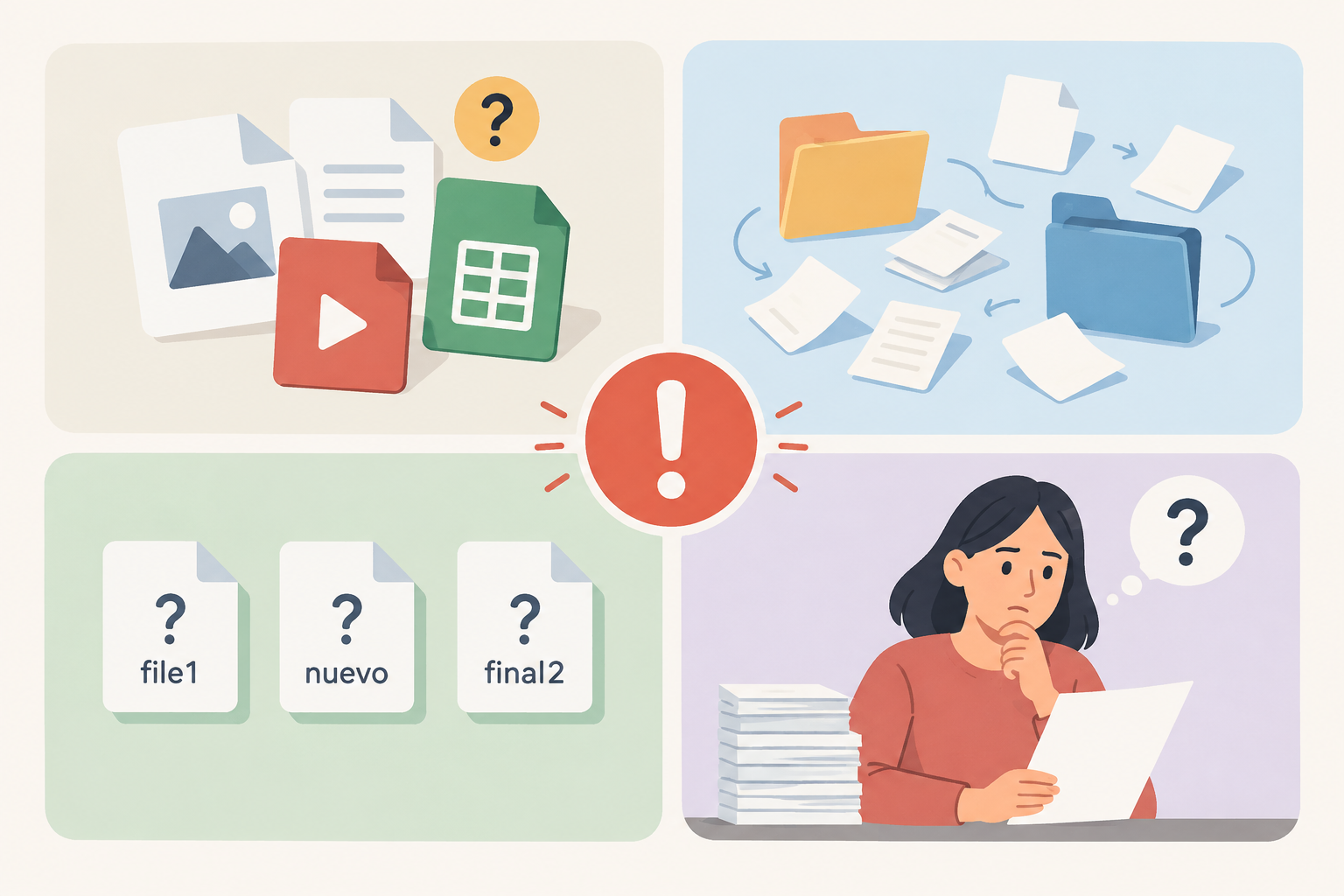
Why a Conversion Fails Before It Even Starts
A file conversion request should not be limited to “make it a PDF,” “compress this video,” or “convert the audio.” Those phrases describe an action, but they do not explain the final use, the expected quality level, or who will approve the result. That is why back-and-forth revisions appear: the right file is transformed into the wrong format, the size is reduced too much, the original is lost, or a version is delivered that no one knows whether to treat as a draft or final.
The most common failures are operational, not technical. Originals are scattered across emails, chats, and personal folders; names are ambiguous; the requester does not indicate the publication destination; and the team handling the transformation does not know whether to prioritize visual fidelity, reduced file size, duration, language, or compatibility. In Apification, the workflow is best divided into three moments: capturing requirements with structured forms, placing originals in Cloud, and using the transformation assistant only when the request is complete.
- Risk signal: the request only mentions the output format, but not the intended use.
- Risk signal: there are several files with similar names and no one identifies which one is the approved source.
- Risk signal: the reviewer receives a link with no change note or version status.
Separate Four Elements: Source, Use, Output, and Reviewer
Before converting, the team should distinguish four elements. The first is the source file: the original that will be kept even if a new output is generated. The second is the intended use: printing, web publishing, email delivery, internal archive, training, support, or legal review. The third is the output format: PDF, optimized image, rendered video, exported audio track, or processed data. The fourth is the person responsible for review.
This separation avoids implicit decisions. A document for internal reading may allow a quick conversion; a presentation going to a client requires a design review; a training video may need subtitles or a duration adjustment; an image for a landing page may need a specific orientation and resolution. Apification Cloud lets you keep files in an organized, versioned space, share them by links, users, or groups, and deliver original or transformed downloads according to each person’s role.
- Source file: what is transformed and where it remains stored.
- Intended use: which channel or task the output is needed for.
- Output format: which file must be produced and with what restrictions.
- Reviewer: who accepts, rejects, or requests corrections.

Recommended Fields for the Request Form
The form is where errors are prevented. For a file conversion request, it is useful to ask for material type, intended use, required format, size restrictions, language, orientation, resolution, duration, desired date, and the person responsible for approval. For documents, add whether tables, comments, or layout must be preserved. For images, ask for dimensions and a modern export format if applicable. For audio or video, ask for expected duration, language, need for subtitles or associated text, and acceptable quality.
Apification lets you create questionnaires and data capture forms with validation, access controls, and exportable responses. This helps standardize recurring requests across marketing, support, operations, training, and agencies. Not all fields should always appear: use operational logic. If the material is an image, do not ask about pages; if it is audio, do not ask for vertical or horizontal orientation unless it is linked to a video. A good form asks for the minimum necessary information, but prevents progress without critical data.
- Material type: document, image, audio, video, or data.
- Destination: web, email, archive, presentation, support, training, or review.
- Restrictions: maximum file size, dimensions, duration, language, or resolution.
- Delivery: shared link, transformed download, or preservation of the original alongside the output.
Validation: How to Avoid Incomplete Requests
The quality of the form depends on its instructions. Accessibility best practices recommend showing labels or instructions for fields that require user input. It is also useful to indicate required fields, permitted formats, and limitations before the person starts filling it out. A placeholder can serve as an example, but it should not replace the label: it disappears when the user types and may leave doubts about what was requested.
Validation should be specific. If an error is detected, the system should identify the affected field and describe the problem in text. In practice, this means avoiding generic messages such as “invalid request.” It is better to say “choose an output format” or “enter the maximum file size in MB.” In Apification, use closed options for frequent formats, required fields for critical requirements, and controlled access so that only the right teams create or review requests.
- Use closed lists for common formats and text fields only for exceptions.
- Explain the quality criterion before the field, not in later conversations.
- Mark the source file, final use, output format, and reviewer as required.
- Check that error messages state what to correct and where to do it.
Where to Store Originals and How to Name Them
The input folder is the anchor of the workflow. Instead of receiving files through scattered channels, create one location in Apification Cloud for originals and another for results if the volume justifies it. Use predictable names: date, client or project, material type, language, and version. For example, “2026-03-campaign-video-en-original” is more useful than “final_new_2.” When names are repeated, many platforms create copies; that protects against overwrites, but it can multiply confusion if there is no convention.
Always keep the source file. In document workflows, it can be useful to keep both the original and the converted file, especially when working with documents, sheets, presentations, forms, PDFs, or ebooks inside a collaborative space. Apification Cloud is designed as an organized, versioned workspace ready for sharing. Define permissions by users or groups to separate requesters, transformers, and reviewers, and prevent someone without context from replacing the original by accident.
- Create an input folder for approved sources and an output area for transformed files.
- Include date, project, type, language, and status in the file name.
- Do not delete the original after converting; keep it as a reference and backup.
- Assign permissions by role: request, transform, review, or distribute.
When to Use the Transformation Assistant
Use the transformation assistant when the source, the objective, and the expected output are already known. Apification lets you convert, split, merge, optimize, and process documents, images, video, audio, and data through a guided assistant. This covers cases such as converting documents for distribution, splitting a large file, merging related pieces, optimizing assets for digital delivery, or processing materials according to the format required by the destination team.
Not every problem is a simple conversion. If an image needs layers, text, shapes, filters, or careful export, Image Studio may be more suitable than an automatic transformation. If the work involves video, audio, images, text, or subtitles on a timeline with preview and rendering, Video Studio is a better fit. If it involves recordings or audio tracks with effects, fades, and professional export, Audio Studio may be the right option. The decision depends on whether you need to change the format or edit the content.
- Conversion: changing format while preserving the main content.
- Optimization: reducing file size or preparing delivery without creative editing.
- Editing: adjusting content, layers, tracks, text, subtitles, or effects.
- Processing: generating a derived output according to the material and the required format.
Reviewable Delivery: Original, Transformed File, and Status
Delivery should remove ambiguity. Do not send a loose file named “final.” Share the result from Cloud with a short note: source used, transformation performed, output format, restrictions applied, and the action expected from the reviewer. Apification lets you share items through links, users, or groups, and provide original or transformed downloads. This makes it easier for each person to access what they need without duplicating files outside the workflow.
Differentiate draft, proof, and final version. A draft is used to validate direction; a proof is used to review technical quality; a final version is ready for distribution. If the result will be published on a landing page, used in training, or sent to clients, add a review note with specific criteria: legibility, duration, file size, language, orientation, resolution, or content integrity. This way, the reviewer does not assess “whether they like it,” but whether it meets the request.
- Include the path to the original and the transformed output in the delivery.
- Indicate whether the file is a draft, technical proof, or final version.
- Ask for explicit approval or a specific list of changes.
- Avoid resending copies by chat if the shared link preserves the context better.
History, Error Correction, and Continuous Improvement
Even with a good workflow, errors will happen: the wrong source file was selected, a restriction was applied too aggressively, an incorrect output was approved, or someone overwrote content. That is why traceability is not a luxury. Apification lets you review the history of items in Cloud, download previous versions, and restore content securely. This capability reduces the cost of correcting errors because it does not require rebuilding the work from scratch.
After each incident, adjust the form or the folder convention. If the language was missing, make it a required field. If there was confusion between original and output, improve folder names. If a draft was approved, require delivery status. For high-volume teams, Apification integrations through REST API, OpenAPI, webhooks, iframe, and JavaScript can connect Cloud actions with other workflows, while always maintaining appropriate permission and access controls.
- Review the history before repeating a transformation from scratch.
- Download a previous version if you need to compare outputs.
- Restore content when the current version is not the correct one.
- Turn each recurring error into a rule in the form or workflow.
Frequently asked questions
What should a file conversion request include?
It should include the source file, the intended use, the output format, technical restrictions such as file size, language, orientation, resolution, or duration, and the person responsible for reviewing the result.
When should you use a form instead of requesting the conversion by chat?
Use a form when requests are recurring, several teams are involved, or there are quality requirements. The form reduces omissions, allows field validation, and leaves exportable responses.
Should I keep the original file after converting it?
Yes. Keeping the original makes it possible to review decisions, repeat the transformation with other parameters, and restore the workflow if the approved output was not correct.
What is the difference between transforming and editing a file?
Transforming usually means converting, splitting, merging, optimizing, or processing a file. Editing means changing content, such as image layers, audio tracks, subtitles, or elements on a timeline.
How do you deliver a conversion without confusing a draft and a final version?
Share the result with a review note that indicates the source used, action performed, file status, and approval criteria. Use links, users, or groups to control access.
Sources and further reading
Documentation consulted while preparing this article.
- WCAG 2.2 - Input Assistance — W3C
- WAI Forms Tutorial - Form Instructions — W3C Web Accessibility Initiative
- DocSpace Getting Started — ONLYOFFICE Help Center
- Managing and editing documents within rooms — ONLYOFFICE Help Center
- PDF-converter: Converting files to PDF — ONLYOFFICE Help Center
- Using AI agents — ONLYOFFICE Help Center
- Working with Form filling rooms — ONLYOFFICE Help Center
- Managing rooms in DocSpace — ONLYOFFICE Help Center
- Managing document versions — ONLYOFFICE Help Center
- DocSpace Security Guide — ONLYOFFICE Help Center
Explore Apification
Related articles
Files and formats
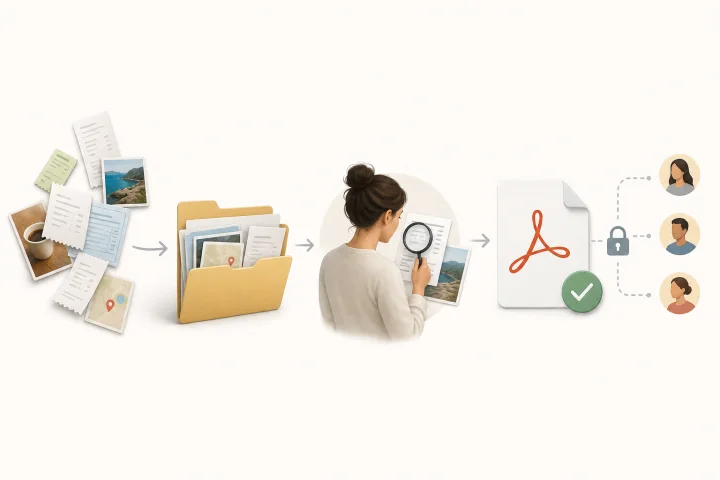
Convert Images to PDF: Order, Review, and Deliver Without Losing the Originals
A practical guide to preparing receipts, screenshots, or photographed pages, converting them into a reviewable PDF, and sharing it without losing originals or versions.

Files and formats
Create a delivery ZIP without losing the originals
A practical guide to preparing a final package with clear names, a simple structure, controlled download, and traceability in Apification Cloud.
Files and formats
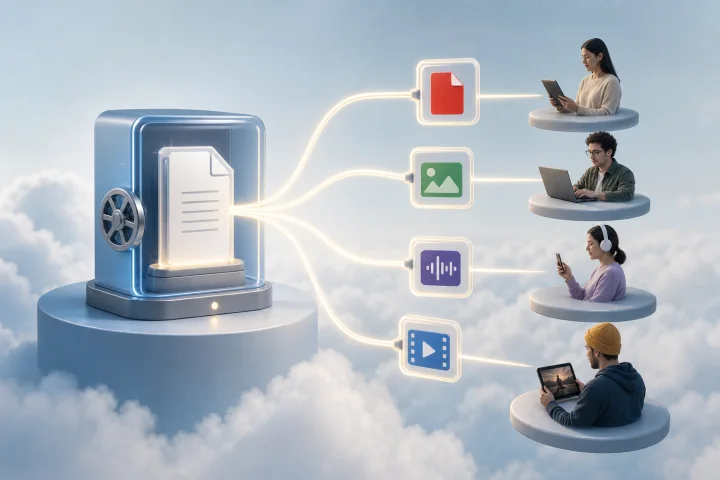
Transformed file downloads: deliver variants without duplicating the original
A practical guide to using transformed file downloads in Apification Cloud, separating the master from its derivatives, and deciding when to save an export of its own.