Documents and data
Convert a Presentation to PDF Without Surprises
A practical guide to reviewing an editable presentation, keeping it as the canonical source, and delivering a stable PDF without losing traceability.

Introduction
An editable presentation is used to work, make corrections, and keep a visible history. A PDF has a different function: to freeze formatting and design so the recipient sees it consistently, even if they do not edit the presentation. That difference seems simple, but it explains many delivery errors: the PDF is corrected in a local copy, the original file is lost, duplicate attachments are sent, or no one knows which version was approved. Before you convert a presentation to PDF, it is useful to separate the source, the review, and the final output.
At Apification, the operational approach is to keep the presentation inside Cloud as a project item, edit office files with ONLYOFFICE without taking them out of storage, and generate transformed outputs through a guided flow when it is time to deliver. This way, the PDF does not replace the editable file: it is a frozen representation, useful for sending to clients, students, committees, or external teams. The key decision is when to freeze it. If there are still open comments, changes to figures, placeholder images, or questions about speaker notes, the file is not yet ready to be converted.
- Criteria for deciding whether you can generate the PDF: content approved by the person responsible, slide size confirmed, comments resolved or accepted, links reviewed, images of sufficient quality, and delivery permissions defined.
- Signs that you should wait: several people editing at the same time, hidden slides without a decision, notes that must be included but have not been reviewed, or recent changes without clear attribution in the history.

1. Define the canonical source before exporting
The first control is not in the export button, but in the organization of the project. The editable presentation must remain the canonical source: the file that is worked on, reviewed, and used to check the history. Microsoft distinguishes between exporting to another format, such as PDF, and saving a copy in the current format; that separation is useful for any team. If the PDF is treated as the original, every later correction opens the door to parallel versions and decisions that cannot be traced.
In Apification Cloud, it is best to place the presentation, associated assets, and the final PDF in a project folder with deliberate permissions. The platform allows you to manage files, services, and digital projects in an organized, versioned space designed for sharing. If the editable file lives in Cloud and the PDF is generated as a controlled output, the team keeps the history, can download previous versions, and prevents a manual copy on someone’s desktop from becoming the wrong reference.
- Create one folder per project, campaign, course, or committee.
- Store the editable presentation and the assets used to build it there.
- Name the PDF as a deliverable, not as the master file.
- Avoid correcting local copies directly if the change must remain auditable.

2. Review the visual formatting before converting
Converting to PDF freezes the design, so visual defects stop being flexible. Slide size is the first point: in Google Slides, for example, page setup lets you choose 4:3, 16:9, 16:10, or a custom size with units such as inches, centimeters, points, or pixels. This review matters because a presentation designed for widescreen display may appear with unexpected margins if it is later printed, inserted into a dossier, or shared in a viewer with a different aspect ratio.
Then review text, fonts, images, and elements outside the canvas. Even if a tool allows precise editing using units of measurement, the PDF will only show the final result. Check that headings are not cut off, numbering is consistent, images do not look blurry in the intended output view, and no objects remain hidden or shifted outside the slide. In long presentations, a quick pass is not enough: review a sample of covers, section dividers, dense charts, tables, and slides with many layers.
- Confirm the slide aspect ratio: 16:9, 4:3, 16:10, or a custom size.
- Verify that there is no cut-off text or displaced boxes.
- Zoom in on slides with charts or images to detect loss of sharpness.
- Review numbering, footers, logos, and style consistency.
- Check whether there are hidden slides and decide whether they belong in the delivery.
3. Centralize collaborative review in the editable file
The review should happen in the editable presentation, not in chains of separately commented PDFs. Online presentation applications are designed to create, format, and collaborate with others. Google Slides allows sharing with editor, commenter, or viewer roles; ONLYOFFICE Presentation Editor, in its online version, includes collaboration options such as file sharing, choosing a co-editing mode, managing comments, using chat, and accessing version history. The practical rule is simple: comments are closed before generating the final PDF.
Apification helps maintain that discipline because office files are created and edited with ONLYOFFICE while they remain inside Cloud. This reduces the risk of each reviewer working on a different attachment. For marketing, training, sales, or consulting teams, it is advisable to assign roles according to responsibility: editors for those who change content, commenters for validators, and viewers for people who only need to review the almost-final version. When someone asks for “just one small change” after approval, go back to the editable file and let the history record the adjustment.
- Before converting, lock in one final comment round.
- Ask for observations to be made in the editable document.
- Define who can edit and who can only comment or view.
- Do not combine changes received by email if they must remain traceable.
4. Generate the PDF through a guided flow and validate the output
Once the editable file is approved, it is time for conversion. Apification offers file transformation through a guided assistant to convert, split, merge, optimize, and process documents, images, video, audio, and data. For a presentation, the goal is not only to obtain a file with a PDF extension, but to produce an output suited to the intended use. Microsoft documents that PowerPoint lets you choose between standard quality and minimum size; that decision illustrates the general criterion: a PDF for printing or a committee is not the same as one intended to be sent as a lightweight attachment.
Post-conversion validation must be mandatory. Open the resulting PDF and go through it the way the recipient will. Check the cover, table of contents, slide order, orientation, blank pages, image sharpness, links, and notes if they are part of the delivery. If you need speaker notes, do not assume they will be included: in Google Slides, for example, there is a specific print option with one slide and notes. PowerPoint for Windows also has output options for ranges, comments, handouts, outline view, hidden slides, and certain metadata. Each option changes what the recipient receives.
- Choose the output according to the use: reading, printing, lightweight file, or review package.
- Validate the complete PDF, not just the first slide.
- Check links after converting; in some flows they may not be preserved.
- Verify whether comments, notes, or hidden slides appear when they should not.
- Save the validated PDF alongside the editable file, not in an informal location.
5. Anticipate common failures before delivery
The most annoying errors are usually predictable. A substituted font can change line breaks; a low-resolution image may look acceptable while editing but blurry in the PDF; a link may stop working after conversion; a hidden slide may appear if the wrong output option is selected; an internal comment may remain visible if the wrong view is exported. Microsoft warns, for example, that PowerPoint for macOS does not preserve hyperlinks in PDFs in certain flows and recommends a web alternative to preserve them. This shows that links deserve a specific test.
The most effective way to detect failures is to review by scenario. If the PDF will be sent to a client, check that it does not include comments, ink, properties, or content not intended for third parties. If it will be used for training, decide whether speaker notes should be included or not. If it will be printed, prioritize output quality and review margins. If it will be distributed by link, open the PDF from an account with permissions equivalent to the recipient’s. The technical review must be connected to the real delivery context.
- Substituted fonts: review line breaks, tables, and long titles.
- Blurry images: zoom to the intended reading or print size.
- Broken links: click all critical links inside the PDF.
- Incorrect order: compare the PDF thumbnails with the approved presentation.
- Visible internal content: look for comments, notes, hidden slides, and unwanted metadata.
6. Share the PDF without losing traceability
Delivery does not end when the PDF is created. You must decide whether you will share a link, specific users, or groups, and whether the recipient will receive the original or a transformed download. Apification allows items to be shared through links, users, or groups, and offers original or transformed downloads. This is useful when the team keeps an editable file as an internal source but wants to deliver only the stable PDF to external people. The separation prevents someone from accidentally editing the canonical presentation or downloading an unapproved version.
Also pay attention to permission inheritance. In shared storage systems, when you share a folder, the files inside may inherit the same level of access; that is why it is best to place the final PDF and the editable file in folders with deliberate permissions. A safe practice is to have a working folder for editors and a delivery location for approved PDFs. If you need to distribute to several people, use groups when it makes operational sense. If the PDF changes, replace the controlled output and keep the editable file with its history, instead of sending a chain of files with almost identical names.
- Share the approved PDF, not the entire working folder, unless necessary.
- Use users or groups for known recipients and links when the case justifies it.
- Distinguish original download from transformed download according to the recipient’s role.
- Keep the editable file in Cloud to preserve history and the ability to restore.
- Document which PDF was delivered and which presentation it was generated from.
7. Restore a previous version when the error comes from the editable file
Not every problem is best fixed by editing over it. If someone deleted slides, changed approved figures, or disordered a section, restoring a previous version may be cleaner than rebuilding the file manually. Google Docs Editors allows you to open the history, select a previous version, and restore it; the history also shows who updated the file and their changes. ONLYOFFICE also records versions or revisions with author and date, and allows you to restore a selected version.
In Apification, reviewing the history of Cloud items, downloading previous versions, and restoring safely are part of working with versioned files. The practical criterion is this: if the problem is isolated and you know exactly what to change, correct it in the editable file; if the file has entered a confusing state, with multiple questionable changes, review the history and restore the correct point. Then generate the PDF again and validate the output. Never try to solve a loss of traceability by creating a manual copy called “final_final”: that only moves the problem to another file.
- Restore if there are broad deletions, unauthorized changes, or disorder that is difficult to isolate.
- Correct manually if the adjustment is small and clearly identified.
- After restoring, repeat the visual and functional checklist.
- Generate a new PDF from the restored editable file, not from an old copy.
Frequently asked questions
Should the PDF replace the editable presentation?
No. The PDF should be treated as a frozen output for delivery. The editable presentation should be kept as the canonical source with history, permissions, and the possibility of restoration.
What should I review before converting a presentation to PDF?
Review slide size, cut-off text, fonts, images, links, notes, numbering, hidden slides, comments, and elements outside the canvas.
How does Apification help in this flow?
Apification allows you to keep files in Cloud, edit documents and presentations with ONLYOFFICE, transform files through a guided assistant, share by links, users, or groups, and review previous versions.
When is it advisable to restore a previous version?
It is advisable to restore when the editable file has undergone broad changes, deletions, or disorder that is difficult to correct safely. If the adjustment is small and clear, editing the current file is usually enough.
Should I check links after converting?
Yes. Links require a specific test in the final PDF because, depending on the tool and export flow, they may not be preserved as you expect.
Sources and further reading
Documentation consulted while preparing this article.
- Save PowerPoint presentations as PDF files — Microsoft Support
- Export a presentation — Microsoft Support
- Google Slides cheat sheet — Google Workspace Learning Center
- How to use Google Slides — Google Docs Editors Help
- Change slide size and measurement units in Google Slides — Google Docs Editors Help
- Print a file — Google Docs Editors Help
- Find what's changed in a file — Google Docs Editors Help
- Share folders in Google Drive — Google Drive Help
- Collaboration tab — ONLYOFFICE Help Center
- Version history — ONLYOFFICE Help Center
Explore Apification
Related articles
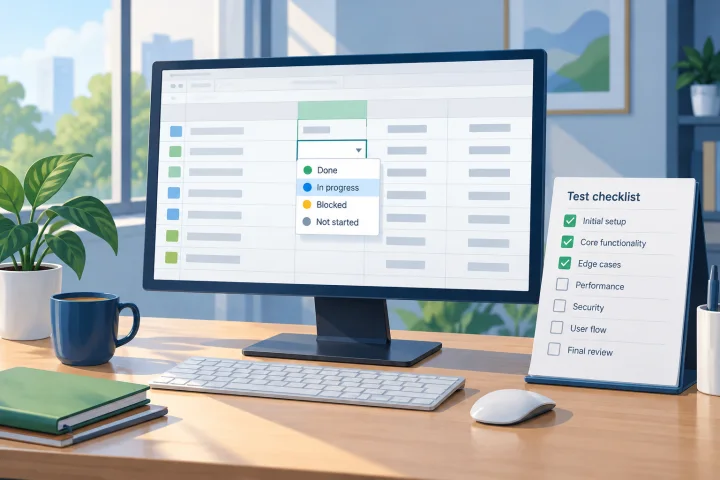
Documents and data
Drop-Down Lists in a Spreadsheet: How to Design and Test Them Before Sharing
Design clear options, configure validation for your editor, and test the spreadsheet as if you were the person filling it in. Learn what to check when sharing or exporting the data, too.
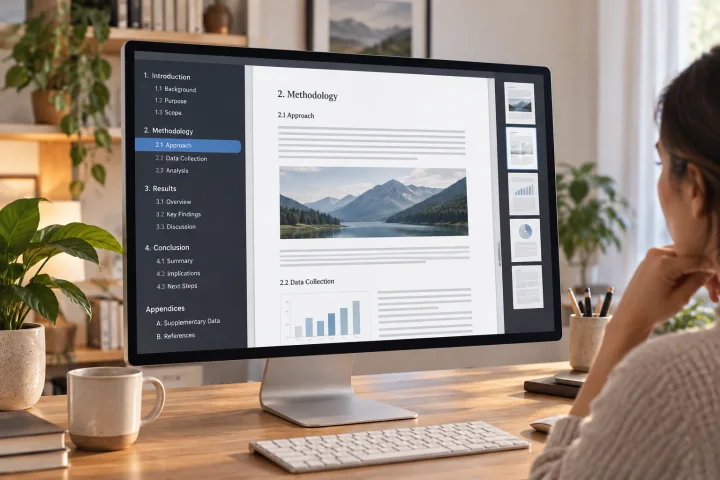
Documents and data
How to Create Bookmarks in a PDF: Headings, Exporting, and Checks
Plan a clear hierarchy, export the document, and check that every bookmark leads to the right section in the final PDF.
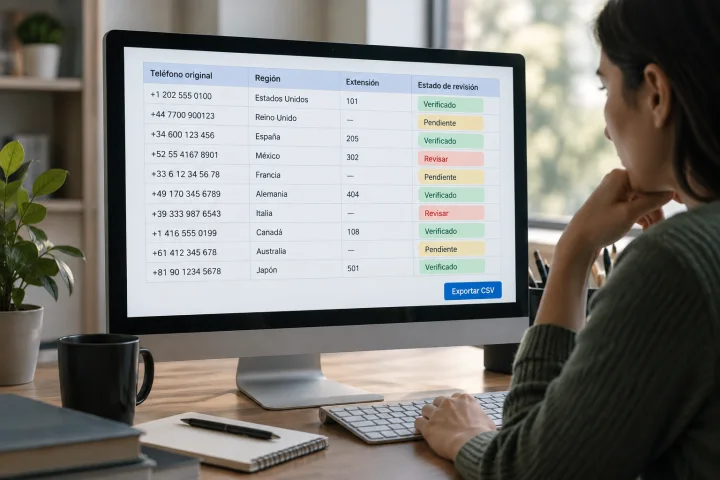
Documents and data
How to Normalize Phone Numbers in a Spreadsheet Before Importing Contacts
Prepare a phone list for import without losing leading zeros, prefixes, or extensions: keep the original, resolve ambiguities, and validate the CSV.