Files and formats
Multipage TIFF to PDF: How to Check the Order and Avoid Missing Pages
Reliable conversion starts before you click “Convert”: count the TIFF pages, run a test, and compare the PDF with the original.
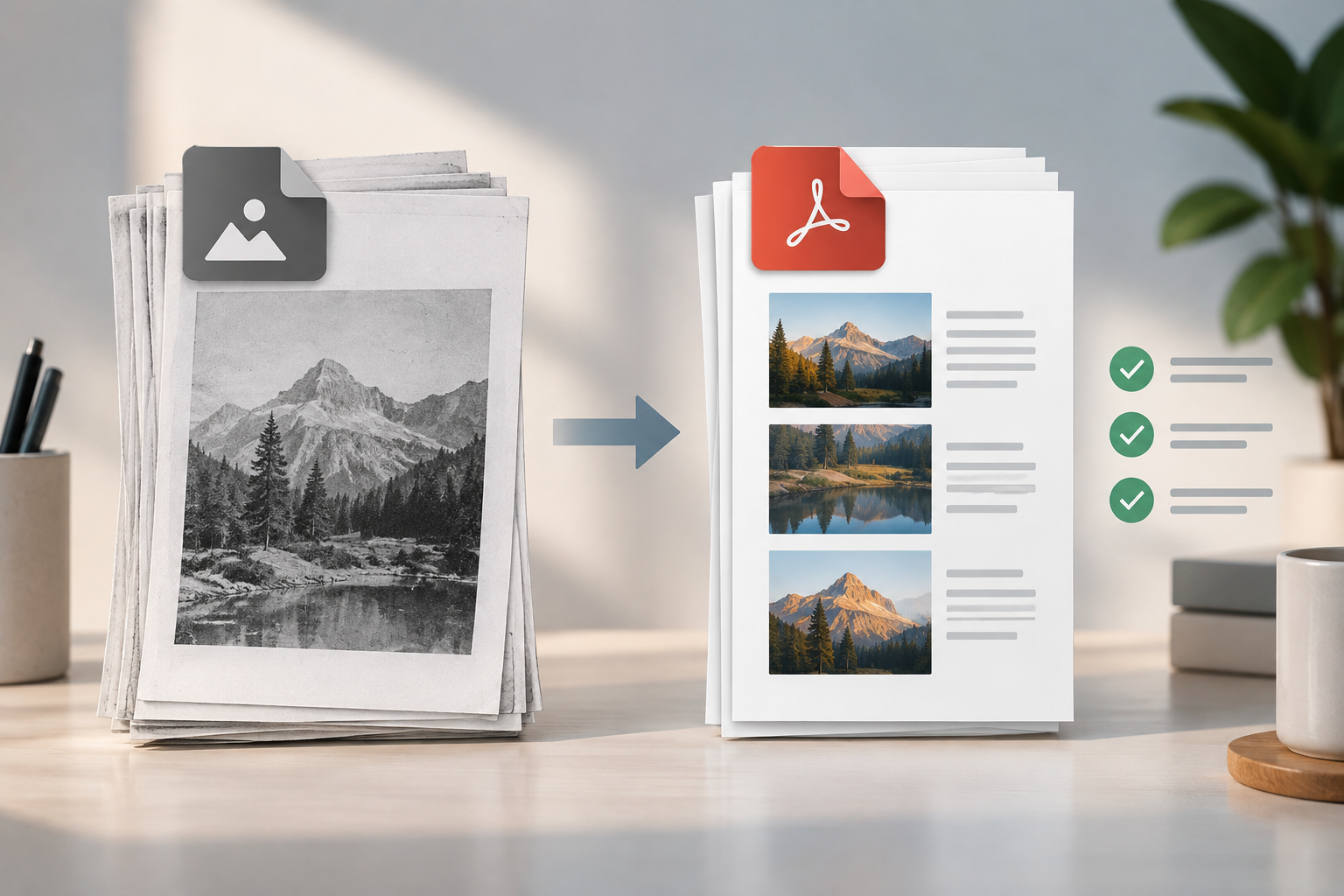
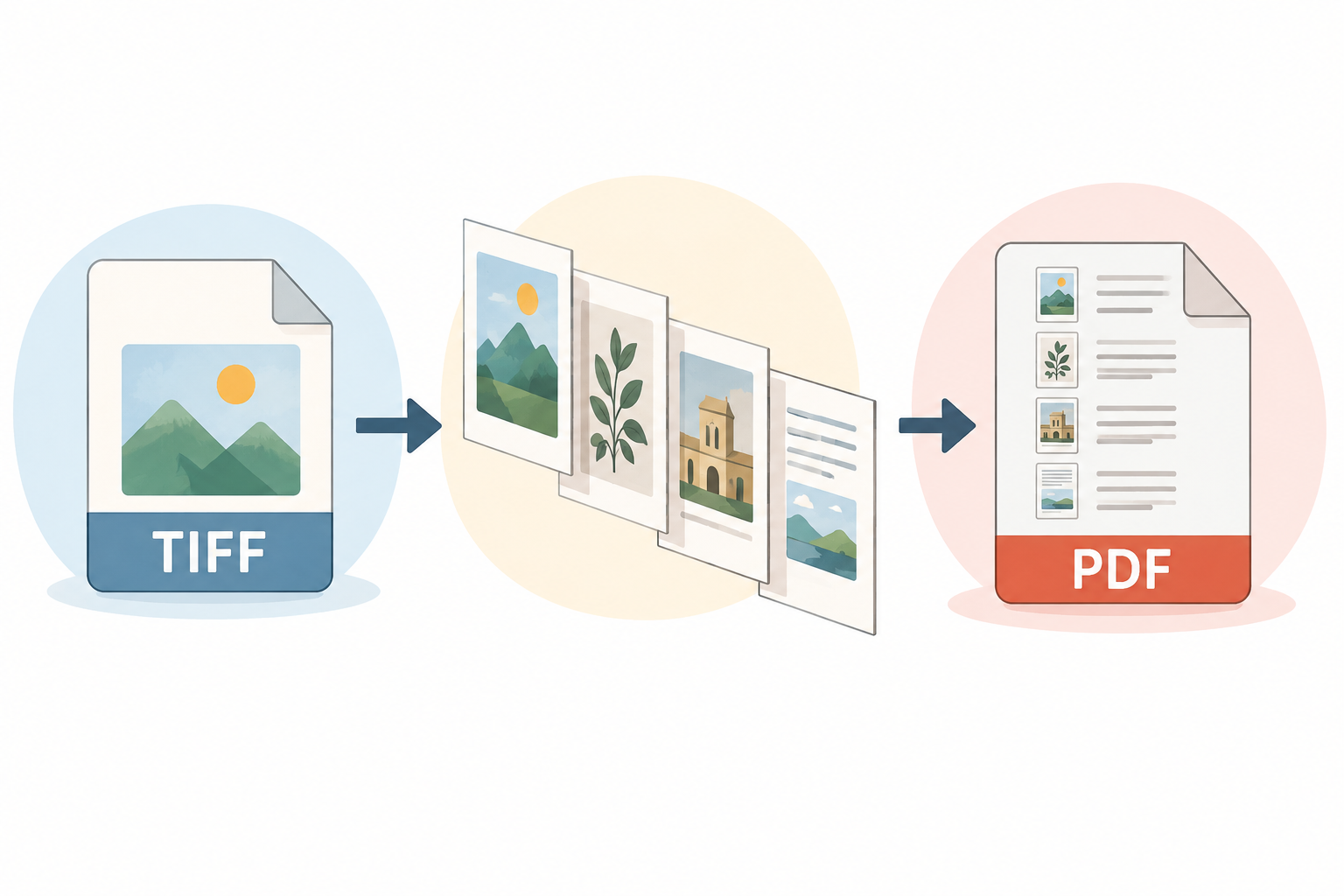
What It Means for a TIFF to Be Multipage
A TIFF can store several images or pages in a single file. That is why it may appear as one item even though it contains a complete scanned document. The file name and size alone do not tell you how many pages it includes: open it with a tool that displays its pages, or check the page count detected by the converter.
The conversion needs to process all the pages inside the file. Some tools support multipage TIFFs and can create one PDF page for every TIFF page; other specific workflows include only the first. Do not assume the result is complete just because the program finishes without showing an error. Compatibility may depend on the workflow you use, so confirm which pages it detects before relying on the final file.
It is also useful to distinguish between the pages inside a TIFF and the order of several TIFF files. If you have a batch, the PDF may need to combine multiple sources. In that case, check both the sequence of the files and the internal page order of each one.
If the TIFF contains contracts, case files, or other sensitive documents, check that you are authorized to use the tool you choose and limit access to the PDF to its intended recipients.
- Treat the TIFF as a possible set of pages, even if you see only one file.
- Use a preview or an explicit page count; do not infer the number of pages from the file size.
- Keep the internal order of each TIFF separate from the order of multiple files.
Before Converting: Record the Page Count and Order
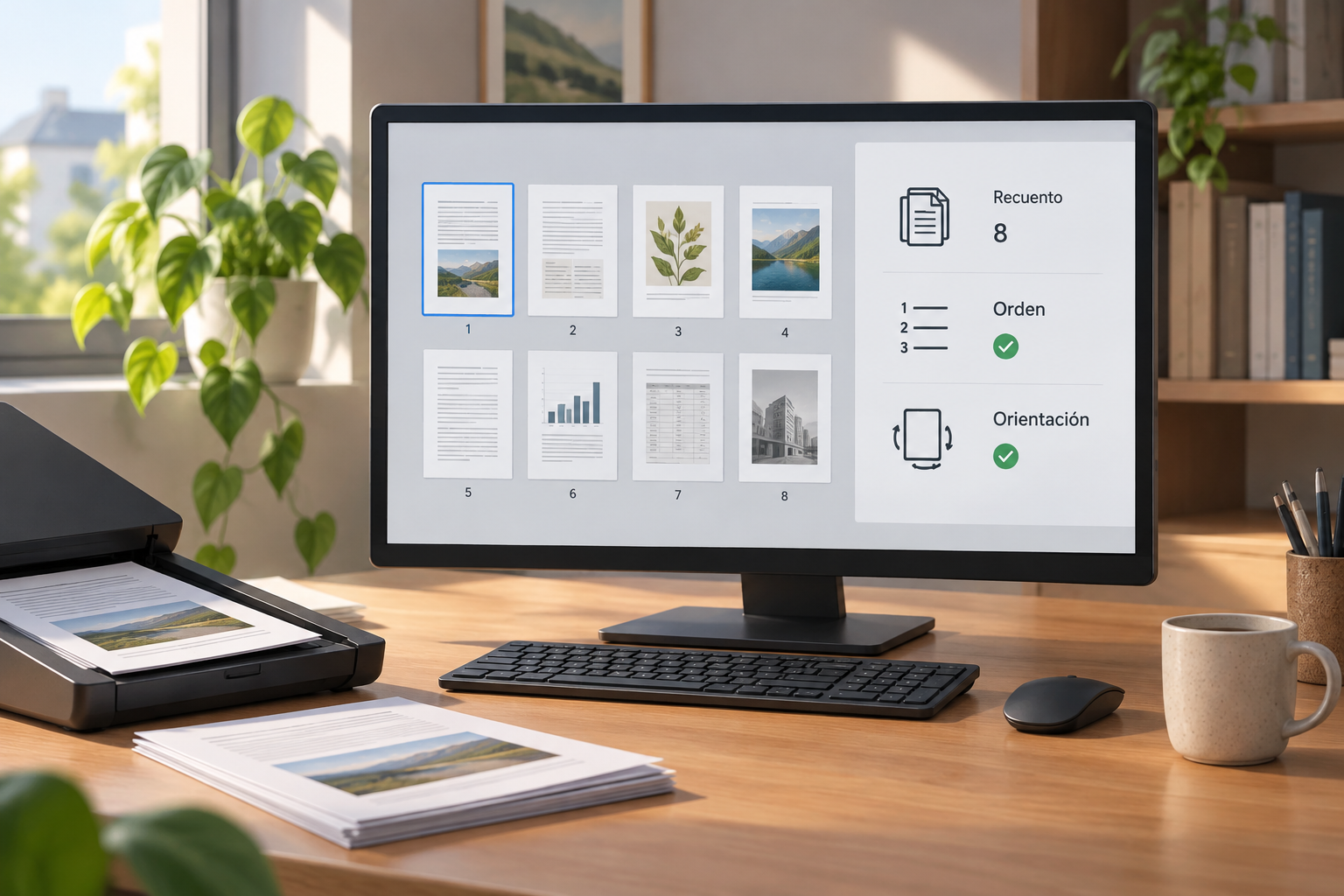
Open the TIFF in a viewer that lets you move through the pages, or in a tool that shows thumbnails. Note the expected page count and check the sequence from beginning to end. Identify intentional blank pages, appendices, and dividers so you can recognize them during your review.
Also check the orientation and visual size. If you have several TIFFs, note the expected order of the files and the name associated with each one. This reference will help you compare the PDF without confusing the internal sequence of a TIFF with the batch sequence.
Make the page count specific: for example, record the file name and the number of pages shown in the preview. If the document has recognizable sections, note what content you expect to find at the beginning, somewhere in the middle, and at the end. This gives you reference points for detecting a jump in the order, as well as a total count.
Do not remove pages that look blank from your count without checking their purpose. A blank page may be intentional or part of the document sequence. If you decide to exclude one, record that difference so the expected PDF count is not mistaken for a conversion failure.
- Record the original file name, page count, and expected order.
- Mark pages that are rotated, blank, or have a different orientation.
- If there are multiple TIFFs, also record the planned sequence of the files.
Choose the Settings and Run a Test
The right setting depends on how you will use the PDF. For on-screen reading, check that small text remains legible; for printing, review the orientation, proportions, and page size. Avoid reducing the resolution blindly: first consider which scan details you need to preserve.
Review the size, orientation, and aspect-ratio fitting options offered by the tool. An unsuitable aspect ratio can stretch the content or leave unexpected margins. If the intended use is unclear, keep the original and test with a representative TIFF before converting the rest. Then open the generated PDF: a preview can help, but it does not replace reviewing the result.
For the test, choose a source that represents the pages you are most concerned about, such as one with small text or a different orientation. Do not treat a single simple page as proof that all the others will convert the same way. The test can reveal unsuitable settings; you still need to check the complete file.
If the tool shows the detected pages before exporting, compare that count with your notes. Also check the sequence shown in the preview. If anything does not match, stop and review the selection or settings before saving the final result.
- On screen: confirm that small text is readable when zoomed in.
- For printing: check orientation, proportions, and page size.
- For archiving: avoid reducing resolution without checking the effect, and keep the source TIFF.
- Before processing the batch, run a representative test and verify which pages the tool detects.
Check the PDF Against the Original
Compare the PDF page count with the TIFF count. If you expected several pages and the PDF has one, stop the process: that workflow may have included only the first page. If the counts differ, look for the omitted or unexpected page before delivering the document. A matching count is necessary, but it does not prove that the order is correct.
Go through the PDF thumbnails and compare their sequence with the TIFF. Check the first, middle, and last pages; pay attention to headings, numbers, signatures, or other distinctive elements. For a complete review, inspect every page rather than checking only a selection if the document needs to retain all its information.
Also check the orientation, small text, cropping, and unusual colors that could obscure information. Compare questionable pages directly with the source: a thumbnail can help you see the overall order, but may not show a small detail clearly enough to assess it.
When a TIFF has multiple pages and the PDF combines several files, compare them in stages: first confirm that each source has all the expected pages, then verify the order across sources. This method helps you locate where a discrepancy occurs without automatically attributing it to the entire document.
- Page count: confirm that it matches the original, except for intentional and documented differences.
- Sequence: review the thumbnails and compare the page order.
- Legibility: check orientation, text, and visible content.
- Inspect every page; pay special attention to pages with small details or a different orientation.
Resolve Differences and Prepare the File for Delivery
If pages are missing, return to the original TIFF and choose a workflow that shows how many pages it detects and lets you include them all. If the order does not match, review both the sequence among files and the internal order of each TIFF. For unexpected orientation or loss of detail, compare the affected page with its source and address the specific cause; applying a general rotation or correction could make pages that were already right come out wrong.
If the page count matches but you find content in an unexpected position, do not consider the check complete. Locate the specific page, compare it with the original, and review the full sequence around that point. If you cannot explain a difference, keep the PDF as a draft and do not deliver it as the final version.
Save the PDF as a new file and do not overwrite the TIFF. Use names that clearly distinguish the original from the derived file, and record any intentional differences. Before sharing, confirm that the final file is the reviewed version and limit access to its intended recipients.
Apification offers an assistant for transforming and processing files, but the available product information does not specifically confirm how it handles multipage TIFFs. Verify which pages the specific workflow detects and review the PDF before relying on it. Apification Cloud lets you organize and share files; check the conversion before distributing the result.
- Do not deliver a PDF with omitted pages, altered order, or differences you cannot explain.
- Keep the original TIFF and use names that identify the PDF as a derived file.
- Before sharing, confirm the reviewed version and who will have access.
- Record intentional differences so you can distinguish them from conversion errors.
Frequently asked questions
How can I tell whether a TIFF contains multiple pages?
Open it in a viewer or converter that displays the pages or their count. Having a single file name does not mean it contains only one page.
Does a one-page PDF mean the conversion failed?
If the TIFF contained multiple pages, the result is incomplete. Some specific workflows include only the first page; convert again using a method that detects all pages, and verify the result.
Does Apification confirm that it can convert multipage TIFFs?
The available product information describes a general assistant for transforming and processing files, but does not confirm how it handles multipage TIFFs specifically. Check page detection and run a test before relying on that workflow.
Sources and further reading
Documentation consulted while preparing this article.
- Convertidor de TIFF a PDF de WPS — WPS
- Convertir TIFF a PDF en Windows: Print to PDF y por lotes — File Acture
- Convertidor de TIFF a PDF — Softonic Tools
- Convert TIFF Images to PDF — Scan.plus
Explore Apification
Related articles
Files and formats
Convert a PDF to Grayscale for Printing: What to Check Before You Send It
Prepare a monochrome version without losing the original, then check pages, graphics, contrast, and readability before sending the PDF to print.
Files and formats
How to Extract Images from a PDF Without Mistaking Them for Page Captures
Learn when to retrieve embedded graphic resources and when to rasterize pages, and how to check resolution, cropping, transparency, and color before reusing the results.

Files and formats
How to Find Duplicate Files Before Cleaning a Shared Folder
A cautious method for finding possible copies, checking how they are used, and deciding what to keep before deleting or archiving.