Files and formats
Convert Images to PDF: Order, Review, and Deliver Without Losing the Originals
A practical guide to preparing receipts, screenshots, or photographed pages, converting them into a reviewable PDF, and sharing it without losing originals or versions.
When It Makes Sense to Convert Images to PDF
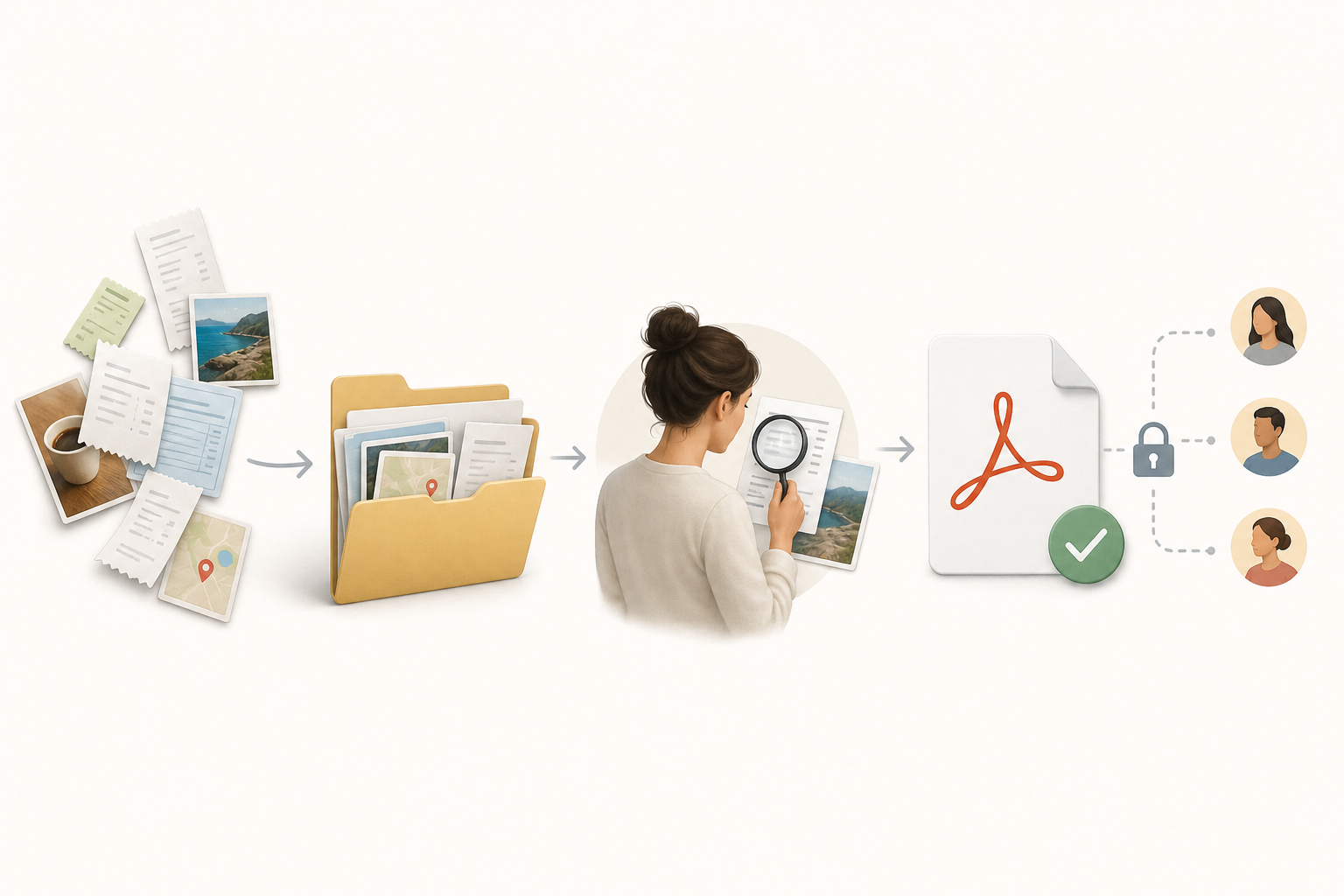
Converting images to PDF makes sense when the recipient needs to review a complete package in a single file: expense receipts, support screenshots, photographed pages, delivery evidence, or training material. The PDF helps fix an order, makes downloading easier, and reduces the risk of an image getting lost in an email thread or in a shared folder with many items.
Conversion is not always the best option. If the receiving team needs to edit each image, reuse it in a design, or analyze file metadata, keeping the images separate may be better. It is also important to remember that a photographed page with text is still an image of text: if editable or more accessible content is needed, it is advisable to create a text document or structured version in addition to the evidence PDF.
- Convert when sequence, single-file delivery, and traceability matter.
- Keep files separate when each image must be edited or processed independently.
- Create a document version if the text in the images needs to be reusable.
Prepare a Work Folder Without Mixing Versions
Before converting images to PDF, create a simple structure inside Apification Cloud. A safe practice is to separate three areas: received originals, corrected images, and final PDF. Cloud is designed to manage files, services, and digital projects in an organized, versioned, and share-ready space, so this separation avoids uncertainty about what was received and what was modified.
The operational rule is not to edit the only available file. Upload the originals, duplicate or copy the items you are going to correct, and work on that copy. Management actions such as uploading folders, moving or copying, duplicating, renaming, deleting, and downloading help keep the case file clean. If something goes wrong, the version history helps review, download, or restore previous content when appropriate.
- Folder 01_originals: everything received, unchanged.
- Folder 02_corrected: rotated, cropped, or annotated images.
- Folder 03_delivery: final PDF and, if applicable, review versions.

Name and Order Files Before Converting
Most errors in a PDF built from images do not happen during conversion, but before it: files without clear names, duplicated screenshots, or photographed pages out of sequence. Renaming before creating the delivery document prevents page 10 from appearing before page 2 or a receipt from being placed at the end with no relation to the rest of the case file.
Use names with a numeric prefix and a short description: 001_cover.jpg, 002_payment_receipt.jpg, 003_confirmation_screenshot.png. If the batch comes from different phones, do not rely only on the capture date; visually review the sequence. In Apification Cloud, you can organize, rename, and move items before transforming them, so the final PDF inherits a logic that any reviewer can understand.
- Use three digits if the batch may exceed nine pages.
- Avoid generic names such as image_final_final.jpg.
- Group attachments at the end with consistent numbering.
Review Orientation, Cropping, Sharpness, and Margins
The visual review should be done before generating the PDF, not after sending it. Check that each image is correctly oriented, that there are no unnecessary borders, that the text is readable, and that the margins do not cut off relevant information. In environments based on ONLYOFFICE DocSpace, the image viewer allows you to zoom in, zoom out, view at actual size, navigate between images, rotate in both directions, download, or delete files.
The acceptance criteria should be practical: if the recipient can read dates, amounts, names, and stamps without asking for clarification, the image is ready. If a screenshot has a key area that is too small, it may be advisable to keep it as a separate image in addition to including it in the PDF. When in doubt, generate an internal review output and request validation before closing the delivery.
- Check portrait or landscape orientation on each page.
- Zoom to 100% on areas with small text.
- Remove duplicates before converting, not afterward.
- Check that no data is cut off at the edges.
Edit Images Only When Necessary
Editing should solve visible problems, not rewrite the evidence. Apification Image Studio allows you to edit images on an integrated canvas with layers, text, shapes, filters, and modern export formats. This is useful for adding an explanatory arrow, covering a non-relevant area if your procedure allows it, improving contrast, or creating a clearer version for review, while always keeping the original separate.
If you work with image tools integrated into the document environment, verified capabilities include cropping, flipping, rotating, drawing, shapes, icons, text, masking, filters, and actions such as undo, redo, or reset during editing. The safe way to operate is to save a corrected copy, document the reason for the change in the name or folder, and not replace the file initially received.
- Edit for readability, orientation, or visual explanation.
- Do not delete the original received file.
- Avoid aggressive filters that change the meaning of the evidence.
- Use layers, text, or shapes when they help with understanding, not to hide context.
Generate the PDF from a Prepared Document
With the images prepared, the documented technical route is to insert them into a document and then export that document as a PDF. In ONLYOFFICE Document Editor, images can be inserted in formats such as BMP, GIF, JPEG, JPG, and PNG, and in the online editor it is possible to select several images at once. This path is useful when you need a cover page, comments, separators, or a controlled layout before the final PDF.
Apification also allows you to create and edit documents with ONLYOFFICE inside Cloud storage, and File transformation allows you to convert, optimize, and process documents, images, video, audio, and data through a guided assistant. For this workflow, avoid assuming that a batch of loose images will automatically be combined into a multipage PDF: first prepare the document with the images in the correct order and then generate the PDF output from that document.
- Select only the corrected images folder, not the originals folder.
- Generate a review version first if the case file is sensitive.
- Add a cover page or separators if the recipient needs context.
- Save the final PDF in the delivery folder.
Check the PDF Page by Page
The PDF should not be sent without a complete read-through. Open it and go through every page in order: cover page, receipts, screenshots, attachments, and closing section. Verify that no image is missing, that no pages are repeated, and that the orientation is consistent. If the PDF was generated from a document, also check that each image keeps its proportions and is not distorted.
File size also matters. If the PDF is too large for the delivery channel, use optimization options or prepare the images again with a suitable resolution. In tools such as LibreOffice, image compression can reduce data size and resize an image within the document; it also distinguishes between lossless and lossy compression. As a general rule, avoid sacrificing readability to reduce size.
- Count expected pages against actual pages.
- Review the readability of small text.
- Check that the final name identifies the case, date, and version.
- If something fails, correct the source image and generate the PDF again.
Common Mistakes and How to Avoid Them
The most common failures are predictable: repeated images, rotated pages, blurry screenshots, ambiguous names, and final files that no one knows are truly final. Prevention is cheaper than correction: number, review, convert, open, check, and only then share. If the workflow is repeated every week, turn this sequence into a team checklist.
Another common mistake is mixing versions in the same place. A file called delivery.pdf can mean many things if it does not include a date, case, or status. Use names such as 2026-09-22_case-184_delivery_v01.pdf and reserve v02 or v03 for later corrections. In Apification Cloud, item and version history helps maintain traceability, open previous versions, download them, or restore them when necessary.
- Do not convert from a disorganized folder.
- Do not replace originals with edited images.
- Do not share a PDF that you have not opened after generating it.
- Do not use “final” if the file has not yet been validated.
Frequently asked questions
Can I convert images to PDF without modifying the originals?
Yes. The recommended practice is to keep an originals folder, work on corrected copies, and save the final PDF in a delivery folder. Apification Cloud allows you to organize, copy, rename, and maintain versions to preserve that separation.
When should I edit an image before converting it?
Edit only if it improves the review: rotating a page, cropping unnecessary borders, adding an annotation, or adjusting readability. Use Image Studio to work with layers, text, shapes, and filters, but always keep the original file.
What should I check before sharing the final PDF?
Check page order, duplicates, orientation, readability, margins, file size, and final name. If something does not match, correct the source image or intermediate version and generate the PDF again.
How can I share the result with control?
Apification allows you to share items through links, users, or groups and offer downloads of the original or transformed files. For sensitive work, share only the validated PDF and keep the originals in the internal folder.
Sources and further reading
Documentation consulted while preparing this article.
- ONLYOFFICE DocSpace — Managing and editing documents within rooms — ONLYOFFICE Help Center
- ONLYOFFICE DocSpace — Sharing files and folders — ONLYOFFICE Help Center
- ONLYOFFICE DocSpace — Managing document versions — ONLYOFFICE Help Center
- ONLYOFFICE Docs — Inserting images — ONLYOFFICE Help Center
- ONLYOFFICE Docs — PhotoEditor: Editing images — ONLYOFFICE Help Center
- LibreOffice Help — Compress Image — LibreOffice / The Document Foundation
- W3C WCAG 2.2 — World Wide Web Consortium (W3C)
- W3C WAI — Understanding Success Criterion 1.4.5: Images of Text — World Wide Web Consortium (W3C)
Explore Apification
Related articles
Files and formats
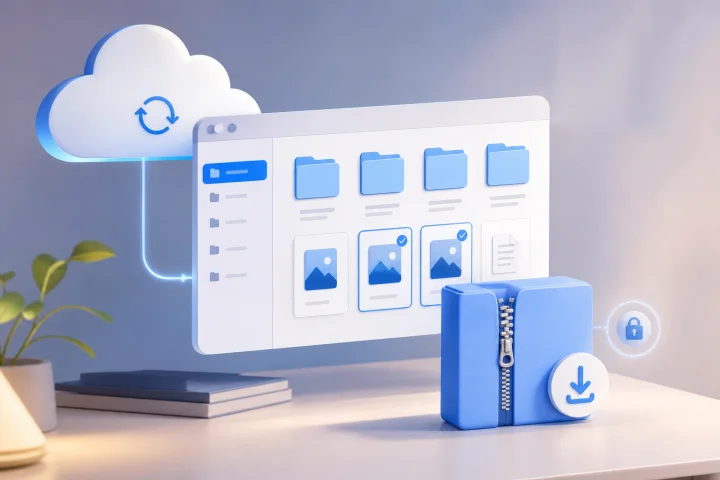
Create a delivery ZIP without losing the originals
A practical guide to preparing a final package with clear names, a simple structure, controlled download, and traceability in Apification Cloud.
Files and formats
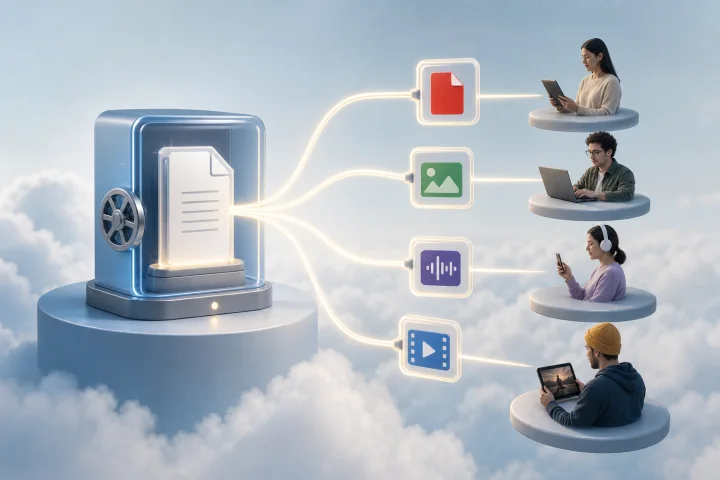
Transformed file downloads: deliver variants without duplicating the original
A practical guide to using transformed file downloads in Apification Cloud, separating the master from its derivatives, and deciding when to save an export of its own.
Files and formats
Compress a PDF Without Losing Readability: Testing, Versions, and Controlled Delivery
A practical guide to reducing large PDFs without losing control of the original, with compression criteria, quality checks, and delivery from Apification Cloud.