Documents and data
How to Check Whether a PDF Is Really PDF/A After Conversion
A file opening and looking correct does not prove that it complies with PDF/A. Learn how to choose a profile, validate the result, and keep evidence of every conversion.
PDF/A in context: What it checks and what it does not
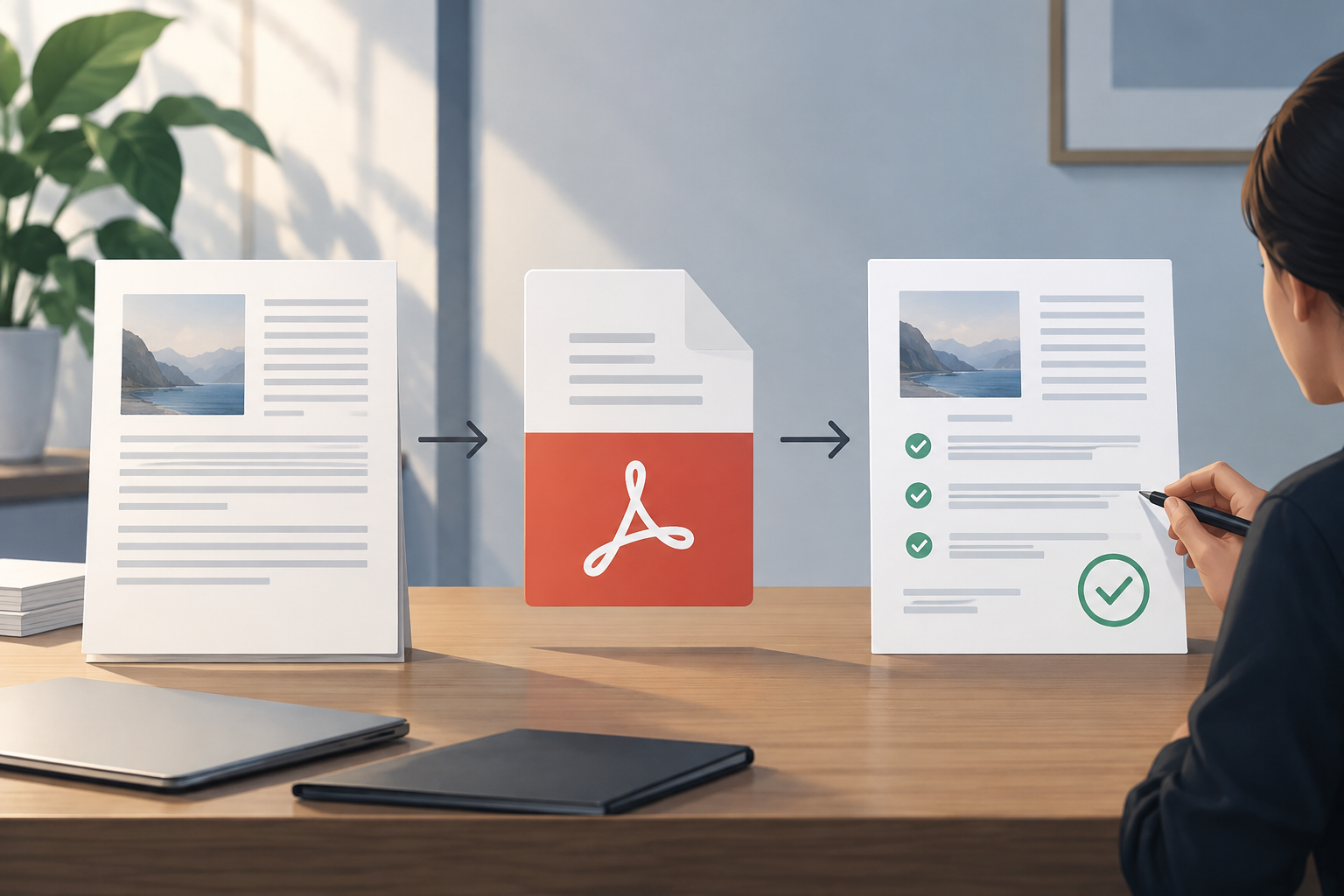
PDF/A is a family of PDF conformance profiles designed to support document preservation. Conversion attempts to produce a file that conforms to a profile, but the file extension, the appearance of its pages, and the ability to open the document do not, on their own, prove that it meets that profile. A PDF can look identical on screen and still fail a technical check.
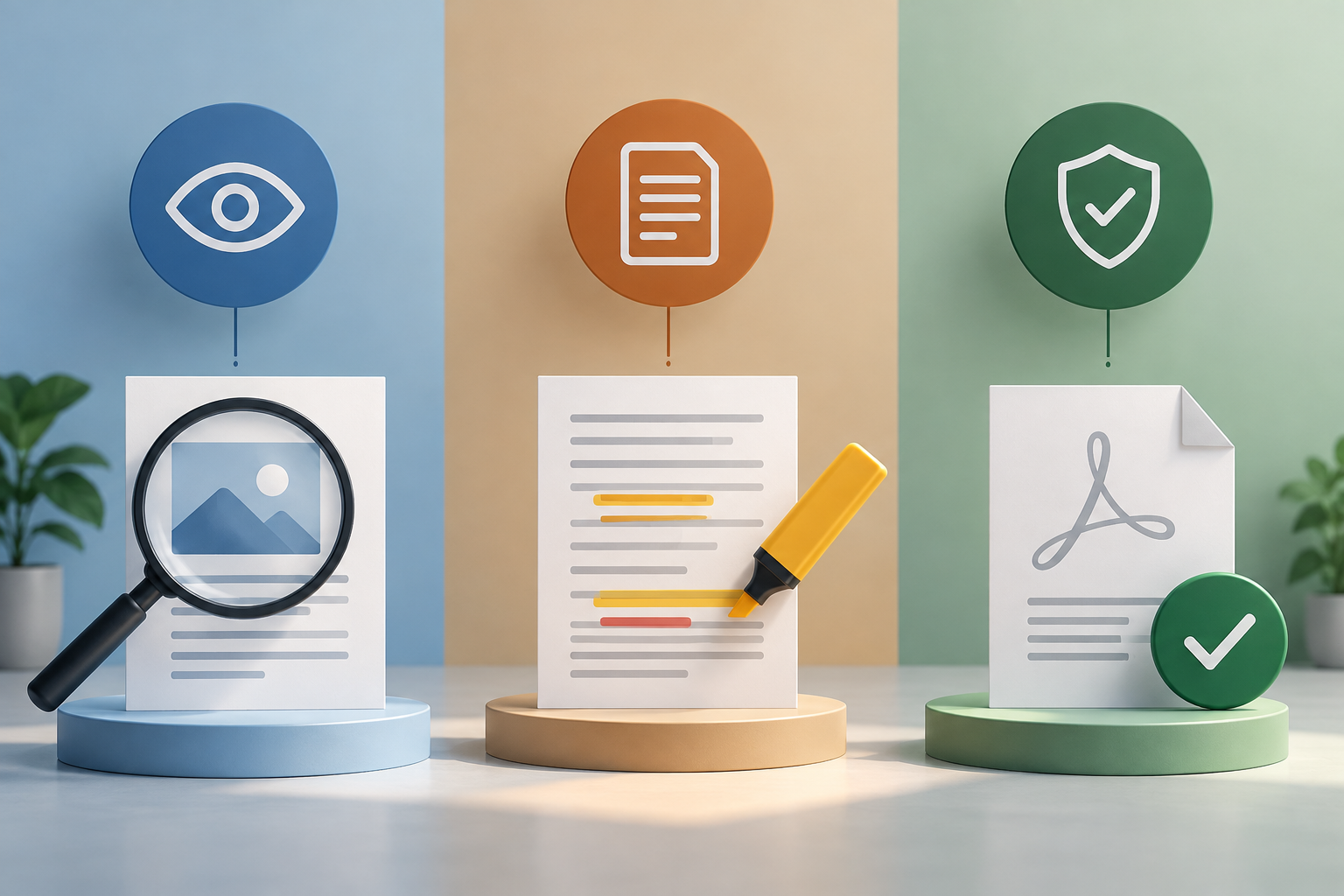
Validation answers a narrower question: whether the file being evaluated satisfies the rules of the selected profile. It does not prove that the content is correct, that the conversion retained everything your organization needs, or that the document will remain accessible indefinitely. That is why it is useful to separate three checks: technical conformance, visual review, and content verification.
- Opening the file can reveal visible problems, but it does not certify conformance.
- A successful validation does not replace content review and is not a legal guarantee or a guarantee of indefinite preservation.
Choose the profile before converting
Do not select a profile at random or assume that any option labeled PDF/A is suitable for every destination. Start by identifying the intended use: internal archiving, submission to an organization, or addition to a repository with defined requirements. If the recipient or document policy specifies a profile, record that requirement exactly and use the same profile when validating.
Available validation examples show that a check can target a specific profile; one example uses PDF/A-1b. This matters because a favorable result for one profile does not amount to universal approval across all profiles. If there is no explicit requirement, consult the person responsible for document management before setting the standard, and record the decision, who approved it, and the intended use.
- Confirm the profile required by the recipient or applicable policy.
- Record the profile, intended use, and person responsible for the decision.
- Avoid changing the profile just to make a failure disappear without understanding the consequences.

Before converting: Prepare and review the source
Keep the source file unchanged and record its name, location, and version before starting. Check that it opens and contains the expected pages, attachments, and elements. This review provides a reference for comparing the result and helps distinguish a pre-existing defect in the source from a loss caused during conversion.
Pay attention to fonts and the color spaces of images: these are examples of issues that can arise when a file fails validation. Also review forms and other interactive elements if they are part of the intended use. Do not assume their appearance or behavior will be preserved; compare the result with the source and confirm which elements are essential to the workflow.
- Record the source before transforming it.
- Review relevant pages, readability, fonts, images, and interactive elements.
- Define which differences are acceptable and which would require rejecting the conversion.
After converting: Validate against the correct profile
Run a PDF/A validator and specify the required profile. Do not simply look for a label or property in the file; use a tool that checks the document and provides an interpretable result. PDFsam Visual describes a workflow in which you choose a conformance level and then review a report of issues; its page identifies veraPDF as the provider of its validator.
Examine the complete report, not just the overall pass or fail status. A validation implementation documented by Aspose allows results to be saved in XML, where you can review whether the document passed and what issues were found. Keep that report with the validated PDF, the requested profile, and the date of the check. This allows someone else to understand what was tested without having to reconstruct the process.
- Confirm that the validator checked the expected profile, not a similar one.
- Save the report and link it unambiguously to the resulting file.
- Record the tool used and the full result, including relevant warnings.
Common mistakes: Readable does not mean compliant
A common mistake is approving a document because it looks fine in a viewer. This check may reveal blank pages, cropping, or obvious changes, but it does not replace profile validation. If the validator reports nonconformance, keep the result marked as failed even if the document looks correct when viewed. Do not turn a favorable visual impression into a technical conclusion that has not been demonstrated.
Missing fonts and incorrect color spaces in images are concrete examples of problems that may need correction. There may also be a difference between what the team considers essential and what the final file actually retains, especially when forms or other interactive elements are used. Operational approval should therefore take account of both the technical report and a comparison of the content with the original.
- Validator failure: do not approve the file just because it opens.
- Visual or functional difference: investigate it even if validation passes.
- Incomplete report or incorrect profile: repeat the check with the correct parameters.
What to do if validation fails
Treat the report as an investigation checklist, not as an automatic repair. Group the findings by type, identify whether they affect the source or were introduced during conversion, and determine whether the issue prevents the intended use. When a report points to fonts or color, review those elements in both the source and the result. Avoid making changes without a clear hypothesis, since a correction can alter the appearance or content.
Validation may be read-only: for example, PDF4me documentation says its action analyzes the PDF without modifying it and recommends correcting or converting the file again if it fails. The practical cycle is to correct the source or adjust the conversion, create a new copy, and validate it again against the same profile. Compare each version with the previous one, and repeat the visual and content reviews as well.
- Read each finding and link it to a specific part of the document.
- Correct the source or review the conversion settings; do not assume the validator will repair the file.
- Create a new version and repeat validation, keeping the results from every attempt.
Keep the original and record the evidence
Do not replace the original with the converted copy. Keeping both makes it possible to check what changed, redo a conversion with different settings, and respond to a future discrepancy. Use names or identifiers that link the source, the PDF/A, and the report; avoid relying on generic names such as “final” or “final2,” which do not explain which version was approved.
At a minimum, record the source identifier, result identifier, profile, tool or process used, date, and validation status. If there was more than one attempt, keep a clear link between each result and its report. Apification Cloud provides an organized, versioned space for managing files and lets users review history, download previous versions, and restore content; these features can help organize the workflow, but they are not a specific PDF/A conversion or validation.
- Keep the source and avoid overwriting it.
- Associate each report with a specific version of the converted PDF.
- Do not treat storage as technical validation of the document.
Approval checklist for the converted copy
Before accepting the result, confirm that the preservation need and recipient are clear, that the profile was selected based on a documented requirement, and that the original was saved. Verify that the converted file contains what is expected and that differences from the source have been reviewed. If the content includes elements that must continue to work, test those elements explicitly in the result.
Finally, validate the file against the agreed profile and archive the complete report. If it fails, do not mark it as compliant: investigate, correct the issue, and repeat the check. The approval should be reconstructable from the records without relying on the memory of the person who performed the conversion. This process reduces ambiguity, but it does not promise indefinite access or replace the organization’s preservation policies.
- Required profile confirmed and recorded.
- Original preserved and result compared with it.
- Validation performed using the correct profile.
- Report saved with the approved version.
- Failures resolved and a new check passed before acceptance.
Frequently asked questions
If the PDF opens correctly, is it already PDF/A?
No. A file opening or looking good does not prove that it meets a PDF/A profile. To check, use a validator and select the required profile.
Does validation automatically fix errors?
Not necessarily. Some validation actions are described as read-only: they analyze the document and return a result but do not repair it. If the check fails, correct the file or convert it again, then validate it once more.
Does a successful validation guarantee indefinite preservation or legal validity?
No. The result indicates conformance with the profile that was checked; by itself, it does not guarantee indefinite preservation, content integrity, or legal acceptance.
What should I keep in addition to the PDF/A?
Keep the original, identify the profile used, and save the report linked to the validated version. It is also useful to record the tool and date of the check.
Sources and further reading
Documentation consulted while preparing this article.
- Validar PDF/A en Power Automate — PDF4me
- Validar PDF AB Standard — Aspose
- Validación de PDF/A — PDFsam Visual
Explore Apification
Related articles
Documents and data
Drop-Down Lists in a Spreadsheet: How to Design and Test Them Before Sharing
Design clear options, configure validation for your editor, and test the spreadsheet as if you were the person filling it in. Learn what to check when sharing or exporting the data, too.
Documents and data
How to Create Bookmarks in a PDF: Headings, Exporting, and Checks
Plan a clear hierarchy, export the document, and check that every bookmark leads to the right section in the final PDF.
Documents and data
How to Normalize Phone Numbers in a Spreadsheet Before Importing Contacts
Prepare a phone list for import without losing leading zeros, prefixes, or extensions: keep the original, resolve ambiguities, and validate the CSV.