Documents and data
Absolute and Relative References in Excel: Copy Formulas Without Shifting the Wrong Data
Learn to predict how references change when you copy formulas, and lock a rate cell to avoid errors in budgets and price lists.
What changes when you copy a formula
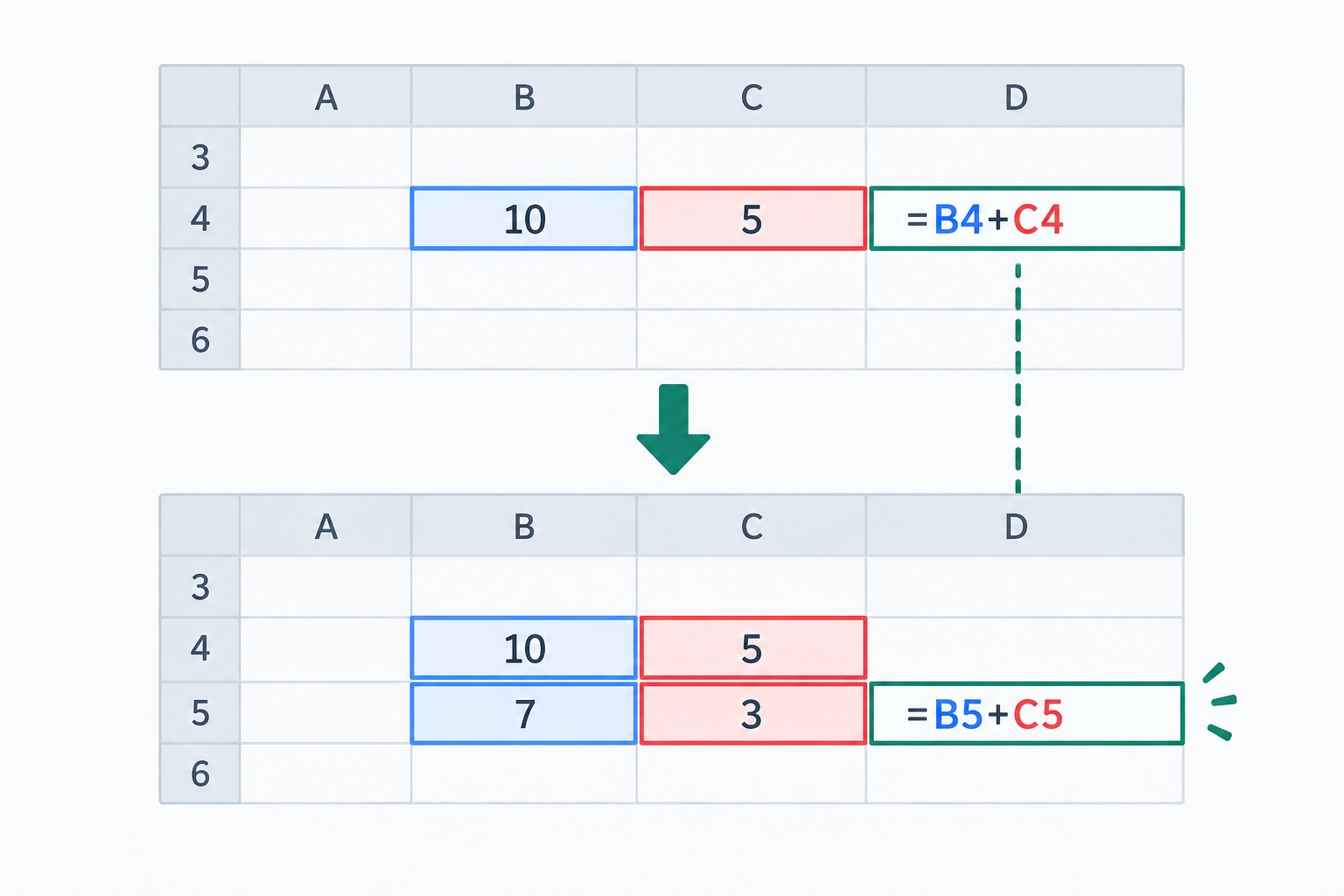
A formula can refer to other cells by their coordinates. With a relative reference, such as A2, the row and column adjust according to where you copy the formula. For example, if you enter =B4*C4 in D4 and copy the formula to D5, the references become =B5*C5. The formula keeps its pattern—multiplying values from the same row—but points to the cells corresponding to its new position.
The difference matters when a formula combines data that should move with other data that must stay in the same place. Before filling a range, think of copying as a shift: how many rows and columns will the formula move? Which references should follow that movement? If you don't anticipate the change, a formula may calculate without showing an error and still use data from another row or a different rate.
- Relative: A2 changes when copied, depending on the direction and distance.
- Absolute: $A$2 keeps both the column and row fixed.
- Mixed: $A2 fixes the column; A$2 fixes the row.
Example: Apply a fixed rate to multiple prices
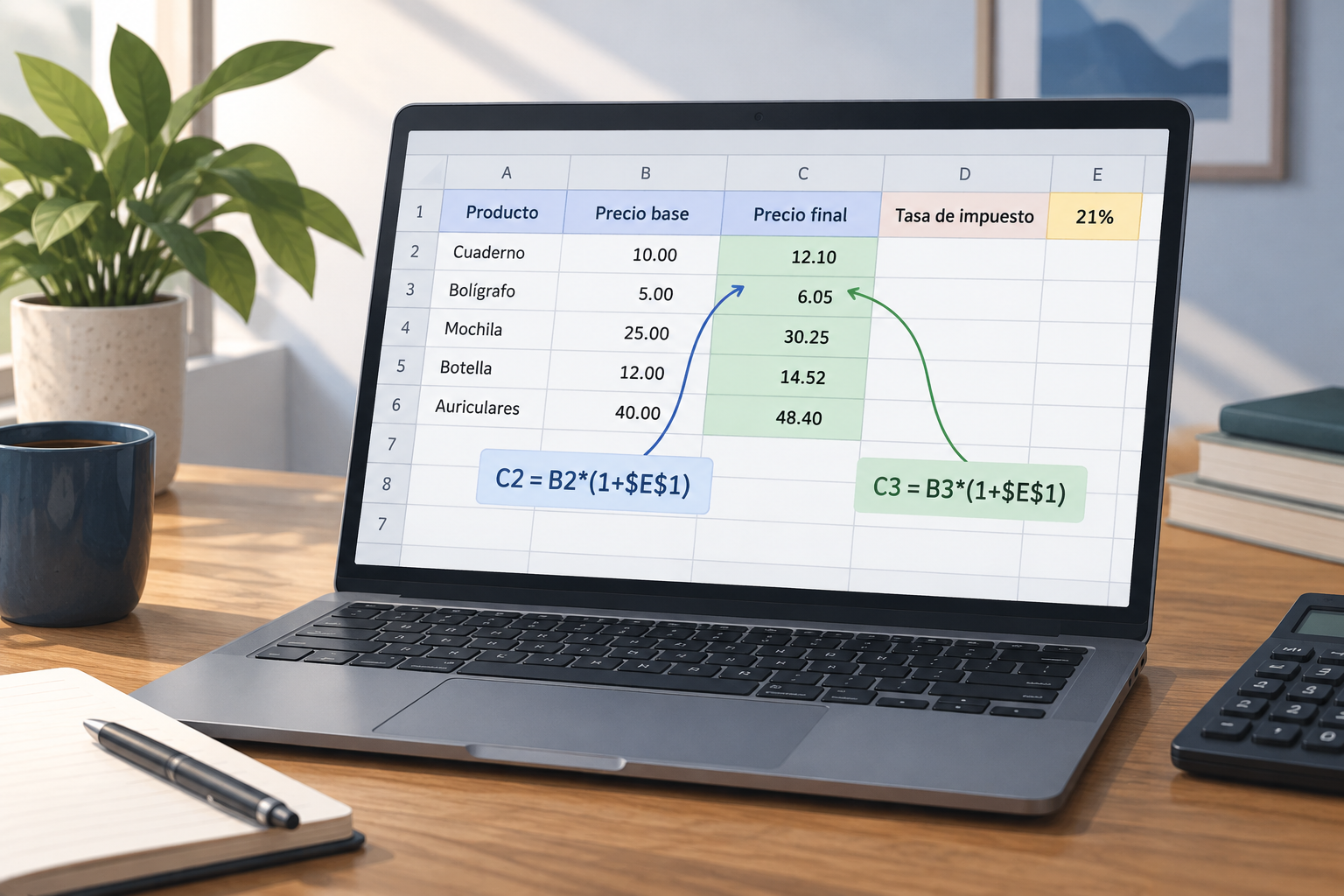
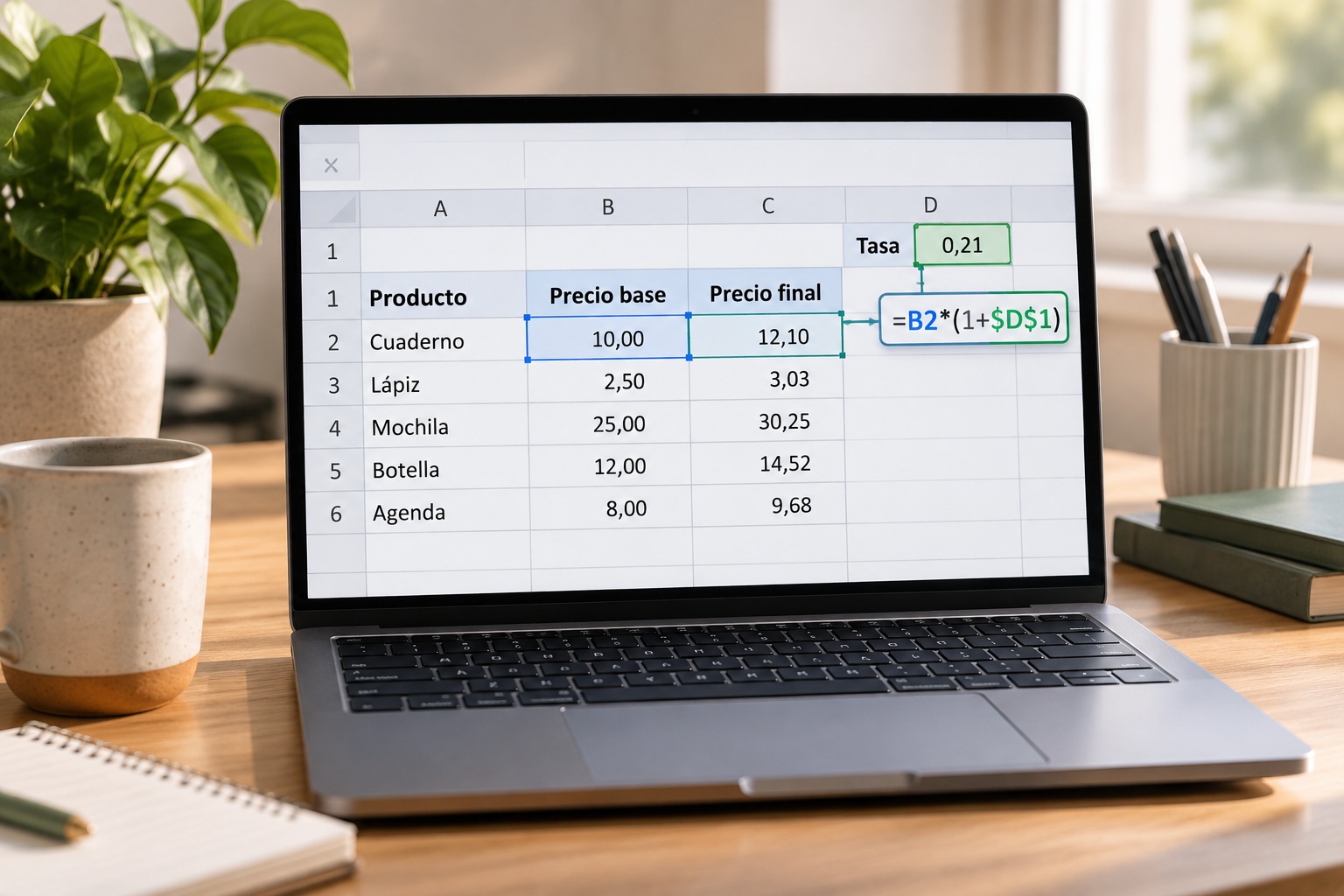
Suppose a list has products in column A and their base prices in column B. You store a shared rate for all products in D1 and want to calculate the final price in C2. One possible formula is =B2*(1+$D$1). If B2 contains 100 and D1 contains 10%, the calculation takes the base price and applies a factor of 1.10. The specific operation depends on how the spreadsheet is organized; the important point here is that the price changes with each row while the rate cell does not.
When you copy the formula from C2 to C3, B2 becomes B3 because it is a relative reference. By contrast, $D$1 still points to the rate cell because the dollar signs fix both column D and row 1. If you leave out those signs, the reference may shift as you copy down, and the formula will no longer use the intended rate. First, check a row with known values and compare the expected result with the one you get.
- Base price: B2; shared rate: D1; result: C2.
- Example formula: =B2*(1+$D$1).
- When copied down, B2 should change to B3 while $D$1 stays the same.
When to use relative, absolute, or mixed references
Use a relative reference when each row or column should use its own data. In the example, B2 should become B3 when copied down because each product has its own base price. This type of reference is suitable for repeated calculations using data arranged in parallel rows or columns. A useful question to ask is: if I move the formula to the next position, should it also look at the next position in the data?
Use an absolute reference when the formula should always look at the same cell, such as a general rate in $D$1. Mixed references are useful when only one axis should stay fixed. $A2 keeps column A fixed and lets the row change; A$2 keeps row 2 fixed and lets the column change. For example, a formula copied two columns to the right and two rows down changes A$1 to C$1, while $A1 becomes $A3.
- Fix both the row and column with $A$2 if neither should change.
- Fix only the column with $A2 if you will move down through rows.
- Fix only the row with A$2 if you will move across columns.
How to fill a range and predict the result
Before copying, identify the source cell and the destination range. Review each reference in the formula and classify it as relative, absolute, or mixed. Then work out a small shift mentally: if the formula moves down one row, which row number should change? If it moves one column to the right, which letter should advance? This simple prediction can help you spot an incorrectly fixed reference before extending the formula to dozens of cells.
First, copy the formula to a nearby cell and inspect the resulting formula, not just the displayed value. Once the references point to the intended data, you can fill the range using the fill handle. If you plan to copy in another direction, check the result again: a mixed reference may behave correctly when moving down but not be suitable when moving right. Copying and moving are not the same: when you move a formula, its references do not change; when you copy it, relative references may adjust.
- Select a test cell close to the source.
- Check the references after copying and before filling the entire range.
- Repeat the check if the destination is in a different direction.
Common mistakes and how to find them
A common mistake is fixing the wrong cell. In the pricing example, making the base price reference absolute could repeat one row's value for every product. On the other hand, failing to fix the rate may cause its reference to change when copied. Before adding dollar signs, check which data should change and which should stay constant; don't add them to every reference out of habit.
It's also easy to include a header row in the range, start the formula on a different row from the data, or copy it in an unplanned direction. These mistakes can produce blank cells, inconsistent results, or formulas that point to another area. If a number looks unusual, inspect the formula and its references, compare a correct row with a questionable one, and confirm that both use the same pattern. Don't just correct the displayed value; fix the reference that caused it.
- Does the formula start in the first row of data rather than the header?
- Does the absolute reference point to the correct shared cell?
- Do the relative references still correspond to the current row or column?
Checks to make before sharing the spreadsheet
Validate both the formula pattern and its results. Test one row and one column to check how references shift in both directions, even if you usually fill only downward. Also check edge cases in your data, such as the highest and lowest base prices, and confirm that the formula still uses the intended rate. If a result doesn't make sense, review its references before copying it to other rows.
Keep a working copy before making a large-scale change, especially if the spreadsheet already contains formulas that other people use. A short checklist makes it easier to repeat the verification without relying on memory. When you're finished, confirm that the entire range is covered, no rows have a different formula, and headers haven't been mixed in with the data. Sharing the spreadsheet only after these checks can reduce errors that are difficult to spot at a glance.
- Test one row and one column before filling the entire range.
- Review extreme results and one middle row.
- Confirm there are no different formulas or omitted data rows.
- Save a working copy before replacing or extending formulas.
Edit and maintain your spreadsheet in Apification Cloud
The reference notation explained in this guide is a general spreadsheet practice; it does not depend on a platform-specific feature. Apification lets you create and edit office files with ONLYOFFICE and keep them in Cloud. This allows you to work with the spreadsheet in the workspace where you organize your files and projects, without confusing this file-management capability with Excel's calculation rules.
For a careful workflow, keep the original file or a working copy, make the change, and follow the checklist before sharing the revised version. Cloud also lets you view an item's history, download earlier versions, and restore content. This gives you an option to recover a previous version if you need to go back, although it does not replace formula review or guarantee that a formula is correctly constructed. Review the updated file before distributing it.
- Edit spreadsheets with ONLYOFFICE inside Apification Cloud.
- Review the history and recover an earlier version if needed.
- Check formulas before sharing the file.
Frequently asked questions
What is the difference between A2 and $A$2?
A2 is a relative reference and may change when you copy the formula. $A$2 fixes both column A and row 2, so the reference stays in that cell.
What does a mixed reference such as $A2 fix?
$A2 fixes column A but leaves the row relative. When copied to another row, the number may change; when copied to another column, column A stays the same.
How do I stop a rate cell from changing when I copy a formula?
Use an absolute reference for the rate, such as $D$1, and test the formula in a nearby cell. Confirm that references to each product's data change as expected.
Does Apification let me edit spreadsheets?
Yes. Apification lets you create and edit office files with ONLYOFFICE while keeping them in Cloud. This guide describes a general spreadsheet practice.
Sources and further reading
Documentation consulted while preparing this article.
- Cambiar entre referencias relativas, absolutas y mixtas — Microsoft Support
- Información general sobre fórmulas en Excel para la Web — Microsoft Support
- Mover o copiar una fórmula en Excel — Microsoft Support
- Referencias de Celdas (Profundizando) — INA Virtual
Explore Apification
Related articles

Documents and data
How to Check Whether a PDF Is Really PDF/A After Conversion
A file opening and looking correct does not prove that it complies with PDF/A. Learn how to choose a profile, validate the result, and keep evidence of every conversion.

Documents and data
Drop-Down Lists in a Spreadsheet: How to Design and Test Them Before Sharing
Design clear options, configure validation for your editor, and test the spreadsheet as if you were the person filling it in. Learn what to check when sharing or exporting the data, too.

Documents and data
How to Create Bookmarks in a PDF: Headings, Exporting, and Checks
Plan a clear hierarchy, export the document, and check that every bookmark leads to the right section in the final PDF.