Collaboration
How to Compare a Download’s SHA-256 Checksum
Learn what you need to compare a download’s SHA-256 checksum with a reference, how to check that both correspond, and what to do if they do not match.

What it means to compare a SHA-256 checksum
The comparison involves generating the SHA-256 checksum of a local file and checking it against a reference value associated with the file you expected to download. For the comparison to be meaningful, both values must correspond to the same file and version. A checksum without a relevant reference cannot be used for this comparison.
The GobMis guide describes this procedure for an ISO image: generate the SHA-256 checksum of the local ISO and compare it with the checksum included in the “.iso.sha256” file. The example illustrates the general approach: identify the file and its corresponding reference, then compare the complete values.
A match means that the compared values are equal. A match alone does not authenticate the file’s origin or show who created it. The comparison also does not establish whether the reference came from a reliable source or corresponds to the version you expected, so note where the reference came from.
- Identify the local file and the version you want to check.
- Obtain a reference that corresponds to that file and version.
- Interpret a match as equality between the compared values, not proof of the file’s origin or creator.
What you need before you begin
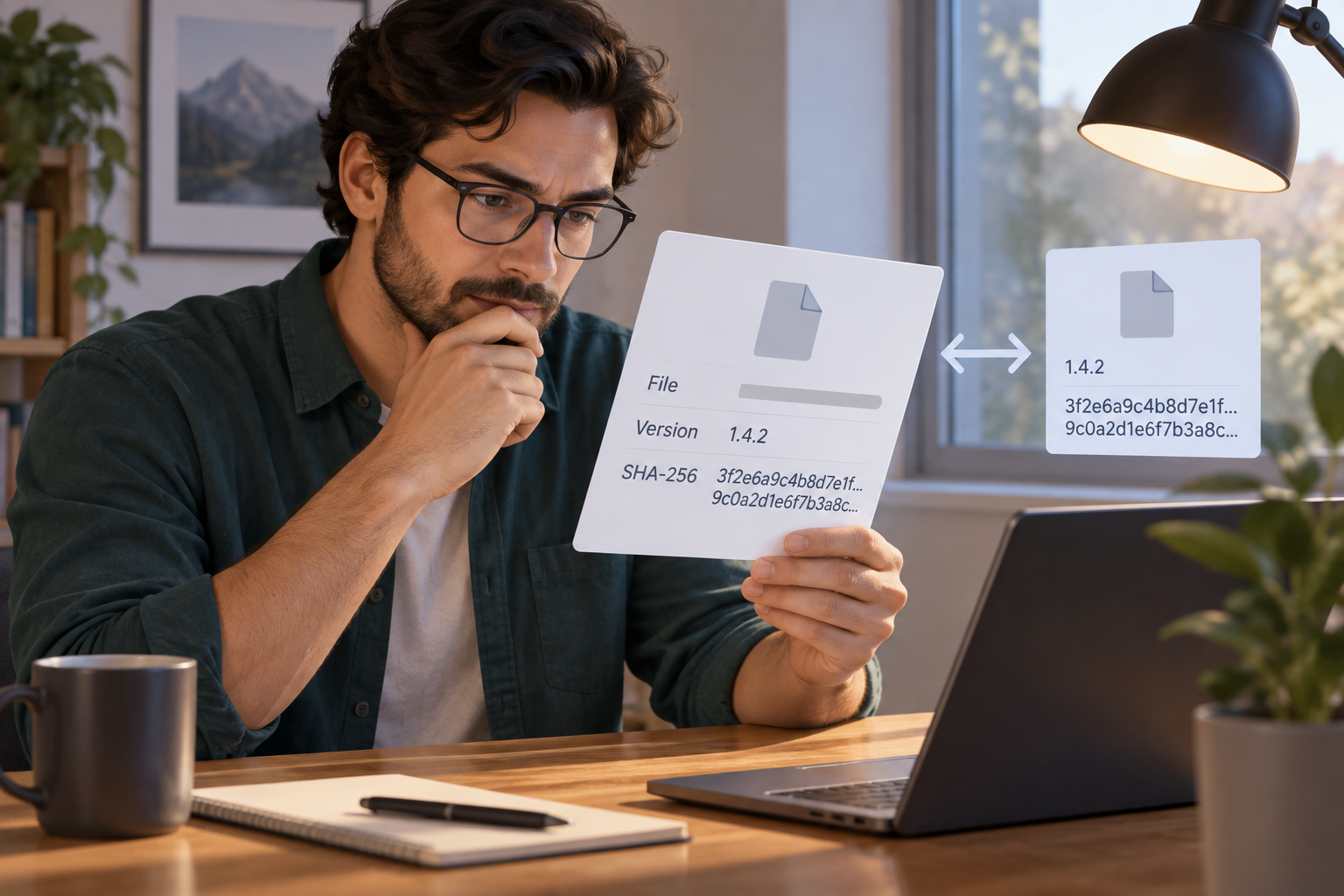
Gather the downloaded file and the complete reference value. Note the file name and the version label you are checking. If the reference is published along with a checksum file, such as the “.iso.sha256” file in the GobMis example, confirm that the auxiliary file corresponds to the ISO you have.
Also note where you found the reference, such as the page or channel where it was provided. This helps you identify which value you used and ask the source to confirm it if a discrepancy arises.
If you do not have a reference checksum, you can generate the local file’s SHA-256 checksum, but you will not have a second value to compare it with. Look for a reference corresponding to the exact version you want to check before treating the result as a comparison.
- Have the downloaded file and complete reference ready.
- Record the file name, version or label, and where the reference came from.
- Check that the reference is for that file and version, not a different one.

How to obtain the local value
The method for identifying the hash depends on the operating system. Dell Support provides instructions organized for Windows, macOS, and Linux; consult the section for your operating system and apply it to the downloaded file you want to check. The Dell Support page is in Spanish.
Before following those instructions, confirm which file you are going to select. If you downloaded multiple files or versions, take care not to get the checksum for a different item by mistake. Keep the complete result so you can compare it with the complete reference.
For an ISO, the GobMis guide presents a specific example: generate the SHA-256 checksum of the local ISO and compare it with the checksum included in the “.iso.sha256” file. Follow that page’s instructions for this example. The GobMis page is in Spanish. This guide does not provide its own commands or attribute the calculation to Apification Cloud.
- Dell Support instructions by operating system (Spanish-language page): https://www.dell.com/support/kbdoc/es-es/000130826/c%C3%B3mo-identificar-el-hash-sha-256-de-un-archivo-para-aplicaciones-de-seguridad.
- GobMis procedure for an ISO (Spanish-language page): https://linux-gobmis.readthedocs.io/verificacion.html.
- Apply the instructions to the specific file and keep the complete SHA-256 value.
How to compare the values and review a discrepancy
Compare the complete local value with the complete reference. Before interpreting the result, check that you selected the correct file, that both values correspond to the same version, that the reference is intended for that file, and that you followed instructions for identifying SHA-256. In the GobMis example, the comparison is between the local ISO and the checksum shown in the “.iso.sha256” file.
If the values match, record that they were equal for the file and reference you identified. A match does not authenticate the file’s origin or show who created it. If the values do not match, do not change or truncate the values to force a match. Check the file name, version, reference, and method again, then repeat the comparison if you found an error in your selection or process.
If the discrepancy continues, pause the process and ask the person who provided the file to confirm which version and reference are correct. The cited sources do not list specific causes of discrepancies, so do not assume what caused one.
- Check the file, version, reference, and method.
- Compare the complete values and repeat the check if you find an error in your selection or process.
- If the discrepancy persists, request a confirmed reference before proceeding.
What the result does and does not tell you
A match tells you that the SHA-256 value obtained for the local file is equal to the reference value you used. It does not authenticate the file’s origin or establish who created it. Record the file name, version, reference source, and result so someone else can understand what was compared.
The comparison also does not resolve uncertainty about whether the reference came from the expected source or corresponds to the intended version. If the values differ, the immediate conclusion is simply that the comparison did not produce the same result. Review the procedure and ask the source for confirmation if the discrepancy remains.
- Note the file name, its version, and where the reference came from.
- Record whether the values matched, keeping in mind that a match does not authenticate origin or identify the creator.
- If the values differ, review the comparison and request confirmation if needed.
Organizing files and versions in Apification Cloud
Apification Cloud lets you manage files and projects in an organized, versioned workspace and share items through links, users, or groups. You can review an item’s history, download previous versions, and restore content. These features can help you identify which version is part of a delivery.
For a SHA-256 check, identify the specific version you want to deliver and the reference associated with it. Then perform the calculation and comparison using the external instructions indicated in this guide. Cloud’s verified capabilities do not include SHA-256 calculation or comparison.
When documenting a delivery, record separately which version you shared, which reference you checked, and what the result was. This distinguishes version management from comparing values.
- Organize and share files using Cloud.
- Use item history to identify a specific version when needed.
- Calculate and compare SHA-256 externally; record which file and reference you checked.
Frequently asked questions
Where can I find instructions for calculating SHA-256?
Dell Support provides instructions for Windows, macOS, and Linux. The page is in Spanish: https://www.dell.com/support/kbdoc/es-es/000130826/c%C3%B3mo-identificar-el-hash-sha-256-de-un-archivo-para-aplicaciones-de-seguridad.
How do I check an ISO using a .iso.sha256 file?
The Spanish-language GobMis guide says to generate the SHA-256 checksum of the local ISO and compare it with the checksum included in the “.iso.sha256” file: https://linux-gobmis.readthedocs.io/verificacion.html.
What does it mean if the values match?
It means that the local value and the reference you compared are equal. A match does not authenticate the file’s origin or show who created it. Note which file, version, and reference you used.
What should I do if the values do not match?
Check the file, version, reference, and method, then repeat the comparison if you find an error in your selection or process. If the discrepancy continues, ask the person who provided the file to confirm the version and reference.
Does Apification Cloud calculate SHA-256 hashes?
Cloud’s verified capabilities include organizing, versioning, and sharing files, not calculating or comparing SHA-256. For that check, follow the external instructions indicated in this guide.
Sources and further reading
Documentation consulted while preparing this article.
- Cómo identificar el hash SHA-256 de un archivo para aplicaciones de seguridad — Dell Support
- Verificación de integridad — GobMis GNU/Linux — Read the Docs
Explore Apification
Related articles

Collaboration
Brand File Library: Originals, Variants, and Access Without Losing Control
A practical guide to separating editable masters, delivery variants, and internal documents in a versioned Cloud space, with appropriate access and safe restoration.

Collaboration
File and folder names: a practical strategy to find, review, and share without chaos
An operational guide to creating readable, sortable, and useful file and folder names for teams that review, transform, and share deliverables.

Collaboration
File version retention: useful history without Cloud chaos
An operational guide to keeping recoverable versions, separating copies and exports, and preventing work history from becoming chaotic storage.