Files and formats
Split a PDF before sharing: how to deliver only the necessary pages without losing traceability
A practical guide to extracting only the necessary pages from a PDF, preserving the original, validating the result, and sharing it with version control.
The problem: sending the whole PDF seems fast, but it is rarely neutral
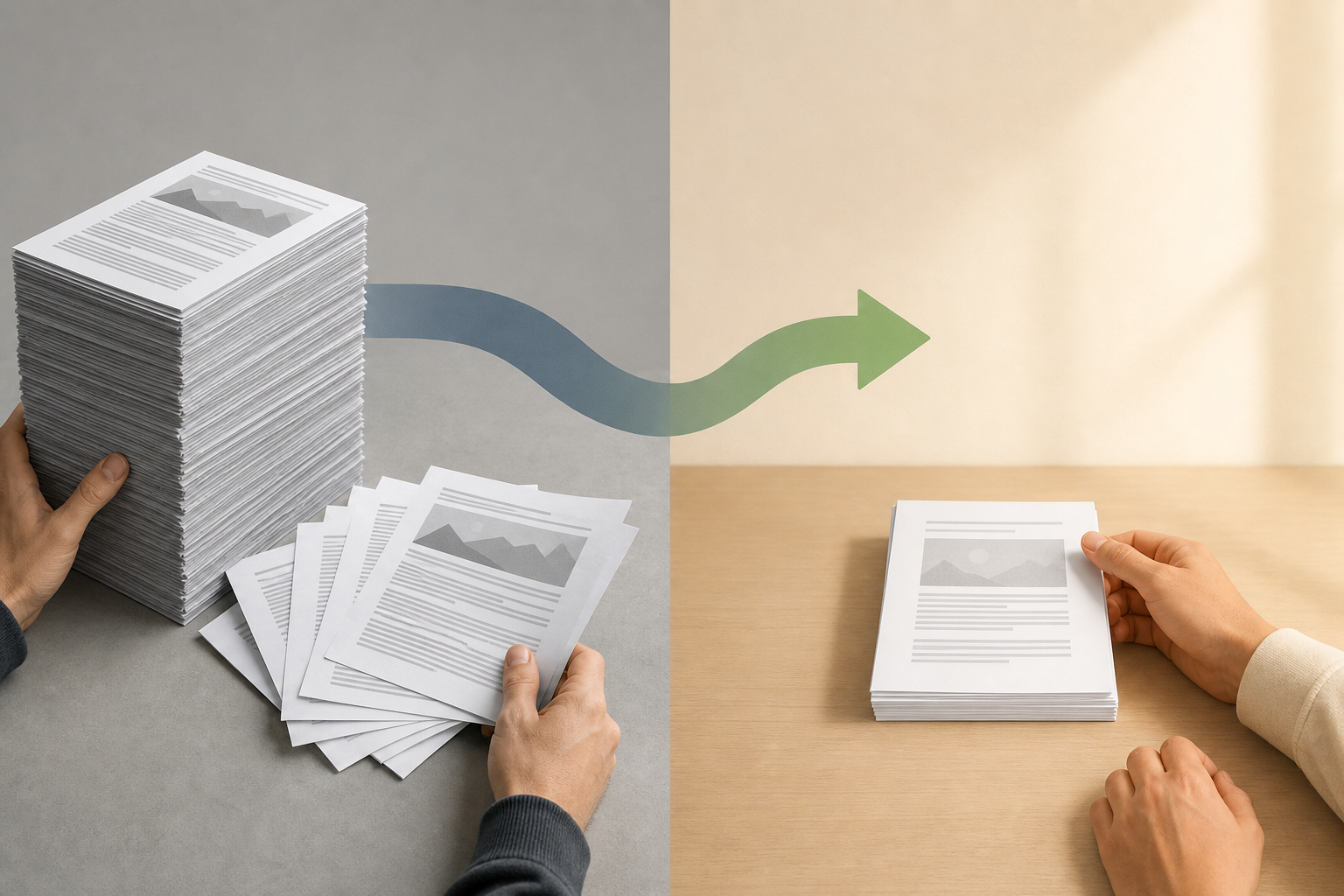
Sharing a complete PDF often seems like the fastest option: attach the file, send the link, and the matter appears to be resolved. The problem comes later. The recipient has to find the relevant pages, may review appendices they did not need, respond based on the wrong version, or keep information that was not necessary for their task. In contracts, case files, sales proposals, educational reports, or operational documentation, that excess does not always provide context; it often adds noise.
As a general criterion for organization and privacy, it is advisable to apply minimization: transfer only the data necessary for the user’s objective. W3C links this idea to reducing the risk of disclosure or misuse. This is not about hiding information the recipient needs to know, but about aligning delivery with a specific purpose. If someone has to validate pages 12 to 16 of a file, delivering 80 pages with internal appendices increases the exposure surface and complicates traceability.
When it makes sense to split a PDF and when to keep it complete
Splitting a PDF is appropriate when the recipient needs to act on a defined part: review a clause, approve a budget included in a proposal, compare internal evidence, correct a section of a report, or consult a separate appendix. It is also useful for partial deliveries, for example when a sales team sends only the scope and terms pages, while keeping technical or historical appendices that are not part of that conversation internal.
Separating pages is not always advisable. If the meaning depends on the entire document, if the extracted pages constantly refer to earlier definitions, if there is legal numbering that requires the whole set, or if the recipient needs to verify document integrity, the complete PDF may be the right option. The decision should not be based only on file size, but on purpose, context, and risk. A practical rule: if removing pages reduces the ability to understand, audit, or decide, do not split without adding a cover page or a contextual note.
- Split when the recipient has a specific task involving identifiable pages.
- Keep the document complete when context, integrity, or interpretation depends on the whole set.
- Separate appendices if they are useful as standalone pieces and do not contain unnecessary information.
- Avoid creating ambiguous excerpts that look like complete documents when they are not.

Before transforming: map pages, appendices, and dependencies
The step that prevents the most errors happens before using any tool: identify exactly which pages are needed. Work with clear ranges, for example 3-6, individual pages such as 7, 9, and 11, or combinations such as 3-6, 8, 10, and 12. This type of notation is common in document export tools and helps communicate the selection without ambiguity. If the document has a cover page, table of contents, or internal numbering, check whether the visible number matches the actual PDF page.
Prepare a minimal checklist: purpose of the delivery, recipient, included pages, excluded pages, sensitive appendices, and contextual dependencies. Check whether the first extracted page starts abruptly with a table, whether a clause depends on previous definitions, or whether a chart needs its legend on another page. In legal, administrative, or educational environments, the typical mistake is not only including too much; it is also extracting so little that the recipient misinterprets the content.
- Write down the exact range before transforming.
- Check whether the cover page or table of contents changes the perceived numbering.
- Mark appendices that should not travel in the excerpt.
- Include context pages if they are necessary to understand the selection.
- Record the purpose of the excerpt before sharing it.
Recommended workflow in Apification: intact original and derived excerpt
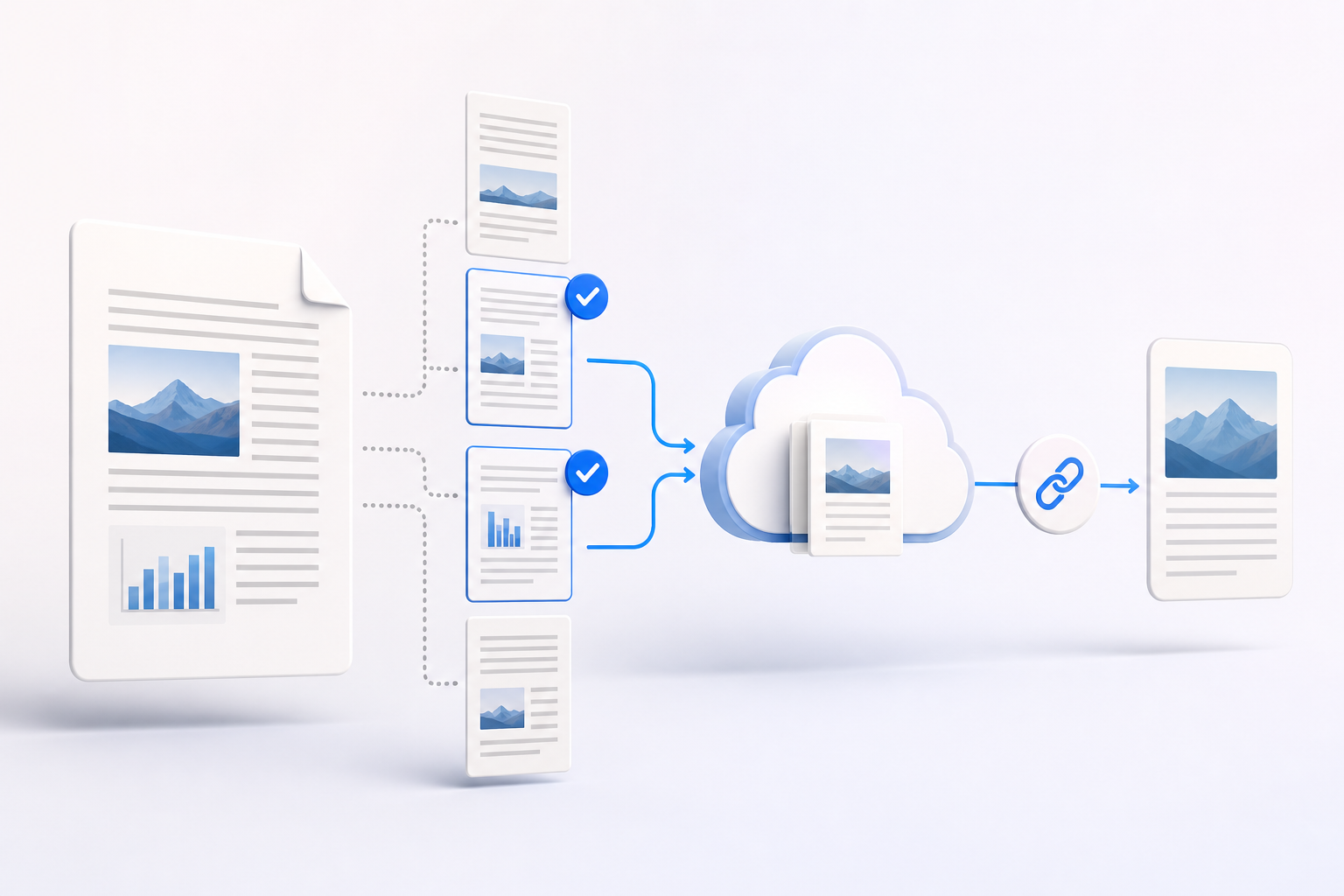
In Apification, the recommended operating workflow is to keep the original PDF in Cloud and create the excerpt as a derived file. Cloud centralizes uploaded files, editable services, and generated results, so the source document and its outputs can coexist in the same library. In addition, new resources are private by default and are only published or shared when their visibility or recipients are expressly configured, which fits a controlled review process.
Apification’s file transformation works through a guided wizard. The workflow selects the real type and subtype before choosing files, actions, and parameters, and offers actions compatible with the format, subtype, and number of selected files. For PDF, Apification includes page-based tools such as splitting, reordering, extracting, or deleting pages, as well as converting, merging, compressing, protecting, applying OCR, and generating PDF/A. Transformation is non-destructive: the source is preserved and the independent result can be reviewed and downloaded before being saved in Cloud.
- Upload or locate the original PDF in Cloud.
- Open the guided transformation and select the compatible action to split or extract pages.
- Configure the necessary pages or ranges according to the purpose of the delivery.
- Review the generated result before saving or downloading it.
- Save the excerpt as a new versioned Cloud resource, without replacing the source file.
Practical names: make the file explain where it comes from and what it is for
The excerpt’s name is part of traceability. Avoid formulas such as cropped_final, client_pages, or contract_ok, because they do not indicate source, range, date, or purpose. A more useful convention would be: source-range-date-purpose. For example: Master_Agreement_ACME_p12-16_2026-09-10_legal-review.pdf. If the file is sent to a specific area, add a functional descriptor: proposal-scope, technical-appendix, internal-evidence, or commercial-terms.
Apification generates readable output names by reusing the original and adding date and time, which helps identify downloads or saved resources. Any more detailed pattern should be treated as an internal convention that the team applies manually. What matters is that the name does not promise more than the file contains. If it is an excerpt, say so. If it comes from a larger document, keep a recognizable reference to the original. If it is only for review, do not name it as a final version.
- Include source, pages, date, and purpose.
- Avoid final, good, new, or definitive if there is no formal closure criterion.
- Do not remove the reference to the source document.
- Distinguish excerpts from appendices and complete documents.
- Use consistent dates to make searches and comparisons easier.
Validation before sharing: open, count, and read the edges
Never share an excerpt without opening it. The minimum validation consists of checking the first page, the last page, the total number of pages, and content continuity. A PDF viewer with a page indicator makes this review easier: ONLYOFFICE Document Viewer allows you to open and navigate PDFs, and its status bar indicates the page number. It also displays useful properties for document checks, such as number of pages, page size, modification date, and creation date.
The visual review should focus on frequent errors: one extra page was included at the end, an intermediate page was omitted, a sensitive appendix was left in, the page explaining a table is missing, or the excerpt starts with an incomprehensible reference. ONLYOFFICE PDF Editor allows you to navigate a PDF, select text or objects, adjust zoom, and fit the view to page or width, useful functions for precise review. If the result cannot be understood without the removed section, add context or rethink the split.
- Open the resulting PDF; do not just check the name.
- Check the first and last page against the original list.
- Verify the total number of pages.
- Look for unnecessary appendices, data, or sections.
- Confirm that the recipient can understand the purpose of the excerpt.
Controlled distribution: link, users, or groups depending on the case
Once the excerpt has been validated, the way it is shared should match the required level of collaboration. Apification allows items to be shared through links, users, or groups, and provides downloads of the original file or transformed files. A link can be useful for a one-off delivery; access for users or groups is a better fit when several people collaborate regularly, belong to a department, or need to consult the resource within the Cloud space.
The most common operational error is sharing the link to the complete PDF when the intention was to deliver the excerpt. Before sending, verify the name, location, and whether the selected resource is the derived file. In administrative or legal teams, the message should include the purpose, included pages, and reference to the original, without attaching unnecessary additional documents. In sales or educational teams, the same criterion prevents the recipient from reviewing information that is outdated, internal, or simply irrelevant to their decision.
- Use a link for one-off, clearly defined deliveries.
- Use users or groups for ongoing collaboration within the team.
- Check whether you are sharing the original or the transformed file.
- Include the purpose and page range in the message.
- Do not mix excerpts from different versions in the same delivery.
Traceability and recovery: versions, copies, and access are not the same
Traceability does not end when the excerpt is generated. Apification keeps properties, versions, trash, and restore as part of the Cloud life cycle to protect work from accidental changes and maintain an accessible history. From the history of a Cloud item, you can review versions, download previous versions, and safely restore content. This is especially useful when it is discovered that an excerpt was generated from the wrong version or an incomplete range was shared.
It is useful to distinguish three concepts. Version history helps recover content within Cloud. A downloaded or exported copy can circulate outside the workspace and must be managed as a distributed copy. Removing access from a link, user, or group controls future availability from that shared resource, but it is not the same as automatically deleting copies that have already been downloaded, nor does it automatically or definitively free up capacity. That is why prevention remains key: split correctly, name correctly, validate correctly, and share only what is necessary.
- Review the history if there are doubts about the version used.
- Download a previous version only when you need to compare or recover it.
- Restore content when the correct Cloud resource has been altered by mistake.
- Do not confuse removing access with deleting copies that have already been distributed.
- Document which excerpt was shared and for what purpose.
Frequently asked questions
Does splitting a PDF to share pages always reduce risk?
It reduces exposure of unnecessary information when the excerpt is well chosen, but it does not replace validation or an appropriate access policy. If the recipient needs the complete document to interpret or audit the content, splitting it may create confusion.
Does Apification replace the original PDF when splitting it?
No. File transformation in Apification is non-destructive: the source is preserved and the result is generated as an independent file, which can be reviewed, downloaded, or saved in Cloud as a new versioned resource.
What should the name of a PDF excerpt include?
As a practical recommendation, it should include the source document, page range, date, and purpose. For example: Master_Agreement_p12-16_2026-09-10_legal-review.pdf.
Can I share the transformed file without sharing the original?
Yes. Apification allows items to be shared through links, users, or groups, and provides downloads of the original or transformed files. Before sending, verify that the selected resource is the correct excerpt.
Does version history delete copies that have already been downloaded?
No. History allows you to review, download previous versions, and restore content within Cloud. Copies downloaded or distributed outside the workspace must be treated as separate copies.
Sources and further reading
Documentation consulted while preparing this article.
- W3C Privacy Principles — Data Minimization — W3C
- LibreOffice Help — PDF Export General — The Document Foundation / LibreOffice
- ONLYOFFICE Document Viewer — ONLYOFFICE Help Center
- ONLYOFFICE PDF Editor — Home tab — ONLYOFFICE Help Center
- Apification — Transformación de archivos — Apification / Afilnet SL
- Apification — Cloud — Apification / Afilnet SL
- Apification — Almacenamiento organizado — Apification / Afilnet SL
- Apification — Versiones y restauración — Apification / Afilnet SL
- Apification — Seguridad y control de acceso — Apification / Afilnet SL
Explore Apification
Related articles

Files and formats
How to Find Duplicate Files Before Cleaning a Shared Folder
A cautious method for finding possible copies, checking how they are used, and deciding what to keep before deleting or archiving.

Files and formats
How to Organize Conversions of Many Files Without Mixing Settings or Results
An operational guide to inventorying files, grouping them by task, testing compatible transformations, and reviewing each output before sharing or importing it.
Files and formats
How to Convert a PDF to Images Without Losing Legibility
Choose dimensions and a format for your intended use, check representative pages, and keep the original PDF to avoid sharing exports that are difficult to read.