Collaboration
Sharing a file by link or giving access to a collaborator: how to choose without losing control
A practical guide to deciding whether to share a file by link, by user or by group without turning speed into loss of control.

The problem: sharing quickly does not always mean sharing well
The question of whether to share a file by link or with permissions almost always comes up under pressure: a client delivery, an urgent review, a vendor who needs material today or a creative asset that must be approved before publication. A link seems like the most convenient option because it avoids sign-ups, invitations and explanations. But precisely for that reason, it can end up being used as a substitute for real collaboration, when what was actually needed was to control who gets in, what they can do, which version they see and when their access ends.
The practical rule is simple: the more ongoing, sensitive or collaborative the work is, the less it should depend on a loose link. Apification Cloud lets you organize files, services and digital projects in a versioned space designed for sharing. Within that environment, items can be shared through links, users or groups, and they can also be delivered as originals or transformed downloads. Choosing well does not eliminate every operational risk, but it does reduce predictable mistakes: unwanted forwarding, wrong versions, mixed folders and permissions that outlive the end of a project.
- Initial question: should the other person only download, or also collaborate?
- Second question: should access end soon or remain over time?
- Third question: do you need to know what content changed and be able to roll back?
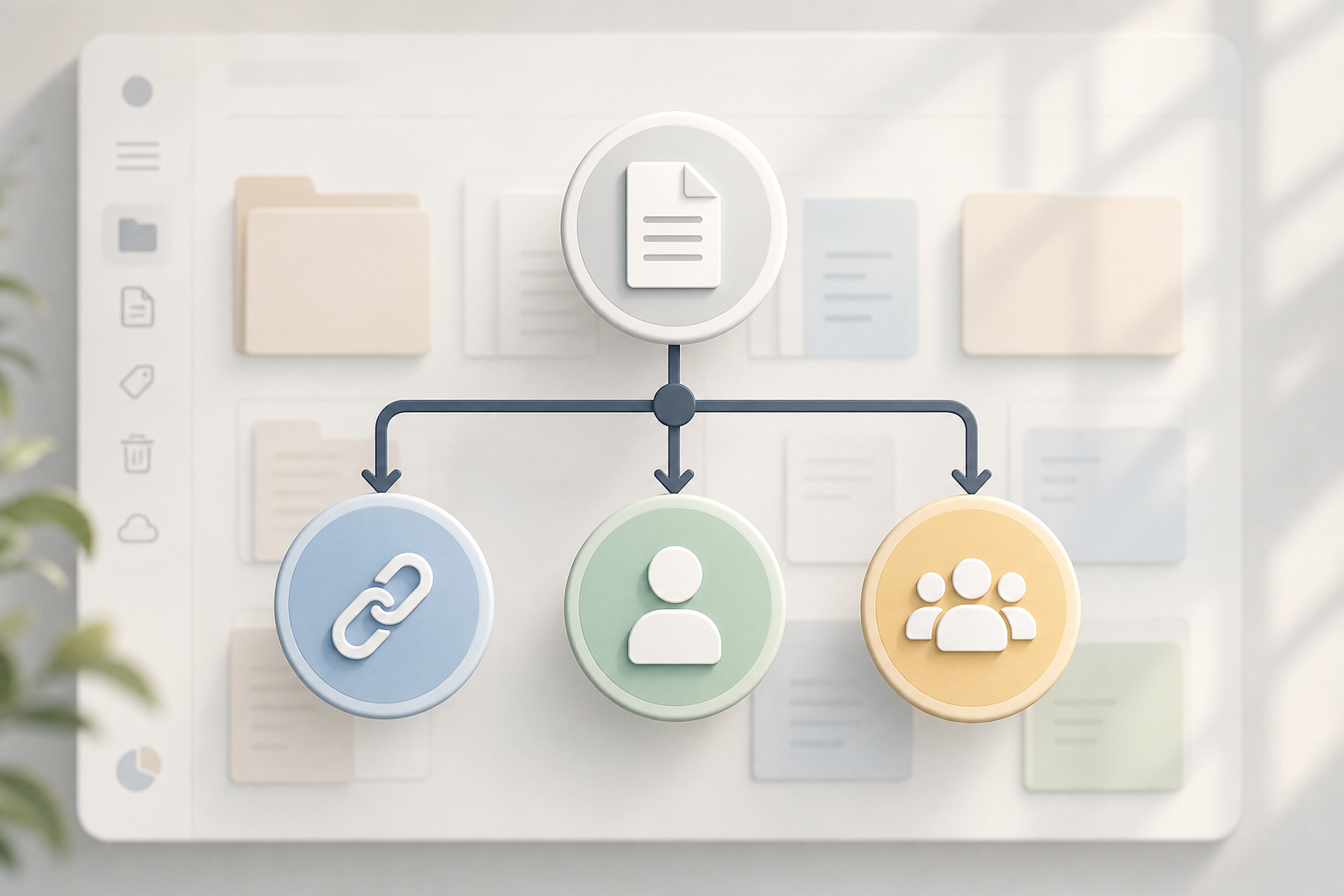
Three access models: link, individual user and group
A link is a practical doorway for a one-off delivery. In many storage platforms, such as Google Drive, a link can be configured to be available to anyone with the link or restricted to people who already have access. That difference is critical: if the link allows broad access, the folder does not always serve as a real barrier to limit who opens it. In Apification, links are useful when you want to distribute an item without turning every recipient into a permanent collaborator in the workspace.
Individual user access works best when there is an identifiable relationship with a specific person: an external copywriter, an approval lead, a client who reviews every week or a designer who needs to edit documents inside Cloud. A group, on the other hand, is more appropriate when the permission belongs to a team rather than to one person: “client A,” “media agency,” “video vendors” or “legal team.” Google Workspace guides present groups as a way to share with several people through a single address and change permissions for everyone at once; the same operational logic applies in Apification when you want to maintain consistency.
- Use a link for one-off distribution.
- Use a user for individual responsibility.
- Use a group for repeatable permissions by team or client.

When to use a link without turning it into internal collaboration
A link fits when the goal is delivery, not joint work. For example: sending approved press kit materials to a media outlet, allowing a vendor to download a final video, sharing a folder of closed materials with a client or distributing an image optimized for publication. In Apification, in addition to sharing items through links, you can provide original or transformed downloads. This helps when you do not want to deliver the master file, but rather a prepared version: a converted document, an optimized image, a rendered video or a file processed with the transformation assistant.
The typical mistake is leaving a link as permanent access to live material. If the file changes, if the folder receives new items or if the link is forwarded outside the intended context, control degrades. Before sending a link, check four points: that the file is the right one, that the name indicates version or purpose, that the delivery does not require comments inside the document and that you are not using a broad folder to solve a single-file need. If there are doubts, create a subfolder or a specific item for the delivery instead of exposing an entire work area.
- Link checklist: final file, clear name, defined external audience, no editing required, publication date or window reviewed if applicable.
- Avoid links to mixed folders with originals, drafts and final deliverables.
- Prefer a transformed download when the recipient does not need the editable file.
When to grant access to a specific collaborator
Give access to a user when the person is part of the process, not just the download. If someone needs to review a document repeatedly, edit a sheet, comment on a presentation or work inside Cloud storage, named access is more orderly than sending successive links. Apification lets you create and edit office files with ONLYOFFICE while keeping them inside Cloud storage, so the document does not have to leave the workspace in order to be worked on. This helps avoid scattered copies in emails, chats or personal drives.
Individual access also makes it easier to remove permissions from a specific person when their participation ends. Operationally, that logic matters: if a freelancer leaves the project, you do not want to search for every link they received; you want to review their access and close it. The weak point of individual access appears when it is manually replicated for many people. If you have to grant the same permission ten times, you probably needed a group.
- Use an individual user for recurring reviewers, external editors and approval leads.
- Avoid sharing by user if the permission really belongs to a role or team.
- Remove access when the collaboration ends, not when someone remembers to review old links.
When to use groups for clients, teams and vendors
Groups reduce maintenance when several people need the same level of access. A common case is an agency working with three client contacts, two account people and a creative team. If each file is shared manually with every email address, errors grow: someone is left out, someone keeps access after leaving, or two people receive different permissions unintentionally. In Google Drive, when you share a folder with a group, anyone added gets permission to the files and folders shared with that group, and anyone removed loses that permission. That mechanism illustrates why groups are a good administrative unit.
In Apification, sharing by groups is especially useful when the project has a stable structure: folders by client, deliverables by campaign, brand libraries or operational documentation. But the group should not become a generic catch-all. Define understandable names and separate audiences: do not mix “external client” with “internal team,” or “vendors” with “approvers.” Google recommends naming conventions in shared drives to distinguish external, internal, archived or in-progress spaces; applying that discipline prevents a permission that is correct in theory from becoming ambiguous in practice.
- Group checklist: clear name, operational owner, defined scope, reviewed members, consistent permissions.
- Create groups by real function: approval, production, client, vendor or read-only consultation.
- Do not use one broad group for the entire project lifecycle.
Original or transformed download: how to decide which version to deliver
Sharing does not always mean delivering the original. In many marketing and operations workflows, the master file contains layers, metadata, editable text, tracks or material that the recipient does not need. Apification lets you convert, split, combine, optimize and process documents, images, video, audio and data through a guided assistant. It also lets you edit images on a canvas with layers, text, shapes, filters and modern export formats, and work with video, audio, images, text and subtitles in a multitrack editor with preview and rendering. The deliverable output can be different from the working material.
The decision should be based on the expected use. If the recipient needs to publish, send an optimized version. If they need to review editable content, grant access to the document inside Cloud. If they need to archive evidence of a delivery, name the export unambiguously. If they need to continue the creative work, they may need the original. A transformed download reduces the risk that someone modifies or reuses a master by accident, but it can also limit the usefulness of the file. That is why it is helpful to document in the name or folder what is “source,” what is “review” and what is “final.”
- Deliver the original when the recipient needs to edit the source material.
- Deliver a transformed file when they need to consume, publish, approve or download a closed version.
- Separate work folders and delivery folders to avoid confusing statuses.
Versions and history: useful help, not a substitute for an access policy
Version history is an operational safety net, not an excuse to share without judgment. Apification lets you review an item’s history in Cloud, download previous versions and safely restore content. This is valuable when a file is overwritten, the wrong version is approved or a previous state needs to be recovered. Well-known tools reinforce the same idea: in Google Docs, Sheets, Slides and Vids, you can see who updated the file through version history, and restore or copy previous versions in certain contexts.
But history does not fix every permissions problem. If a link was forwarded, restoring a version does not necessarily undo the fact that unintended people accessed it. If a folder was mixed, history can recover content, but it does not explain why a vendor saw internal drafts. In addition, some platforms warn of specific limits: Google Sheets may not show certain changes in edit history, such as added or deleted rows or columns, cell formatting or changes made by formulas. The right policy is to prevent excessive access and use versions for recovery, operational review and change control.
- Review history when there are doubts about changes or overwrites.
- Restore previous versions when the correct content was lost or replaced.
- Do not use history as a substitute for well-separated groups, permissions and folders.
Common mistakes and practical steps to correct them
The first mistake is the forwarded link. It is corrected by avoiding broad links for ongoing work and replacing them with user or group access. The second is overly broad permission: giving access to an entire folder when only one file was needed. Google Drive recommends creating a subfolder with limited access if different permissions are needed for a file or subfolder; in any environment, the practical idea is to isolate what is shared. The third mistake is moving content to a shared space without reviewing the consequences: Google warns that moving folders to a shared drive can broadly change access because members can see the content, with exceptions.
The fourth mistake is ambiguous naming: “final,” “final2” and “final_ok” are not a versioning policy. Use names with client, asset, date or status, and separate “draft,” “approval,” “delivery” and “archive.” In Apification, you can combine that discipline with permissions, OTP, external authentication, restrictions and publication windows when the case requires it. For a quick review before sharing, apply this flow: define audience, choose access model, decide original or transformed, review the containing folder, check name and status, send, and schedule a permissions review at project close.
- Step 1: identify whether the need is download, review or editing.
- Step 2: choose link, user or group based on duration and responsibility.
- Step 3: share the smallest possible container: a specific file or subfolder.
- Step 4: deliver the original only if needed; otherwise, use a transformed version.
- Step 5: review history and permissions when closing a campaign, client or vendor.
Frequently asked questions
When should you share a file by link?
It is appropriate when the delivery is one-off, the file is closed and the recipient only needs to open or download it. If there will be editing, recurring review or individual access removal, it is better to use a user or group.
What is the advantage of sharing with a specific user?
It lets you associate access with an identifiable person, which is useful for recurring collaborators, reviewers and editors. It also makes it easier to remove that person’s permissions when their participation ends.
When is it better to use groups?
Groups are better when several people need to keep the same permissions, such as clients with multiple contacts, internal teams or vendors. They reduce errors and avoid repeating permissions manually.
Is restoring a previous version enough if someone accessed it by mistake?
No. Restoring versions helps recover content, but it is not a substitute for an access policy. If the problem was a forwarded link or an overly broad folder, permissions and structure must be corrected.
Can I deliver a transformed version instead of the original?
Yes. Apification lets you provide original or transformed downloads and process files through conversion, optimization and editing tools. This is useful when the recipient does not need the master file.
Sources and further reading
Documentation consulted while preparing this article.
- Share files from Google Drive — Google Drive Help
- Share files and folders in Drive — Google Workspace Learning Center
- Share folders in Google Drive — Google Drive Help
- Share content with a group — Google Workspace Learning Center
- What are shared drives? — Google Workspace Learning Center
- How file access works in shared drives — Google Workspace Learning Center
- Best practices and tips for shared drives — Google Workspace Learning Center
- Find what's changed in a file — Google Docs Editors Help
- Export MIME types for Google Workspace documents — Google for Developers
Explore Apification
Related articles

Collaboration
Document Approval Workflow: How to Separate Review, Approval, and Publication
Design a clear process to review a document, record a decision, and publish only the authorized version—without confusing sharing with approval.

Collaboration
How to Compare a Download’s SHA-256 Checksum
Learn what you need to compare a download’s SHA-256 checksum with a reference, how to check that both correspond, and what to do if they do not match.

Collaboration
Brand File Library: Originals, Variants, and Access Without Losing Control
A practical guide to separating editable masters, delivery variants, and internal documents in a versioned Cloud space, with appropriate access and safe restoration.