Collaboration
How to Reorganize Shared Folders Without Losing Control of Access and Files
A safe reorganization starts with an inventory, is tested on a small scale, and proceeds in stages. Learn to check locations, links, and permissions before retiring the old structure.
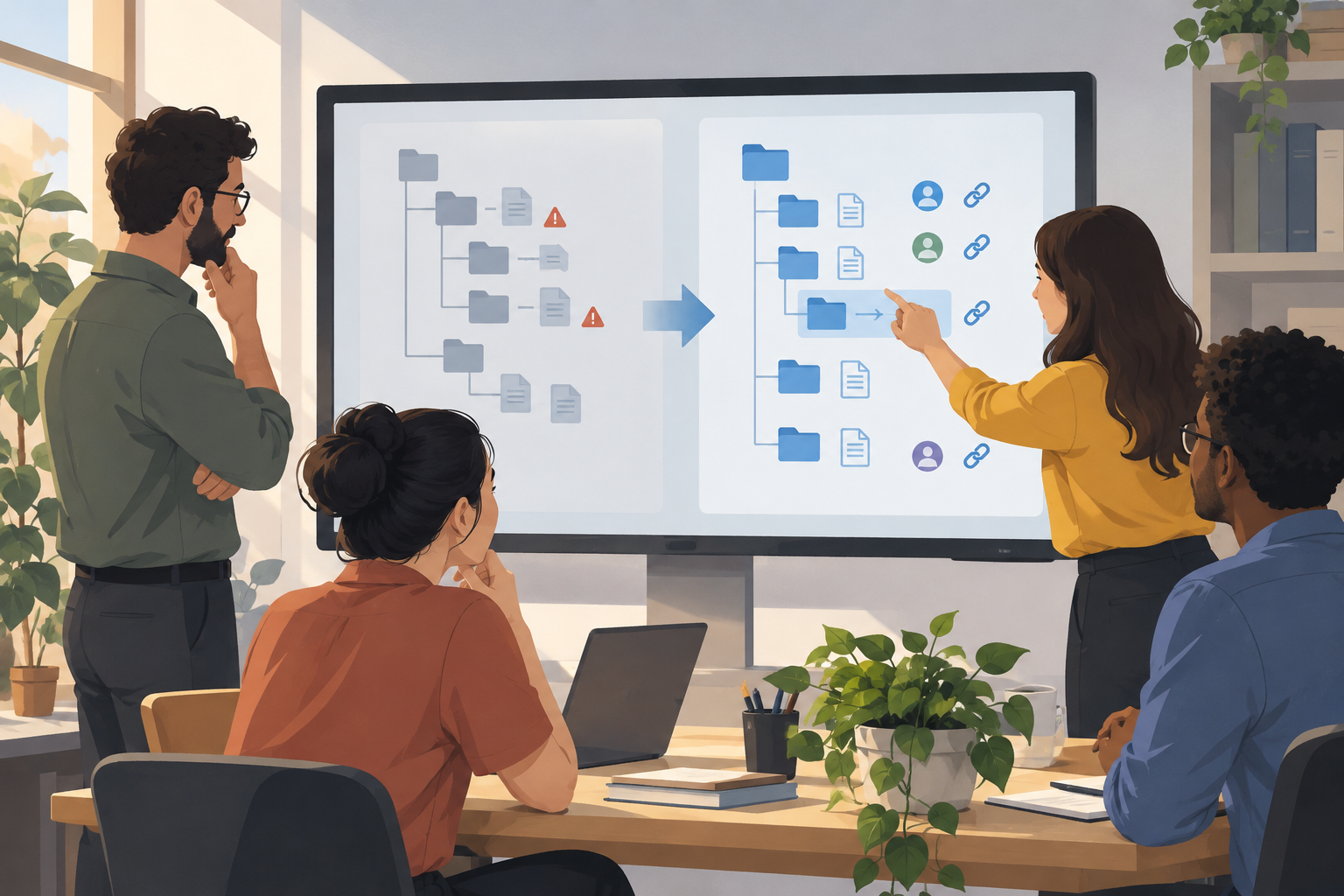
Why an active folder structure takes more than just moving files
Reorganizing shared folders is not a simple cleanup task when people are working on deliverables, reviews, and collaboration from familiar paths. A seemingly small change can leave someone searching for the current document, affect a saved reference, or separate a file from the people who need it. The risk increases if everything is moved at once and it is unclear what changed, when it changed, or who needs to check it.
You can treat the reorganization as a controlled migration: review the starting point, define the destination, test the procedure, and validate each stage. These are operational recommendations, not guarantees about how a platform will behave. Permissions, links, and moves may behave differently depending on the service used.
- Assign an owner for the change and choose a time when the team can confirm the results.
- If possible, avoid scheduling moves during a critical delivery or review.

Take an inventory first: paths, files, people, and links
Before changing the structure, record the current paths and mark which ones contain current materials, reference files, and content that is no longer used. For each relevant folder, note who views or edits it, which groups are involved, and whether shared links have been sent by email, chat, or documentation. You can start with a tracking sheet that includes the owner, location, status, and intended destination.
Separate files that need to remain accessible from those that can be moved without coordination. Also check for duplicate documents, similar names, or materials whose valid version is unclear; moving them without resolving that ambiguity only changes where the problem is. If you cannot confirm who uses an item or who owns it, mark it as pending and do not delete it during the migration.
- Useful fields: current path, name, owner, users or groups, known links, destination, and verification status.
- Distinguish between active files, references, drafts, and materials proposed for archiving; confirm these categories with the team.

Design the destination around the work, not just the names
The destination structure can help answer operational questions: Where is a deliverable prepared? Where is it reviewed? Which material is the current reference, and what is closed? You can organize by project, stage, or type of activity, depending on how the team works. Avoid creating so many levels that finding a frequently used file requires remembering a long sequence of folders.
This is not the same as imposing a naming policy. Folders organize locations and relationships between materials; names help people recognize each item. Address these two issues separately and document the logic with a brief map of the destination. Before moving content, check that every new path has a purpose and a person or group who can confirm whether it is still useful.
- Test the map with real tasks: find the draft, leave comments, and locate the approved deliverable.
- Avoid ambiguous destinations such as “Other” for active content; if they are needed, assign an owner and a review criterion.
Run a pilot and validate access before expanding the change
Choose a small, representative set: for example, a subfolder from one stage that includes current files, several collaborators, and at least one known shared link. Record its original location and the expected result, reorganize that set using the planned procedure, and check that it appears in the correct destination. Ask one person with editing access and another with view-only access to try their usual tasks using their own access.
Use the pilot to compare what you expected with what the service allows, without assuming every case will behave the same way. Check the path, the ability to open or download the content, effective permissions, and existing links separately. If something fails, stop expanding the change, record the case, and adjust the plan. Do not consider a migration successful just because the person who performed it can see the file.
- Check at least one editing case, one read-only case, and every type of link the team needs to retain.
- Record the result observed in the platform; do not assume it applies to other services or types of moves.
Proceed in stages and communicate what changed
Divide the work into batches that can be checked and, if necessary, corrected without affecting the entire structure. One possible sequence is to move content from a single stage or project first, validate it with its users, and continue once the checks are complete. Keep a list of pending items and avoid having several people reorganize the same paths at once: simultaneous changes can make it harder to identify where a file ended up or which move caused a problem.
Before the change, communicate which areas are being reorganized, when they are expected to be available, and whom to contact if a path is broken. Afterward, share a map of the new destination and a table matching the old paths to the new ones. Apification Cloud lets you manage files and projects in an organized workspace and share items using links, users, or groups; check the specific result of each move within the workflow you use.
- In each notice, include the affected folder name, its new path, and the date of the change.
- Ask people to update shortcuts and important references after the destination has been validated.
Check links and permissions: do not assume they will be preserved
After each batch, compare actual access with your inventory: Can the people who need to edit get in? Can people who only need to read view the content? Does every link you recorded still work? If access fails, avoid solving the problem by granting broad permissions to the entire folder without understanding the scope. First identify the affected item, person, or group and the level of access they need; then test the fix with the person who reported the problem.
The available documentation describes specific cases, not a rule for all services. Google Workspace Help says that moving files to a shared drive does not affect sharing permissions or roles already assigned ([Google Workspace documentation](https://support.google.com/a/users/answer/12380484?hl=en)). Dropbox Help says that you need editing access to the destination folder to move a folder, and that a shared folder cannot be moved into another folder ([Dropbox documentation](https://help.dropbox.com/organize/shared-folder-differences)). These details do not establish what happens to all links or moves in other services.
- Record the results of the permissions test and the links test separately.
- If the behavior is not documented for your case, consult the service’s help materials or run a small-scale test before moving more content.
Contingency plan: keep references and distinguish restores
Before each stage, keep a record of the initial state: paths, owners, known links, and the list of items included in the batch. This does not mean you should keep two active structures indefinitely; it means having enough information to find out what moved and guide the team if a path becomes confusing. Also decide who can pause the next batch and how corrections will be communicated.
Do not confuse restoring a file version with undoing a folder reorganization. Apification Cloud lets you review an item’s history, download previous versions, and restore content; this capability applies to the item’s content and does not confirm that the previous folder structure can be reconstructed automatically. Check the rollback option for the specific operation in the relevant service, and do not base your plan on a feature you have not verified.
- Keep the table matching old paths to new ones until users confirm they can find the materials.
- If a move needs to be corrected, record what is being moved back or changed, then validate access and links again.
Final checklist for completing the reorganization
Do not close out the change just because no files remain in the old location. Check with the owners of each area that active deliverables are in the intended destination and that collaborators can perform their usual tasks. Review items marked as pending, recorded shared links, and references to old paths. If an exception remains, assign it to someone with a review date instead of treating it as resolved.
Once the structure has been verified, announce that the migration is complete, share the final map, and explain what the team should do with old references. Keep the path-mapping table available for as long as the group considers operationally necessary and update it if issues arise. Consider the reorganization complete when paths, access, and communication match actual usage—not simply when the files have finished moving.
- Destination paths reviewed and current materials located.
- Editing and read-only access checked by the relevant users.
- Shared links tested or marked for replacement.
- Issues and exceptions assigned; the table of old and new paths communicated.
Frequently asked questions
Does moving a folder always preserve its permissions and links?
Do not assume that it does. Behavior depends on the service and the type of move. Available documentation describes specific Google Drive and Dropbox cases, but does not establish a general rule for all permissions and links. Check each case with a small-scale test.
Can version history recover an earlier folder structure?
Not necessarily. In Apification Cloud, history lets you review, download, and restore versions of an item. That capability does not confirm that the folder structure can be restored automatically; check and test the option that applies to the reorganization.
What is the safest way to get started?
Inventory paths, files, collaborators, and links; define a clear destination; and test the procedure with a small group of materials. Verify locations, access, and links before moving on to the next batch.
Sources and further reading
Documentation consulted while preparing this article.
- Cómo funciona el acceso a unidades compartidas — Ayuda de Google Workspace
- Cómo gestionar las carpetas de equipo — Ayuda de Dropbox
Explore Apification
Related articles
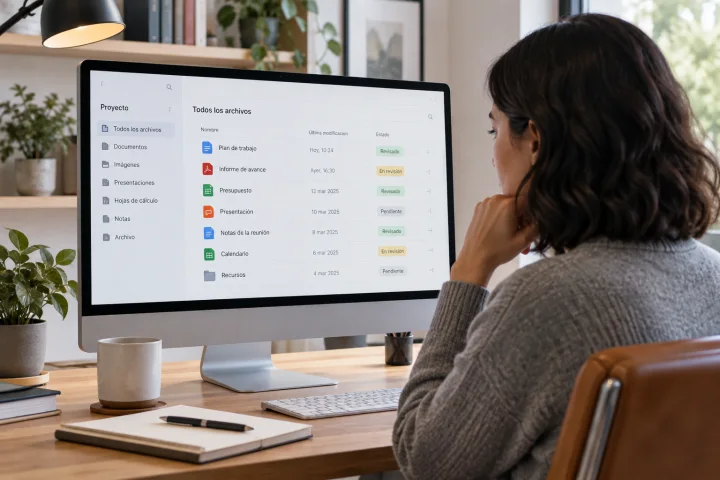
Collaboration
File Delivery Manifest: How to Document What You Share
A simple index can help clients and collaborators identify each file, know what to review, and see what changed in an updated delivery.
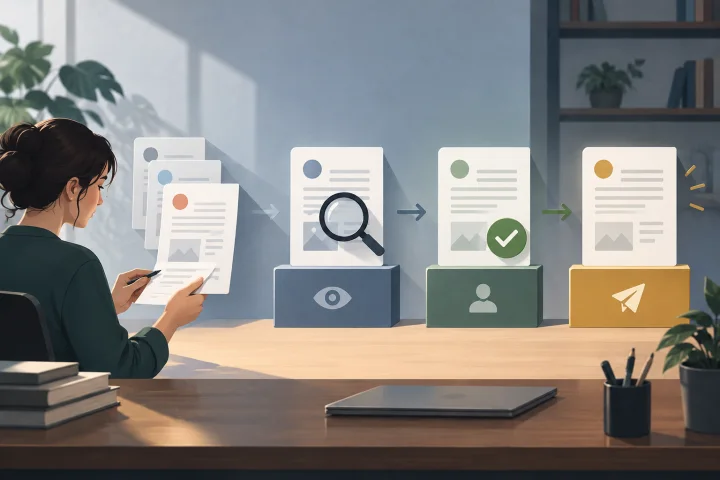
Collaboration
Document Approval Workflow: How to Separate Review, Approval, and Publication
Design a clear process to review a document, record a decision, and publish only the authorized version—without confusing sharing with approval.

Collaboration
How to Compare a Download’s SHA-256 Checksum
Learn what you need to compare a download’s SHA-256 checksum with a reference, how to check that both correspond, and what to do if they do not match.