Security and privacy
Protect, edit and collect evidence in PDFs: what each layer solves
A practical guide to separating access control, editing, transformation and evidence when sharing sensitive PDFs with internal or external teams.
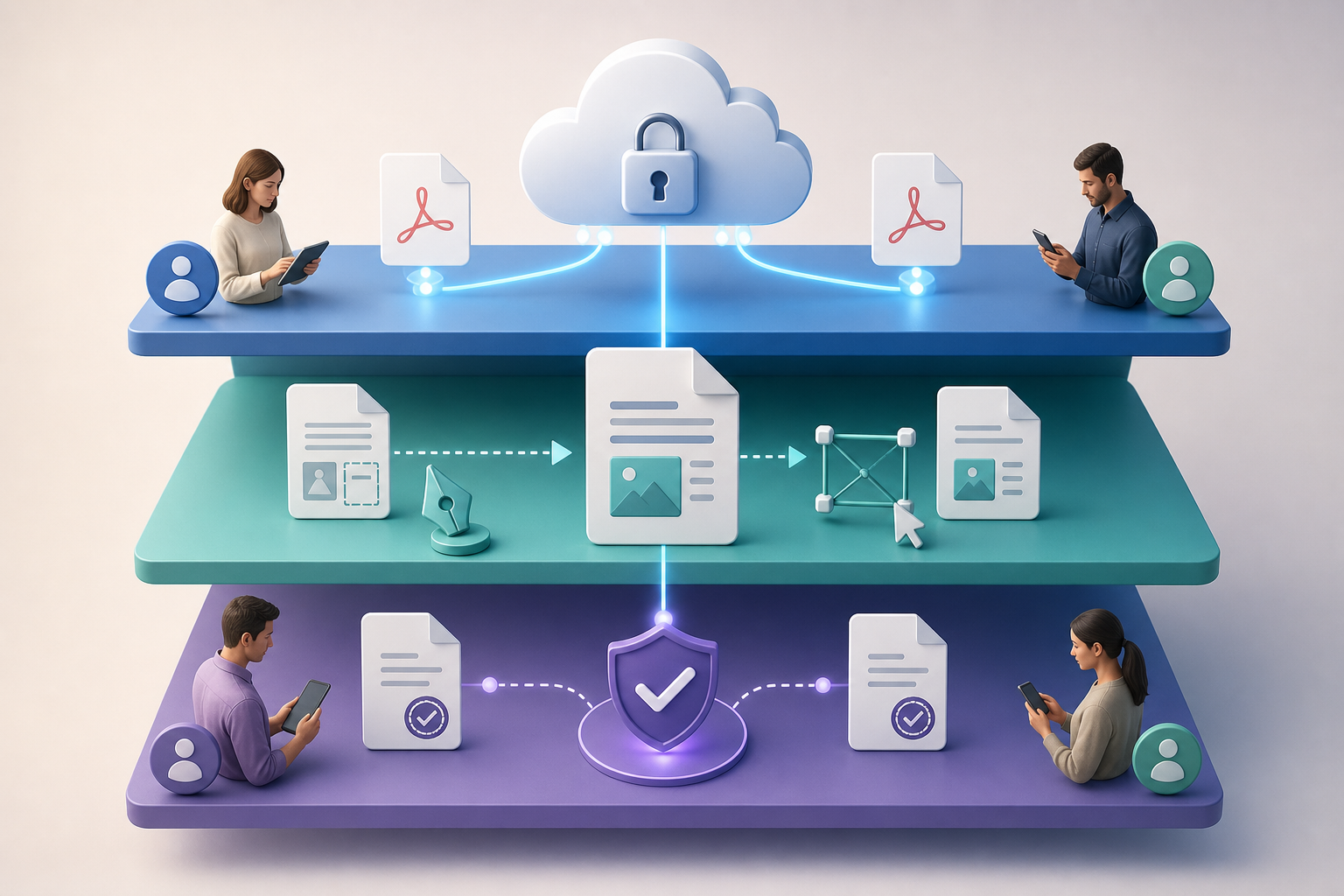
The problem: “protected PDF” means too many things
In many organizations, “protected PDF” is used to describe different realities: a file with editing restrictions, a private link, a shared folder with specific users, an expiring download, or a workflow where someone accepts terms and conditions. Mixing these layers leads to weak decisions. The fact that a person has authenticated does not mean they are authorized to view, download or modify every available resource. Authorization must be decided resource by resource and action by action.
PDF is a format designed to represent electronic documents so they can be exchanged and viewed in different environments. That presentation stability is not the same as operational control. Internal printing, copying or editing restrictions can help in compatible readers, but they do not replace application permissions, groups, links or time-based rules. That is why, before sending a contract, authorization or quote, it is worth separating access, content and evidence.
- Typical risk: calling a simple recorded acceptance a “signature.”
- Typical risk: sending the right PDF through the wrong channel.
- Typical risk: restricting PDF editing while leaving direct download open.
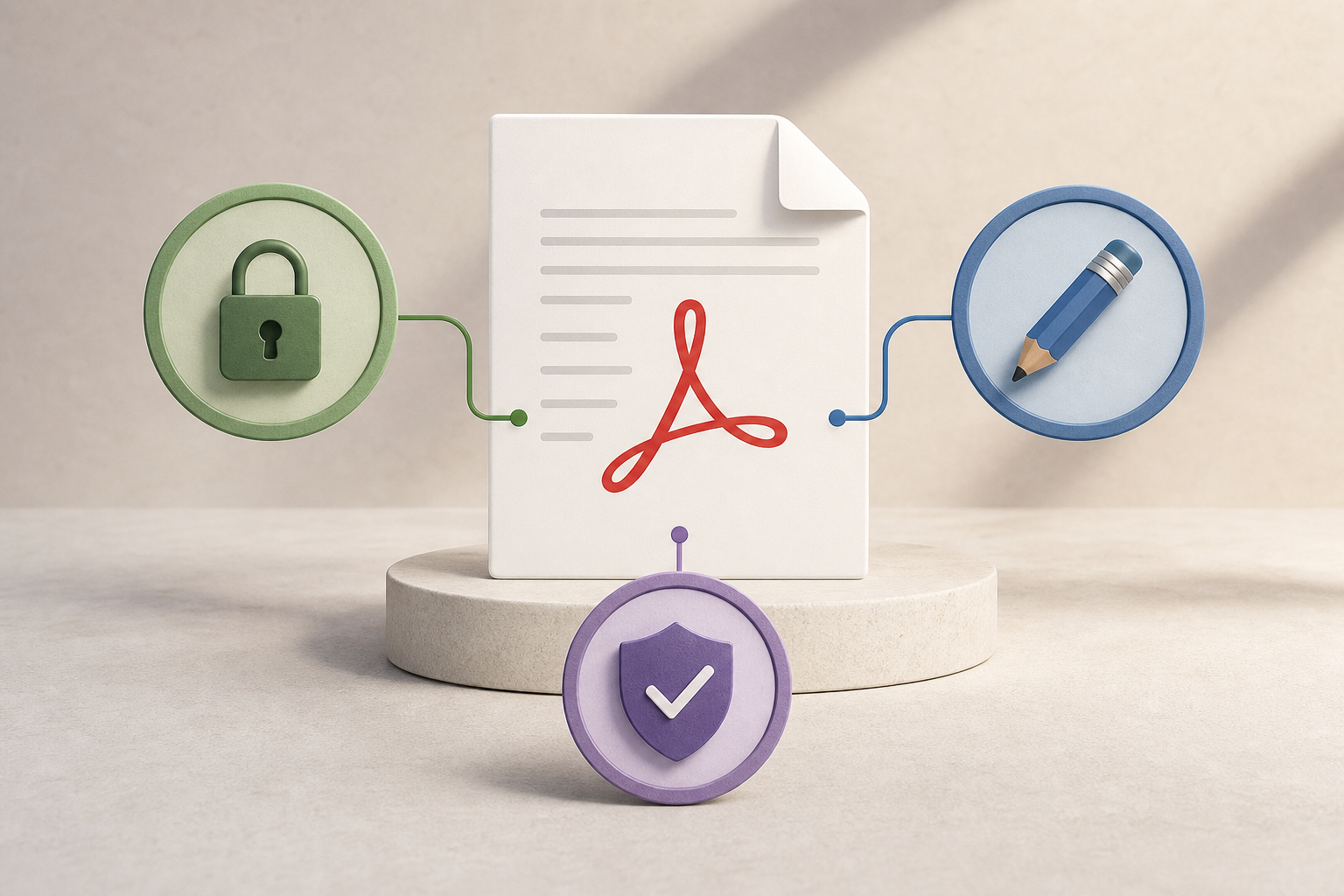
Three questions before sharing a PDF
The first question is who can view it. It is not enough to know who received the link, because permissions must be validated on every request. If a screen requires access but the direct download does not, the control fails. For sensitive documents, apply least privilege: each user or group must have a clear reason to access, and default access should be avoided. In Apification Cloud, define explicit permissions through users, groups, links or restrictions depending on the workflow.
The second question is who can modify the content and on which version. If the document is still under review, the usual approach is to work in the appropriate editable format, such as DOCX, XLSX or PPTX, and convert to PDF when it is time to distribute a closed presentation version. The third question is what proof you need to keep: reading, acceptance, data submission, internal approval or consent. Each one requires a different record, not just an attachment.
- Initial checklist: recipients, permitted action, time frame, applicable version and required evidence.
- Key decision: if the recipient only needs to read, do not grant editing capability.
- Key decision: if you need acceptance, design a workflow that records the event, not just a download.
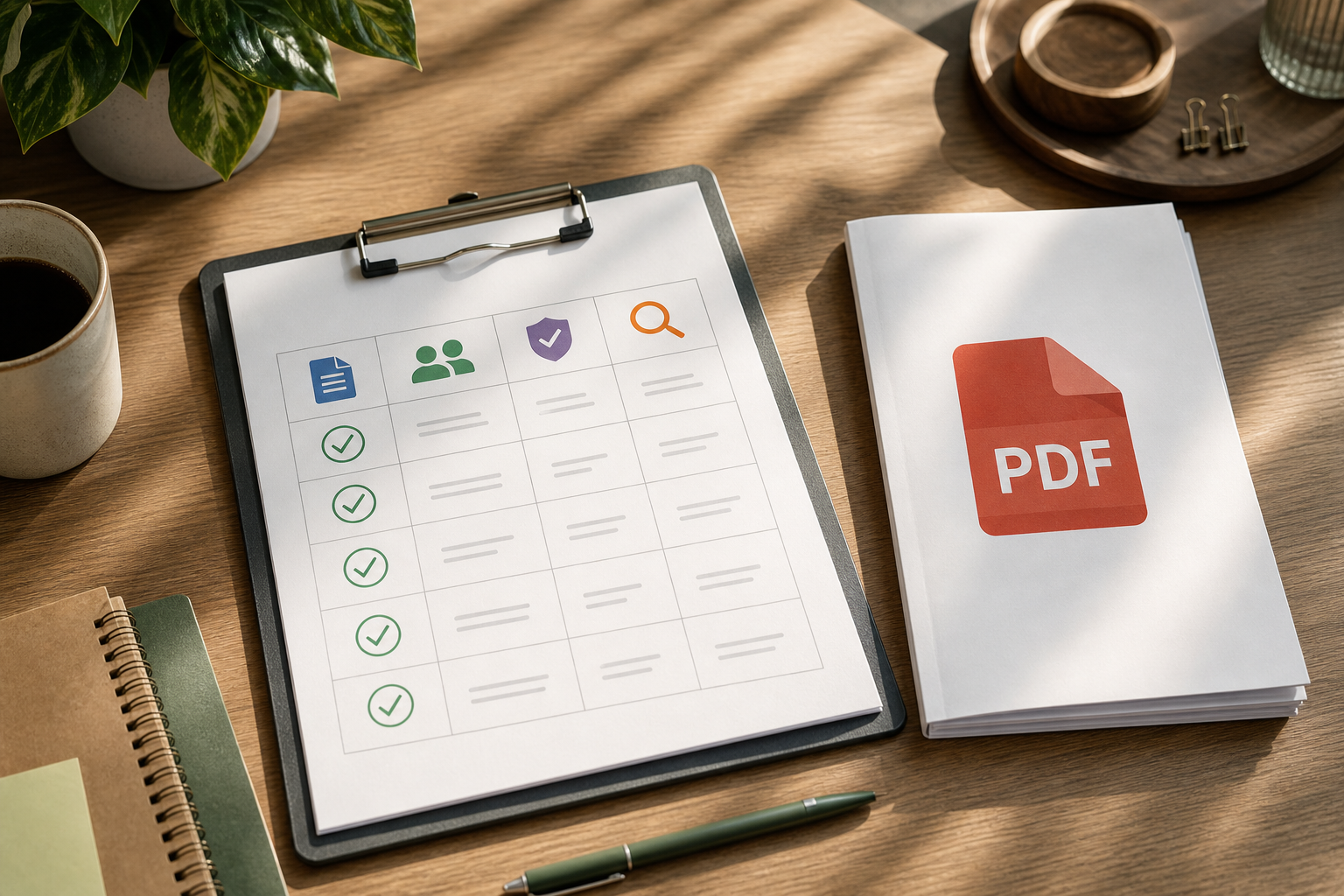
Layer 1: access control for the file
The first layer controls the resource inside the platform: who can view, download or receive a transformed version. Control through users and groups is different from protecting the PDF file itself. In Apification, you can share items through links, specific users or reusable groups. You can also protect files and services with permissions, OTP, external authentication, restrictions or publication windows when the workflow requires it.
OTP should be understood as verification or authentication reinforcement, not as a signature on the document. It helps increase confidence that a person has an access mechanism at a given moment, but it does not automatically turn the PDF into a cryptographically signed document. A publication window does not modify the PDF either: it limits access over time. This distinction avoids false expectations when sharing a downloadable dossier or a time-limited internal authorization.
- Check that direct download is covered by the same authorization as the preview.
- Use groups for repeatable, reviewable permissions, not improvised lists in emails.
- Expire or limit publications when access only makes sense during one phase of the process.
Layer 2: editing and document transformation
Editing and transforming are not the same as authorizing. Converting, optimizing, splitting or merging documents creates new outputs or derived versions. That operation may prepare the file better for distribution, but it does not prove consent or guarantee who downloaded it. In Apification, the guided assistant lets you convert, split, merge, optimize and process documents, images, video, audio and data; it also lets you offer original or transformed downloads depending on the case.
When the content is still active, it is best to work on an editable format. Apification lets you create and edit office documents with ONLYOFFICE while keeping them inside Cloud storage. In addition, the history layer lets you review versions of the Cloud item, download previous versions and restore content when necessary. Afterwards, if appropriate, you distribute a stable PDF version for presentation, review or approval.
- Convert to PDF when you want to distribute a presentation version, not while the content is still under negotiation.
- Split appendices if different teams only need specific parts of the file.
- Optimize heavy documents before sharing them, but keep control over the source version.
Layer 3: consent and evidence
Evidence must record which document was involved, what activity was performed, who the responsible agent was and when it happened. This approach fits a provenance model: entities, activities, agents and times. For a quote, for example, saving the final PDF is not enough; it is important to know which version was accepted and what action the authorized person performed. For an internal authorization, it may be more relevant to keep who approved it and on what date.
A PDF acceptance or signature workflow in Apification should be treated as a record of consent and evidence. It should not be confused with a cryptographic signature on the PDF or with a visual stamp on the file if that mechanism has not been applied. This precision matters for legal, operations and support teams: the evidence helps reconstruct an acceptance event, but its scope must be described accurately so as not to promise technical or legal effects that are not part of the workflow.
- Record the accepted version, not just the file name.
- Distinguish acceptance, review, download and approval; they are not equivalent events.
- Avoid calling a consent workflow “cryptographically signed” if it is not.
Common cases and recommended decisions
In a quote for approval, the team usually needs a stable version, defined recipients and acceptance evidence. The practical route is to close the editable content, generate or keep the corresponding PDF, share it with the approver through explicit permissions and record the acceptance when needed. The common failure is sending several copies by email and receiving an “OK” for a version that no longer matches the archived document.
In an internal authorization, group access may be useful if several people have the same role, but the approval action must be individualized. In a downloadable dossier, a publication window and download of the original or an optimized version may be enough. In a document that requires prior review, the recommendation is not to distribute the final PDF too early: work first in an editable format and use versions so you can roll back if a review introduces errors.
- Quote: closed version, specific approver, acceptance evidence.
- Internal authorization: group for reading, individual responsible person for approval.
- Dossier: link or temporary publication, with original or transformed download as needed.
- Prior review: controlled editing and restoration available before publishing.
Frequent mistakes and failure modes
The first mistake is sending copies by email. Each attachment creates an informal branch of the document, outside permission and version control. If someone forwards the file, access no longer depends on the platform. The second mistake is protecting only the PDF but not the link or direct download. Document restrictions can limit actions in compatible readers, but real authorization must be applied on every request for the resource.
The third mistake is editing the wrong file. It happens when a working DOCX, a PDF sent to a client and a downloaded copy for comments coexist. Without history, no one knows which one prevails. In Apification, the version layer lets you consult saved versions, download previous content and restore a previous state. In addition, reorganizing items should not be treated as a substitute for a security review: permissions must be reviewed explicitly when the usage context changes.
- Do not use location changes as a substitute for reviewed permissions.
- Do not accept files by name: validate the real type before processing.
- Do not mix comments on drafts with acceptance of final versions.
How to approach it in Apification, step by step
Start by uploading or creating the document in Apification Cloud, an organized, versioned space for managing files, services and digital projects. Before offering compatible actions, classify the file and apply security validations to the workflow: extension, MIME type, file signature, size and user permissions. This check is especially important if the workflow accepts PDFs or Office files uploaded by users, because before processing or publishing it is advisable to validate that the file is what it claims to be.
Then decide the layer: permissions and restrictions for access; the document editor for working on Office files inside Cloud; guided transformation to convert, merge, split or optimize; and an evidence record when the workflow requires acceptance. If you work with several copies or origins, decide which one will be the valid source before sharing it. Close the process by reviewing versions, recipients and publication period.
- Step 1: identify the source document and current version.
- Step 2: assign users or groups with least privilege.
- Step 3: edit in the appropriate format and transform only when relevant.
- Step 4: share the original or derived file with consistent restrictions.
- Step 5: record evidence only for the events you really need to prove.
Frequently asked questions
Does protecting a PDF prevent anyone from modifying it?
It is better not to frame it that way. Editing, printing or copying restrictions limit actions in compatible readers, but they do not replace access control through users, groups or links.
Is an OTP equivalent to a PDF signature?
No. An OTP serves as an authentication or access verification mechanism. It should not be presented as a cryptographic signature or as automatic proof of a document signature.
When should I edit in Office and when should I convert to PDF?
Edit in formats such as DOCX, XLSX or PPTX while the content is still changing. Convert or distribute PDF when you need a closed presentation version.
What minimum evidence should be kept for an acceptance?
It should be clear which version of the document was accepted, what activity was performed, who the responsible agent was and when the event occurred.
What should I validate if I accept PDFs or Office files uploaded by users?
It is advisable to validate extension, MIME type, file signature, size and user permissions before processing or publishing the document.
Sources and further reading
Documentation consulted while preparing this article.
- OWASP Authorization Cheat Sheet — OWASP Cheat Sheet Series
- OWASP File Upload Cheat Sheet — OWASP Cheat Sheet Series
- W3C PROV-DM: The PROV Data Model — World Wide Web Consortium (W3C)
- W3C Web Authentication Level 3 — World Wide Web Consortium (W3C)
- ENISA Security guidelines on the appropriate use of qualified electronic signatures — ENISA
- Regulation (EU) No 910/2014, consolidated eIDAS text — EUR-Lex
- Regulation (EU) 2016/679 GDPR — EUR-Lex
- NIST SP 800-53 Rev. 5.1 derived OSCAL PDF — NIST
- NIST SP 800-63B Digital Identity Guidelines — NIST
- ISO 32000-1:2008 Portable document format — ISO
Explore Apification
Related articles
Security and privacy
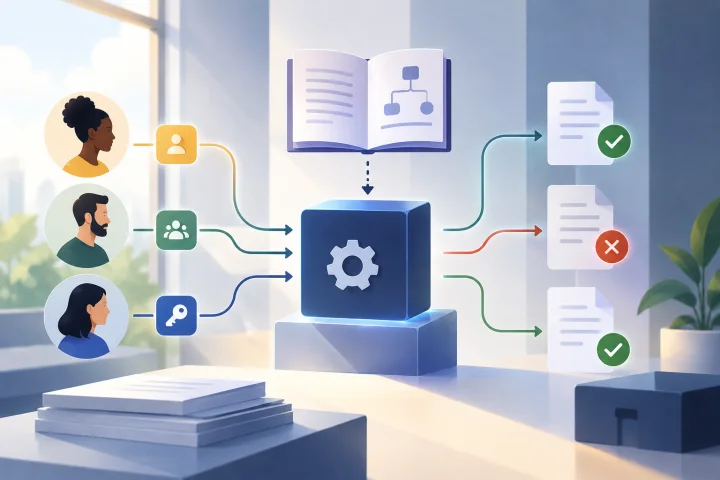
How to Test File API Permissions: Resources, Actions, and Negative Cases
A general guide to planning permission tests for a file API. Specific criteria depend on each service’s documentation and configuration.

Security and privacy
How to Safely Hide Data in a PDF: Redaction, Checks, and Sharing
An operational guide to distinguishing redaction from visual masking, reviewing the copy, and sharing only the file you need.

Security and privacy
How to Prevent Forms from Collecting Sensitive Data They Don’t Need
Review every question, limit open-ended answers, and establish a careful process for reviewing, sharing, and exporting responses.