Multimedia
Video subtitles: review, synchronization, and export without duplicating corrections
A practical guide to separating the script, subtitle track, editable project, and final renders while avoiding correcting the same text in several places.
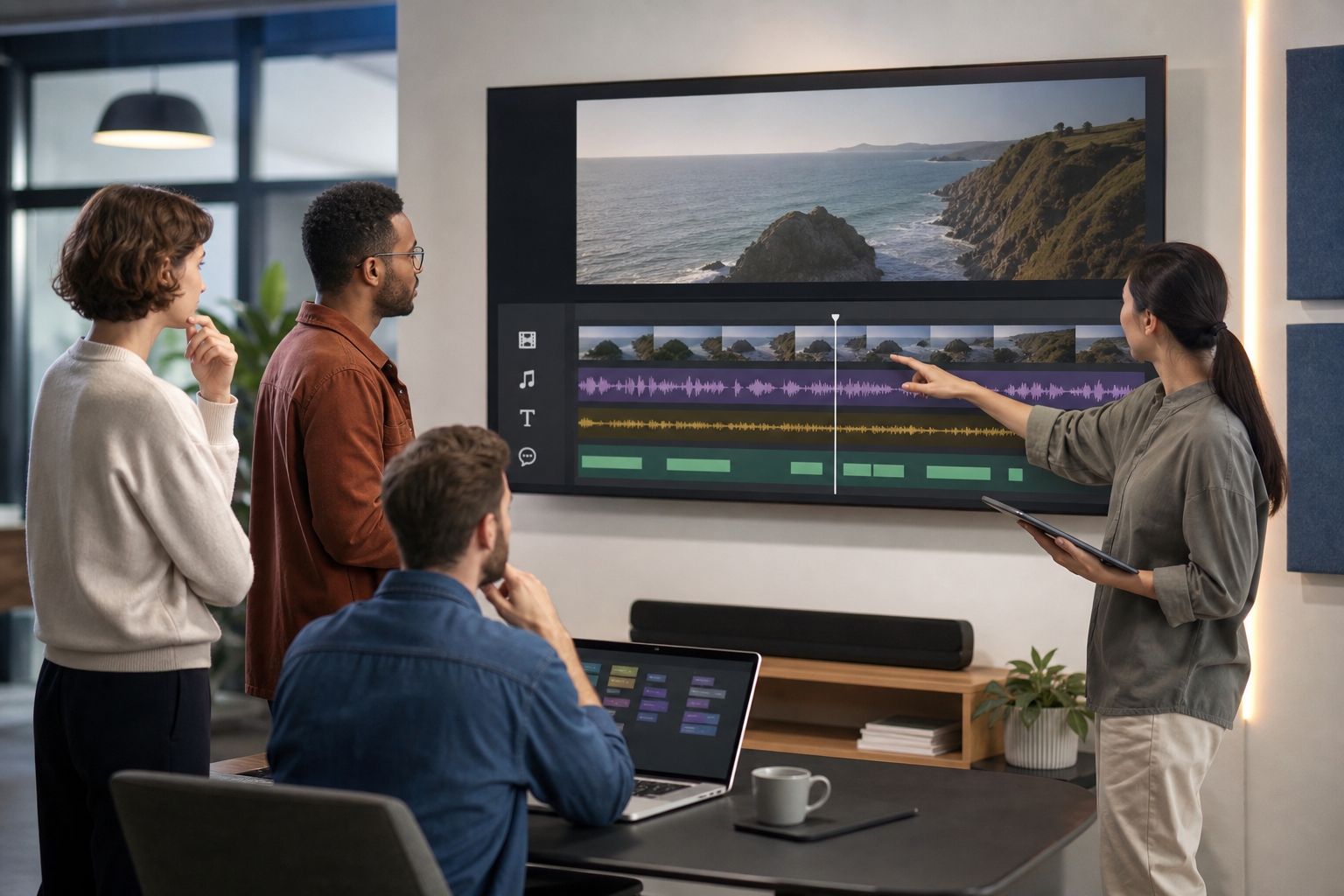
The problem: correcting subtitles in too many places
Preparing video subtitles becomes complicated when the text lives in a loose document, the review video has already been rendered, and someone makes corrections on a copy that does not match the track used in editing. The usual symptom is familiar: a typo is fixed in the script, appears again in the exported video, and is then corrected for a third time in the subtitle file. Each repetition increases the risk of timing drift, loss of context, and contradictory deliveries.
The underlying mistake is usually not technical, but procedural. If the team mixes originals, working versions, and final renders in the same folder without a clear rule, no one knows which file is authoritative. A video exported too early looks final, even though the text is still under review. When a late correction arrives, there is hesitation between reopening the project, editing the external subtitle, or hiding the problem with embedded text. The solution is to separate responsibilities from the start.
- Define a single base text before synchronizing.
- Do not treat a review render as a final delivery.
- Keep the project editable until the text has been approved.

What to separate before you start
Before editing, it is helpful to distinguish five pieces: the original video, the script or base text, the editable project, the subtitle track, and the review or delivery exports. In Apification Cloud, files, folders, editable services, and generated results can be kept within the same organized and versioned workspace. This helps the team avoid relying on scattered attachments or local copies with similar names.
The original video should remain intact. In Video Studio, layers, tracks, and settings are saved without modifying the source files, and clip editing lets you trim the source or modify start, duration, and speed without altering the original Cloud file. That separation is key: the original serves as a stable reference, the project preserves the timeline and editing decisions, and renders are controlled outputs for viewing, commenting, or publishing.
- Original: received file, with no destructive changes.
- Base text: approved script or main draft.
- Project: timeline, layers, clips, and export settings.
- Subtitles: timed track or imported SRT/VTT file.
- Renders: review videos or final delivery.

Editable subtitles or embedded text: how to decide
During review, the safest approach is to keep subtitles editable. Video Studio lets you add styled text and subtitles or import SRT and VTT files while preserving their timings. This makes it easier to correct a sentence, adjust its position in the timeline, or review readability without rebuilding the entire video. If the final destination supports separate subtitle tracks, keeping an SRT or VTT file also leaves room for later adjustments.
Text embedded in the video makes sense when you need a closed, coherent piece that is ready to play as a final render. The disadvantage is clear: any typo forces you to go back to the editable project and export again. That is why it is best not to embed too early. The operational rule is simple: keep it editable while content is still being discussed, and render when the text, synchronization, and visual format have already been approved.
- Use editable subtitles if there will be text review rounds.
- Use a final render when the piece has been approved.
- Avoid correcting a render if a current editable project exists.
- Save the SRT/VTT track alongside the project when it is part of the delivery.
Recommended workflow in Apification
A practical workflow starts by uploading the material to Apification Cloud and organizing it into folders. Then create a clear structure: originals, text, project, review, and delivery. Because Apification can protect and share resources through permissions, users, groups, or links, the team can work with control before opening the material to external reviewers.
In Video Studio, assemble video, audio, images, text, and subtitles in the multitrack editor with preview and rendering. The expandable timeline lets you organize those elements by layers, create, rename, and reorder persistent layers or folders, and move clips horizontally in time or vertically between compatible layers. The project preserves the timeline, layers, folders, clips, and export settings, so each render does not replace the editable work.
- Upload originals and texts to Cloud.
- Create the project in Video Studio from Cloud files.
- Import SRT/VTT if timed subtitles already exist.
- Adjust clips and subtitles in the multitrack timeline.
- Preview in the browser before rendering.
- Render only deliveries with a clear purpose.
How to review without version chaos
Review requires predictable names. A simple convention can include project, language, round, and status: safety-course-en-r01-review, safety-course-en-r02-text-approved, or safety-course-en-final. The exact format is not what matters; what matters is that everyone understands which version is being commented on. If an export is shared to review synchronization, it should not be called final. If the text is approved but playback still needs to be checked, the name should reflect that.
Apification Cloud lets you consult saved versions, download previous content, and restore an earlier state when necessary. This is useful when a correction breaks synchronization, when a sentence is deleted by mistake, or when a later round worsens an already approved solution. Restoration does not replace good naming discipline, but it reduces the cost of mistakes and makes it possible to compare with a previous state without relying on informal copies.
- One file, one purpose: review, approved, or final.
- Record which round each person is commenting on.
- Do not mix final renders and editable projects in the same list without folders.
- Before applying bulk changes, confirm that you can return to a previous version.
Delivery: what to share and what to keep
Delivery depends on the recipient. For an internal team that may still request adjustments, share the project or a review export according to permissions. For a provider that only needs to publish, share the rendered video and, where appropriate, the subtitle track. Apification lets you share items through links, users, or groups, and offer download of the source file or generate a compatible format from the sharing flow.
It is always advisable to keep the editable project, even after rendering. In Video Studio, the editable project and the rendered video are different resources, so you can modify and export again. It should also be remembered that the browser preview is an interactive approximation: the final result is generated by FFmpeg and may vary slightly due to codec, source, resolution, or effects. That is why final review should be performed on the produced render.
- Share links only to the resources each recipient needs.
- Deliver the original or transformed version according to the intended use.
- Save the editable project alongside the approved render.
- Review the final render, not just the preview.
- Plan for the editable project and each saved render to count as separate resources.
Common mistakes and checklist before publishing
The most common mistakes are predictable. Subtitles drift out of sync when the video is cut after synchronization. Approved text is lost when someone corrects an old render. The final version becomes unreliable when the team does not distinguish between an editable track and embedded video text. Readability problems also appear if the result is not tested on a small screen or if the chosen style does not provide enough clarity over the image.
Before publishing, perform a complete review of readability, synchronization, and delivery. Watch and read the video from beginning to end, not only the corrected fragments. Check that file names match the real status. Verify that the imported SRT/VTT track preserves its expected timings and that the final render plays back what was approved. If something fails, return to the editable project and restore a previous version if the correction broke a valid state.
- Complete subtitle read-through with no skips.
- Synchronization with voice, pauses, and shot changes.
- Spelling, punctuation, and terminology consistency.
- Text legibility over light and dark backgrounds.
- Test on a small screen.
- Confirmation that the final render matches the approved text.
- Retention of the editable project and the subtitle track used.
- History available to download or restore previous versions.
Frequently asked questions
Does Apification generate automatic audio-to-subtitle transcription?
This workflow does not assume automatic transcription. The guide focuses on organizing text, importing or editing SRT/VTT subtitles, synchronizing them in Video Studio, and exporting controlled deliveries.
Should I always deliver subtitles as a separate file?
It depends on the destination. If the channel supports subtitle tracks, a separate SRT or VTT makes later changes easier. If a closed piece is needed, a final render with visible text can be delivered.
Can I modify the video after rendering?
Yes, if you keep the editable project. In Video Studio, the project and the render are different resources, so you can return to the timeline, adjust, and export again.
What should I do if a correction breaks synchronization?
Review the item history in Cloud, download a previous version if you need to compare, and restore an earlier state when that is safer than correcting manually on a damaged version.
Sources and further reading
Documentation consulted while preparing this article.
- Apification Video Studio — Apification
- Apification — Versiones y restauración — Apification
Explore Apification
Related articles

Multimedia
How to Add Audio Description to a Video: Script, Pauses, and Mixing
Learn how to select the visual information that needs narration, write concise descriptions, fit them between dialogue, and check the mix before publishing.

Multimedia
How to Hand Off an Editable Layered Design Without Losing Context or Assets
A useful handoff includes an organized editable file, the necessary assets, a visual reference, and a clear explanation of what should continue or change.

Multimedia
Extract Audio from a Video: Steps and Tools
Compare documented Premiere and Canva workflows, review the result, and organize the audio for your next project.