Interactive content
How to Manage Event Attendee Cancellations Without Losing Track of Capacity
A clear process helps distinguish a cancellation request from an actually available spot, maintain an accurate list, and communicate changes in time.

Set the process before opening registration
A cancellation is easier to manage when attendees and organizers know in advance what to do. Before publishing the event, decide which channel will receive requests, what minimum information is needed to locate the registration, and who has the authority to confirm it. Also explain when a cancellation takes effect and how the person will receive confirmation. If you accept requests by email and through other channels, define a shared place to record them so messages do not remain pending in individual accounts.
Assign specific responsibilities: one person receives and verifies requests; another, if the volume or organization requires it, can review capacity changes and communicate instructions to the access team. Set an operational response time, even if it is only an internal target, and prepare a brief acknowledgment stating that the spot has not yet been released. Do not promise a refund, reassignment, or registration change unless you have defined those terms and can verify them in the platform being used.
- Define the intake channel, responsible person, and method for locating the registration.
- Explain when a cancellation is confirmed and what message the person will receive.
- Clarify who reviews the list and who informs event staff.

Distinguish a request, a cancellation, and an available spot
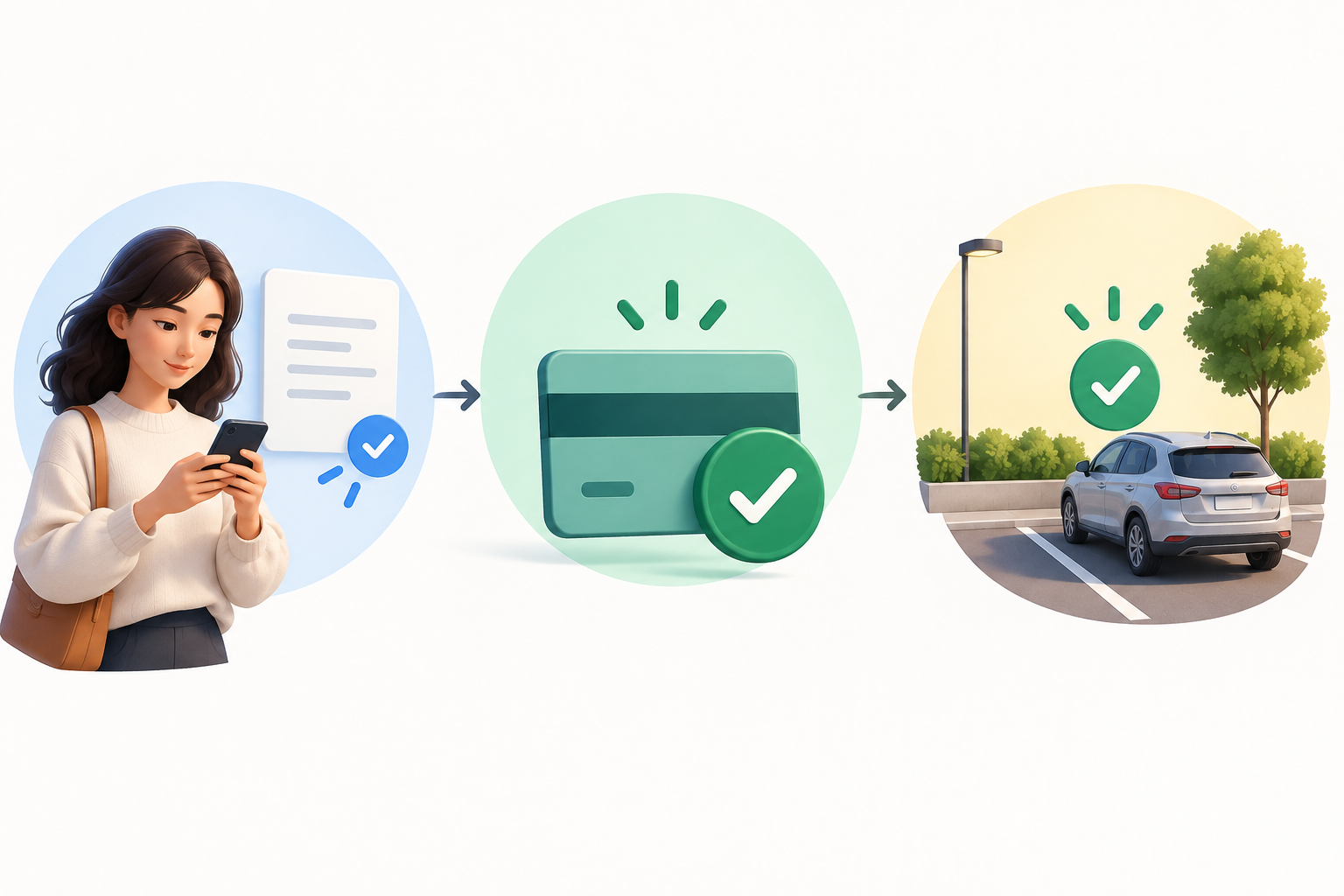
Keep three commonly confused statuses separate. “Request received” means someone has asked to cancel, but the request still needs to be checked. “Registration canceled” means the organizer has validated the change and recorded it. “Spot available” is a later conclusion: record it only after checking that the cancellation affects capacity and that the record reflects the change. A pending request must not be counted as an available spot.
This distinction prevents you from offering a vacancy that does not yet exist in the operational list. It also helps resolve uncertain cases: a request may not contain enough information to identify the registration, may be duplicated, or may refer to someone else. If you cannot confirm that the change was recorded, keep the request pending and consult the platform’s documented procedure. Do not assume that sending an email, deleting a name, or receiving a response automatically updates capacity.
- Record the date received and the current status of each request.
- Confirm the person’s identity or registration using only the information needed; do not request excessive data.
- Mark a spot as available only after verifying the change in the record.
Update the list without losing the change history
The attendee list should help people make consistent decisions, not merely show who is expected to attend. When you confirm a cancellation, update the record used by the team and leave enough operational notes to show what changed and when. Avoid maintaining separate spreadsheets that can diverge; if you need a working copy, identify the reference version and when it was updated. Do not routinely delete data if it may later be needed to reconcile the request with the record, but do not retain or share information that is not useful for operations.
Check the list after saving the change: find the registration, confirm that its status is as expected, and verify that the attendee total reflects the recorded situation. Limit access to people who need to view or update this information. If the team works with exported copies, agree on how to replace old versions and how to notify people of a later correction. This reduces the risk of reception using an outdated list while someone else is already offering the supposed vacancy.
- Choose a reference list and control working copies.
- Check the individual record and the total after each change.
- Share only the information each person needs for their task.
Review capacity and do not assume spots are reassigned automatically
After confirming a cancellation, compare the number of registered attendees with the capacity you set for the event. Also check whether registration is still open and whether the operational rules allow another registration. A spot may not be available to a new person even after a cancellation—for example, if another organizational constraint needs to be considered. Decide who will perform this check and when; do not promise access based on a count that has not yet been verified.
Do not assume that the platform automatically releases a spot or that an automatic waitlist is available. Check the product-specific documentation for those features and, if they are not confirmed, manage the decision manually in a verifiable way. If you contact another person, validate availability before telling them their registration is guaranteed. For example, the cited Eventbrite help documentation covers canceling an entire event, not an individual cancellation workflow that releases spots; this distinction matters when choosing a procedure.
- Compare capacity, current registrations, and the registration status.
- Check the documentation to see whether a cancellation changes capacity or activates a waitlist.
- Do not confirm a new spot until you have checked the updated record.
Communicate each change to the person and the team
Your response to someone requesting a cancellation should say whether the request has been received or confirmed. Do not use an ambiguous phrase such as “all set” when the record still needs to be checked. A useful confirmation identifies the event and explains the outcome of the request, along with any relevant next steps. If the spot has not been released or you have not been able to verify it, say so clearly and explain when you will review the case rather than promising a change the team cannot see.
Once the cancellation is confirmed, tell the organizing staff only what they need to know—for example, that the reference list has changed and when they should start using it. If access or practical instructions change, share that information through an agreed channel and confirm that the responsible people received it. Avoid distributing the entire list when an operational update is enough. This care reduces confusion at the entrance and limits the circulation of personal data.
- Distinguish an acknowledgment of receipt from a final confirmation.
- Tell the team which list to use and when the change takes effect.
- Do not announce a vacancy to others before validating it.
Test the workflow and find problems before the event
Run an end-to-end test before relying on the procedure: make a test registration, request its cancellation, and observe what happens on the event page, in the attendee list, and in any response or export the team uses. Check what information is displayed, whether the status changes, and whether the capacity count updates. Do not conclude that a feature exists just because the interface lets you publish events or collect registrations; specifically verify every step your operation requires.
Repeat the test with cases that could disrupt the process: a duplicate request, insufficient information, an absent person responsible, or a later correction. Note what the team should do if the result is not as expected, such as pausing new confirmations and requesting a review before offering the spot. The cited GuruWalk help article says to open the specific event from the calendar to access modification or cancellation options, but the available excerpt does not explain what happens afterward. Therefore, let testing and the specific documentation guide the procedure.
- Verify the list, count, and available information after the test.
- Test duplicate or incomplete requests and agree on how to resolve them.
- Define a manual alternative if you cannot verify the change.
Support the process with suitable tools and avoid recurring mistakes
Apification provides event pages for publishing information, collecting registrations, and managing capacity, attendees, and access periods. It also lets you create structured forms with validation, access controls, and exportable responses. These capabilities can help organize registration and centralize data collection; by themselves, they do not amount to a documented individual cancellation feature that automatically releases a spot or manages a waitlist. Before adopting the workflow, verify which specific options are available for your case and test how each change is reflected.
To keep materials and working versions organized, Apification Cloud provides a space to manage files and projects, while integration lets you connect services through API, webhooks, iframe, and JavaScript. Use these capabilities only if they fit the process, and confirm which specific action can be integrated; do not assume there is an automated cancellation workflow without verifying it. Common mistakes include counting a request as an available spot, maintaining several conflicting lists, and notifying others before validation. A brief protocol, a reference list, and a follow-up check make every cancellation traceable.
- Check the documentation for the capacity and attendee management you need.
- Use forms and exportable responses to structure data collection when appropriate.
- Do not confuse an available integration with an already configured cancellation automation.
Frequently asked questions
Does a cancellation request automatically release a spot?
Do not assume it does. Check the platform documentation to see whether an individual cancellation updates capacity, and verify the change in the list before offering the spot.
Should I delete the person from the list immediately?
Update the reference list once the cancellation is confirmed, but retain enough operational history to understand what changed and when. Limit access and avoid keeping or sharing unnecessary data.
Does Apification manage automatic waitlists?
The capabilities described cover event publishing, registration, capacity, and attendee management, but do not confirm an automatic waitlist. Verify the specific features before designing the workflow.
Sources and further reading
Documentation consulted while preparing this article.
- Cancelar tu evento — Eventbrite, Centro de ayuda
- ¿Cómo puedo modificar o cancelar un evento? — GuruWalk, Centro de ayuda
Explore Apification
Related articles

Interactive content
Group Event Registration: How to Manage Attendees and Spots
Choose a registration model that distinguishes the coordinator from attendees, and set clear rules for counting spots and managing changes.

Interactive content
How to Publish an Event Time for Attendees in Different Time Zones
A practical guide to announcing an event time clearly and distinguishing the start from registration and access.

Interactive content
Form or Event Page: Which Should You Choose to Collect Registrations?
Choose based on whether you need to collect responses or manage registrations tied to an activity, capacity, attendees, or an access period. Compare the user journeys and check what you need before publishing.