Files and formats
Import Files from External Storage Without Losing Control of the File
A practical guide to bringing scattered files into an organized workspace, preserving originals, preparing conversions, and avoiding permission, link, and version errors.

The problem: many sources, urgency, and little traceability
Importing files from external storage often seems like a minor task until the team needs to convert, review, and deliver them quickly. In agencies, operations teams, and content teams, it is common to receive documents, images, audio, video, or data from multiple accounts, shared folders, and connected services. The risk is not only losing a file, but also transforming the wrong copy, sharing a premature link, or not knowing which version was used for a delivery.
The first operational decision is to separate four actions that are often mixed together: importing, converting, sharing, and versioning. Importing means bringing a copy into the workspace. Converting means generating a new result from a file. Sharing opens access by link, user, or group. Versioning keeps previous states associated with the same item. If these actions are treated as one, the team loses control over originals, permissions, and reviews.
Importing is not syncing: decisions before moving the file
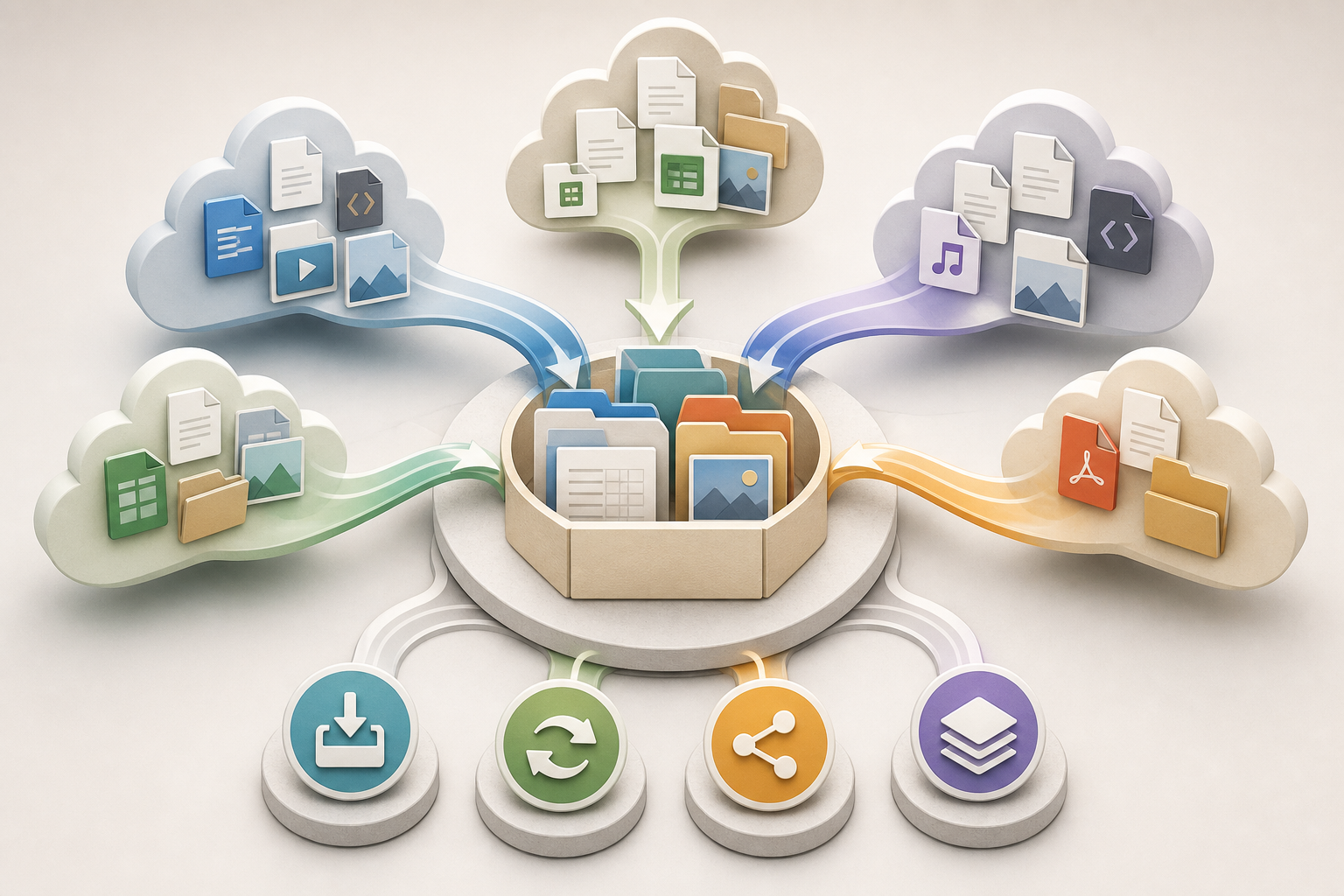
In Apification, importing from Google Drive, OneDrive, or Dropbox is a copy operation into Apification Cloud. The original file remains with the external provider, and the imported copy stays in Cloud as a private resource. This is deliberately different from continuous synchronization: renaming, transforming, or deleting the file inside Apification does not modify the external original, and later changes at the source should not be assumed to update automatically in the workspace.
Before importing, it is useful to decide which source will be considered the reference original and what role the copy in Cloud will play. For a one-off job, it may be enough to import the approved material and lock the source as the received file. For work with frequent changes, the rule must be explicit: each new external delivery is imported as a new controlled entry or incorporated into the history of the appropriate item, but it should not be taken for granted that the external provider and the workspace are aligned.
- Define whether the imported copy will be working material, proof of receipt, or the conversion base.
- Do not use importing as a substitute for a synchronization policy.
- Tell the team that changes in Cloud do not modify the external source file.

Pre-import checklist: owner, format, destination, and access
A short checklist prevents most incidents. Before selecting files, confirm who is responsible for the material, what format is expected, where it should be located, and who will be able to see it afterward. In Apification, the flow lets you browse folders, search content, and select one or more files without first downloading them to the device. That convenience does not remove the need to validate the context: a quick import into the wrong folder can create confusion during conversion or distribution.
Possible errors must also be considered. Each imported file is validated individually and may return authentication, permission, size, format, or provider issues. This makes it possible to continue while understanding what failed, but it requires reviewing the import result before moving forward. If ten files are imported and two fail, it is not advisable to start a batch conversion without confirming that the set is complete.
- Owner: who is responsible for the received file and its approval.
- Format: expected extension and the actual type needed for the transformation.
- Operational size: whether the file can be processed within the planned flow.
- Name: readable pattern with date, client, campaign, or batch if applicable.
- Destination folder: it enters the current folder, so navigate to the correct location first.
- Access: confirm whether it will remain private or be shared with users, groups, or links.
Preserve originals and create separate transformations
Conversion should not destroy the received file. In Apification, file transformation covers operations such as converting, splitting, merging, optimizing, and processing documents, images, video, audio, and data through a guided assistant. The action catalog is offered according to the actual type, subtype, format, and number of selected files. This restriction is useful because it reduces incompatible decisions, but it does not replace human review of the output goal.
The recommended principle is simple: keep the imported file as the working original and generate each transformation as an independent file. Apification applies non-destructive processing: the source is preserved and the result can be downloaded or saved as a new versioned Cloud resource. In heavy processes, the job runs in the background and exposes status, progress, and error information, so the team must wait for completion before validating, sharing, or archiving the output.
- Convert when the recipient needs another format.
- Optimize when the goal is to make delivery or operational use easier.
- Split when only one part of the file should circulate.
- Merge when several approved materials form a single deliverable.
- Process data or media only after confirming that the imported set is complete.
Organize imports, work files, and outputs inside Cloud
Apification Cloud lets you bring together files, folders, editable services, and generated results in a unified content library. To avoid mixing things up, it is useful to create a minimal structure before importing: one folder for received files, another for work, and another for deliverables. Since imported files enter the current folder, preparing the destination location is part of quality control, not a secondary task.
Moving an item inside Apification changes its organization, but not its identity or associated permissions. This helps when the team needs to reorganize without breaking the resource context. Even so, the organization should indicate the file’s status. A correct name in the wrong folder can be as problematic as an ambiguous name: someone may share a version under review thinking it is the final delivery.
- /Received: copies imported from the external provider.
- /Work: files edited, reviewed, or prepared for transformation.
- /Outputs: converted, optimized, split, or merged results.
- /Delivered: materials already validated and shared with recipients.
Permissions and links: share only after validating
In Cloud, new resources are private by default and can be shared afterward through explicit controls. Apification distinguishes between public visibility, users, groups, links, and publication as separate controls. This makes it possible to give access to specific users or reusable groups without making a resource public, but it also requires discipline: a link sent before the content is validated can distribute an incomplete copy or an unapproved output.
The practical rule is to validate first and share afterward. Check that the imported file is the right one, that the transformation has finished, that the result opens in preview if applicable, and that the name is not misleading. Then decide the access channel: link for controlled distribution, specific user for individual review, or group for recurring teams. Do not confuse the link to the imported original with the link to the transformed result.
- Never share from the received folder if the file requires conversion.
- Use users or groups when you do not want to make a resource public.
- Check whether the recipient needs to download the original or a transformed version.
- Remove or adjust access if the file changes operational status.
Common mistakes and how to prevent them
The most common mistake is editing or transforming the wrong copy. It happens when several versions are imported with similar names, or when someone works from a received folder instead of a work folder. Prevention consists of naming at import, separating states, and reviewing the actual type before applying actions. Because Apification classifies files by actual type after import, the team can use previews, editors, versions, sharing, and compatible transformations with better judgment.
Another recurring mistake is assuming that the external source will update by itself or that the imported file replaces the original. It does not: the copy in Cloud and the external file remain separate. It is also risky to overwrite without reviewing history or restore by intuition. In Apification, a previous version can be downloaded for review or comparison before restoring it, and restoration returns the active resource to a chosen state while keeping its identity and access context.
- If a file is missing, review individual import errors before converting.
- If there are doubts about the content, download a previous version to compare.
- If a link has already been sent, confirm that it points to the correct resource.
- If the external provider changed, import again or incorporate the revision in a controlled way.
Recommended flow template for a one-off import
For a one-off import followed by conversion and delivery, start in the correct destination folder. Connect the authorized provider through the import flow, browse folders or search for the necessary files, and select one or more without a prior local download. When finished, review which items were imported correctly and which individual errors appeared. Do not move forward if a critical piece is missing or if the imported file does not match the approved material.
Then move or keep the imported files in the received area, select the working files, and open the transformation assistant. Choose only compatible actions, wait for the final status if the process runs in the background, and save the result as a new versioned Cloud resource or download it if that is the intended delivery. Validate the result, assign permissions by user, group, or link, and keep the history so you can download or restore previous states if an incident appears.
- 1. Prepare the destination folder and naming pattern.
- 2. Import from Google Drive, OneDrive, or Dropbox as a private copy.
- 3. Review validations and errors by file.
- 4. Separate received files, work files, and outputs.
- 5. Transform non-destructively through the assistant.
- 6. Save or download the validated result.
- 7. Share only the correct resource with the appropriate access.
- 8. Use history to compare or restore if the decision changes.
Frequently asked questions
Does importing files from external storage in Apification sync future changes?
No. Importing from Google Drive, OneDrive, or Dropbox creates a copy in Apification Cloud. The external original remains intact and later changes should not be treated as continuous synchronization.
What happens if I rename or delete an imported file in Apification?
Renaming, transforming, or deleting the copy inside Apification does not modify the original file that remains with the external provider.
Can I import multiple files without downloading them first?
Yes. The flow lets you browse folders, search content, and select one or more authorized files without a prior local download to the device.
Do conversions replace the original file?
No. Transformations in Apification are non-destructive: the source is preserved and the result is generated as an independent file that can be downloaded or saved in Cloud.
How do I avoid sharing the wrong version?
Separate received, work, and output folders; validate the result before sharing; and use explicit controls by link, user, or group only on the correct resource.
Sources and further reading
Documentation consulted while preparing this article.
- Apification — Cloud de Apification — Apification
- Apification — Importación desde otros Cloud — Apification
- Apification — Transformación de archivos — Apification
- Apification — Versiones y restauración — Apification
- Apification — Almacenamiento organizado — Apification
- Apification — Seguridad y control de acceso — Apification
- Microsoft Support — Importar otros archivos en la nube con OneDrive — Microsoft
- Microsoft Support — Upload and save files and folders to OneDrive — Microsoft
- Dropbox Help — Cargar contenido a Dropbox — Dropbox
- W3C — File API — World Wide Web Consortium
Explore Apification
Related articles

Files and formats
How to Find Duplicate Files Before Cleaning a Shared Folder
A cautious method for finding possible copies, checking how they are used, and deciding what to keep before deleting or archiving.

Files and formats
How to Organize Conversions of Many Files Without Mixing Settings or Results
An operational guide to inventorying files, grouping them by task, testing compatible transformations, and reviewing each output before sharing or importing it.
Files and formats
How to Convert a PDF to Images Without Losing Legibility
Choose dimensions and a format for your intended use, check representative pages, and keep the original PDF to avoid sharing exports that are difficult to read.