Security and privacy
How to Safely Hide Data in a PDF: Redaction, Checks, and Sharing
An operational guide to distinguishing redaction from visual masking, reviewing the copy, and sharing only the file you need.

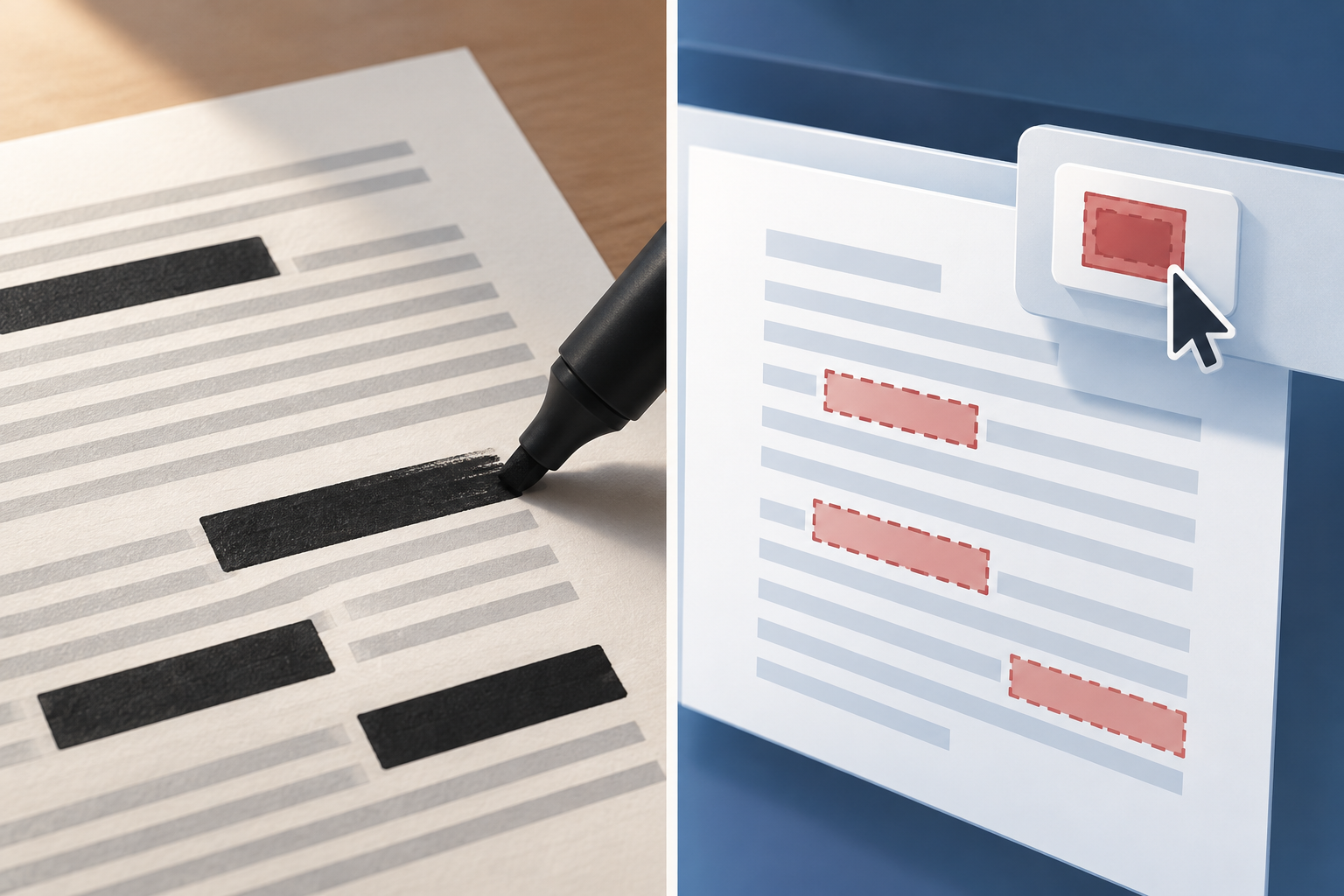
Redacting Is Not the Same as Visually Covering Content
When preparing a PDF for others, distinguish between changing the document’s appearance and applying a redaction feature. A black area on screen only shows that the section is visually covered. Do not treat the appearance of the mark as proof that the content has been removed: that depends on the feature used and what the relevant documentation says.
The University of Burgos guide (https://www.ubu.es/sites/default/files/portal_page/files/eliminar_contenido_confidencial_de_archivos_pdf.pdf) defines redaction as “permanently removing visible text and graphics from a document.” Use this definition as a criterion when looking for a tool that explicitly identifies a redaction feature. The available evidence does not establish what happens to the content when a black box is placed over it, so do not equate visual coverage with a redaction operation.
For example, Adobe Acrobat Pro’s help (https://helpx.adobe.com/la/acrobat/using/removing-sensitive-content-pdfs.html) describes the route “All tools > Redact a PDF” and the option “Redact text and images.” This confirms that the workflow is available in Acrobat Pro, but it does not replace the instructions for the application you plan to use. Consult your tool’s documentation to identify the feature and understand the procedure it offers.
- Do not treat the color or shape of a mark as proof that content has been removed.
- Look for a feature explicitly identified as redaction.
- If the application does not identify such a feature, do not treat it as equivalent to redaction.
Prepare a Copy and Identify What Needs Redacting
As an operational precaution, keep the original separate and work on a copy. Keeping them distinct makes it easier to identify which file is under review and which has been prepared for sharing. Use clear filenames that help you recognize each file’s status, without including the sensitive information you intend to remove.
Before editing, make a list of the data that must be left out of the copy and note the pages or sections where you found it. Consider the entire PDF you plan to deliver, not just the first page or the most obvious instance. If you found the same data in different places, note each location so you can check the final copy against a specific reference.
Apply the redaction feature according to the instructions for the tool you selected. If you cannot confirm from its documentation which feature you are using or how to apply it, do not consider the result validated. In that case, pause the preparation and clarify the procedure before sharing the file.
After editing, identify the working copy and the copy intended for delivery in a way that makes them difficult to confuse. Separating versions is an organizational measure, not a technical check that content has been removed.
- Keep the original, working copy, and copy for sharing separate.
- List the data to remove and the locations where it appears.
- Follow the tool’s instructions to apply its redaction feature.
- Review the copy again after the final change.

Review the Copy Without Mistaking a Review for a Guarantee
Open the final copy and visually review every page. Check that the document looks as expected and that the redaction marks appear in the intended areas. Compare what you see with the list of data and locations you prepared before editing. This review can help reveal visible omissions or unexpected changes in presentation, but by itself it does not certify the file’s contents.
If the application allows text searches, searching for the terms you identified may help locate visible instances that were missed. Use this as an aid to your review, not as proof of removal. A search by itself does not confirm what the redaction feature did or what the PDF contains beyond what is being examined.
The evidence available for this guide does not document technical tests for checking underlying text, metadata, comments, attachments, layers, information in scans, or repeated data. It also does not provide specific steps for checking these elements. If any of them matter in your case, do not assume they are covered by a visual inspection or a term search: consult appropriate documentation for the procedure you need before sharing.
Keep these tasks distinct: visual review checks how the pages look; searching can help locate visible matches; and the tool’s documentation is the reference for understanding the feature used and any technical checks you may need. Do not treat one of these checks as a guarantee about the others.
- Visually inspect every page of the copy intended for delivery.
- Compare the reviewed areas with your list of data and locations.
- Use search only to help find visible instances, not as proof of removal.
- Consult appropriate documentation for any technical checks you need.
Share Only the Reviewed File
Before sending the document, check that you have selected the copy intended for sharing, not the original. Also check who will receive the file and share it only with people who need it. These are general precautions for delivery; they do not replace redaction or verify the PDF’s contents.
If you are working with multiple copies, identify the file again just before attaching it or creating a link. Do not assume the correct file is selected simply because its name resembles the reviewed copy’s name. If you are unsure, return to the document you reviewed and confirm which one you are about to deliver.
Apification Cloud lets you organize files and projects in a versioned workspace, review the history of items, and share them through links, users, or groups, with options to download the original or a transformed version. The capability catalog does not include a PDF redaction feature. Therefore, redact and review the copy with an appropriate tool before uploading or sharing it. Cloud can help organize and distribute files, but it does not perform redaction.
Version organization and sharing options can be part of your workflow, but they do not turn an unreviewed copy into a redacted one. Keep the sequence clear: prepare the PDF with an appropriate tool, review the copy you plan to deliver, and only then distribute that file.
- Check the selected file and recipients before sharing.
- Share the redacted and reviewed copy, not the original.
- If you use Apification Cloud, remember that its organization and sharing features do not redact PDFs.
Final Checklist Before Sending
Do one final review of the same file you will attach or share. Confirm that the tool used explicitly identifies a redaction feature and that you followed its instructions. Then open the copy intended for delivery and go through every page, comparing it with your list of data.
If you need to verify something that a visual inspection or search cannot check, consult appropriate documentation for the tool and the aspect you are concerned about. Do not assume a technical question is resolved just because the marks look correct. If you cannot clarify how the procedure used works, pause sending the file until you can.
When you are done, confirm again that the file selected for sharing is the copy you just reviewed. These checks organize the process and help prevent confusion between versions; they should not be presented as technical certification of the document.
- □ The original is separate from the copy intended for sharing.
- □ A redaction feature was used, not just visual coverage.
- □ Every page and the located instances were visually reviewed.
- □ Documentation was consulted for any necessary technical checks.
- □ The selected file was confirmed to be the reviewed copy.
Frequently asked questions
Is a black box over the text enough to hide data?
Do not consider it sufficient based on its appearance. The University of Burgos guide defines redaction as the permanent removal of visible text and graphics. Use an explicit redaction feature and consult the tool’s documentation.
How do I review a redacted PDF?
Visually review every page and, if useful, search for visible instances of the terms you identified. These checks alone do not prove that the content has been removed; consult the tool’s documentation to verify its feature.
Can Apification Cloud redact a PDF?
No. Apification Cloud lets you organize versioned files and share them, but it does not offer a PDF redaction feature. Redact and review the copy with an appropriate tool before sharing it.
Sources and further reading
Documentation consulted while preparing this article.
- Censurar contenido confidencial en PDF en Acrobat Pro — Adobe
- Eliminar contenido confidencial de archivos PDF — Universidad de Burgos
Explore Apification
Related articles

Security and privacy
How to Prevent Forms from Collecting Sensitive Data They Don’t Need
Review every question, limit open-ended answers, and establish a careful process for reviewing, sharing, and exporting responses.

Security and privacy
Revoke Access to Shared Files: A Checklist to Close a Project or Remove a Collaborator Without Chaos
An operational guide to remove access without deleting files, losing history, or forgetting links, groups, publications, and deliverables already downloaded.

Security and privacy
OTP-protected links: how to share files and services without relying only on a URL
A practical guide to using permissions, links, OTP, external authentication and publication windows in Apification without confusing access control with control over later use.