Multimedia
Different Colors When Exporting an Image: Profiles, Proofing, and Web Delivery
A practical guide to pinpointing where a color difference appears, checking destination requirements, and validating an exported copy without altering the original.

Pinpoint where the difference appears
An image looking different after export does not, by itself, prove that exporting caused the change. The discrepancy may become visible when you open the file in another application or view it in the context where it will be published. Separate these steps before changing any settings: first identify which file you are viewing and in which application, device, or destination the difference appears.
Run a test with a copy and a specific question: does the exported file already look different when opened in the editing application, or does the difference appear when viewed somewhere else? Use the same file throughout each comparison and note where you opened it. If you review the published version, treat the platform's processing as a hypothesis to check on that destination, not as an established explanation.
- Note the file name and the application in which you reviewed it.
- Distinguish between the editing document, the exported copy, and the published version, if there is one.
- Change one condition at a time so the test is interpretable.
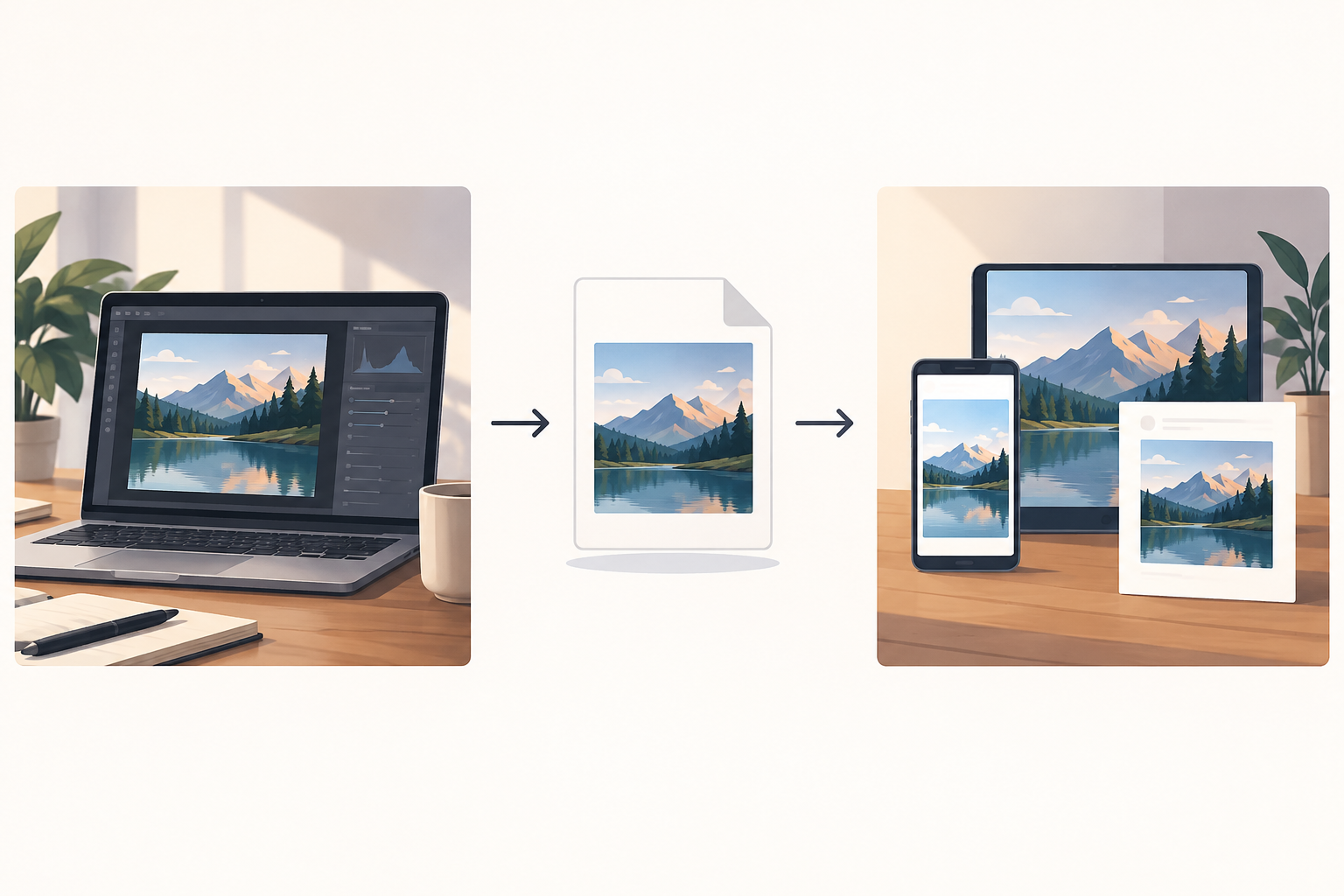
What you can check about profiles
Separately record what you know about the document profile and what options are available during export. Do not assume a profile is embedded just because the image looks correct. Affinity's documentation states that during export you can choose to embed the document's color profile or another designated profile. See the explanation in the [Affinity Help Center](https://www.affinity.studio/es_es/help/clr-clr-profiles/) and check how that option is presented in the application you are using; do not assume all programs have the same controls.
Some applications present assigning and converting profiles as distinct actions, but the information available for this guide does not support describing their technical effects or giving a universal sequence. Do not treat them as interchangeable options or choose one by trial and error. Before using either, consult the program's official help to understand what the action does and what result to expect.
- Check whether you know the document profile and whether export offers an option to embed one.
- Note the option selected and the designated profile, if applicable.
- If you do not understand a profile option, pause the test and consult that application's documentation.
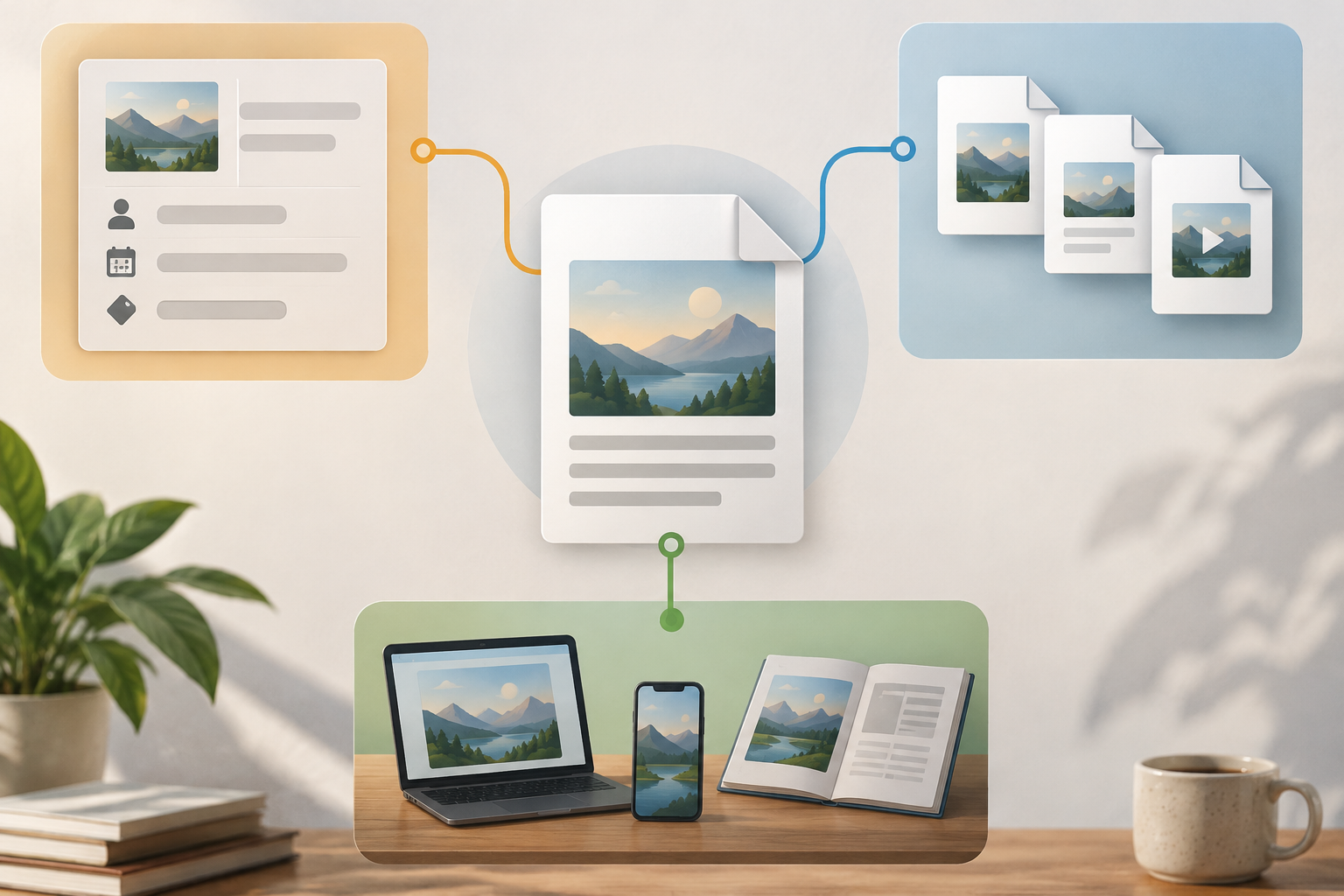
How to decide whether to prepare an sRGB copy for the web
Do not convert to sRGB just because the file will be used on the web. The available information does not support a universal rule for every destination, application, and assignment. First check whether the client or platform specifies a profile or delivery requirement. If there is no clear instruction, do not present an unverified conversion as a guarantee that everyone will see the same color.
If the assignment does require an sRGB version, prepare a clearly identifiable copy and keep the original. Review the exported file in its intended context and confirm that it meets the stated requirement. If you cannot verify which option performs the conversion in your tool, consult its documentation before exporting.
- Confirm the requirement with the client or destination before converting.
- Keep the original separate from the copy prepared for the web.
- Record which version was reviewed and which one was approved.
A comparison that separates the file from its display
Compare the same exported file in the relevant places and record each observation. If the image looks different in two applications, that alone does not pinpoint the cause: it may relate to how the file is displayed and does not prove that the file itself has changed. Do not automatically conclude that you should modify the profile or repeat the export.
If the difference is only visible after publishing, check the result on the destination and review its requirements or upload process if that information is available. Document which steps you repeated and which files you compared. EIZO presents on-screen proofing as a print simulation; see its [guide to on-screen proofing](https://www.eizo.es/gestion-y-calibracion-del-color/gestion-del-color-para-fotografos/episodio-11-pruebas-en-pantalla-para-simulacion-de-impresion). That reference concerns print, not automatic validation for the web.
- Use the same file when comparing different applications.
- Record the device and context for each observation.
- Keep a web check separate from an on-screen proof intended to simulate print.
A copy-based workflow with Image Studio and Cloud
Keep the source file separate and work on a copy with a recognizable name. Image Studio provides an integrated canvas for editing images with layers, text, shapes, and filters, as well as exporting in modern formats. You can use it to edit a copy and create an output to review afterward. Do not assume it includes color-management or sRGB-conversion controls: that capability has not been verified.
Apification Cloud lets you organize files and projects in a versioned workspace designed for sharing. Its item history lets you review earlier versions, download them, and restore content. Names such as “campaign-original,” “campaign-test,” and “campaign-web-approved” help distinguish the stages. History can make recovery easier, but be sure to identify the approved file before sharing or publishing.
- Save the original and edit an identifiable copy.
- Check the profile requirements in the documentation for the export tool you use.
- Open and review the exported file before sharing or publishing it.
Final checks before delivery
If you cannot identify the cause of a discrepancy, avoid continuing to change settings at random. Return to the original, repeat the comparison in a controlled way, and ask the client or destination for any missing delivery requirements. An observation on a single application and screen cannot guarantee how the image will look in every other environment.
The delivery should state which file was approved, which destination it was prepared for, and which requirements were checked. If the destination changes, review the file again for that context rather than assuming a check made for another channel is still valid.
- Is the original preserved and kept separate from the copies?
- Were the destination's profile or format requirements checked?
- Was the exported file reviewed, not just the open document?
- Was the approved version recorded?
Frequently asked questions
Should I always convert to sRGB for web publishing?
Do not assume so. Check whether the client or destination requires a profile, and validate the exported copy in its intended context. The available information does not establish a universal rule for every destination.
How can I tell whether the difference is caused by exporting or by the application?
Compare the same file in the relevant contexts and record where you observe the difference. Two applications displaying it differently does not, by itself, pinpoint the cause or prove that the file has changed.
Can Image Studio convert color profiles?
That capability has not been verified. Image Studio lets you edit images on a canvas with layers, text, shapes, and filters, and export in modern formats; consult the relevant documentation before relying on profile controls.
What should I do if I do not know whether to assign or convert a profile?
Do not choose an option at random on the original. Consult the application's official help and, if you decide to test, do so on a copy that you can compare with the unchanged version.
Sources and further reading
Documentation consulted while preparing this article.
- Gestión del color — Affinity Help Center
- Pruebas en pantalla para simulación de impresión — EIZO
Explore Apification
Related articles

Multimedia
Editing Videos with Different FPS: How to Choose a Timeline and Review the Result
A practical method for cataloging clips, choosing a project frame rate thoughtfully, and reviewing the exported file without assuming every editor handles differences in the same way.

Multimedia
How to Prepare Images for Print: Size, Resolution, and Cropping Without Surprises
Check effective resolution, adjust the crop, and confirm specifications with the printer before exporting your file.

Multimedia
Audio and video out of sync after export: how to detect and fix the offset before delivery
Find out whether the sync offset comes from the recording, the edit, or the export, make a careful correction, and verify the final file before delivery.