Multimedia
Covers and Thumbnails in Multiple Aspect Ratios: How to Edit Them With Layers Without Redesigning Every Time
A practical guide to adapting the same visual piece to covers, thumbnails, page images, and banners while keeping editable layers, versions, and orderly deliveries.

The problem: the same image breaks when the aspect ratio changes
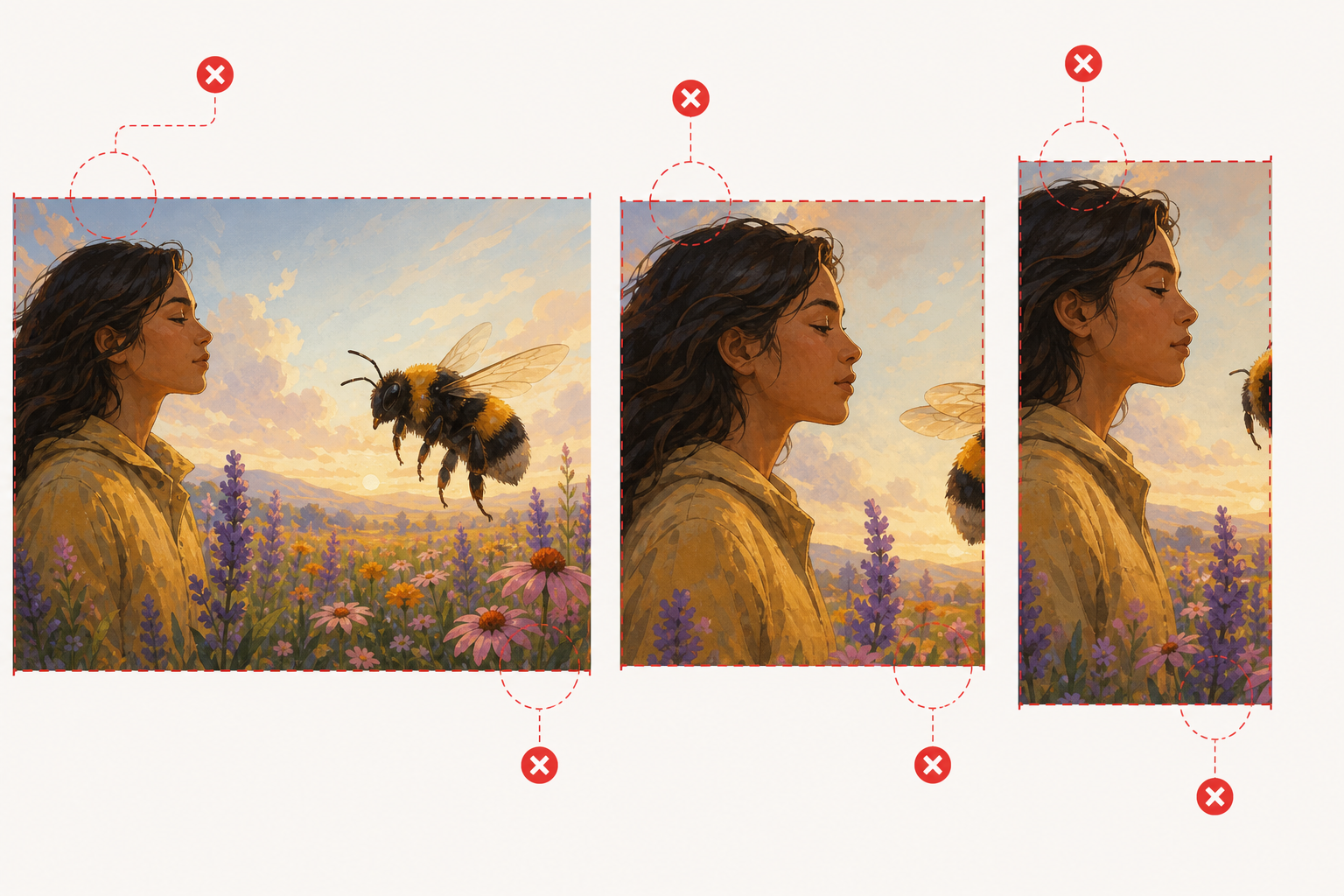
A document cover, a video thumbnail, a featured page image, and a downloadable banner rarely share the same aspect ratio. The common mistake is to start from a final, already flattened image, resize it several times, and accept accidental crops: a face too close to the edge, a cut-off title, a logo stuck to a corner, or a distorted background. The result looks improvised even if the original design was good.
The operational way to solve this is not to “make more versions” without a method, but to create layered thumbnails from an editable master piece. In Apification, Image Studio lets you edit images on an integrated canvas with layers, text, shapes, filters, and modern export formats. In addition, Cloud keeps files, folders, editable services, and generated results in the same workspace, which helps separate editable work from final images.
- Typical mistake: resizing a final export instead of returning to the editable work.
- Sign of poor adaptation: illegible text, cropped subjects, or important elements covered by external interfaces.
- Basic criterion: if the message changes hierarchy when the aspect ratio changes, scaling is not enough.
Define a master piece inside an organized Cloud folder
Before editing, it is worth separating three types of files: untouched originals, editable compositions, and final exports. Apification Cloud keeps files, folders, editable services, and generated results in the same workspace, so you can maintain one folder per client, campaign, course, or department without mixing sources and deliverables. It also lets you create folders, move resources, use the trash, and restore items without losing organization.
A practical structure would be: “01_originals”, “02_editables”, and “03_exports”. In originals, you would save photographs, illustrations, or logos without modification. In editables, the Image Studio work with layers. In exports, the final versions for each use. Since moving an item in Cloud changes its organization but not its identity, its properties and access rules remain associated with the same resource. This helps when a campaign grows and you need to reorganize without losing control.
- Use descriptive names: campaign_piece_use_ratio_status.
- Do not overwrite originals with design tests.
- Keep exports separate from editable work to avoid confusion during delivery.

Choose aspect ratios before editing: crop, extend the background, or redesign
The most important decision comes before moving visual elements: determining which aspect ratios you need. A video thumbnail usually requires quick readability; a document cover may allow more information; a panoramic banner needs horizontal breathing room; a page image may depend on the module where it is published. Since Image Studio lets you work with images on an integrated canvas with layers, it is better to create variants deliberately than to improvise at the end.
There are three paths. Cropping works when the main subject has enough margin and the message does not depend on specific edges. Extending the background is suitable when the main image is strong but needs space for text or a logo; you can rely on layers, shapes, and filters to balance the composition. Redesigning the composition is appropriate when the aspect ratio changes the hierarchy: for example, a very wide banner should not be just a stretched thumbnail, but a variant with the subject, title, and supporting visual repositioned.
- Crop if you only lose secondary information.
- Extend the background if you need breathing room for text without distorting the main image.
- Redesign if the title, face, product, or logo compete for the same space.
Work with layers: background, main image, text, shapes, and decoration
Image Studio lets you edit images with layers, text, shapes, and filters. This capability is key to creating layered thumbnails in a maintainable way. A simple organization can include: background, main image, shading or contrast band, title, subtitle, logo, and decorative elements. Giving each part a clear function reduces errors when another person reviews or adapts the piece.
Avoid closing everything too early into a single final image. Working with layers, text, and shapes lets you adjust the composition according to the use without redoing the creative from scratch. That visual independence is what makes it possible to prepare a vertical cover, a square thumbnail, and a horizontal banner with the same design logic, even though each output needs its own decisions about framing, hierarchy, and readability.
- Protect the consistency of the background once it has been approved.
- Mentally hide decorations to check whether the main message still works.
- Organize each part by function: title, logo, background, main_photo.
Safe zones for text and logos
Safe zones are not a magic feature: they are a design rule. They consist of reserving inner margins so that titles, logos, and main calls to action do not sit against the edges or get hidden by platform controls, players, cards, or previews. Although each destination may display the image differently, a prudent margin around critical content reduces unwanted cropping and improves readability at small sizes.
In practice, work with a temporary visual reference that you do not use in the final delivery. Place the text inside a safe central zone, check the thumbnail at a reduced size, and avoid long subtitles in pieces intended to be viewed small. Image Studio lets you work with layers, text, shapes, and filters, which helps build contrast between text and image within the composition. If the text needs too much visual support to be readable, the background may not be the right one.
- Do not place logos or titles within the first five visual millimeters from the edge.
- Check readability by mentally reducing the view to the actual size of use.
- If an external interface can cover a corner, do not place critical information there.
Version without chaos: names, history, and recovery
When several people give opinions on a thumbnail, chaos appears quickly: final, final2, final_ok, final_now_yes. To avoid it, combine clear names with version history. Cloud lets you change names and view metadata, owner, size, public URL, and private or public visibility. Organized storage lets you locate content by name, code, real type, subtype, or extension in grid or list view, making it easier to find the correct variant.
Apification versions preserve previous content when a compatible edit or update modifies a Cloud item. In addition, the history lets you review changes, download previous versions, and restore content safely. This does not replace a naming convention: it complements it. A useful guideline is to include use, aspect ratio, language if applicable, and status: safety_course_thumb_16x9_rev02 or sales_report_cover_A4_approved. If an edit worsens the framing, you can go back without depending on screenshots lost in a chat.
- Include status: draft, review, approved, or delivered.
- Do not rename an approved piece without making its use clear.
- Before restoring, confirm that you are returning to the correct item and not to an old export.
Export for each use without confusing editable and final
Editable work and the final image should be treated as different pieces in the workflow. Cloud keeps editable services and generated results in the same workspace, making it possible to keep the working composition alongside its deliverables without mixing them. This separation prevents a common mistake: delivering a working file when the recipient only needs a final image, or losing adjustment capability because only a final export was kept.
Image Studio lets you edit images on a canvas with layers, text, shapes, filters, and modern export formats. The choice should depend on the destination: an image for the web, a document cover, or a banner may have different requirements. It is not advisable to promise universal compatibility: each website, document manager, or platform may accept different formats. For that reason, validate the required format before preparing all variants.
- Export one final image per use, not a single image for everything.
- Keep the editable work even if the campaign has already been published.
- Check the destination, aspect ratio, visual weight, and file requirements before closing the delivery.
Review and delivery: links, permissions, and correct downloads
The final review should happen on the correct files, not on loose screenshots forwarded by email. Apification lets you share items through links, users, or groups, and offer original or transformed downloads. This is useful when an agency needs to deliver finals to a client, a training team must validate module covers, or marketing wants product to review thumbnails before publishing them.
Before sharing, review permissions, visibility, and names. Cloud keeps properties, versions, permissions, groups, and trash linked to the item, so access control is part of the workflow, not an improvised external step. The minimum review list should include: correct aspect ratio, readable text, logo within the safe zone, editable file preserved, final export separated, approved version identifiable, and link sent to the right group. This reduces rework and prevents someone from publishing an obsolete variant.
- Share links or access with users/groups instead of sending isolated screenshots.
- Deliver originals only when the recipient truly needs them.
- Verify that the approved variant is the one with the appropriate download permissions.
Frequently asked questions
Why is it better to create layered thumbnails instead of resizing a final image?
Because layers let you visually separate text, the main image, shapes, and logos within the composition. Resizing a final image can distort or crop elements, while working from an editable composition makes it easier to adapt it to each aspect ratio.
Does Image Studio modify the original image I use in a composition?
The operational recommendation is to keep originals intact in a separate Cloud folder and work on adaptations as separate compositions and exports. This reduces the risk of confusing sources, tests, and deliverables.
How should I organize originals, editables, and exports in Cloud?
A practical structure is to separate folders for untouched originals, editable work, and final exports. Cloud lets you create folders, move resources, rename items, and preserve associated properties, permissions, and relationships.
Can I recover a previous version if an edit worsens the design?
Yes. Apification versions preserve previous content when a compatible edit modifies a Cloud item, and they let you review the history, download previous versions, and restore content.
What format should I export for covers, thumbnails, or banners?
It depends on the destination. Image Studio works with modern export formats, but it is worth validating what each platform, website, or document manager accepts before preparing all variants.
Sources and further reading
Documentation consulted while preparing this article.
- Cloud de Apification — Apification
- Almacenamiento organizado — Apification
- Versiones y restauración — Apification
- Seguridad y control de acceso — Apification
- Catálogo de servicios Cloud — Apification
Explore Apification
Related articles

Multimedia
How to Add Audio Description to a Video: Script, Pauses, and Mixing
Learn how to select the visual information that needs narration, write concise descriptions, fit them between dialogue, and check the mix before publishing.

Multimedia
How to Hand Off an Editable Layered Design Without Losing Context or Assets
A useful handoff includes an organized editable file, the necessary assets, a visual reference, and a clear explanation of what should continue or change.

Multimedia
Extract Audio from a Video: Steps and Tools
Compare documented Premiere and Canva workflows, review the result, and organize the audio for your next project.