Files and formats
Create a delivery ZIP without losing the originals
A practical guide to preparing a final package with clear names, a simple structure, controlled download, and traceability in Apification Cloud.
The problem: many loose files create ambiguous deliveries
Sending documents, images, spreadsheets, or multimedia materials one by one seems fast, but it often creates operational uncertainty: multiple links in different conversations, attachments forwarded out of context, names that do not explain the version, and reviewers who do not know whether they are looking at the right file. In operations teams, agencies, training, administration, and support, that ambiguity consumes time and increases the risk of delivering drafts together with approved materials.
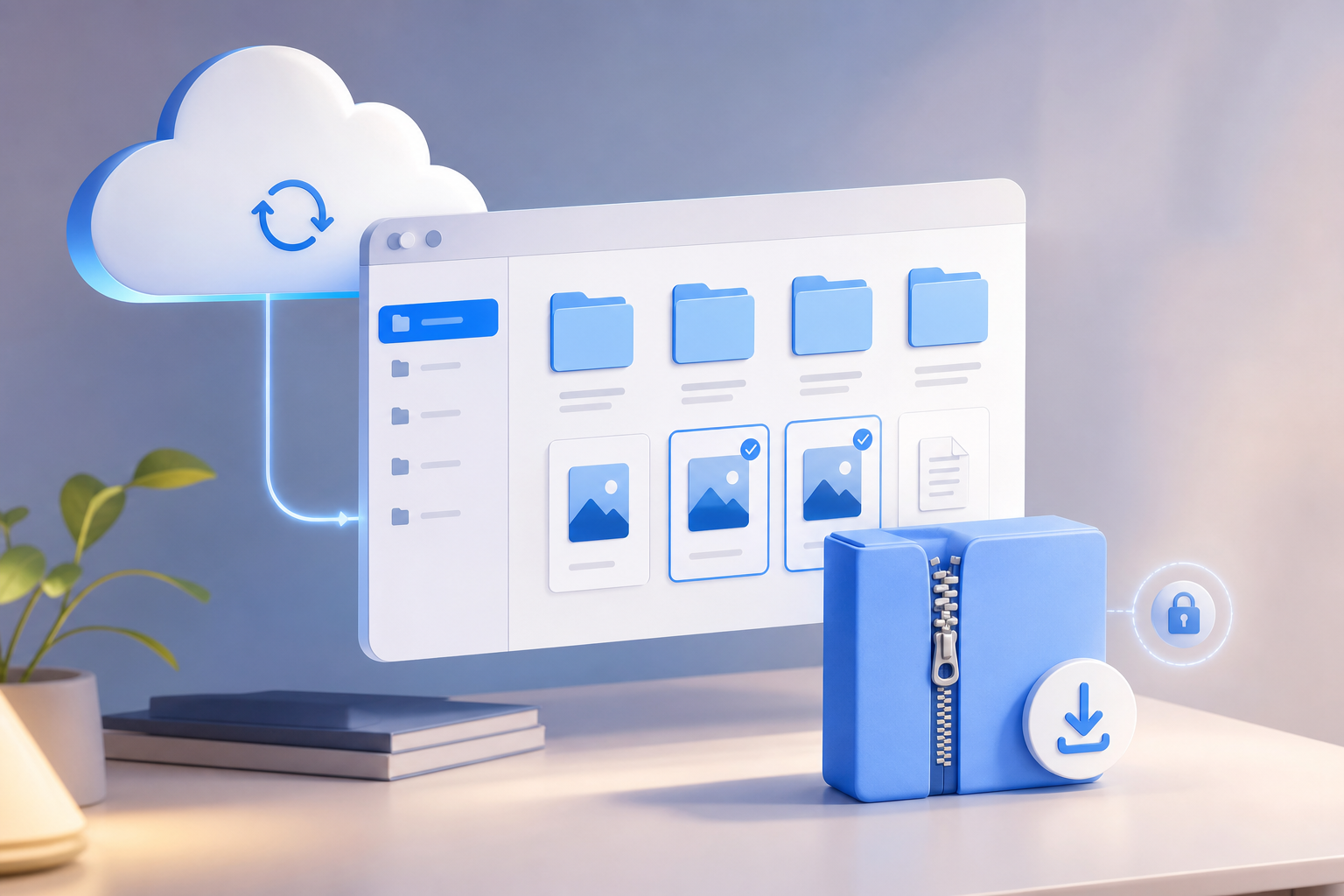
The healthy way to create a delivery ZIP is to treat it as a distribution artifact, not as an editable repository. The ZIP is useful for grouping a closed delivery into a single interoperable container, but the originals, history, and permissions must remain in Apification Cloud. Cloud acts as the organized and versioned workspace; the ZIP is the final snapshot that is shared once the batch is ready.
- Warning sign: the recipient asks which link is the final one.
- Warning sign: the team keeps local copies renamed manually.
- Warning sign: the package includes files named final, final2, or definitive_new.
When a ZIP makes sense and when not to use one
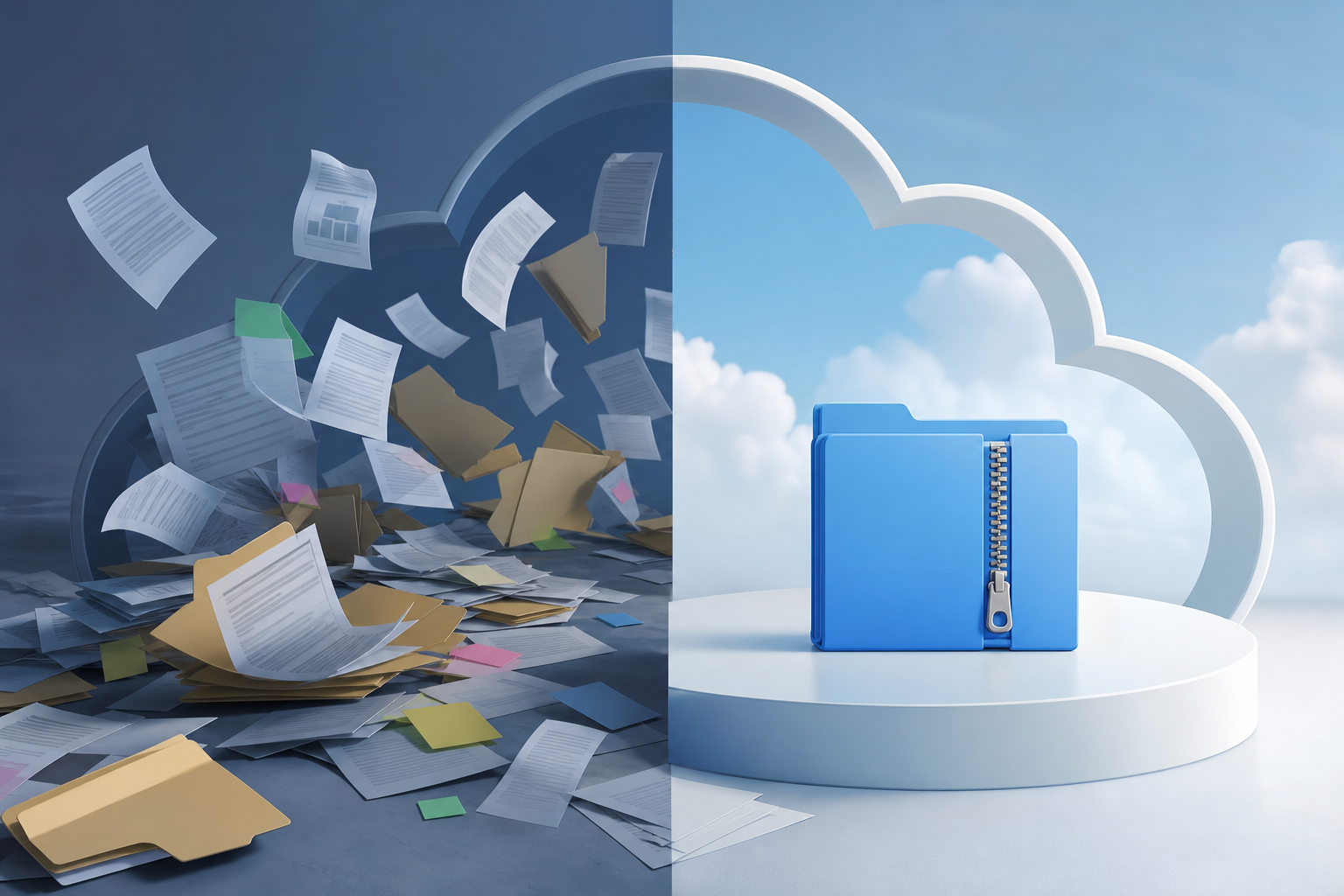
A ZIP fits when the delivery is closed, contains heterogeneous files, and the recipient needs a single download. It is useful for sending a batch of PDFs, exported images, spreadsheets, campaign assets, or training materials that will no longer be co-edited. The ZIP specification makes it possible to add and compress files in a single container, and each internal file can be stored with its own treatment, such as compressed or uncompressed, depending on the format.
It is not appropriate when the content is still under active review, when several people need to edit documents, or when workspace permissions are part of the process. It also should not replace a synced folder or version history. In Apification, uploading or extracting ZIP files should not be approached as a workflow: the package is generated as a delivery output, while editing, review, restoration, and organization remain in Cloud.
- Use ZIP for closed deliveries, mixed batches, and a single download.
- Avoid it for co-editing, continuous review, or files that will change frequently.
- Do not rely on the ZIP to preserve permissions once downloaded.

Prepare the originals in Cloud before packaging
The quality of the package depends on the quality of the workspace. Before generating the ZIP, gather the originals in a canonical Apification Cloud folder, separate working files from publishable files, and check that each item is the approved version. If the batch includes office documents, you can create and edit them with ONLYOFFICE while keeping them inside Cloud storage. If there are assets that need to be converted, split, merged, optimized, or processed, use the guided transformation assistant before closing the delivery.
The goal is for the ZIP not to decide anything for you: it should only contain what has already been selected. Apification Cloud lets you manage files, services, and digital projects in an organized, versioned workspace designed for sharing. In addition, item history lets you review versions, download previous versions, and restore content safely. That traceability must live in Cloud, not inside the ZIP.
- Pre-checklist: canonical folder defined, with no questionable local copies.
- Pre-checklist: drafts separated from publishable files.
- Pre-checklist: versions reviewed and, if necessary, restored from history.
- Pre-checklist: final formats generated before packaging.
Design a structure that makes sense outside Cloud
A ZIP can preserve file names, sizes, compression methods, and technical data in its central directory, but that does not replace a clear editorial structure. In addition, the internal order of files can be arbitrary, so you should not depend on the order in which a program displays the content. If you need sequence, use numeric prefixes with zeros: 01-guide, 02-templates, 03-resources. This keeps the order visible even if the file is opened on another system.
Names must remain understandable outside the original folder. Use consistent components: project, date, version, or status always in the same position. For maximum compatibility, it is best to avoid spaces and stick to letters, numbers, underscores, and hyphens. It is also wise to control length: archival recommendations indicate not exceeding 255 characters in the full path and keeping hierarchies limited, with unique folder names that are easy to interpret and without unnecessary depth.
- Example: clientX_campaign-y_2026-09-18_v01_final.pdf.
- Example: 01-documents, 02-images, 03-data, 04-readme.
- Avoid: Final FINAL good use this last one.xlsx.
- Avoid deep paths such as project/client/campaign/version/final/approved/shipment/reviewer/files.
Add a README or delivery index
A good package does not force the recipient to guess. Include a README or index at the root with the purpose of the delivery, date, owner, summarized content list, version criteria, and any reading instructions. In packaging formats for digital publications, the usefulness of an entry point or root file that guides the user is recognized; applied to a delivery ZIP, that idea reduces doubts and support tickets.
The README should not become a complete document inventory if you need extended metadata, because the metadata mechanisms of a ZIP are limited. For live information, approvals, permissions, history, or project context, keep the reference in Apification Cloud. The ZIP index should be sufficient to understand the downloaded delivery, but it should not try to replace the management system.
- Include what the package contains and what is left out.
- Indicate the delivery cut-off date.
- Clarify whether the files are final, read-only, or reference materials.
- Add a contact route or operational reference if the recipient needs clarification.
Generate the ZIP as the final output and validate it
When the delivery folder is prepared, generate the ZIP as the final output. In Apification, the correct approach is to produce the package for distribution and keep the originals in Cloud. Do not turn the ZIP into the only copy or edit it as if it were the source. If a document changes later, return to the versioned original, prepare a new delivery version, and generate a new package with a clear name and date.
Before sharing, validate the content. Open the package list, check that there are no duplicates, drafts, or wrong formats, and verify that the size is practical for the recipient. Compressed files can expand when retrieved, so it is worth reviewing the size and validity of the included data. If the batch is too large or contains items that some users will need separately, it may be better to share specific files or transformed downloads in addition to the ZIP.
- Validation: are all the final files included, and only those?
- Validation: do the names preserve context outside Cloud?
- Validation: does the structure have few levels and reasonable paths?
- Validation: will the recipient be able to download and use the package without additional steps?
Share with control: link, users, or groups
Once generated, share the package from Apification according to the case: by link, with specific users, or with groups. The platform lets you share items and provide original or transformed downloads. That flexibility helps you decide whether the recipient needs a single ZIP, individual files, or transformed versions for final consumption. For an external reviewer who only needs to download closed materials, the ZIP is usually more convenient. For a team that needs to keep working, share the originals in Cloud with the appropriate permissions.
Controlled download does not mean absolute control after download. A ZIP copied outside the workspace no longer inherits Cloud permissions, history, or restoration. That is why, if the content is sensitive or subject to access periods, you should use the controls available in Apification to protect files and services with permissions, OTP, external authentication, restrictions, and publishing windows when they apply. Real control exists before and during delivery, not inside the downloaded file.
- Offer ZIP when the priority is a single, closed download.
- Offer originals in Cloud when the priority is review, editing, or traceability.
- Offer transformed downloads when the recipient does not need the working formats.
- Do not use the ZIP as a permissions mechanism after download.
Post-delivery traceability and common mistakes
After sending the package, record which ZIP was delivered: file name, date, summarized content, and source folder in Cloud. Keep the originals and versions in the workspace so you can respond to claims, restore a previous version, or rebuild the package if necessary. If there is a correction, avoid modifying the old ZIP; generate a new delivery with a consistent identifier, for example v02 or a new cut-off date.
The most common failures are compressing the wrong folder, mixing drafts with final files, trusting the internal order of the ZIP to communicate a sequence, using names that lose meaning outside Cloud, exceeding long paths, or believing that the ZIP preserves permissions after it is downloaded. Another mistake is expecting an imported ZIP to work as a synced folder or as an extractable package inside Apification; that is not the correct workflow. Cloud preserves the source and the history; the ZIP distributes a closed copy.
- Record: package sent, date, recipients, and source folder.
- Keep: originals, versions, and previous transformations in Cloud.
- Correct: by generating a new package, not by editing the previous ZIP.
- Avoid: using ZIP as a repository, history, permissions system, or continuous synchronization.
Frequently asked questions
Can I use a ZIP as a shared working folder?
No. A ZIP should be treated as a closed distribution output. For review, editing, permissions, and history, keep the files in Apification Cloud and share the originals with the appropriate users or groups.
What should the name of a delivery ZIP include?
It should be descriptive and consistent. A practical guideline is to combine project, date, version, and status, for example clientX_campaign-y_2026-09-18_v01_final.zip, avoiding spaces and problematic characters.
Is it a good idea to include a README inside the package?
Yes. A README or index at the root helps explain the content, cut-off date, purpose of the delivery, and any basic instructions. It does not replace the workspace history or metadata.
Does the ZIP keep Apification permissions after it is downloaded?
No. Permissions, access controls, history, and restoration belong to the Cloud environment. Once downloaded, the ZIP is a distributed copy, so control must be applied before and during sharing.
Should I upload a ZIP to extract it and keep working in Apification?
No. In Apification, uploading or extracting ZIP files should not be approached as a workflow. Work with the originals in Cloud and generate the ZIP only when you need a final downloadable delivery.
Sources and further reading
Documentation consulted while preparing this article.
- Lightweight Packaging Format (LPF) — W3C
- Packaging on the Web — W3C Technical Architecture Group
- NARA Bulletin 2015-04 Appendix B: File and folder naming conventions — U.S. National Archives and Records Administration
- Best Practices for File Naming and Organizing — Smithsonian / hosted by U.S. National Archives
- ONLYOFFICE Workspace: Getting Started - Documents — ONLYOFFICE Help Center
- ONLYOFFICE Workspace: Context menus — ONLYOFFICE Help Center
- ONLYOFFICE Workspace: Sharing files and folders — ONLYOFFICE Help Center
- ONLYOFFICE Workspace: Managing versions and revisions — ONLYOFFICE Help Center
- ONLYOFFICE Docs: Version history — ONLYOFFICE Help Center
Explore Apification
Related articles

Files and formats
How to Find Duplicate Files Before Cleaning a Shared Folder
A cautious method for finding possible copies, checking how they are used, and deciding what to keep before deleting or archiving.

Files and formats
How to Organize Conversions of Many Files Without Mixing Settings or Results
An operational guide to inventorying files, grouping them by task, testing compatible transformations, and reviewing each output before sharing or importing it.

Files and formats
How to Convert a PDF to Images Without Losing Legibility
Choose dimensions and a format for your intended use, check representative pages, and keep the original PDF to avoid sharing exports that are difficult to read.