Files and formats
Compress a PDF Without Losing Readability: Testing, Versions, and Controlled Delivery
A practical guide to reducing large PDFs without losing control of the original, with compression criteria, quality checks, and delivery from Apification Cloud.

The real problem is not just the size of the PDF
A large PDF is rarely an isolated inconvenience. In marketing, it can block the sending of a catalog; in administration, it can delay a proposal; in training, it can turn a manual into a slow download for students with limited connections. The PDF exists precisely to represent documents in a way that is interchangeable and viewable regardless of the creation, viewing, or printing environment. That is why, when the file becomes difficult to move, the answer should not be to improvise a copy called final_reduced or final_final_web without knowing what has been sacrificed.
Compressing a PDF without losing readability requires separating three goals: reducing file size, preserving appearance, and maintaining document control. If the only goal is the smallest possible file, blurred letters, images with artifacts, hard-to-read tables, or substituted fonts may appear. If the only goal is to keep the original intact, the file may remain inconvenient for clients, portals, or public downloads. The operational approach is to save the master file, generate an optimized version, test critical pages, and deliver the right variant for each channel.
- Avoid working directly on the only master file.
- Define the destination first: email, internal portal, public download, or printing.
- Do not evaluate compression only by megabytes; review readability and content.

What it means to compress a PDF and why not all PDFs react the same way
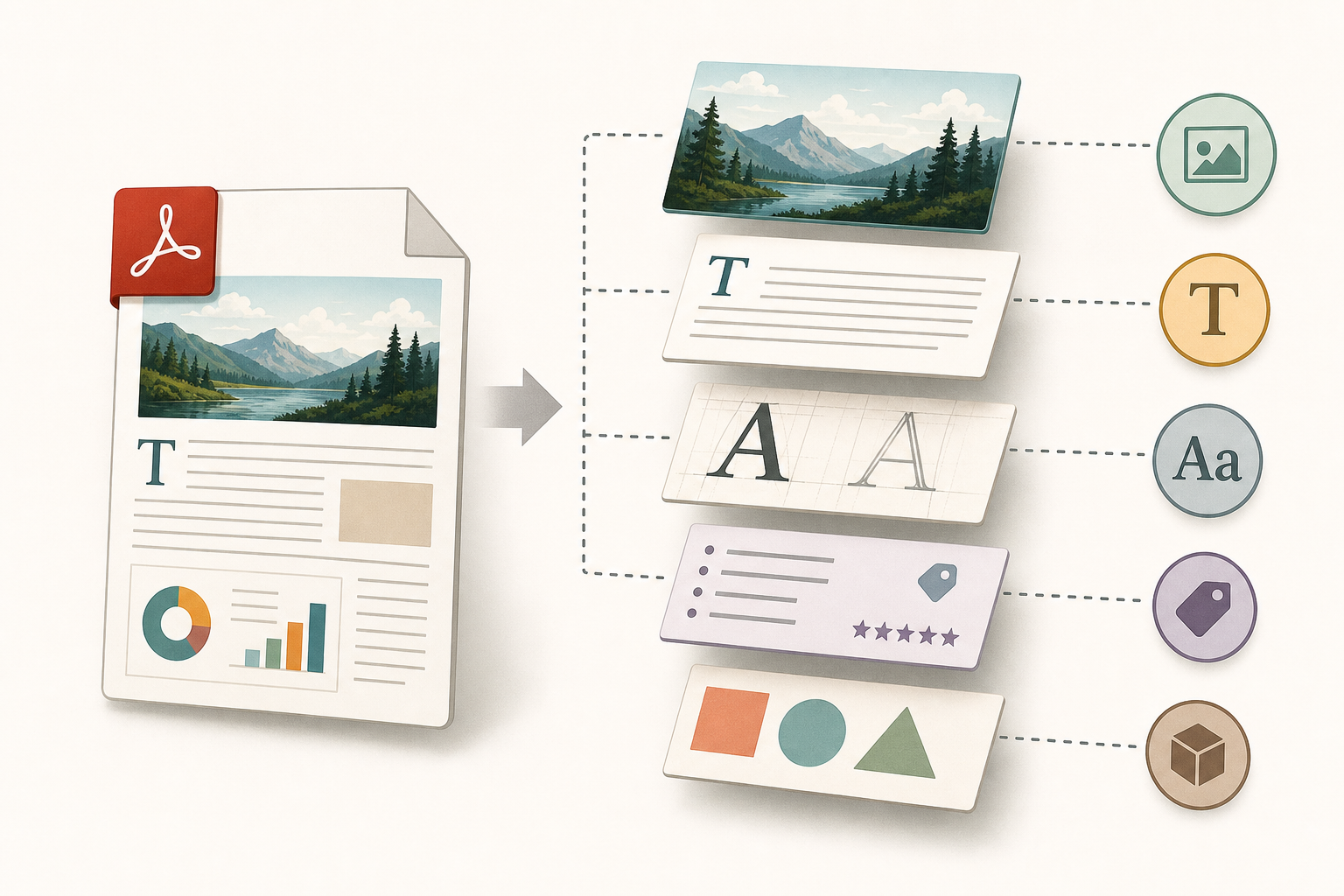
A PDF is not compressed as if it were a single block. The format supports different methods for color images, grayscale, monochrome images, text, graphics, and other objects. In practice, a report that is almost all text may have little room for reduction, while a catalog with high-resolution photographs may drop significantly in size. Embedded fonts, metadata, comments, forms, attachments, and other data added during document production also have an effect.
The technical choice has consequences. Flate, also known as Zip in PDF documentation, is lossless compression and works well for screenshots, simple graphics, or areas of uniform color. JPEG, on the other hand, is lossy and is usually suitable for photographs or continuous-tone images, but it can remove information and create artifacts if pushed too far. Resampling reduces pixels per inch by combining pixels from a sample area; it lowers file size, but it can also turn text inside images, maps, or screenshots into content that is difficult to read.
- Use lossless compression when sharpness is a priority.
- Accept lossy compression only if visual review confirms that it does not affect use.
- Be careful when lowering resolution on pages with screenshots, plans, visual stamps, or small text.
Before touching the file: classify the type of PDF
The first operational step is to identify what you have in front of you. A text PDF exported from an editor does not behave the same way as a scan, a visual catalog, a converted presentation, a report with tables, or a mixed document. If the main content is photographs, the reduction will depend heavily on the acceptable image quality. If it contains small tables, legal notes, or graphics with labels, the test should focus on reading at actual size. If it is a hybrid PDF generated from LibreOffice, it can contain both PDF and ODF, which makes editing in LibreOffice easier but can also increase complexity and size.
Scans require special attention. A PDF made up of scanned images of text is inherently less accessible: the content is not searchable text and may not allow selection, editing, resizing, or reflow. If the source file does not exist, OCR can convert those images of text into real text. In that case, compressing too much before reviewing the recognition can make the result worse. Readability does not depend only on pixels; contrast between text and background also matters, especially in gray documents, old forms, or digitized copies.
- Exported text: review fonts and structure.
- Scan: consider OCR before optimizing aggressively.
- Visual catalog: review photographs, gradients, and brand colors.
- Technical report: prioritize tables, charts, notes, and appendices.
Recommended workflow with Apification Cloud
In Apification Cloud, it is best to treat the original PDF as a reference, not as a disposable working file. Upload the master file to the project’s organized space, name it clearly, and keep its history. Then use the guided transformation assistant to generate an optimized version of the document. Apification lets you convert, split, merge, optimize, and process documents through this guided workflow, so the team does not have to rely on scattered local copies or attachments sent by chat.
A safe practice is to create a simple convention: document name, date, destination, and output type. For example, product-catalog-2026_master.pdf and product-catalog-2026_web-optimized.pdf. If the document comes from an office file, you can edit it with ONLYOFFICE inside Cloud storage and then use the transformation assistant when appropriate. If the problem is in the source images, Image Studio can be used to prepare visual assets before generating the PDF again, without turning final compression into an improvised repair.
- Upload the original and verify that the team knows which file is the master.
- Generate an optimized copy with the transformation assistant.
- Save the resulting version next to the original, not in personal folders.
- Document the intended destination: web, client, training, or internal archive.
Minimum quality checks before approval
Approval should not be done by looking only at the cover. Review a sample of critical pages: cover, table of contents, pages with small print, dense tables, charts, QR codes, existing visual signatures, photographs with detail, and any page that combines text and image. Open the optimized PDF at the size at which the recipient will see it, not only enlarged to 200%. If the main use is web download, check that the file is understandable on screen; if it may also be printed, review a representative page in the usual printing workflow.
Typical issues are predictable. JPEG compression that is too aggressive can create visible blocks in photographs or halos around text inside images. Excessive resampling can make codes, interface screenshots, or footnotes illegible. Removing font embedding can reduce file size, but if the reader’s system does not have the original font, a substitute will be used; that substitution can change metrics, glyphs, and line breaks, causing lines to overflow or overlap with graphics. Removing document tags can also affect accessibility and text reflow.
- Cover: brand, main image, and text over backgrounds.
- Tables: figures, thin lines, notes, and headers.
- Charts: legends, axes, colors, and small labels.
- QR or codes: visual test and, if applicable, scanning with the intended device.
- Accessibility: avoid removing tags if the document depends on reflow or assisted reading.
When compression is not enough
Sometimes the problem is not solved by squeezing the same PDF harder. If a 200-page catalog only needs to be sent by sections, splitting it may be better than degrading all the images. Apification lets you split and process documents through the transformation assistant, so you can create a version by chapter, module, or product family. In other cases, the solution is to export again from the source document, adjusting the page range, image resolution, or format of the assets before creating the final PDF.
It is also worth reconsidering the format when the PDF contains many images that are used in other channels. If the original photographs are oversized, optimizing them before assembling the document usually gives more control than compressing at the end. If the PDF is training material, it may be more useful to prepare a lightweight download version and keep a complete version for the internal archive. The decision should be based on real use: who opens it, from where, on what device, and which parts they need to read effortlessly.
- Split when the recipient does not need the entire document.
- Re-export from the source file if optimization breaks the design or fonts.
- Review source images if the PDF depends on heavy photographs.
- Keep a complete version if the file has documentary or archival value.
Versions, restoration, and controlled delivery
Version control is what prevents optimization from turning into loss of control. In Apification Cloud, you can review an item’s history, download previous versions, and restore content safely. This is especially useful when a reduction seems correct at first, but later you notice that a table lost sharpness or that a font changed its spacing. Instead of looking for an old copy in emails or local folders, the team can return the file to its previous state inside the workspace.
Delivery also needs to be decided. Apification lets you share items through links, users, or groups, and offer downloads of the original or of a transformed version. For an external client, a link to the optimized version may be enough; for internal review, it may be better to give access to both the original and the reduced copy. This avoids duplicate attachments and email threads with conflicting files. If the content has a publication window, specific permissions, or other access controls, it is best to configure them before distributing the link.
- Share by link when the recipient only needs to download or review.
- Share by user or group when access must remain inside the team.
- Offer the original only to those who need maximum quality or the master file.
- Restore a previous version if the optimization does not pass the quality test.
Frequently asked questions
Does compressing a PDF without losing readability mean lossless compression?
Not always. Lossless compression can be used on some elements, but many major reductions depend on lowering resolution or using lossy compression on images. The key is to generate a copy, review critical pages, and keep the original.
When is it better to split a PDF than optimize it further?
When the recipient only needs part of the document or when stronger compression degrades tables, images, codes, or small print. Splitting by chapters, modules, or appendices can reduce the download without sacrificing quality.
What are the risks of removing fonts or tags from the PDF?
If embedded fonts are removed, the reader may see a substitute font with changes in metrics or glyphs. If tags are removed, accessibility and text reflow capabilities may be lost.
How does Apification Cloud help in this workflow?
It lets you store the master PDF in an organized space, generate an optimized version with the transformation assistant, review history, restore previous versions, and share the original or the transformed copy by link, user, or group.
Sources and further reading
Documentation consulted while preparing this article.
- Cloud de Apification — Apification
- Versiones y restauración — Apification
- PDF optimizer settings — Adobe Acrobat Help
- PDF Reference, version 1.5 — Adobe Acrobat SDK Documentation
- Using PDF Creation Settings — Adobe Acrobat SDK Documentation
- PDF Export General — LibreOffice Help
- Technique PDF7: Performing OCR on a scanned PDF document to provide actual text — W3C Web Accessibility Initiative
- Understanding SC 1.4.3 Contrast (Minimum) — W3C Web Accessibility Initiative
- Extract pages from PDFs — Adobe Acrobat Help
- Running qpdf — qpdf Documentation
Explore Apification
Related articles

Files and formats
How to Find Duplicate Files Before Cleaning a Shared Folder
A cautious method for finding possible copies, checking how they are used, and deciding what to keep before deleting or archiving.
Files and formats
How to Organize Conversions of Many Files Without Mixing Settings or Results
An operational guide to inventorying files, grouping them by task, testing compatible transformations, and reviewing each output before sharing or importing it.
Files and formats
How to Convert a PDF to Images Without Losing Legibility
Choose dimensions and a format for your intended use, check representative pages, and keep the original PDF to avoid sharing exports that are difficult to read.