Files and formats
Combine PDFs into a dossier: merge files without losing originals or traceability
A practical guide for teams that receive contracts, annexes, quotes, or evidence as separate PDFs and need to deliver a single ordered, reviewable, and shareable dossier without overwriting the originals.
The problem: scattered attachments, confused reviewers, and duplicate copies
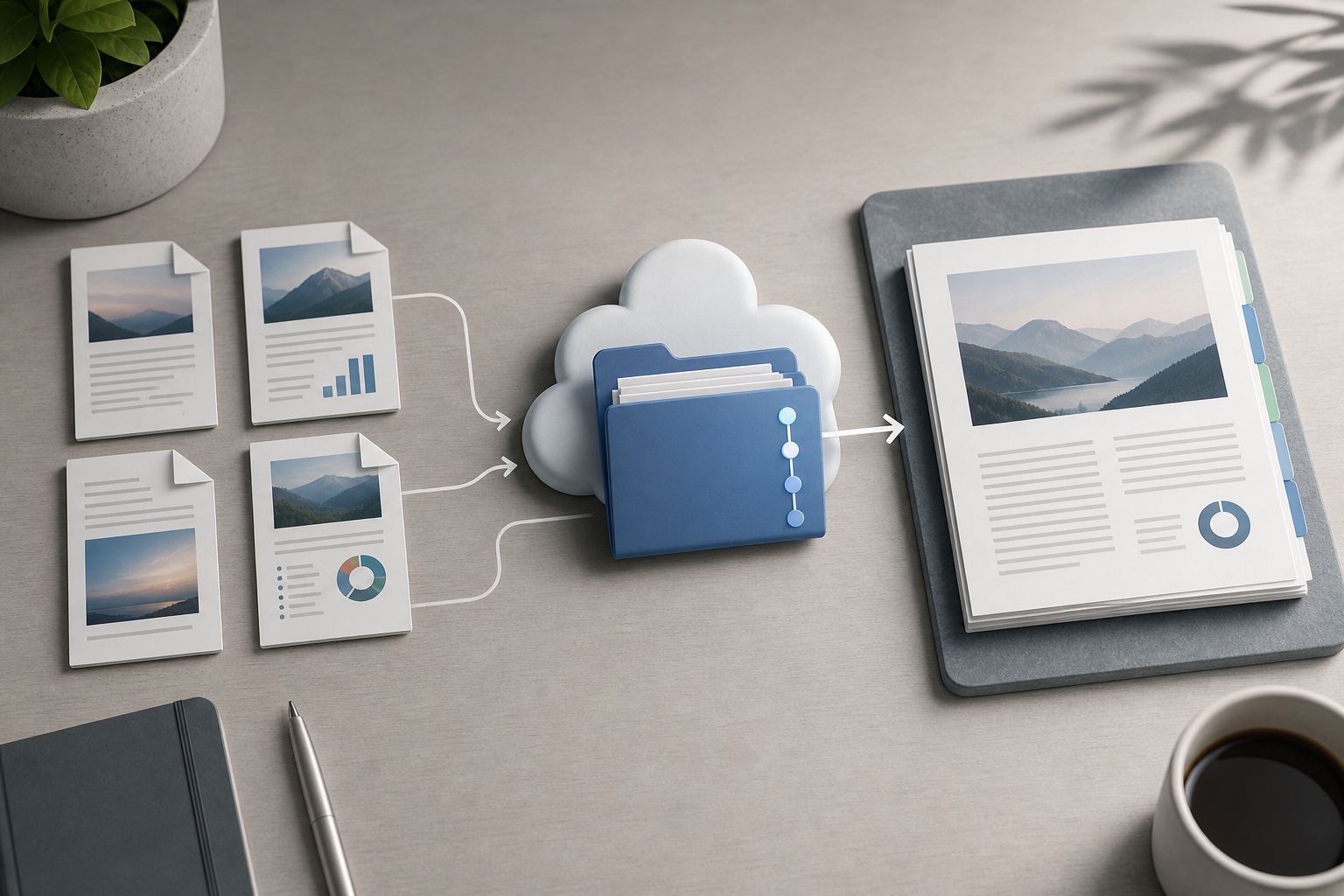
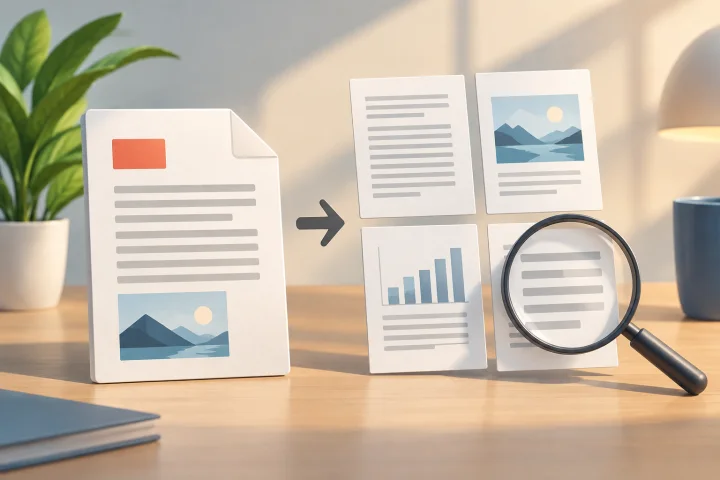
When a team receives contracts, annexes, quotes, reports, or evidence in separate files, the problem is rarely just technical. The reviewer needs a continuous reading experience, but the team preparing the delivery needs to preserve each source exactly as it arrived. If ten attachments are sent without a clear order, predictable questions arise: which one should be reviewed first, which annex belongs to which contract, whether the updated quote replaced the previous one, or whether any page is missing. Combining PDFs into a dossier solves part of that friction because it delivers a single ordered file for review.
The risk appears when the combined dossier is treated as if it were the original. A merged PDF is a work output, not the primary source. If the received documents are overwritten or their names are lost, the team reduces its ability to explain where each page came from. That is why it is useful to distinguish three objects: the source files, the combined dossier, and the shared download or link. Apification Cloud is designed as an organized, versioned space prepared for sharing files, services, and digital projects, which makes it possible to maintain that separation within the same flow.
- Always distinguish between source, result, and shared delivery.
- Do not use the dossier as the only substitute for the received documents.
- Define a reading order before merging the files.
When it makes sense to merge PDFs and when to keep them separate
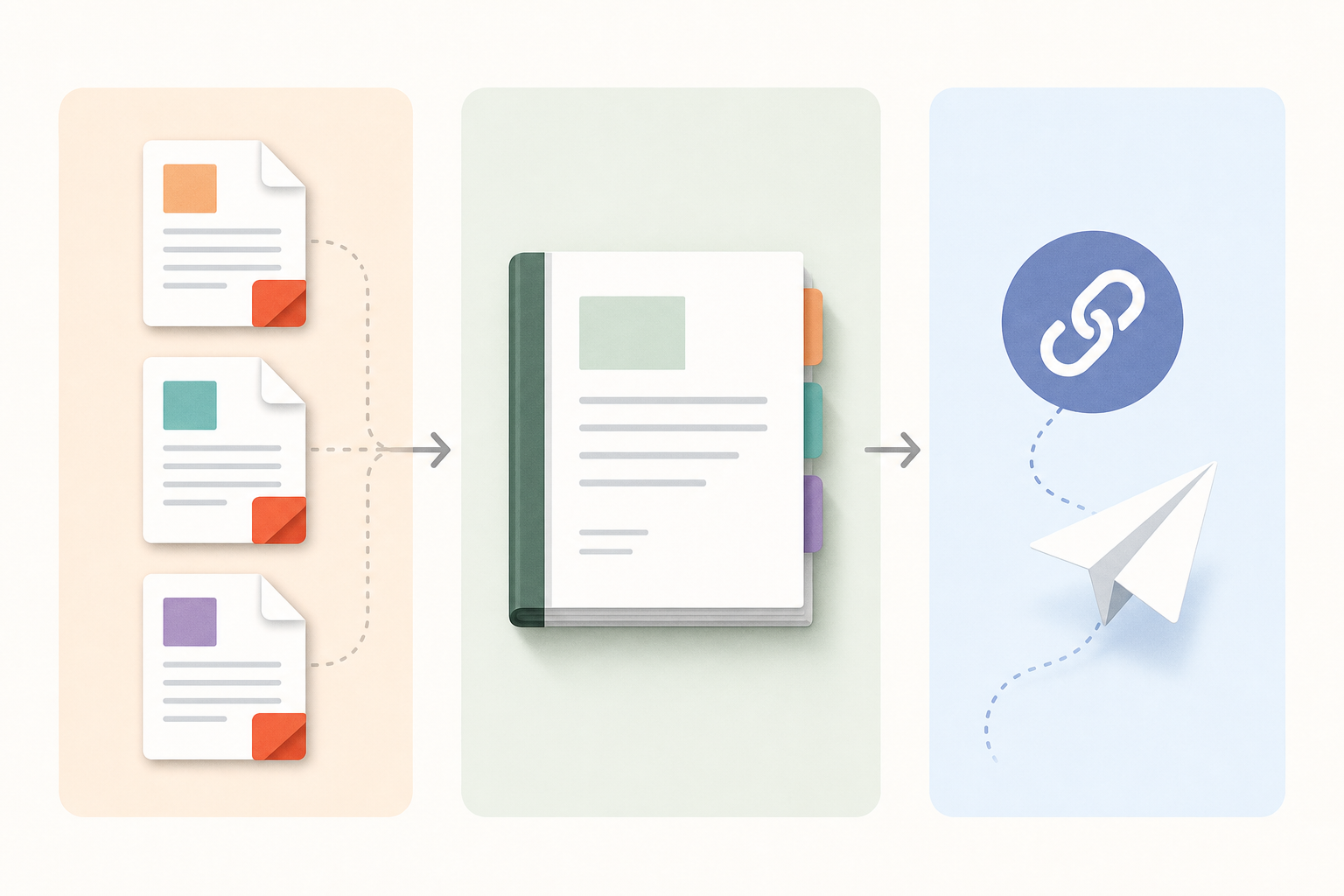
It makes sense to combine files when the goal is a linear review: a client file, a proposal with annexes, an evidence package, a monthly report with supporting documents, or an internal delivery that must be read from beginning to end. In these cases, the value lies in reducing clicks, avoiding omissions, and presenting a narrative order. Apification’s PDF tools include the merge PDF operation, and non-destructive transformation makes it possible to preserve the source and generate an independent result that can be reviewed, downloaded, or saved in Cloud. That is why prior preparation of the set remains decisive.
It is not always a good idea to merge everything. If the documents have different owners, separate approval cycles, or recipients who should only see one part, keeping files separate can be more controllable. It may also be useful to separate sources that are updated frequently, because the dossier will become outdated as soon as one piece changes. A practical criterion is to ask: does the recipient need to read a closed package or work on independent components? If they need closed reading, the dossier helps. If they need editing, replacement, or granular control by document, keep and share the pieces separately, or deliver both with unambiguous names.
- Merge when the package has a stable reading sequence.
- Keep separate when there are independent approvals, permissions, or updates.
- If in doubt, always keep the originals and generate the dossier as an additional output.
Prepare the originals: clear names, a work folder, and the intended order
Before using any merge operation, create a work folder by project, client, campaign, or department. Apification’s organized storage makes it possible to prepare hierarchies of this kind and move files without losing associated properties. This folder should contain the received source PDFs, not just a temporary local copy. In Apification Cloud, files, folders, editable services, and generated results can be kept within the same workspace, which helps prevent the dossier from becoming disconnected from its background materials.
The naming convention should reflect the intended order. A simple pattern might be: 01_Main_contract.pdf, 02_Technical_annex.pdf, 03_Quote.pdf, 04_Evidence.pdf. Even if the selection seems clear, names reduce human error when preparing or reviewing the set. In Apification, names, codes, real types, subtypes, and extensions serve as filters for locating resources in grid and list views, so disciplined naming also improves later search. Avoid generic names such as final.pdf, new.pdf, or scan.pdf, because they do not explain the content or its position in the dossier.
- Create a single folder for the delivery.
- Number the files according to the reading sequence.
- Include the subject, date, or functional version when it provides context.
- Do not rename the original in a way that loses the received name if that data is relevant for traceability.
Pre-check: pages, orientation, duplicates, size, and real formats
The most common failure when combining PDFs into a dossier is discovering too late that a source was incomplete, rotated, duplicated, or not actually a valid PDF. Before merging, open each file and confirm that it contains all expected pages, that the orientation allows it to be read without awkward rotations, and that there are no repeated annexes. If there are scanned documents, check that the internal page order is correct. Apification’s PDF tools include operations to convert, merge, split, reorder, extract or delete pages, compress, protect, apply OCR, and generate PDF/A, but the document decision must be made before creating the final package.
It is also worth reviewing the real file type. Sometimes a document arrives with a .pdf extension even though the content does not match, or an image file is mixed with a PDF. Apification compares extension, declared MIME, detected MIME, and file signature to classify the real type of a resource; that classification controls compatible views and actions. In addition, the transformation assistant only offers actions compatible with the format, subtype, and number of selected files. If an expected action does not appear, it may be an operational signal: a file is not the right type, the selection is incorrect, or the set does not meet the conditions for that transformation.
- Open each PDF before merging it.
- Confirm page count and orientation.
- Look for duplicates by name and by visible content.
- Check whether compression or reordering is useful before generating the dossier.
- If the action does not appear, review type, subtype, extension, and selection.
Recommended flow in Apification: originals in Cloud, guided transformation, and independent output
A safe flow starts by saving the originals in Cloud. Apification accepts inputs by upload, drag and drop, common Cloud pickers, and import from connected external providers. Once loaded, new resources remain private by default until their visibility is changed or recipients are configured. This makes it possible to prepare the file without exposing it too early. Then select the correct PDFs from the work folder and use the guided transformation to merge them. Apification’s file transformation page describes an assistant that converts, splits, merges, optimizes, and processes documents, images, video, audio, and data.
The key is that transformation in Apification is non-destructive: the source is preserved and the result is an independent file that can be reviewed and downloaded before being saved in Cloud. For an administrative team, this reduces an important risk: the dossier can be corrected without altering the source PDFs. If the result is correct, it can be saved as a new versioned Cloud resource. Output names reuse the original and add date and time to identify downloads or saved resources, although in many flows it is advisable to rename the dossier afterward with a more explicit convention to avoid confusion.
- Upload or import the source PDFs into a work folder.
- Select only the files that belong in the dossier.
- Verify the order before processing.
- Generate the combined PDF as an independent result.
- Review and, if appropriate, save the result as a new versioned Cloud resource.
Name the dossier so it does not accidentally replace the source documents
The dossier name should communicate that it is a compilation, not an original document. A useful formula is: Client_Project_Review_dossier_YYYY-MM-DD.pdf. If there are several rounds, add a functional label such as internal_review, client_delivery, or audit_support. Avoid calling the dossier Contract.pdf if it contains a contract, annexes, and a quote, because someone could believe that it replaces the source contract. Apification allows you to view and change properties such as names, metadata, owner, size, public URL, and private or public visibility, so the name can be adjusted after generating the output.
Another practical control is to place the dossier in the same folder as the originals, but with a clear structure. For example, one subfolder named “01_sources” and another named “02_generated_dossier”, or names that visually group the pieces. Moving an item in Apification Cloud changes its organization, but not its identity or its associated access rules, so you can reorganize the folder without breaking the meaning of the resource. Even so, do not use movement as a substitute for a good naming convention: the name travels with the file, while the folder may change due to project needs.
- Include the word dossier, compiled, or package when appropriate.
- Add a date to distinguish review cutoffs.
- Do not reuse exactly the same name as a source file.
- Visually separate sources and generated results.
Quality control and sharing: test before delivery
After combining, perform a review as if you were the recipient. Open the dossier, confirm that it starts with the correct document, that the annexes appear in the agreed order, and that critical pages are easy to read. If the file is long, a manual cover page or table of contents can reduce uncertainty, as long as it is prepared as part of the set before merging. It is also worth making a test download and opening the file in a browser or another viewer commonly used by the team. The goal is not to legally certify the content, but to check that the delivery can be opened, read, and located without relying on external explanations.
Sharing should be as deliberate as merging. Apification allows items to be shared through links, users, or groups, and provides original or transformed downloads. This helps decide whether the recipient will receive only the dossier, the source PDFs as well, or an additional transformed download. If the internal flow requires traceability, keep the history of the Cloud item: Apification allows you to review an item’s history, download previous versions, and restore content safely. A final checklist should include: originals preserved, dossier saved as a new resource, unambiguous name, verified order, opening tested, correct recipients, and visibility configured explicitly.
- Open the complete dossier before sharing it.
- Make a test download.
- Check recipients, link, or group before sending.
- Decide whether to share only results or sources as well.
- Use history and versions to review or recover previous states when necessary.
Frequently asked questions
Does combining PDFs into a dossier modify my original files in Apification?
No. Apification’s transformation is non-destructive: the source files are preserved and the result is generated as an independent file that you can review, download, or save in Cloud.
What should I review before merging several PDFs?
It is useful to verify that the correct files are selected, that the reading sequence is the intended one, and that each PDF has complete pages, proper orientation, and no duplicated content.
Can I save the combined PDF inside Cloud?
Yes. The result of a transformation can be saved as a new versioned Cloud resource, keeping it within the same workspace as the originals.
When should I also share the source PDFs?
Share them if the reviewer needs to check individual documents, work with separate approvals, or maintain direct references to each source. If they only need continuous reading, the combined dossier may be enough.
What should I do if the merge option does not appear for my selection?
Check that the selected items are compatible PDFs. Apification classifies files by comparing extension, declared MIME, detected MIME, and signature, and the assistant only shows actions compatible with the type and number of selected files.
Sources and further reading
Documentation consulted while preparing this article.
- Cloud de Apification — Apification
- Transformación de archivos — Apification
- Versiones y restauración — Apification
- Almacenamiento organizado — Apification
- File API — W3C
- PDF Export General — LibreOffice Help
- ISO 32000-2:2020 — International Organization for Standardization
- ONLYOFFICE PDF Editor user guides — ONLYOFFICE Help Center
Explore Apification
Related articles

Files and formats
How to Find Duplicate Files Before Cleaning a Shared Folder
A cautious method for finding possible copies, checking how they are used, and deciding what to keep before deleting or archiving.
Files and formats
How to Organize Conversions of Many Files Without Mixing Settings or Results
An operational guide to inventorying files, grouping them by task, testing compatible transformations, and reviewing each output before sharing or importing it.
Files and formats
How to Convert a PDF to Images Without Losing Legibility
Choose dimensions and a format for your intended use, check representative pages, and keep the original PDF to avoid sharing exports that are difficult to read.