APIs and automation
Change an API-Connected Form Without Breaking the Integration
A cautious, practical guide to changing labels, fields, formats, and required-field rules while checking how receiving systems respond.

Why a Small Change Can Disrupt a Workflow
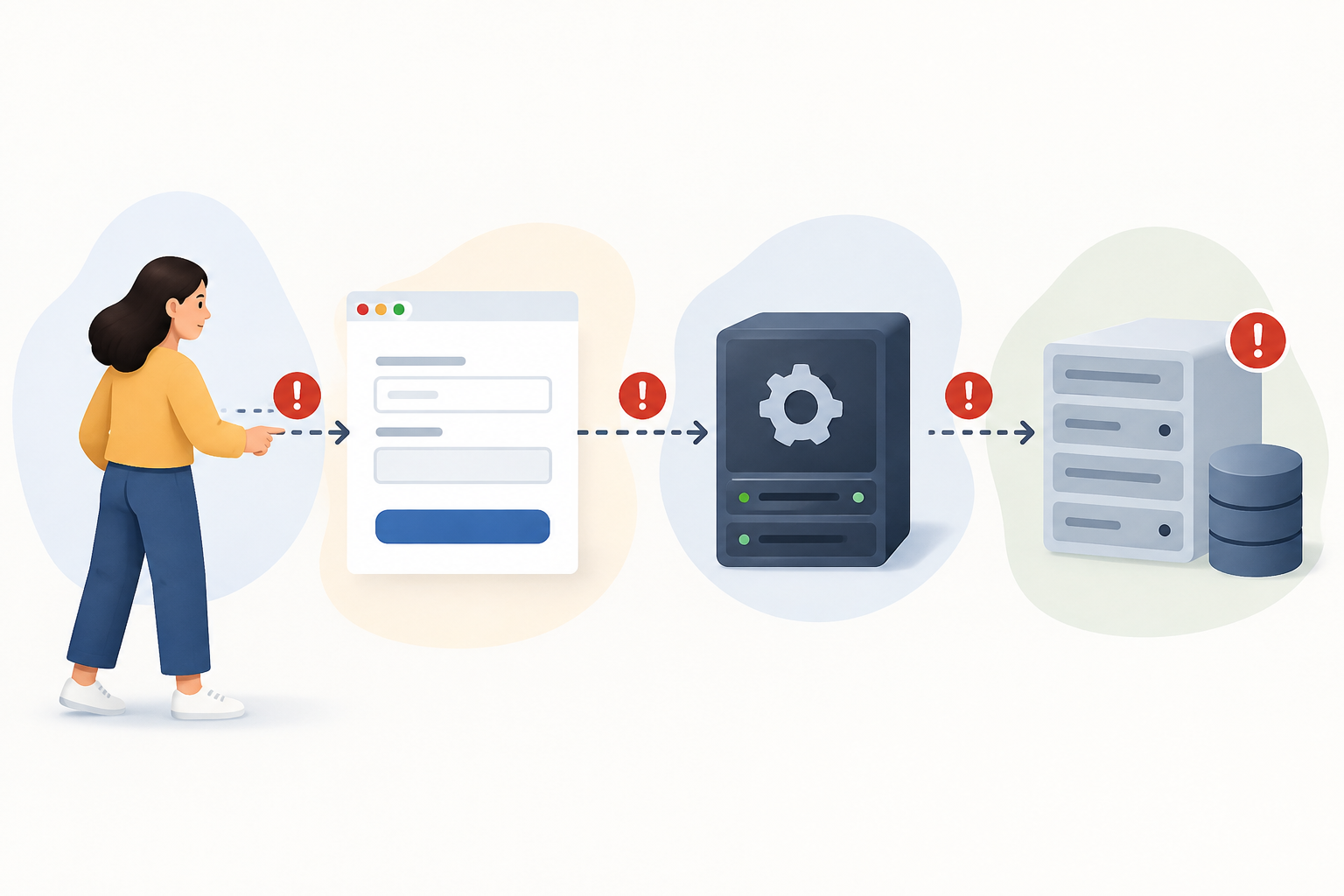
A form has at least two audiences: the person filling it out and the system that processes the response. Changing a label such as “Contact phone” may be only a wording improvement; renaming the underlying field, changing its format, or stopping it from being sent could affect a data consumer. The risk depends on what the downstream process expects, so treat these as possible effects to check rather than guaranteed outcomes.
Before editing, map the journey: who fills out the form, where the response is stored, which system consumes it, and what action that system takes. Consider what might happen if data is missing, arrives empty, or does not match the expected format. Do not assume every error will be caught by the form: systems may validate at different points. For example, the [T-Canaria API documentation](https://transparenciacanarias.org/manuales/manual-api-tcanaria/seguridad/validaciones/) describes validation in that API’s write endpoints. It does not establish how Apification or other APIs behave.
The steps in this guide are cautious, illustrative practices for planning and checking a change—not verified requirements for every form, integration, or API. Consult the relevant product and API documentation, and confirm uncertain behavior with the people responsible for the receiving system.
- As a planning step, identify the form owner and the person responsible for the consumer.
- Check which keys and formats are actually exchanged.
- Agree on how to investigate a rejected or incomplete response.
Separate Visible Labels from Integrated Fields
Where the tool and integration allow it, keep the text people see separate from the technical identifier used by the workflow. For example, the visible label “Work email” might change to “Professional email” while the key remains `work_email`. A stable key can help avoid tying a data identifier to interface wording, but confirm how your particular form and consumer handle keys before relying on that approach.
As a review aid, create an inventory for each field: label, key, type, whether it is required, accepted values, consumer, and use. If a field feeds multiple actions, list each one. Do not reuse a key for a new concept without checking its consumers: `contact_phone` might be interpreted differently if it comes to mean “billing contact’s phone number.” When the tool permits it, consider changing only the label and then verify the result.
- Example inventory entry: label “Visit date”; key `visit_date`; expected format documented.
- If you cannot confirm which key the consumer receives, pause and check before publishing.
- For validation explanations, [web.dev recommends connecting the form control with an element that explains the rules](https://web.dev/learn/forms/validation?hl=es-419).

Classify the Change Before Implementing It
A useful review practice is to consider how a proposed change might affect both the person completing the form and each receiving system. A new label may affect the user experience; adding an optional field may be compatible if consumers accept an additional key. Making a field required could prevent some submissions, while changing its type could alter the transmitted value. Removing a key or changing its meaning merits explicit review with the relevant owners.
For each modification, note what would change in the response and which consumers might notice. Review the form’s validation and the receiving system’s rules: a form accepting a response does not prove that the consumer can process it. If an API’s contract or behavior is undocumented, consult its owner and test in an appropriate environment rather than assuming how it handles missing, additional, or invalid fields.
- Lower potential impact: adjust a label while keeping the key and meaning unchanged; still verify the result.
- Needs a compatibility check: add an optional field or change allowed values.
- Needs explicit review: change the type, required status, meaning, or remove a key.
Consider an Optional Field Before Changing Its Rule
Suppose a form collects a name and email, and you want to add a department. One cautious approach is to first add `department` as an optional field, explain its purpose, and leave existing fields unchanged. Then check whether the consumer can handle a response without that key as well as one that includes it. If you do not know, verify the contract or ask the receiving system’s owner instead of assuming.
After checking that the new data is stored and used as intended, you can assess whether the field should be required. Before changing that rule, inform the people filling out the form, define which values are accepted, and check that relevant consumers recognize the key. Keeping the field optional during a transition may reduce the chance of blocking responses in some workflows, but it does not replace compatibility checks or establish that the change is safe.
- Illustrative phase 1: add the optional field and review test responses.
- Illustrative phase 2: check the consumers and update them if needed.
- Illustrative phase 3: assess whether the field should be required, with owners and users informed.
Test Representative Responses, Not Just the Ideal Case
When a test environment or copy of the form is available, use it to explore the changed behavior. Use fictional data and consider cases such as a complete response, a missing optional field, an empty string, a value at a permitted limit, and data in the wrong format. Check what the form produces and what the consumer receives. A successful on-screen test alone does not show how a downstream step interprets the response.
For each case, record the expected and observed result—for example, accepted, rejected, transformed, or pending review. Check whether a failure might silently become empty data or another value. These are example cases, not a universal test requirement: prioritize the changed rules, the keys each consumer uses, and cases that were previously valid. If you change the form after testing, repeat the relevant checks before publishing.
- Possible starting cases: a valid old response, a valid new response, a missing field, and an invalid value.
- Check the label, key, type, and required status in the processed result where you can.
- Keep notes on the test case and result so the check can be repeated.
Plan Any Key Change with the Consumer Owners
If a key must change, one possible approach is to avoid replacing it abruptly when consumers may still depend on it. You might keep the old field temporarily and add the new one, if the form and integration support that and the design avoids contradictory values. Document which key is preferred, when each will be accepted, and who needs to update each consumer. If you cannot emit both keys or do not know how the integration interprets them, agree on a sequence with its owners rather than improvising.
Before retiring the old key, check with the relevant owners that consumers use the new one and that the agreed transition period has ended. Set a specific verification step—such as an end-to-end test using the new key—an owner, and a plan for responding if the workflow fails. These are planning suggestions, not a guarantee that a particular integration supports parallel keys or rollback.
- As a planning aid, list consumers and identify an owner for each update.
- Agree on the transition, verification step, and criteria for retiring the old key.
- If the tool allows it, check whether you can restore the previous form configuration.
Check Key, Date, and Meaning Changes
Changing a key because a label changed could cause a consumer that expects the old key not to find the data. Check the effect rather than assuming. Format changes can also matter: a date displayed as day/month/year may be interpreted differently if the consumer expects another order or representation. Before introducing a format, agree on the value to be sent and test potentially ambiguous examples, such as dates where both the day and month are less than twelve.
A field can also keep its name while its meaning changes. If `address` used to mean a postal address and now represents a delivery address, a consumer might process the value based on an incorrect assumption. Document the field’s meaning, format, and rules; if any of these change substantially, treat the change as something to review with the consumers and test.
- Avoid using one key for different concepts unless the consumers’ handling is understood.
- Agree on date formats and test values that could be confused.
- Consider checking empty fields, spaces, capitalization, and values outside the expected set.
Forms and APIs in Apification: Clear Boundaries
Apification provides structured questionnaires and forms with validation, access controls, and exportable responses. These capabilities support data capture and review, but they do not by themselves mean responses automatically synchronize with an external system. Before designing a workflow, decide how responses will be obtained and which component will deliver and validate them at the destination.
Apification supports integrating Cloud and its services through REST API, OpenAPI, webhooks, iframe, and JavaScript. Cloud actions can be connected through APIs and signed webhooks, with retries, history, and statistics. These are Cloud integration capabilities, not confirmation of direct synchronization between every form and any endpoint. Confirm the specific technical flow, test the data format, and document responsibility for each step before using it.
- Use response validation and export to structure data capture, without assuming automatic delivery.
- Assess Cloud API or webhook options against the specific workflow you want to integrate.
- Before publishing, check the data contract with the system that will receive the data.
Frequently asked questions
Can I change the label without changing the integration?
Possibly, if the visible label and technical key are independent and the key, type, and meaning remain stable. Check what the integration actually consumes.
Is adding an optional field always compatible?
No. Compatibility depends on how each consumer handles additional keys and missing fields. Check the relevant contract and test responses with and without the field where possible.
Does Apification automatically sync form responses with any API?
Do not assume so. Apification offers forms with exportable responses and Cloud integration options, but the specific workflow must be confirmed and designed.
Sources and further reading
Documentation consulted while preparing this article.
- Validación de formularios — web.dev
- Validaciones de datos - API de Integración T-Canaria — Transparencia Canarias
Explore Apification
Related articles

APIs and automation
File transformation states: progress, errors, and downloads without confusion
A practical guide to defining clear states in file conversions, distinguishing originals from results, and coordinating API, webhooks, and support.

APIs and automation
Integrating a File API with OpenAPI: Contract, Tests, and Errors Before Automating
A practical guide to turning an OpenAPI specification into a verifiable flow when integrating files, transformations, and Cloud with REST, webhooks, iframe, and JavaScript.
APIs and automation
Reconciling webhooks and APIs in file flows: recover states without duplicating actions
Operational guide to reconstructing the real state of files, folders, transformations, and links when webhooks arrive late, are retried, or the consumer has been down.