Multimedia
Browser Video: How to Choose Containers, Codecs, and Exports Without Creating Unplayable Files
A practical guide to choosing the container, codec, resolution, audio, subtitles, and workflow before sharing videos by link, embed, or download.
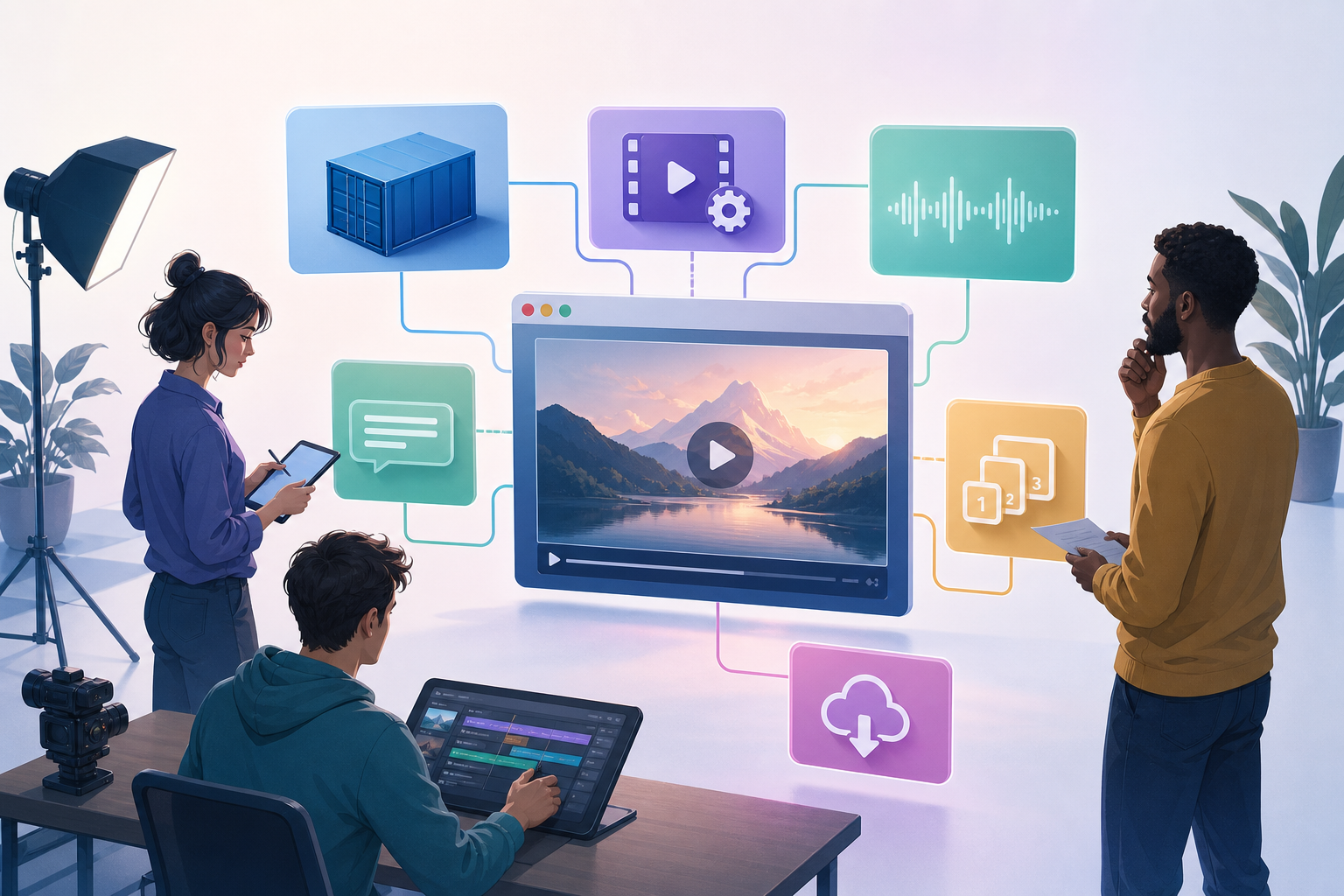
The problem: a video that works in the editor can fail in the browser
A common error does not happen during editing, but afterward: the video looks fine in the editing program, it is uploaded to a page or shared by link, and someone reports that it does not start, has no audio, cuts off, or does not show subtitles. For marketing, training, support, or agency teams, the problem is usually not artistic but operational: a file has been created that is technically valid for one tool, but not necessarily suitable for web playback, mobile playback, or shared download.
The key is to separate two types of decisions. Technical decisions define what the file contains: container, codec, resolution, actual bitrate, audio, and subtitles. Workflow decisions define how the material is managed: original, project, test renders, publishable version, and final link. A good process reduces surprises because it does not treat exporting as a single button, but as a verifiable delivery.
- Common symptom: the file plays locally, but the browser rejects the source.
- Operational risk: using a render created only for internal review as the final file.
- First measure: always test the exported file, not just the project timeline.
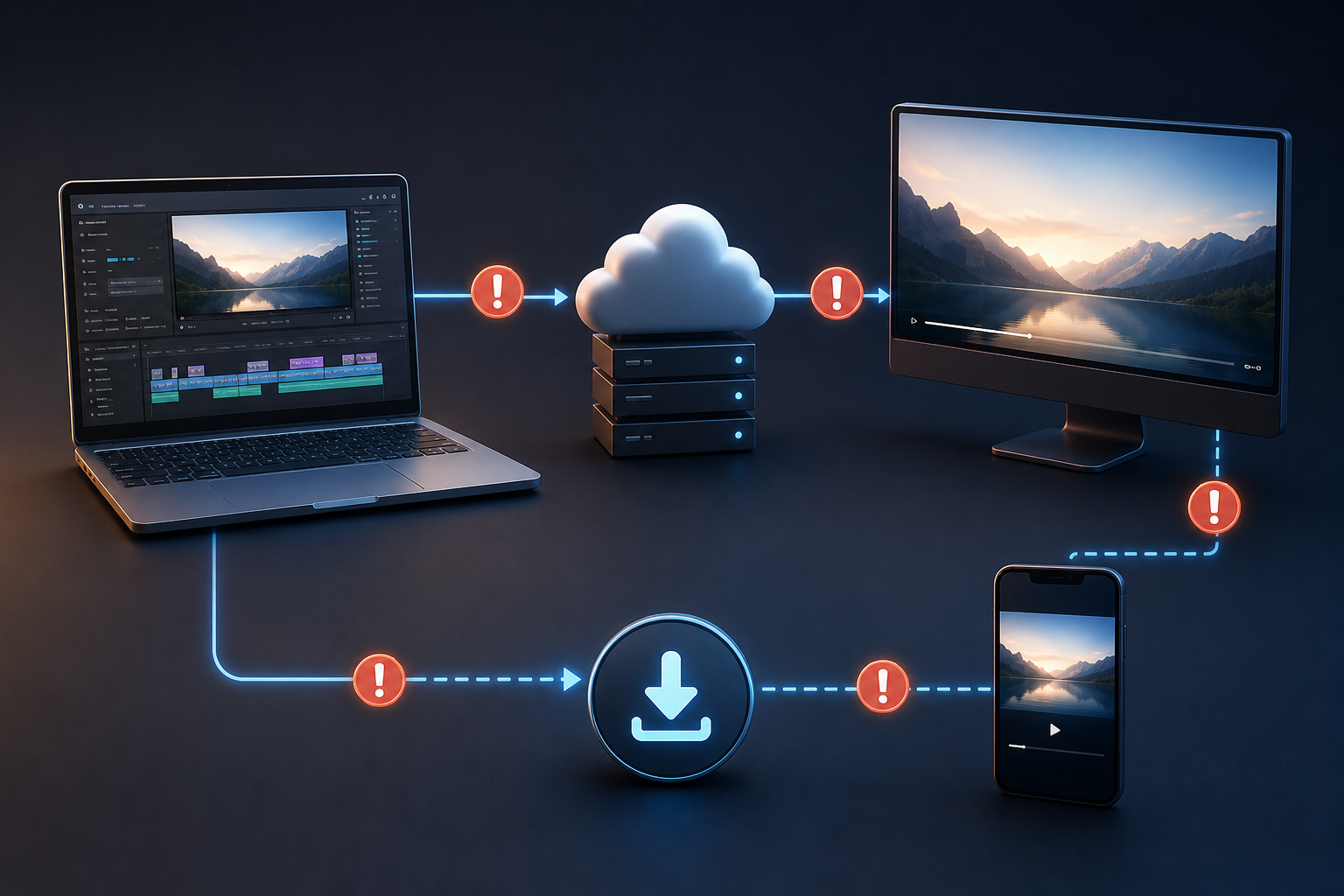
Container and codec: the extension does not tell the whole story
A file called .mp4, .webm, or .mov is not fully described by its extension. The container is the structure that groups the internal streams; inside it there may be video, audio, and subtitles encoded in different ways. That is why a MIME type such as video/mp4 describes the container, but remains incomplete if the internal codecs are not specified. In web contexts, when precision is needed, it is useful to declare the codecs parameter together with the MIME type.
That parameter can list several codecs separated by commas, for example one for video and another for audio. Even so, it is not an absolute guarantee either: the HTML standard warns that even a type with codecs may omit relevant data such as the actual bitrate. In practice, this means compatibility is not solved by renaming the file or relying on a single label; it is confirmed by inspecting the file and playing it under conditions similar to the delivery environment.
- Container: the wrapper of the media file.
- Codec: the way each video, audio, or subtitle stream is encoded.
- Extension: a useful clue, but not sufficient proof of compatibility.
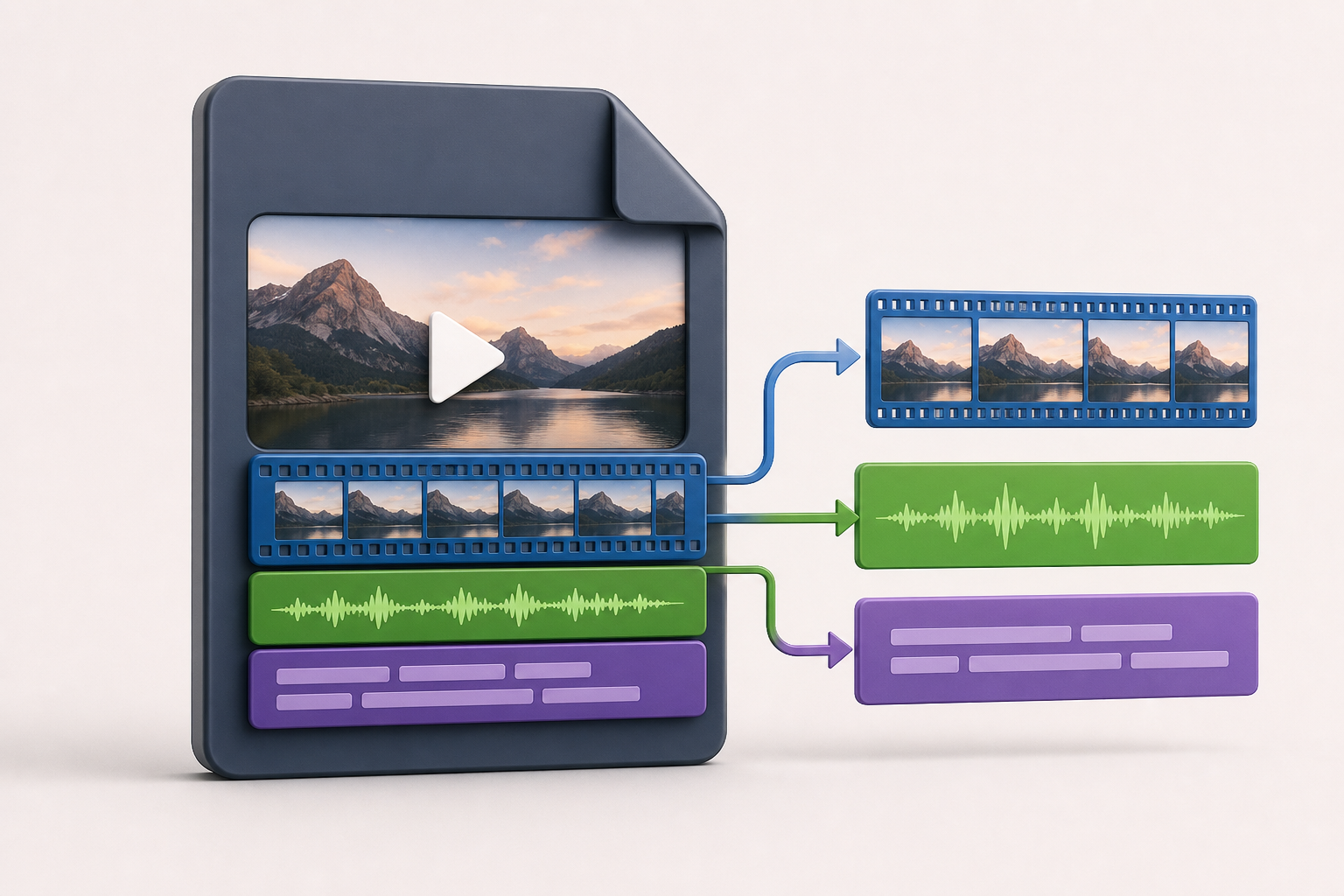
Decisions before exporting: destination, size, image, audio, and subtitles
Before rendering, define the main destination. An embedded video on a landing page is not the same as a download for review, a training piece shared by link, or a file that someone else will upload to their own system. If you can provide only one format for the widest variety of browsers and devices, MDN’s general recommendation is to choose MP4 as the video container. For HTML content in browsers, AVC/H.264 is a widely compatible option, although MDN warns that its licensing requirements must be considered. If the priority is to keep an open web video format, WebM is an option to consider.
The acceptable resolution and file size should reflect the real use case. Always exporting at the highest available resolution can create large files that are inconvenient to download or problematic on limited connections. It is also worth deciding whether there will be a single audio track, whether on-screen text remains readable on small screens, and whether subtitles need to be selectable by language. When several languages or user preferences are needed, subtitles should be treated as timed text tracks, not as text burned into the image.
- Define whether the video will be embedded, shared by link, or delivered as a download.
- Adjust resolution and aspect ratio to the viewing context, not only to the original material.
- Decide whether subtitles will be part of the image or selectable external tracks.
- Check that the audio track matches the intended destination and is not left out of the export.
Recommended workflow: original, project, publishable render, and separate tests
A robust workflow starts by preserving the original without overwriting it. That file may not be optimal for the web, but it is the quality reference and makes it possible to go back. Then you work in an editing project, where cuts, audio, images, text, and subtitles are organized. The publishable render should be a derived copy, with a clear name and a defined destination. Test exports should not replace the master or be confused with the final delivery.
This is where Apification fits in as an organized workspace: in Apification Cloud you can manage files, services, and digital projects in a versioned environment designed for sharing. Video Studio lets you edit video, audio, images, text, and subtitles in a multitrack editor with preview and rendering. To process files, the transformation assistant lets you convert, split, merge, optimize, and process documents, images, video, audio, and data in a guided way. The important part is to keep originals, projects, review renders, and final deliveries separate.
- Suggested folder structure: 01_originals, 02_project, 03_tests, 04_publishable, 05_deliveries.
- Practical rule: never rename a test as final without verifying it again.
- Use versions so you can download earlier states or restore content if a file is replaced by mistake.
What to check in a browser video export
The review should be performed on the already exported file. Check whether the browser can load it, whether playback starts within a reasonable time, and whether audio and video remain synchronized. In HTML, the video element can include several sources; the browser tries them in order and moves to the next one if one fails because of an invalid URL or unsupported format. The type attribute in each source helps prevent the browser from downloading resources it cannot play.
Do not confuse a signal of possibility with a guarantee. The canPlayType API returns an empty string, maybe, or probably depending on the browser’s confidence, but it does not promise perfect playback. In addition, an unsupported container or codecs can cause the browser to abort that source and return to the selection algorithm. If the review workflow includes technical inspection, compare the container and the internal streams before publishing.
- Test start, pause, seeking on the timeline, and full playback.
- Check that audio exists, can be heard, and does not drift out of sync with the image.
- Watch the video on a small screen to validate text, labels, and subtitles.
- If you work with MP4/MOV, consider using your export tool to prepare the file for faster playback start, such as moving metadata to the beginning when appropriate.
Subtitles: when to use external tracks and when to burn them in
Subtitles burned into the image are easy to distribute because they travel inside the video, but they reduce flexibility. If you need language versions, user preference activation, or a more adaptable web delivery, it is better to use timed text tracks. In HTML, the track element lets you add subtitles or captions to audio or video, and several translated tracks can be declared within the same video element.
Track elements for subtitles use WebVTT files with the .vtt extension. When kind is subtitles, the srclang attribute must be defined to indicate the language. This makes it possible to declare, for example, one track per language with its label, kind, srclang, and src. In Video Studio you can work with video, audio, images, text, and subtitles on a multitrack timeline; the delivery decision must state whether the final result will include visually integrated subtitles or whether separate track files will be delivered for web implementation.
- Use external tracks if there will be several languages.
- Avoid burning in subtitles when the client needs to choose the language in the player.
- Verify that the .vtt files correspond to the final video, not to an earlier cut.
- Check synchronization after any trim or new render.
Common mistakes and how to avoid them
Changing only the extension is a common mistake: a file does not become compatible just because it is called .mp4 if its internal streams do not match the destination. Another error is exporting at too high a resolution by default, without considering file size, readability on mobile, or delivery type. It is also common to forget the correct audio track, create subtitles in a test render and then use a different final video with different timings, or publish a file that was never tested outside the editor.
The second group of errors is about management. Reusing a review render as the final master can carry over watermarks, low quality, incomplete subtitles, or temporary cuts. Losing the original limits any future correction. In Apification, the Cloud item history lets you review versions, download previous versions, and safely restore content. In addition, items can be shared through links, users, or groups, and downloads of the original or transformed files can be provided depending on the case.
- Do not publish a file just because it plays in the editor.
- Do not overwrite the original with a compressed export.
- Do not mix test renders with final deliveries in the same folder without clear names.
- Do not burn in subtitles if the real requirement is language selection.
Final checklist before sharing or embedding
Before sending the link, treat the video as a delivery, not as an isolated file. The name should indicate the piece, format, language if applicable, date, or version. The expected format should match the destination: suitable container, planned codec, audio present, and subtitles delivered as required. If the video will be embedded, review the source declarations, type, and codecs when necessary; if it will be downloaded, check that the recipient receives the correct version.
With Apification you can centralize this closing stage: organize material in Cloud, render from Video Studio when the work has been edited there, process files through the transformation assistant, and share through links, users, or groups. If a delivery is replaced by mistake, version history helps you return to an earlier state. The goal is not to chase a perfect universal format, but to document a decision compatible with the destination and verify it before the file reaches the public or the client.
- Clear and unambiguous file name.
- Format, container, and codecs reviewed when the delivery requires it.
- Real test in a browser and, when appropriate, on mobile.
- Audio listened to from start to finish or reviewed through defined representative samples.
- Subtitles checked: language, synchronization, and delivery mode.
- Final version separated from tests and reviews.
- Permissions, users, groups, or download link configured according to the recipient.
Frequently asked questions
Does MP4 guarantee that the video will play in any browser?
No. MP4 is a general recommendation when you can deliver only one format to the widest variety of browsers and devices, but the container does not fully describe the codecs, profiles, bitrate, or other parameters. The final file must be tested.
Which codec is worth considering for HTML video?
For HTML content in browsers, AVC/H.264 is a widely compatible option, although MDN warns that its licensing requirements must be considered. Even so, the final file must be verified.
Why is changing the file extension not enough?
Because the extension only suggests the container. The browser needs to be able to interpret the internal video, audio, and subtitle streams. If the container or codecs are not compatible, it may abort that source.
When is WebM a good option?
WebM is an open web video container to consider when the priority is using an open format. For a single delivery with the broadest general coverage, MDN cites MP4 as the usual option.
Is it better to burn subtitles into the video or deliver them separately?
It depends on the requirement. Burning them in simplifies a single visual delivery, but prevents native language selection through track elements. For several languages, the practical approach is to use separate WebVTT .vtt files.
What can Apification add to this workflow?
Apification lets you organize originals and renders in Cloud, edit video, audio, images, text, and subtitles in Video Studio, process files with the transformation assistant, share links, and recover previous versions.
Sources and further reading
Documentation consulted while preparing this article.
- FFmpeg Formats Documentation — FFmpeg
- Media container formats (file types) — MDN Web Docs
- Codecs in common media types — MDN Web Docs
- Web video codec guide — MDN Web Docs
- <video>: The Video Embed element — MDN Web Docs
- HTML Standard: media elements — WHATWG
- <track>: The Embed Text Track element — MDN Web Docs
- Adding captions and subtitles to HTML video — MDN Web Docs
Explore Apification
Related articles

Multimedia
How to Add Audio Description to a Video: Script, Pauses, and Mixing
Learn how to select the visual information that needs narration, write concise descriptions, fit them between dialogue, and check the mix before publishing.

Multimedia
How to Hand Off an Editable Layered Design Without Losing Context or Assets
A useful handoff includes an organized editable file, the necessary assets, a visual reference, and a clear explanation of what should continue or change.

Multimedia
Extract Audio from a Video: Steps and Tools
Compare documented Premiere and Canva workflows, review the result, and organize the audio for your next project.