Multimedia
How to Create an Audio Loop Without Clicks or Noticeable Jumps
Learn to find a natural join, test cuts and fades, and check audio continuity before exporting your loop.
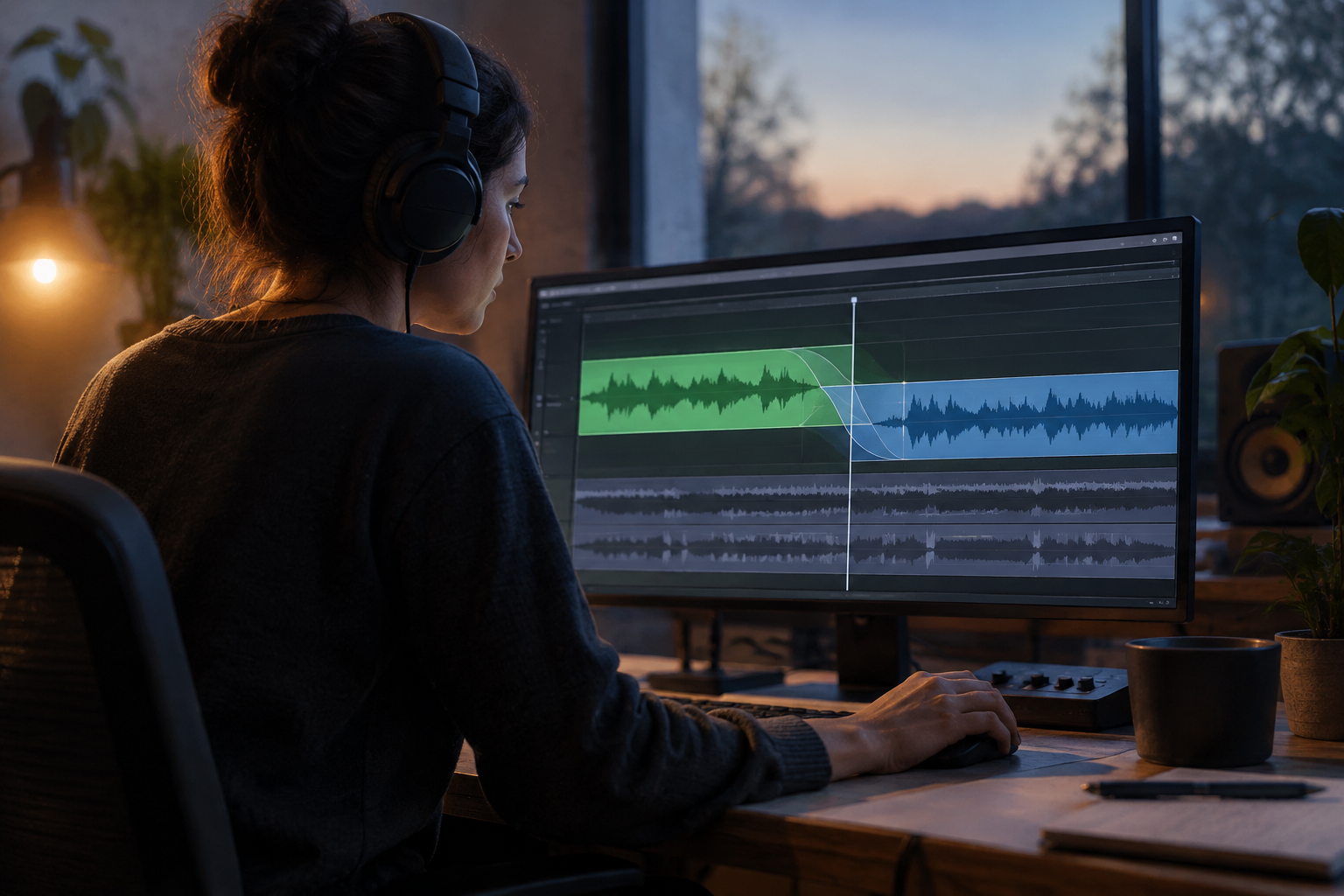
What Makes a Loop Sound Seamless
A loop does not work just because the last segment and the first segment are joined in the file. The join needs to sound coherent when heard over and over. A brief click is an obvious symptom, but you may also notice a sudden change in timbre, intensity, or ambience—for example, rain in the background seeming to move from one room to another, or a hum changing pitch when it restarts. Steinberg’s documentation specifically warns that a selection can produce clicks or abrupt changes in timbre, so it is worth evaluating the overall sense of continuity.
The type of material determines how noticeable the cut will be. In a steady ambience, such as sustained background noise, even a small variation can stand out when it repeats in the same place. In rhythmic music, by contrast, the return can feel like a stumble if it interrupts the pulse or repeats an attack in an awkward way. Before editing, decide what needs to stay consistent: the rhythm, texture, overall level, or impression of a constant space. That priority will help you compare possible join points without chasing a cut that looks perfect only in the waveform.
- For ambient backgrounds, listen for changes in texture or the sense of space.
- For music with a pulse, check that the return does not noticeably shift or duplicate the rhythm.

Keep the Original and Prepare a Working Copy
Save the original file unchanged and create a copy for editing. That way, you can return to the source material if you trim too much, try a fade that does not work, or export a version with the wrong name. Before adjusting the boundaries, identify the track and note what you want to achieve, for example: “continuous ambience for a webpage” or “music bed with a steady pulse.” This small amount of context can keep a local improvement—such as smoothing a click—from undermining the sound’s overall purpose.
Keep versions distinguishable as you test: a working copy, an initial selection, and a final export with clear names. If you edit in Apification Audio Studio, you can work with recordings and tracks on a multitrack timeline, preview the edit, and export the result. These capabilities help organize the process; choosing the join point, listening repeatedly, and assessing the issues described here are editorial checks, not automatic product detection.
- Keep the original intact.
- Name versions with a clear reference, such as “ambience_v03_test.”
- Do not replace a file that already works until you have reviewed the new export.
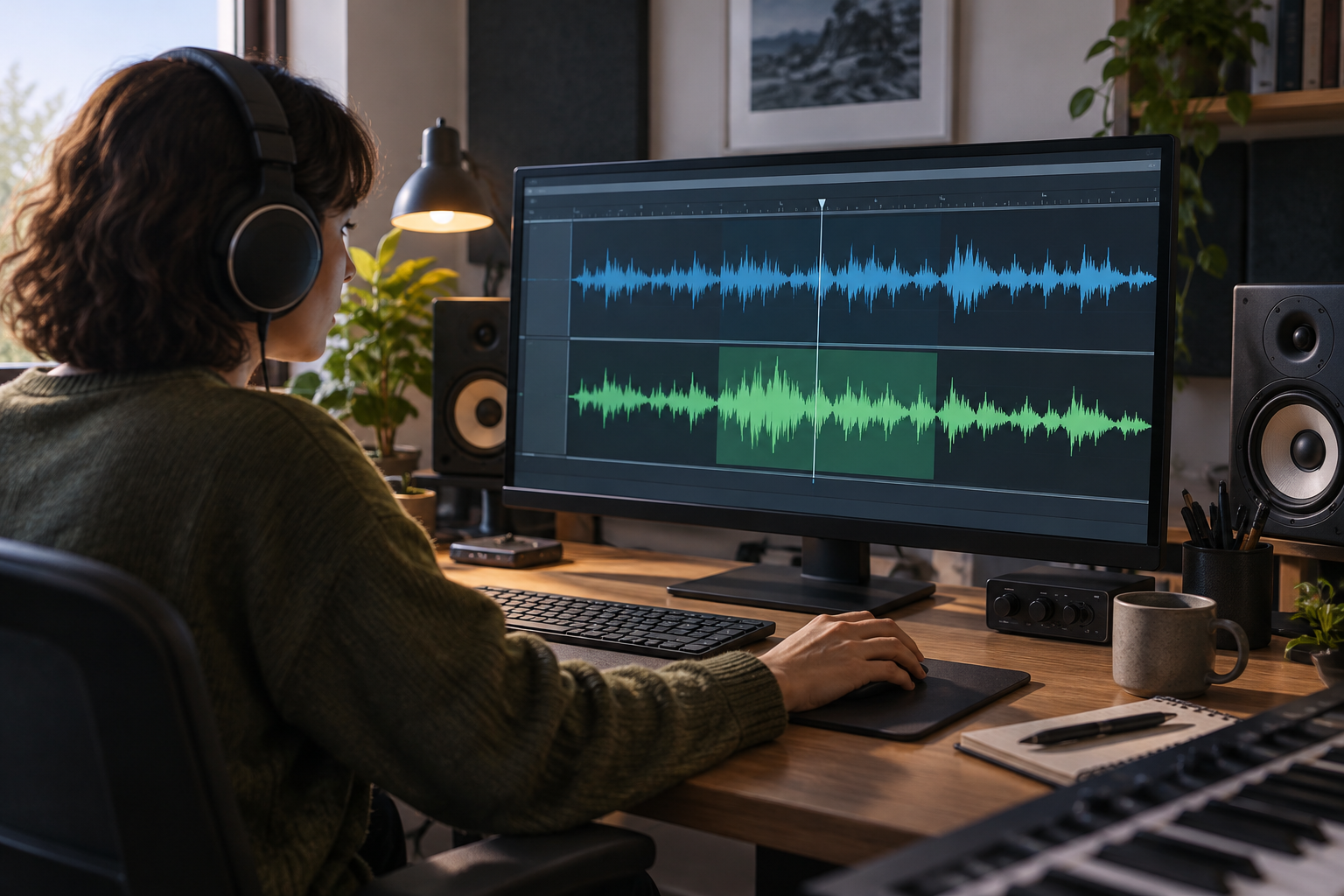
Find a Compatible Join, Not Just a Silent Spot
A moment of silence may seem like an easy place to cut, but it is not automatically the best one. If the beginning and ending have different ambiences, the silence will only make the change more obvious when playback restarts. First, look for a section whose ends are similar in level, tone, and character. Listen to the context around each candidate: an isolated point may sound right, while the transition from the end to the beginning reveals a sudden change in texture or an awkward repetition.
Select an initial section and play it on repeat using the editing tools available to you. Adjust the boundaries gradually and listen again after each change. The consulted documentation describes this process of selecting, repeating, and fine-tuning the endpoints for creating loops. At first, avoid moving both boundaries at once: changing one endpoint at a time helps you identify which adjustment improves or worsens the transition. Save promising candidates so you can compare them, rather than relying only on auditory memory.
- Compare several join points, not just the first cut that seems clean.
- Evaluate the end followed immediately by the beginning, not each endpoint separately.
Tell a Click, a Rhythm Problem, and an Ambience Jump Apart
When something sounds wrong, describe what you hear before changing the edit. A click is a brief interruption; a rhythmic change sounds like an early entry, an awkward pause, or a pulse losing continuity; an ambience jump is a broader change in texture or space. These are different problems, and applying a fade without diagnosing the issue may disguise one while making another worse. If the return sounds rhythmically wrong, first try another boundary that better preserves the phrasing instead of blindly making the transition longer.
Run a short, focused test: play several cycles and note the moment and type of flaw. Then change just one boundary, listen again, and compare. If the flaw remains in the same place, try a different section; if the click disappears but you now notice a drop in energy, the adjustment has changed the problem, but has not necessarily solved it. A timeline preview lets you review the edited material, but the decision depends on hearing the return as a repeating sequence.
- Click: try another cut point and listen to the join again.
- Rhythm: prioritize a return that preserves the pulse or musical phrase.
- Ambience: compare the character of the ending with that of the beginning.
Try a Fade Only When It Helps
A crossfade blends the end of one repetition with the beginning of the next. It can smooth a transition between compatible material, especially in ambiences that dissolve into one another. But it does not automatically fix a poorly chosen cut: if the two endpoints have very different levels or timbres, the blend may turn the jump into a blurry section. Start with a moderate duration and listen to the complete result; do not decide based on how the transition looks on screen.
Duration also affects the character of the loop. For a drum loop or backing track that needs a tight pulse, a long transition can blur the attack or change the rhythmic feel; a short one may be more suitable. In an ambient texture, a longer fade might blend in better, provided it does not create a noticeable drop in volume. Check for lost energy, an odd double layer, or an entry that seems early. If any of these symptoms appear, shorten the fade, change the join point, or go back to a cut without a fade.
- Test a fade as an alternative, not as the default solution.
- Check the volume, pulse, and clarity of the texture throughout the transition.
- If the fade hides one flaw but introduces another, look for a different join.
Listen to Several Cycles Before Calling It Done
A transition may go unnoticed on the first play and become irritating when repeated. Listen to several consecutive cycles and pay attention to the join, but also to the whole: does the ambience seem steady? Does the music keep its character? Is the repetition obvious even without a click? It is worth testing at low volume and with headphones. These are complementary checks, not guarantees: if the loop will be used on another system or in another context, try reviewing it there too when possible.
Avoid changing many parameters at once. After each adjustment, listen to the same repeated section again and note what changed: click fixed, rhythm less natural, volume lower, or ambience more uniform. This comparison helps prevent decisions based on vague impressions. If you cannot get a convincing transition, return to the working copy and try another segment. It is better to redo the selection than to pile on fades to conceal an incompatible join point.
- Listen to several consecutive repetitions, not just the first return.
- Review it once at low volume and again with headphones.
- Assess both the specific flaw and the overall stability of the sound.
Export and Check the Version You Plan to Use
Once the join works, export a clearly identified version and keep the tests separate. Do not consider the loop finished just because the edit preview sounds right: open or play the exported file again and check several repetitions. This lets you verify the actual result you will use in an installation, webpage, or continuous experience. The INTEF tutorial also recommends listening to the selection, copying it to a new file, checking it again, and then exporting it.
Use a final checklist before delivery: the return has no click; there is no abrupt change in timbre or ambience; the rhythm retains the desired continuity; any fade does not cause a drop in volume or an odd blend; and the export matches the approved version. Save the result with a clear name and keep the original and working copy. If you manage files in Apification Cloud, its storage lets you organize them and review the history of items, as well as download earlier versions or restore content when needed.
- Listen to the exported file on repeat before distributing it.
- Check that the name identifies the approved version.
- Keep the original and a clear way to return to an earlier version.
Frequently asked questions
Does a crossfade always remove clicks from a loop?
No. It can smooth a join, but it does not guarantee continuity. Listen to the result for changes in ambience, loss of volume, or alterations to the rhythm.
How can I tell whether the problem is a click or an ambience jump?
A click is a brief interruption; an ambience jump is usually a broader change in timbre or texture. Play several cycles and first describe the flaw you hear.
Does Apification Audio Studio automatically detect the cut point?
That capability is not described. Audio Studio lets you edit tracks on a multitrack timeline, preview, and export; the join point needs to be checked by listening to the result.
Sources and further reading
Documentation consulted while preparing this article.
- Crear bucles — Steinberg Help
- Crear un loop de audio — INTEF
- Bucle de audio — Repite cualquier canción — Tembrica
Explore Apification
Related articles

Multimedia
How to Prepare a Clear Handoff of Images for the Web
A practical guide to organizing files, reviews, and implementation decisions, and clearly communicating what needs to be confirmed before images are published on a page.

Multimedia
How to Create a Video Review Proxy Without Replacing the Master
A lightweight copy can make it easier to review and send a video, but it may not be suitable as an editing proxy. Learn how to prepare and check one without replacing the master.

Multimedia
How to Adapt a Logo for a Dark Background Without Losing Contrast or Altering the Original
Prepare a light logo variant on a working copy, check its legibility in real-world uses, and keep the editable file separate from the exports.